

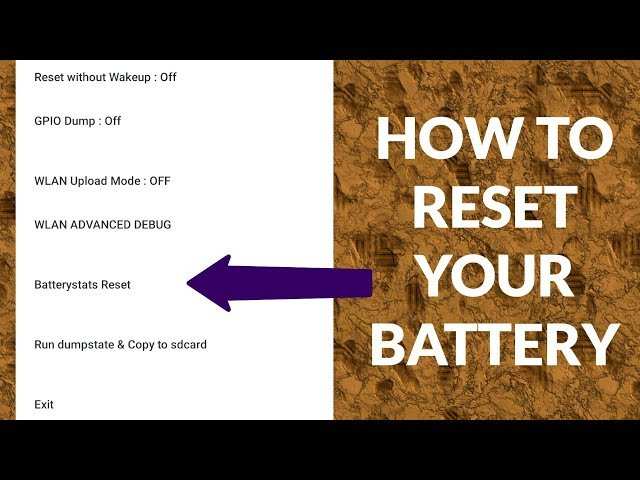
To reset your Android phone’s battery, start by calibrating it through a simple process. **This involves fully draining and then recharging the battery without interruptions.** Knowing how to reset battery on android phone can help improve battery life and accuracy.
If your phone’s battery percentage seems off or drains quickly, resetting can often fix these issues. Just follow a few quick steps, and your device will be back to better health. It’s a straightforward way to keep your Android phone running smoothly.

How to Reset Battery on Android Phone
When your Android phone’s battery isn’t performing the way it used to, it can be frustrating. Sometimes, resetting the battery or performing a battery calibration can improve its performance and extend its lifespan. In this guide, we’ll walk through everything you need to know about resetting your Android phone’s battery, including why you might want to do it, how to do it properly, and tips to keep your battery healthy. Whether you’re a beginner or someone who wants to learn more about managing your device’s power, this detailed article will provide the insights you need.
Understanding Why Your Battery Needs Resetting
Before jumping into the steps, it’s helpful to understand why a battery reset could be necessary. Over time, batteries can lose accuracy in reporting their charge levels, leading to unexpected shutdowns or quick drain. This is often caused by the battery’s internal software not correctly reading its capacity. Resetting the battery helps recalibrate the system’s battery indicator, providing more accurate readings.
Some common situations that suggest you should consider resetting your battery include:
- The battery percentage jumps unpredictably.
- Your phone turns off suddenly even when there’s still some charge left.
- The battery drains very quickly without apparent reason.
- The device takes longer to charge or doesn’t reach a full 100% properly.
By resetting your battery, you can often resolve these issues and restore more reliable battery information.
Preparing to Reset Your Battery
Before proceeding, take a few simple steps to ensure you’re ready:
Charge Your Phone Fully
Make sure your phone charges completely to 100%. This step is important because it helps establish a clear starting point for the calibration process.
Back Up Important Data
While resetting the battery doesn’t affect your data directly, it’s smart to back up your important files just in case.
Use Original Charger and Cable
For accurate calibration, charge your device using the original charger and cable that came with your phone. This ensures a steady power flow and precise charging.
How to Reset the Battery on Android Devices
There are two main methods to reset or calibrate your Android battery: manual calibration and using built-in or third-party apps. Let’s explore both.
Manual Battery Calibration
Manual calibration is simple and effective for most users. It involves fully charging the device, discharging it completely, and then charging it again. Follow these steps:
- Charge your phone to 100% and leave it plugged in for a while. Once it reaches 100%, keep it plugged in for an additional 30 minutes to ensure the battery is fully topped up.
- Unplug the device and use it normally. Use all your apps, watch videos, browse the internet—do this until the battery is fully drained and the phone shuts off automatically.
- Once the device powers off, leave it off for about 2-3 hours to allow the battery to cool down and release any residual charge.
- Plug your phone back into the charger and charge it uninterrupted to 100%. Avoid using the phone during this charging process.
- After reaching 100%, keep the device plugged in for another 30 minutes to ensure the calibration is complete.
This method recalibrates the battery indicator, making it more accurate over time.
Using Battery Calibration Apps
If manual calibration doesn’t seem enough, you can try apps designed to help reset or calibrate your battery. These apps typically work by clearing the battery statistics and helping the system correctly recognize the battery’s capacity.
Some popular apps include “Battery Calibration” or “Ampere.” Here’s how to use such apps:
- Download a reputable battery calibration app from the Google Play Store.
- Follow the in-app instructions, which usually involve charging and discharging the battery as described above.
- Some apps may require root access, so ensure you understand what this entails before proceeding.
Note: Be cautious when using third-party apps, especially those that request access to system functions. Stick to well-reviewed and trusted options.
Additional Tips to Improve Battery Health
Resetting the battery isn’t a magic fix for all battery-related issues. To keep your battery functioning well over time, follow these tips:
Avoid Extreme Temperatures
Batteries perform poorly when exposed to very hot or cold environments. Keep your phone in a cool, dry place to maximize battery life.
Manage Screen Brightness
Your screen is the biggest power drain. Reduce brightness manually or enable auto-brightness to save energy.
Limit Background Processes
Close apps running in the background that you’re not using. Use the battery settings in your device to identify apps that consume power.
Turn off Unnecessary Features
Disable Bluetooth, Wi-Fi, GPS, or mobile data when not in use. Turning on airplane mode in areas with poor signal can also conserve battery.
Update Your Device Software
Manufacturers often release updates that improve battery performance. Keep your device’s software up to date to benefit from these enhancements.
When to Seek Professional Help
If after resetting and following these tips, your battery still performs poorly, it might be time to replace it. Batteries have a limited lifespan, and over time, their capacity diminishes significantly. Most smartphones’ batteries are not user-replaceable, so visit a certified technician or your device’s service center to get a new battery installed.
Resetting your battery on an Android phone is an effective way to improve its performance and get more accurate charge readings. Whether through manual calibration or using dedicated apps, following the steps carefully can help extend the life of your device’s battery and reduce frustration caused by unexpected shutdowns or inaccurate battery levels. Remember to maintain good charging habits and keep your device’s software up to date to ensure long-term battery health.
Taking these simple actions will help your Android device stay powered longer and operate more reliably every day.
Frequently Asked Questions
What are the initial steps to calibrate my Android phone’s battery?
To calibrate your Android phone’s battery, fully charge it until the battery indicator shows 100%. Then, use your phone normally until the battery drains completely and the device turns off. Finally, charge it uninterrupted back to 100%. This process helps your device accurately display battery levels and can improve overall battery performance.
Can I perform a factory reset to fix battery issues on my Android device?
Performing a factory reset can resolve certain software issues affecting battery life. Before proceeding, back up all important data. Navigate to your device settings, select ‘System,’ then ‘Reset,’ and choose ‘Factory Data Reset.’ Confirm your choice and wait for the device to reset. Keep in mind that this will erase all personal data and settings, restoring your device to its original state.
What precautions should I take before attempting to reset my Android battery?
Before trying to reset or recalibrate your battery, ensure your device’s software is up to date. Avoid using third-party apps claiming to reset battery health, as they may cause more harm than good. Additionally, make sure your device is charged to a safe level, and follow manufacturer guidelines to prevent potential damage during the process.
Final Thoughts
Pour réinitialiser la batterie de votre téléphone Android, commencez par charger complètement votre appareil. Ensuite, utilisez le téléphone jusqu’à ce que la batterie soit complètement déchargée. Rechargez-le sans interruption jusqu’à 100 %.
Pour un meilleur résultat, utilisez la fonction de calibration de la batterie dans les paramètres. Cela permet de réinitialiser la capacité de la batterie pour une lecture plus précise.
En résumé, pour réinitialiser la batterie sur Android, effectuez une décharge complète suivie d’une recharge complète et utilisez la calibration si nécessaire. Ces étapes optimisent la performance et prolongent la durée de vie de votre batterie.
