

To reset the battery on an Android phone, start by calibrating it through a simple process. **You need to fully drain the battery and then recharge it to 100%.** This helps improve battery accuracy and performance.
Knowing how to reset battery on Android phone can extend its lifespan and prevent quick drain issues. Just follow these straightforward steps for better battery health.
Resetting your battery isn’t complicated, and a quick calibration can make a noticeable difference in daily use.

How to Reset Battery on Android Phone
When your Android phone’s battery isn’t performing like it used to, it can be frustrating. Maybe your device isn’t holding a charge as long as it used to, or it’s draining unexpectedly. Sometimes, a simple reset of the battery can help improve battery life and resolve some issues. In this guide, we’ll walk you through the process of resetting your Android phone’s battery, explain why it’s helpful, and share tips to keep your battery healthy for longer.
Understanding What It Means to Reset Your Android Battery
Before diving into the steps, it’s important to know what resetting the battery really involves. Unlike resetting your phone or clearing your data, resetting the battery is about recalibrating how your device reads and manages battery information. Over time, your device’s battery sensor might become inaccurate, leading to incorrect battery percentage readings and unexpected shutdowns.
Resetting the battery helps your Android device accurately measure remaining power, which can improve your overall experience and prevent sudden shutdowns. It doesn’t physically change or repair the battery itself but helps the system better understand the battery’s current state.
Why Reset Your Phone’s Battery?
There are several reasons why resetting your Android battery can be beneficial:
- Battery percentage isn’t accurate anymore. Your phone might show you have more or less power than you actually do.
- Your phone shuts down unexpectedly, even when it shows some battery remaining.
- Battery drains too quickly, and your device isn’t performing as expected.
- You want to improve the longevity of your battery over time.
Performing a battery reset is not a complicated process, but it can make a big difference in how your Android device manages power.
Preparing to Reset Your Android Battery
Before you start, follow these simple preparation steps to ensure a smooth reset process:
- Charge your phone to full capacity – Make sure your device is charged to 100%. This helps in recalibrating the battery effectively.
- Use a reliable charger and cable – To avoid any interruptions while charging during the process.
- Backup any important data – Although resetting the battery doesn’t affect your data, it’s always good to have a backup in case you need to perform a full reset in the future.
- Disable or turn off unnecessary apps – Closing background apps can make the process smoother by reducing power consumption.
Once your device is fully charged and preparations are complete, you’re ready to proceed.
Methods to Reset Battery on Android Phone
There are a couple of approaches you can take to reset your Android’s battery. Depending on your device model and preferences, follow these methods to improve battery calibration:
Method One: Manual Battery Calibration
Manual calibration can help your device’s system better understand the battery’s actual capacity. Here’s how to do it:
- Charge your phone to 100%. Keep the device plugged in and let it stay charging for about 30 minutes after reaching full charge.
- Disconnect your phone from the charger.
- Use your device normally until the battery is fully drained. Use your phone as you usually do, but avoid playing intense games or streaming videos for long periods, which might drain the battery faster.
- When the battery reaches around 1% or your device shuts down, turn it off immediately.
- Connect your phone to the charger and charge it back to 100% without turning it on during charging.
- Once fully charged, turn on your device and check if the battery percentage is now more accurate.
This process helps the system recalibrate the battery’s capacity reading, leading to more accurate battery percentage display.
Method Two: Using Built-in Phone Settings (If Available)
Some Android devices come with built-in options to help calibrate the battery or perform a reset. Here’s what to do:
- Open the Settings app on your device.
- Navigate to the “Battery” or “Battery & Performance” section.
- Look for options like “Battery Health” or “Battery Usage.” Some devices may have an option called “Calibrate Battery” or similar.
- If you find such an option, follow the prompts to perform calibration.
If your device lacks this feature, then proceed with the manual calibration method.
Method Three: Clearing Cache and Data (Advanced Technique)
While this doesn’t directly reset the battery, clearing cache data related to power management can sometimes improve battery performance:
- Turn off your device.
- Press and hold the volume down and power buttons simultaneously to enter Recovery Mode. The key combination might differ based on your device model.
- Use the volume buttons to navigate to “Wipe Cache Partition” and select it with the power button.
- After the process completes, select “Reboot System Now.”
Note: Be cautious when entering recovery mode. This process doesn’t erase your data but helps refresh system caches that could influence battery readings.
Additional Tips to Improve Battery Life
Resetting the battery alone may not solve all battery issues. Combine this process with everyday habits that keep your battery healthy:
- Dim the screen brightness or enable auto-brightness.
- Limit background app activity by closing apps you’re not using.
- Turn off Bluetooth, Wi-Fi, or location services when not needed.
- Use battery saver modes available on your device.
- Avoid leaving your device in very hot or cold environments, as extreme temperatures damage batteries.
- Update your device regularly to benefit from the latest power management improvements.
These practices can extend your battery life and improve overall device performance.
When to Consider Replacing Your Battery
If after recalibrating your battery, you notice persistent issues such as rapid draining, overheating, or inability to reach full charge, it might be time to replace the battery. Over time, batteries lose capacity naturally, and calibration can only do so much.
Look out for these signs:
- Battery health shows poor condition in the settings menu.
- The device shuts down abruptly even when the battery percentage is not low.
- Battery life drops drastically after each charge cycle.
- Battery physically swells or leaks.
In such cases, visiting a professional technician or authorized service center for battery replacement is recommended.
Summary
Resetting your Android phone’s battery can significantly enhance its performance and accuracy in reporting remaining life. The process involves full charging, draining the battery, and then charging it back without interruption. Using built-in features, clearing cache, and adopting good charging habits will also support better battery management. Remember that batteries have a limited lifespan, so regular maintenance and timely replacement when needed will keep your device running smoothly.
Taking these steps can help you avoid unexpected shutdowns and enjoy longer battery life. Keep in mind, regular calibration combined with mindful usage is key to preserving your Android phone’s battery health over time.
Frequently Asked Questions
What steps should I follow to calibrate my Android phone’s battery?
To calibrate your Android phone’s battery, fully drain the battery until the device turns off. Then, charge it uninterrupted to 100% without turning it on during the process. Once fully charged, restart your phone and observe if the battery percentage reflects the actual charge. Regular calibration helps improve battery performance and accuracy.
How can I perform a soft reset to resolve battery issues?
Performing a soft reset involves restarting your device to clear temporary files and reset system processes. Hold down the power button until the power options appear, then tap on ‘Restart’ or ‘Reboot.’ This process can help address minor battery drain problems and refresh the device’s operation.
Is there a way to reset battery statistics on Android devices?
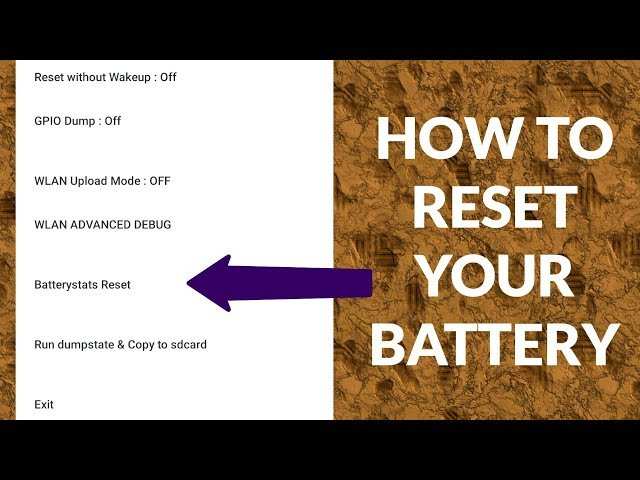
Android does not provide a direct way to reset battery statistics through settings. However, some devices or third-party apps can clear battery data. A common method involves using the recovery mode or specialized apps to clear battery info, which can help improve the accuracy of battery monitoring. Remember that this does not affect battery health but resets usage data.
Can software updates influence battery reset procedures?
Yes, installing the latest software updates can improve battery management features and fix bugs that cause inaccurate readings. After updating your device, perform a battery calibration or a reset of battery statistics to ensure your device accurately reports remaining charge, enhancing overall battery performance.
What precautions should I take before resetting my Android phone’s battery?
Before attempting any battery reset procedures, back up your important data to prevent loss. Make sure your device is sufficiently charged or plugged into power during the process. Follow instructions carefully, especially if using recovery mode or third-party apps, to avoid unintended issues or data loss.
Final Thoughts
Réinitialiser la batterie sur un téléphone Android peut restaurer ses performances. Commencez par décharger complètement la batterie, puis rechargez-la jusqu’à 100 %. Cela aide à recalibrer la capacité de la batterie.
Accédez aux paramètres de votre téléphone et recherchez l’option « Batterie » pour vérifier son état. Si nécessaire, utilisez une application de calibrage de batterie pour un meilleur résultat.
En somme, savoir comment reset battery on android phone permet d’améliorer la précision de la lecture de la batterie et d’optimiser sa durée de vie. Ces étapes simples peuvent faire une grande différence dans la performance de votre appareil.
