

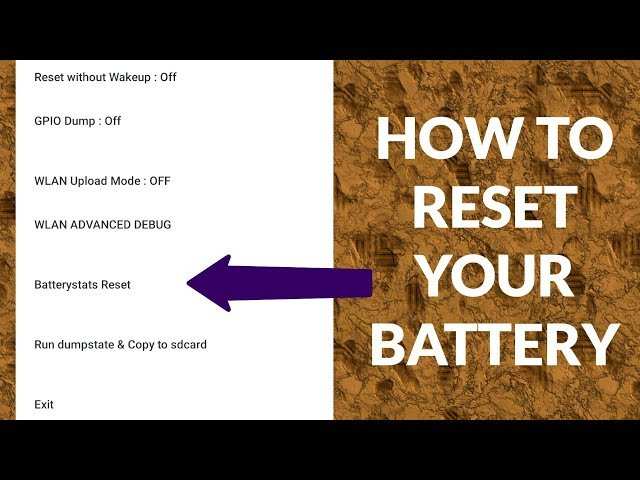
To reset your Android phone’s battery, start by recalibrating it; **this simple step can improve battery performance**. If your phone’s battery drains quickly or shows inaccurate readings, learning how to reset battery on android phone can help. Usually, this involves draining the battery completely and then charging it to 100% without interruption. It’s quick, effective, and can extend your device’s battery life without needing technical skills. With just a few steps, you can ensure your battery stays in good shape.

How to Reset Battery on Android Phone
If you’ve noticed your Android phone’s battery isn’t holding a charge like it used to, it might be time to reset or recalibrate your battery. Resetting the battery can help improve its performance, extend its lifespan, and give you a clearer picture of how much battery life you actually have left. This guide will walk you through everything you need to know to successfully reset the battery on your Android device, from understanding what battery reset means to step-by-step instructions, troubleshooting tips, and expert advice. Whether you’re a beginner or have some experience with Android devices, you’ll find this comprehensive guide helpful for restoring your battery’s health.
Understanding Battery Reset and Why It Matters
Many Android users hear about resetting or recalibrating their batteries but aren’t quite sure what it involves. Simply put, a battery reset or recalibration helps your phone’s software better understand the true capacity of your battery. When your battery’s calibration gets out of sync, your device might inaccurately display the remaining battery percentage or turn off unexpectedly. Resetting the battery can often fix these issues without needing to replace the battery physically.
What Is Battery Calibration?
Battery calibration is the process of resetting the battery’s internal reference so that your device accurately reports how much charge is left. When you fully charge and then fully drain your battery, your phone’s system can recalibrate itself, making battery readings more precise. It’s important to note that this process doesn’t physically repair the battery but aligns the software with the battery’s actual capacity.
Common Signs Indicating You Need a Battery Reset
- Battery percentage drops suddenly without warning
- Phone dies even when there’s still charge left
- Inaccurate battery percentage readings
- Frequent overheating during charging or use
- Battery drains faster than usual
Precautions Before Resetting Your Battery
Before you proceed with resetting or recalibrating your battery, keep in mind a few important safety tips:
- Ensure your device is not experiencing any hardware damage or swelling.
- Charge your phone to full capacity before starting the process.
- Use the original charger or a certified fast charger for safety.
- Avoid letting your battery drain completely on a regular basis, as it can harm the battery over time.
- If your battery shows signs of physical damage, consider replacing it instead of resetting.
Methods to Reset and Calibrate Your Android Phone Battery
Manual Battery Calibration
Manual calibration is the most common method and involves fully charging and then fully draining your battery. Here’s how to do it:
- Plug your phone into a charger and charge it to 100%. Make sure it shows fully charged.
- Disconnect the charger and use your phone normally. Try not to turn off your device during this process.
- Use your phone until it turns off automatically due to battery depletion.
- Recharge your phone to 100% without interruption.
- Your battery should now be recalibrated, providing more accurate readings.
Note: Repeat this process approximately once a month to keep your battery readings accurate.
Using Built-in Settings or Apps for Calibration
Some Android devices come with built-in battery management features that help you reset or optimize battery performance. If your phone offers this feature, follow these steps:
- Go to your device’s Settings menu.
- Find the Battery or Battery & Performance section.
- Look for options like ‘Battery Usage,’ ‘Battery Health,’ or ‘Optimize Battery.’
- If available, select ‘Calibrate Battery’ or similar options and follow on-screen instructions.
Additionally, there are third-party apps designed to assist with battery calibration. Use these apps carefully, ensuring they are from reputable sources to avoid security risks.
Resetting Battery Settings via Factory Reset
In some cases, resetting your entire device can help fix software issues affecting battery performance. This method should be considered as a last resort and only after backing up your data:
- Navigate to Settings > System > Reset options.
- Select ‘Erase all data (factory reset).’
- Confirm and wait for your device to reset.
- Restore your backup and check if battery performance improves.
Additional Tips to Improve Battery Life
Besides resetting or recalibrating the battery, there are several habits and settings you can adjust to extend your Android phone’s battery life:
- Reduce screen brightness or enable adaptive brightness.
- Limit background apps running when not needed.
- Turn off Wi-Fi, Bluetooth, and GPS when not using them.
- Use battery saver modes available on most Android phones.
- Update your device software regularly to benefit from energy-efficient improvements.
- Disable notifications or vibrations that aren’t necessary.
- Uninstall apps that consume excessive power.
When to Consider Replacing Your Battery
If following the above steps doesn’t improve your battery performance, it might be time to replace the battery completely. Signs include:
- The battery no longer charges beyond a certain point.
- Swelling or physical deformation of the battery or device.
- Rapid battery drain even after recalibration.
- Overheating during normal use or charging.
In such cases, consult a professional technician or authorized service center for battery replacement. Using genuine parts ensures safety and maintains your device’s longevity.
Summing It All Up
Resetting your phone’s battery isn’t a complicated process, but it requires patience and careful handling. Regular calibration, combined with good device habits, can help maintain your battery’s health and provide more accurate battery percentage displays. Always remember to avoid letting your battery drain completely on a regular basis and keep your device’s software up to date. By following these steps, you’ll enhance your Android phone’s battery performance and enjoy longer usage times without needing costly repairs or replacements.
Frequently Asked Questions
What are the steps to calibrate your Android phone’s battery?
To calibrate your Android device’s battery, fully drain the battery until the phone turns off. Then, charge it uninterrupted to 100%, preferably while the device is turned off. Once fully charged, unplug it and turn the device on. This process helps the system better estimate the actual battery capacity and improve battery life accuracy.
How can I perform a soft reset to improve battery performance?
Performing a soft reset involves restarting your device to clear temporary files and close background apps that may drain the battery. Hold down the power button until the options menu appears, then tap ‘Restart’ or ‘Reboot.’ This simple step can resolve minor glitches affecting battery consumption and refresh system processes.
Are there specific settings I can adjust to extend my battery life after resetting?
Yes, after resetting your device, you should enable battery-saving features like reducing screen brightness, turning off Wi-Fi and Bluetooth when not in use, enabling airplane mode in low-signal areas, and limiting background data. Adjusting these settings can help conserve battery and improve overall performance.
Can clearing cache data help in resetting my Android battery’s health?
Clearing cached data removes temporary files that may cause your device to work inefficiently, indirectly benefiting battery life. Go to Settings > Storage > Cached data, and tap to clear. Regularly clearing cache can help your device run smoother and may prevent unnecessary battery drain caused by corrupted files.
Is it necessary to replace the battery after resetting my Android phone?
Resetting your device does not physically affect the battery; however, if your battery still drains quickly after resets and calibrations, it might be time to consider replacing it. Batteries degrade over time, and a replacement can restore your device’s battery life and performance.
Final Thoughts
Pour resetter la batterie sur un téléphone Android, commencez par calibrer la batterie. Utilisez l’appareil jusqu’à ce que la batterie soit complètement déchargée, puis rechargez-la à 100% sans interruption. Cela permet de recalibrer le système de gestion de la batterie.
Ensuite, accédez aux paramètres de votre téléphone pour vérifier l’état de la batterie et fermez les applications énergivores. Si nécessaire, effectuez une réinitialisation des paramètres d’usine, mais sauvegardez d’abord vos données importantes.
En résumé, la façon de resetter la batterie sur un android phone consiste à calibrer la batterie et à ajuster les paramètres pour optimiser la performance.
