

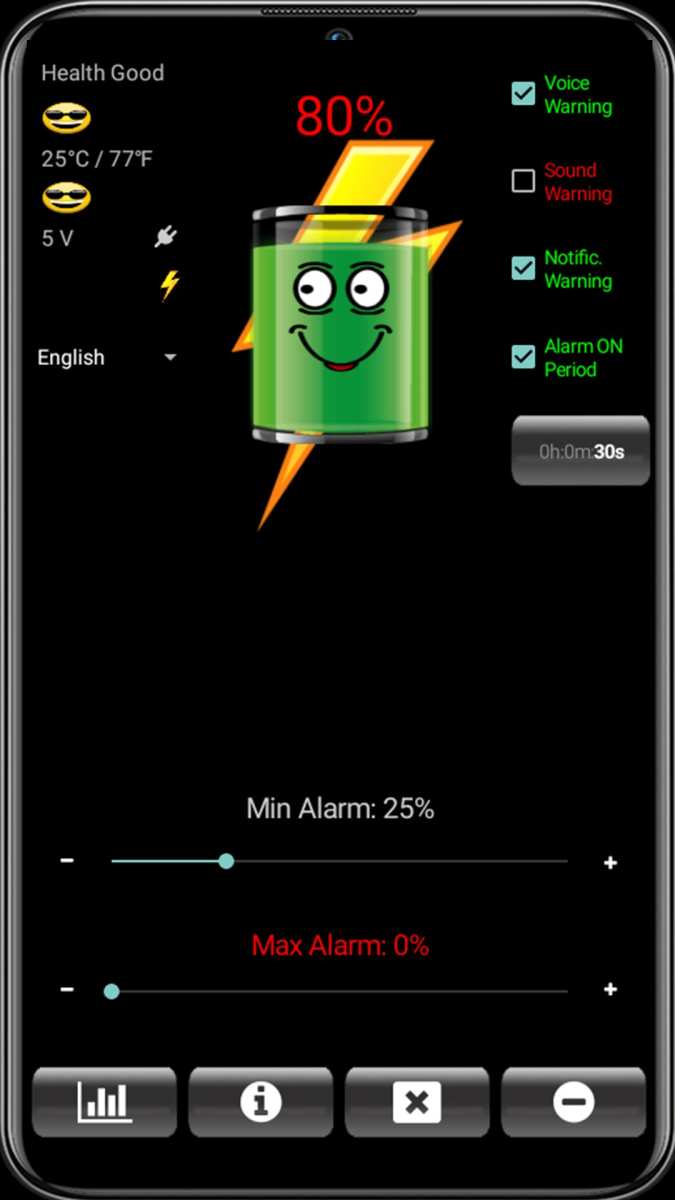
If your phone frequently runs out of juice, an android battery alarm can be the perfect solution. **Setting up a battery alarm on Android is simple and effective.** It alerts you before your battery drains completely, helping you save important data and avoid unexpected shutdowns.
With various apps and built-in features available, managing your battery life becomes effortless. Knowing when your battery is low allows you to take quick action, keeping your device ready for use whenever needed.

Understanding & Using Android Battery Alarm
Many Android users often find themselves worried about their device running out of power at crucial moments. Whether you’re on a long trip, working, or just out and about, managing your battery life becomes important. One way to stay in control is by setting up an Android battery alarm. This helpful feature alerts you when your battery reaches a certain level, preventing unexpected shutdowns and helping you conserve power. In this article, we’ll explore everything you need to know about Android battery alarm — from how it works to the best ways to set it up and optimize your device’s power management.
What Is an Android Battery Alarm?
An Android battery alarm is a feature or app that notifies you when your device’s battery drops to a specific percentage. This alert helps you decide whether to charge your phone or reduce usage to extend battery life. While Android phones come with built-in alerts for low battery, custom battery alarms often offer more flexibility, allowing you to set multiple thresholds and choose different notification styles.
Imagine it as your personal reminder to save power or plug in your phone before it turns off unexpectedly. These alarms can be especially handy during critical moments, such as during travel, meetings, or when you need the device most.
How Does an Android Battery Alarm Work?
The basic principle behind a battery alarm is simple. When your device’s battery hits the predetermined level, the system sends a notification or sound alert. Here’s a quick look at how this process usually functions:
- **Monitoring**: The phone continuously checks the current battery percentage.
- **Threshold Setting**: You set specific battery levels at which to be warned, such as 20%, 10%, or even 5%.
- **Triggering Alerts**: When the battery reaches one of these levels, the app or system notifies you through sound, vibration, or notification pop-up.
This seamless process helps you stay aware of your battery status, giving you enough time to save power or find a charger.
Benefits of Using an Android Battery Alarm
Using a battery alarm offers several advantages that improve your smartphone experience:
- Prevents Sudden Shutdowns: Get notified before your device runs out of juice, so you can save work or finish calls.
- Conserves Power: Recognize when to reduce background activity or turn off non-essential features.
- Extends Battery Life: Avoid deep discharge cycles by charging early, helping to prolong battery health over time.
- Customizable Alerts: Set multiple levels for different situations, such as a gentle reminder at 30% and a warning at 10%.
- Convenience: Stay in control without constantly checking your battery percentage manually.
Setting Up a Battery Alarm on Android Devices
Most Android phones allow you to set battery alarms either through the built-in system settings or via third-party apps. Here’s a detailed guide to help you set up a battery alarm using common methods:
Using Built-in Settings
Many newer Android versions include an option to enable low battery notifications, but for more detailed alarms, third-party apps often work better. Here’s how to enable basic notifications:
- Open the “Settings” app on your phone.
- Scroll down and tap on “Battery” or “Battery & Performance”.
- Look for options such as “Battery Saver” or “Battery Percentage”.
- Enable “Battery Percentage” to see real-time info.
- Activate “Low Battery” notifications, if available.
Note: These built-in features usually only notify you at a default level, such as 15% or 10%, and lack customization options.
Using Third-Party Apps for Custom Battery Alarms
To set more personalized alarms, you can choose from several apps available on the Google Play Store. Some popular options include “Battery Alarm”, “AccuBattery”, or “GSam Battery Monitor”. Here’s how to set one up:
- Download and install your preferred battery alarm app.
- Open the app and grant necessary permissions.
- Navigate to the alarm or notification settings within the app.
- Set your desired battery levels for alerts, such as 25%, 10%, or 5%.
- Choose your preferred sound, vibration, or notification style.
- Save your settings and keep the app running in the background.
Many apps also provide additional insights about your battery health and usage patterns, helping you make better decisions to extend your device’s life.
Tips for Optimizing Battery Life with Alarms
Setting alarms alone isn’t enough; combining them with good power management habits will maximize your device’s battery life. Here are some helpful tips:
- Close Unnecessary Apps: Reduce background activity which consumes extra power.
- Use Power Saving Mode: Enable this feature to limit background processes and brightness.
- Reduce Screen Brightness: Dimming your screen uses less energy—set a lower automatic brightness level.
- Turn Off Unused Features: Turn off Bluetooth, Wi-Fi, GPS, or mobile data when not needed.
- Limit Background Data: Restrict apps from running in the background, especially those that you don’t need immediately.
- Charge Smartly: Don’t let your battery drain completely often; try to charge when it hits around 20% to prevent deep discharges.
Using Battery Optimization Tools Effectively
Android devices come with built-in battery optimization features. Here’s how to make the most of them:
- Open your device’s “Settings”.
- Tap on “Battery” or “Battery & Performance”.
- Look for “Battery Optimization” or “App Power Management”.
- Review the list of apps and restrict those that use unnecessary resources.
- Use features like “Adaptive Battery” to learn your usage habits and optimize power accordingly.
These tools work well in tandem with your battery alarm, alerting you when your power is running low despite optimization efforts.
Common Challenges & Troubleshooting
Sometimes, battery alarms may not work as expected. Here are common issues and solutions:
- Alarm Not Triggering
- Ensure the app has the necessary permissions and background activity is allowed. Check if your device’s battery saver mode is restricting the app.
- Notifications Not Showing
- Verify notification permissions in your device’s settings. Make sure the app is not blocked from sending notifications.
- Battery Level Not Updating Properly
- Restart your device to refresh system metrics. Keep your app updated to ensure compatibility with the latest Android versions.
Managing your Android device’s battery doesn’t have to be a guessing game. By setting up a reliable battery alarm, you gain better control over your device’s power, ensuring you’re informed before it’s too late. Whether you use built-in system features or third-party apps, these alarms serve as a helpful reminder to conserve energy and extend usability. Pairing alarms with good power-saving practices can make your device last longer, especially during busy days or while traveling. Remember to keep your apps updated and review your power management settings regularly to get the best performance from your Android phone or tablet. With proactive monitoring, you can avoid those frustrating moments when your device dies unexpectedly and stay connected when it matters most.
Frequently Asked Questions
How can I set a custom battery alarm on my Android device?
To set a custom battery alarm, download a third-party app designed for battery notifications from the Google Play Store. Open the app and grant the necessary permissions. Follow the in-app instructions to specify your desired battery percentage alert and customize the sound or notification style. Once set, the app will notify you when your battery reaches the specified level.
Are there built-in features on Android that allow me to monitor battery levels actively?
Android devices come with a built-in battery usage section accessible through Settings > Battery. While it provides detailed insights into battery consumption, it doesn’t offer real-time alarms. For proactive alerts, you should use third-party apps that provide customizable notifications based on battery level thresholds.
What should I consider when choosing an app for battery alarms?
Select an app with good reviews and a high rating to ensure reliability. Check that it offers customizable alert options and compatibility with your Android version. Additionally, opt for apps that are lightweight, easy to use, and do not excessively drain your device’s battery or data.
Can I set different alarm sounds for various battery levels?
Yes, many third-party battery alarm apps allow you to customize sounds for different battery thresholds. You can assign unique tones to specific levels, helping you easily identify the battery status without looking at your screen.
Is it possible to automatically disable battery alarms after reaching a certain percentage?
Most battery alarm apps enable you to set a stop condition so that alerts deactivate once your battery hits a specific level. This feature helps prevent repeated notifications and reduces interruptions once you have charged your device to a desired level.
Final Thoughts
In summary, an android battery alarm helps users manage their device’s power efficiently. It alerts you before the battery runs out, preventing unexpected shutdowns. Using a reliable android battery alarm can extend your device’s overall lifespan and improve performance. Prioritize setting up an alarm to stay informed about your battery status throughout the day.
