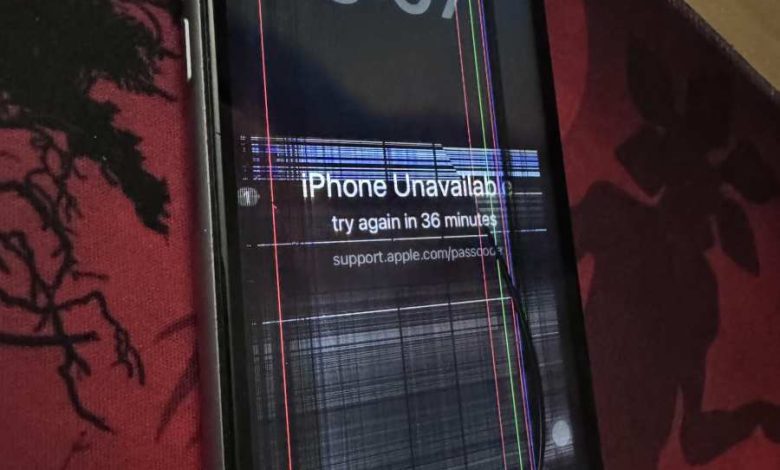
**The quickest fix for an iPhone screen broken can t unlock is to try a forced restart or connect it to a computer to access recovery mode.** If your screen is shattered and you can’t access your device, don’t worry. Many users face this issue, but restoring through iTunes or Finder often works.
Apple offers options like screen repair or replacement, which may be necessary if software fixes aren’t enough. Keep calm and follow these simple steps to regain access without panicking.

What to Do When Your iPhone Screen Is Broken and You Can’t Unlock It
If your iPhone screen gets cracked or shattered, it can feel like a big problem, especially when you can’t unlock your device. Whether the screen is just a little damaged or completely broken, this situation can make it difficult to access your data, apps, or even make calls. Don’t worry — there are several ways to handle this issue. In this article, we will explore everything you need to know about fixing or bypassing a broken iPhone screen when you can’t unlock it, step by step.
Understanding Why a Broken Screen Prevents You from Unlocking Your iPhone
Before diving into solutions, it’s helpful to understand why a broken screen can stop you from unlocking your iPhone. When the screen is damaged, the touch functionality often becomes impaired or unresponsive. This means you might not be able to type in your passcode, press your authentication fingerprint, or use Face ID because your touchscreen isn’t working properly.
Here are some common reasons why a broken screen causes unlocking issues:
- Touch sensitivity loss: Cracks and damage can make certain parts of the screen unresponsive.
- Hardware damage: The touch sensor or display cables might be broken, preventing any input recognition.
- Software glitches: Sometimes, physical damage causes the software to freeze or crash, stopping you from entering your passcode or using facial recognition.
Knowing these reasons helps you understand whether repairs are needed or if alternative solutions work for your situation.
Assessing the Degree of Damage
The first step after noticing your screen is broken is to figure out how severely it is damaged. This assessment helps you decide if you can attempt to fix the issue yourself or if you need professional help.
- Minor cracks: Surface scratches or small cracks that don’t interfere with the display or touch functionality. In this case, you might still unlock your iPhone if the touch works well enough.
- Major shattering: The screen is heavily cracked, shattered, or unresponsive. You probably can’t operate the device normally, so you will need some intervention to use your iPhone again.
- Black screen or no display: The screen shows nothing, but the phone might still respond to calls or notifications. If this occurs, special troubleshooting steps are necessary to understand the core issue.
Depending on the damage level, your approach might vary from simple screen repairs to more complex methods.
How to Unlock Your iPhone with a Broken Screen
When your screen is broken, unlocking your iPhone becomes tricky. Fortunately, there are ways to bypass or workaround the problem, especially if you prepared beforehand. Let’s look at several methods:
Using Apple’s Find My iPhone and iCloud
If you have set up “Find My” on your device, you might be able to unlock or erase your iPhone remotely. This method is especially useful if you can’t interact with the device directly.
- Step 1: Visit the iCloud website on any computer or another device and log into your Apple ID account.
- Step 2: Select “Find iPhone” from the menu options.
- Step 3: Choose your damaged iPhone from the list of devices.
- Step 4: You have options such as “Erase iPhone” — which deletes all data and settings, including the passcode, allowing you to set up the device again.
**Note:** Erasing your iPhone will delete all data if you don’t have a recent backup. Use this as a last resort if unlocking directly isn’t possible.
Using Voice Control to Unlock iPhone
If your screen is still partially responsive, activating Voice Control can help you unlock your iPhone without requiring touch input.
- Step 1: Enable Voice Control on another device or through Siri if possible. If you can’t do this on your broken device, this method is limited.
- Step 2: Say “Hey Siri,” and then command your device to “Open my device” or “Unlock my iPhone.”
- Step 3: Use voice commands to enter your passcode or navigate to the unlock screen if the touchscreen functions enough for this.
This method depends on how much of your device’s display and touch response still work.
Connecting an External Keyboard or Mouse
For some iPhone models, especially iPads or devices with newer iOS versions, you can connect external peripherals to assist with unlocking.
- Step 1: Connect a compatible Bluetooth keyboard or mouse to your iPhone.
- Step 2: Use the keyboard to type in your passcode directly.
- Step 3: Use the mouse to navigate if necessary and complete your unlocking process.
**Note:** Compatibility varies based on your iPhone model and iOS version. Check Apple’s support pages for device-specific details.
Getting Your iPhone Repaired or Replaced
Sometimes, fixing the broken screen or replacing it becomes the most practical path. Here’s what you need to consider:
DIY Screen Repair Options
If you’re comfortable with handling electronics and have the right tools, some repair kits are available online.
- Tools required: Small screwdrivers, pry tools, and replacement screens.
- Steps: Carefully remove the broken screen, disconnect the necessary cables, and install the new screen following tutorials.
**Warning:** DIY repairs carry risks. If done improperly, you might cause further damage or void your warranty.
Professional Repair Services
For most people, seeking professional help is the safest option.
- Authorized Apple service providers: They can replace your screen quickly and ensure your device remains under warranty.
- Third-party repair shops: Often cheaper but check reviews and whether they use genuine parts.
Considerations When Repairing Your Screen
Before making a repair decision, think about:
- Cost: Screen replacements can range from $100 to $300 depending on model and damage.
- Warranty & Insurance: Check if you have coverage that can reduce repair costs.
- Data backup: Always back up your data before repair to prevent data loss.
Preventing Future Screen Damage
Once your device is repaired, it’s wise to protect it from future damage.
- Use a sturdy case: A good case can absorb shocks from drops.
- Apply a screen protector: Tempered glass protectors prevent cracks and scratches.
- Be cautious: Keep your iPhone away from sharp objects and avoid placing heavy items on top of it.
Summary of Key Points
When your iPhone screen is broken and you can’t unlock it, start by assessing the damage. If the screen is unresponsive but your device still responds to commands, explore options like using iCloud, external devices, or voice control. For severe damage, consider professional repair services. Always keep backups of your data, and protect your device with cases and screen protectors to prevent future issues.
This situation can seem frustrating, but with the right approach, you can regain access to your device or restore it to working condition. Patience and careful planning are key in dealing with a broken iPhone screen that hampers unlocking.
Frequently Asked Questions
What steps can I take to access my iPhone if the screen is shattered?
If your iPhone screen is broken, try connecting your device to a computer with iTunes (or Finder on macOS) to see if you can access your data. You might also use a Lightning cable to connect your iPhone to a computer and attempt to back up your information. If your device responds to touch or sounds, these methods can help you save important data before seeking professional repairs.
Is it possible to repair my iPhone screen without losing data?
Yes, certain repair services can replace your iPhone screen without erasing your data, especially if you choose authorized repair shops. Ensure you communicate your desire to preserve data beforehand. It’s good practice to regularly back up your device to avoid data loss during repairs or unforeseen issues.
What options do I have if my iPhone cannot respond due to a cracked screen?
If your iPhone becomes unresponsive because of a broken screen, you can try force restarting the device or connecting it to a computer to see if you can initiate a backup. If these actions don’t work, professional repair services can diagnose and fix the problem, often restoring functionality without risking your data.
Are there any temporary solutions to use my iPhone with a damaged display?
Using an external display or connecting your iPhone to a computer can allow limited access to your device’s content. Features like Siri or VoiceOver may help you navigate if touch isn’t available. However, these are temporary measures, and seeking professional repair remains the best solution to fully restore your iPhone’s functionality.
Final Thoughts
A broken iPhone screen can be frustrating, especially when you can’t access your data. If “iPhone screen broken can’t unlock,” consider using professional repair services or screen replacement options. These solutions help restore your device’s functionality quickly.
Addressing the issue promptly prevents further damage and saves your important information. Remember, many repair shops offer quick fixes, making it easier to regain access. Resolving the problem efficiently ensures your device works smoothly again.


