

Want to effortlessly capture your screen without downloading extra software? Recording your screen using built-in tools is quick, free, and super easy. Whether you need to create tutorials, save important video calls, or showcase your gameplay, your computer or device already has everything you need. In just a few clicks, you can start recording with the tools that come pre-installed, no hassle required. These built-in options are perfect because they’re reliable, safe, and don’t take up much space. So, if you’re wondering how to do it, no need to search for third-party apps—your device has everything ready to go. Just follow a few simple steps, and you’ll be capturing your screen in no time!
To record your screen using built-in tools, simply access the pre-installed recording features on your device, choose your settings, and hit record. It’s straightforward, efficient, and doesn’t require extra downloads.
If you’re looking to record your screen without additional software, using the built-in tools on your computer or mobile device is the best way. These tools are designed to be user-friendly, allowing you to start recording quickly and easily whenever needed.

Contents
- 1 How to Record Your Screen Using Built-in Tools
- 2 How to Record Your Screen on Windows
- 3 How to Record Your Screen on macOS
- 4 How to Record Your Screen on iOS Devices
- 5 How to Record Your Screen on Android Devices
- 6 Tips for Making the Best Screen Recordings
- 7 Common Issues and How to Fix Them
- 8 Summary
- 9 Frequently Asked Questions
- 10 Final Thoughts
How to Record Your Screen Using Built-in Tools
Most computers and smartphones already come with tools to record your screen. These tools are easy to use and don’t require downloading extra software. Learning how to use these built-in options helps you save time and keeps your device secure.
Why Use Built-in Screen Recording Tools
Using the tools that come with your device offers several benefits. First, they are often free and ready to use without any setup. Second, built-in tools are usually optimized for your device, making recordings smoother. Lastly, they are safe because you don’t need to install third-party software from unknown sources.
Platforms with Built-in Screen Recording Features
Many popular operating systems include built-in options for screen recording. These include Windows, macOS, iOS, and Android devices. Each platform has its own way to access and use screen recording tools.
How to Record Your Screen on Windows
Using Xbox Game Bar on Windows 10 and Windows 11
Windows offers a built-in feature called Xbox Game Bar, which includes a screen recording tool. To start recording, press the Windows key + G on your keyboard. This opens the Xbox Game Bar overlay.
Steps to Record
- Click on the Capture widget in the overlay. If you don’t see it, select the widget menu and add it.
- In the Capture menu, click on the Start Recording button (a circle icon). You can also press Windows key + Alt + R to begin recording instantly.
- Perform the actions you want to record on your screen.
- When finished, press Windows key + Alt + R again, or click the Stop button in the overlay.
Accessing Your Recordings
Screen recordings are saved automatically in the Videos folder under a subfolder named Captures. You can access them easily from this location.
Tips for Using Xbox Game Bar Effectively
- Make sure your microphone is turned on if you want to add narration.
- Adjust quality settings in the Xbox Game Bar settings for better video clarity.
- Use keyboard shortcuts to speed up your recording process.
How to Record Your Screen on macOS
Using QuickTime Player
Mac users can record their screens using QuickTime Player, a default app on all Macs. It is simple and provides high-quality recordings.
Steps to Record
- Open QuickTime Player from your Applications folder.
- Click on “File” in the menu bar and select “New Screen Recording.”
- Click the red Record button to start. You can choose to record the entire screen or just a selected portion.
- Perform your screen activities.
- Click the Stop button in the menu bar to finish recording.
Saving Your Recording
After stopping, QuickTime will automatically open your recording for review. Save it by clicking “File” > “Save” and choosing your preferred location.
Using macOS Mojave and Later with Screen Capture Toolbar
For newer macOS versions, the built-in screenshot toolbar also allows screen recording. Press Shift + Command + 5 to open this toolbar.
Steps to Record
- Select the recording option for the entire screen or a selected window.
- Click “Record” to start.
- Perform the actions you wish to record.
- Click the Stop button in the menu bar or press Command + Control + Esc.
Configuring Settings
You can choose to record with or without a microphone and set options for where the video is saved beforehand.
How to Record Your Screen on iOS Devices
Using the Built-in Screen Recording Feature
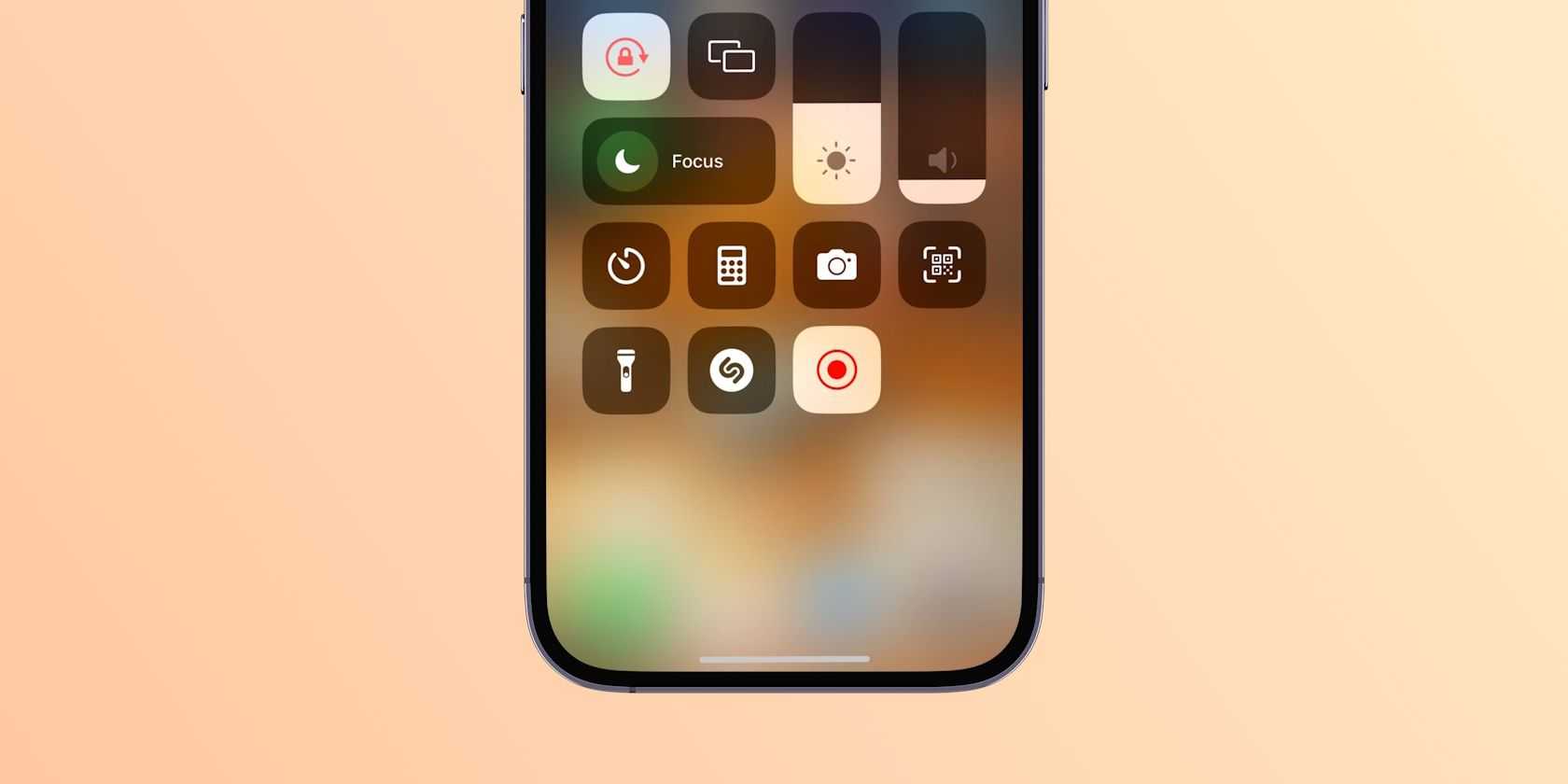
iPhones and iPads have a native screen recording tool accessible from the Control Center. First, add it to your Control Center if it isn’t already there.
Enabling Screen Recording
- Go to Settings > Control Center.
- Tap “Customize Controls.”
- Find “Screen Recording” and tap the green plus icon to add it.
How to Record
- Open the Control Center by swiping down from the top-right corner (iPhone X and newer) or swiping up from the bottom (older models).
- Tap the Screen Recording icon (a circle within a larger circle).
- Wait for the three-second countdown to start.
- Perform the activities you want to record.
- Open Control Center and tap the red recording indicator or the Screen Recording icon to stop recording.
Accessing Your Recording
Videos are saved automatically to your Photos app, ready to be shared or edited.
How to Record Your Screen on Android Devices
Using the Built-in Screen Recorder
Many Android devices, especially newer models, come with a built-in screen recorder accessible from the quick settings panel. Ensure it’s enabled first.
Enabling the Recorder
- Swipe down from the top of your screen to open the quick settings panel.
- Look for the “Screen recorder” icon. If it’s not there, tap the pencil icon to edit and add it.
How to Record
- Tap the Screen Recorder icon in quick settings.
- Choose your preferences such as sound options and resolution.
- Tap “Start” to begin recording. A countdown may appear.
- Perform your screen activities.
- Pull down the notification shade and tap “Stop” to finish.
Using Third-party Apps for Android
If your device lacks a built-in recorder, popular apps like AZ Screen Recorder or Mobizen serve as excellent alternatives. These often provide additional features like editing and live streaming.
Tips for Making the Best Screen Recordings
- Close unnecessary apps to prevent interruptions.
- Plan your recording to avoid missing important parts.
- Adjust audio settings to include narration or system sounds.
- Consider using annotations or highlighting tools if available.
Common Issues and How to Fix Them
Recording Doesn’t Start
Ensure your device’s permissions are correctly set and that your storage isn’t full. Restarting the device might help resolve minor glitches.
Recording is Low Quality
Check your quality settings in the recording tool. Increasing resolution or frame rate can improve clarity.
Recorded Video is Not Saving
Make sure you have enough storage space and the correct save location. Sometimes, resetting the recording app or device helps.
Summary
Using built-in tools to record your screen is simple and effective. Whether you’re on Windows, Mac, iOS, or Android, each platform offers ways to capture your activities without extra software. Practice these methods to create tutorials, save gameplay, or record important video calls easily.
How to Screen Record on Laptop – Free & No Install
Frequently Asked Questions
What steps should I follow to start recording my screen on a Windows PC using built-in tools?
To record your screen on a Windows PC, open the ‘Xbox Game Bar’ by pressing Windows key + G. Once the overlay appears, click on the ‘Capture’ widget if it’s not already visible. Then, press the ‘Start Recording’ button (a circle icon) or press Windows key + Alt + R to begin recording. When you’re done, click the ‘Stop Recording’ button or press Windows key + Alt + R again. Your recorded videos will save automatically in the ‘Captures’ folder within your ‘Videos’ library.
How can I use my Mac to record my screen without installing any third-party applications?
On a Mac, you can use the built-in ‘Screenshot’ toolbar by pressing Shift + Command + 5. This toolbar provides options to record your entire screen or just a selected portion. Choose the desired recording option, then click the ‘Record’ button to begin. To stop recording, click the ‘Stop’ button in the menu bar at the top of your screen. Your video will save automatically to your desktop unless you specify a different save location.
Are there any limitations when recording screens with built-in tools on Windows or Mac?
Yes, built-in recording tools often have some restrictions. For example, Windows’ Xbox Game Bar is primarily designed for capturing gameplay, which may limit recording for other applications or desktop activities. Similarly, on a Mac, the Screen Recording feature via Shift + Command + 5 might not support recording audio or webcam feeds simultaneously without additional settings. Both tools may also lack advanced features like editing or annotations, which third-party apps typically provide.
Can I customize the recording settings in built-in tools before starting a screen capture?
Yes, both Windows and Mac offer some options to customize your recordings. On Windows, you can adjust microphone settings and toggle sound recording in the Xbox Game Bar settings before starting your recording. On a Mac, the Shift + Command + 5 toolbar allows you to select specific areas of the screen, and you can choose whether to record audio from a microphone. However, these built-in tools generally don’t allow detailed customization like frame rates or video quality settings, which are available in third-party software.
What should I do if my built-in screen recording tool isn’t working properly?
If your built-in screen recorder isn’t functioning correctly, start by ensuring your system meets the necessary requirements and that your software is up to date. Restart your device, then reopen the recording tool to see if the issue persists. Check permissions, especially microphone or screen recording permissions in your system settings. If problems continue, consider resetting the specific feature or using alternative software temporarily until the underlying issue is resolved.
Final Thoughts
How to record your screen using built in tools is simple and efficient. Most operating systems come with native screen recording features, making it easy to capture your activities without additional software. Ensure you locate the tool in your system’s settings or quick access menu.
Once you’ve found the tool, click to start recording. Adjust any settings such as audio or screen area as needed before beginning. When finished, save your recording for quick sharing or review.
In conclusion, understanding how to record your screen using built in tools offers a quick way to create tutorials, save moments, or troubleshoot issues. These built-in options provide a straightforward process, making screen recording accessible to everyone.
