

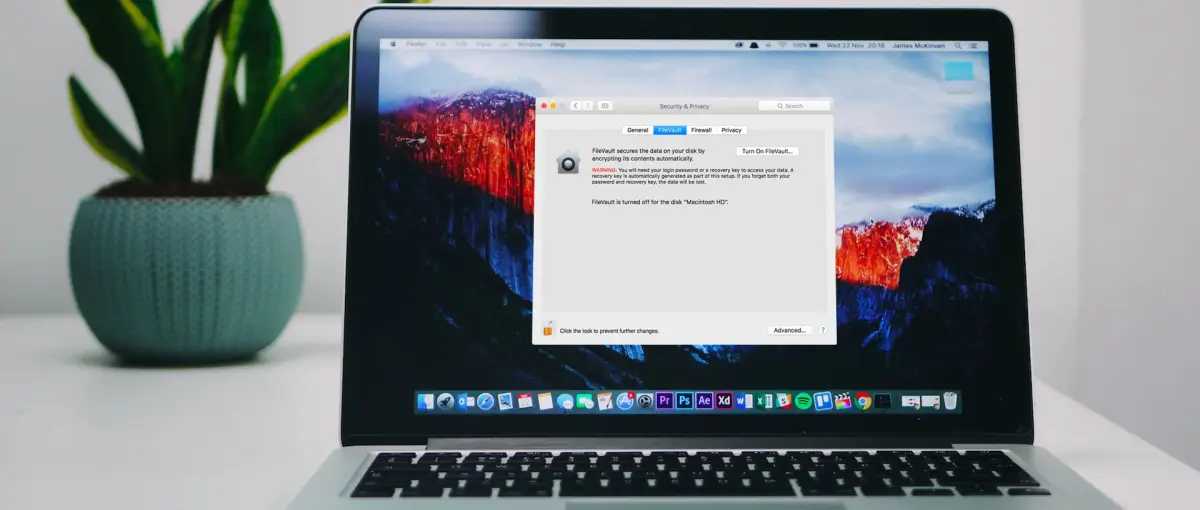
Encrypting your MacBook is the best way to protect your personal data from prying eyes. With a few simple steps, you can ensure that your sensitive information stays secure even if your device falls into the wrong hands. Turning on FileVault encrypts your entire disk, making it nearly impossible for anyone without your password to access your files.
In short, to encrypt your MacBook for better privacy, enable FileVault in your System Preferences, set a strong login password, and keep your macOS updated for optimal security. These quick measures will give you peace of mind knowing your data is safeguarded against unauthorized access.
Keeping your MacBook secure is more important than ever in today’s digital landscape. Cyber threats and thefts are common, which makes it crucial to take privacy seriously. Luckily, Apple makes it straightforward to encrypt your device, creating a powerful barrier against data breaches. This guide walks you through the simple process of activating FileVault, so you can enjoy enhanced privacy without fuss. Protecting your personal information has never been easier—just a few clicks can add an extra layer of security to your everyday device.

How to encrypt your MacBook for better privacy
Understanding Why Encryption Matters
Encryption helps protect your personal data from unauthorized access. When your MacBook is encrypted, even if someone steals it, they cannot access your files without the password. This extra layer of security is essential for anyone worried about privacy breaches or data theft.
What Data Needs Encryption?
All personal and sensitive information should be encrypted. This includes documents, photos, passwords, banking info, and emails. Encrypting your entire device ensures that every file remains protected. Think of encryption as locking every drawer and cabinet in your digital house.
macOS Built-In Encryption: FileVault
Apple offers a native encryption tool called FileVault. It encrypts your entire disk, making data inaccessible without your login password. It is simple to turn on and highly effective for safeguarding your info.
Enabling FileVault Step-by-Step
- Click on the Apple menu and select System Preferences.
- Open Security & Privacy and go to the FileVault tab.
- Click the lock icon and enter your administrator password.
- Press Turn On FileVault.
- Follow the prompts to backup your recovery key. Save it in a safe place.
Understanding Recovery Key and Its Importance
Your recovery key helps you regain access if you forget your password. Store this key securely, as losing it might lock you out of your data permanently.
Choosing Strong Passwords and Passphrases
Your Mac’s encryption works best with a complex, unique password. Avoid common words and include numbers, symbols, and a mix of uppercase and lowercase letters. Longer passphrases are more secure, such as a sentence or combination of unrelated words.
Additional Tips for Enhancing Privacy
- Enable two-factor authentication for your Apple ID. This adds an extra security step when signing in.
- Regularly update your macOS. Updates often include security patches that protect against vulnerabilities.
- Disable automatic login to prevent unauthorized access after startup.
- Use a password manager to keep track of strong, unique passwords for all your accounts.
Encrypting External Storage Devices
If you use external drives or USBs, encrypt them too. macOS allows you to do this easily with Disk Utility.
How to Encrypt External Drives
- Open Disk Utility from Applications > Utilities.
- Select your external drive from the sidebar.
- Click on Erase and select APFS (Encrypted) or Mac OS Extended (Journaled, Encrypted) as the format.
- Set a strong password when prompted, then click Erase.
Using Third-Party Encryption Tools
While FileVault covers most needs, some users may prefer additional tools like VeraCrypt for creating encrypted containers or virtual drives. These programs offer flexible options for individual files and folders.
Advantages of Third-Party Encryption Software
- Encrypt specific files or folders instead of the entire system.
- Use cross-platform encryption compatible with Windows and Linux.
- Customize encryption algorithms and security settings.
Managing Encryption Keys and Passwords
Always keep your encryption keys and passwords in a secure location. Consider using a reputable password manager to store and manage this sensitive information safely.
Understanding and Maintaining Your Encryption
Regularly verify that FileVault is active and functioning properly. Check for macOS updates that improve security features. Revisit your security settings periodically for optimal privacy protection.
What to Do After Encrypting Your MacBook
Once your data is encrypted, avoid sharing your passwords freely. Be cautious with public Wi-Fi networks, and consider using VPNs for added security. Backup your encrypted data regularly to an external drive or cloud service.
Common Mistakes to Avoid
- Forgetting to back up your recovery key or password.
- Using weak passwords for encryption.
- Ignoring software updates that patch vulnerabilities.
- Sharing your login credentials with others unnecessarily.
Summary of Key Points
| Action | Purpose |
|---|---|
| Enable FileVault | Encrypt entire disk for optimal privacy |
| Use strong passwords | Prevent brute-force attacks |
| Update macOS regularly | Secure against vulnerabilities |
| Encrypt external drives | Protect portable data |
| Use third-party tools if needed | Encrypt specific files or folders |
Additional Privacy Measures to Consider
Along with disk encryption, you can enhance your privacy through various practices. Disable unnecessary location services, limit app permissions, and use private browsing modes.
Final Tips for Better Privacy
Always be aware of your digital footprint. Regularly review your privacy settings on applications and online services. Encryption is a vital step, but combined with other security habits, it offers comprehensive protection.
This detailed guide helps you understand how to encrypt your MacBook effectively, ensuring your personal data stays safe from prying eyes. By following these steps, you reinforce your privacy and build a more secure digital environment.
15 Mac Settings To Make Your Mac More Secure (Updated for 2024)
Frequently Asked Questions
What steps should I take to enable FileVault on my MacBook?
To enable FileVault, go to System Preferences and select Security & Privacy. Click on the FileVault tab, then click the lock icon and enter your administrator password. Click “Turn On FileVault” and choose a recovery method. Wait for the encryption process to complete, which may take some time depending on your data size.
How can I create a strong password to secure my encrypted data?
Create a password that combines uppercase and lowercase letters, numbers, and special characters. Avoid using common words or easily guessable information like birthdays. Use a password manager to generate and store complex passwords securely. This ensures that your encryption remains protected against unauthorized access.
Is it necessary to back up my data before encrypting my MacBook?
Yes, backing up your data before encryption is essential. Encryption processes can sometimes cause unexpected issues, and having a complete backup ensures you do not lose important information. Use Time Machine or other reliable backup solutions to save your data to an external drive or cloud service.
Can I encrypt my MacBook without affecting its performance?
encrypting your MacBook with FileVault usually does not impact its everyday performance significantly. However, initial encryption may consume system resources and temporarily slow down some operations. Once the process completes, your system should run smoothly with added privacy protection.
How do I verify that my MacBook is successfully encrypted?
Go to System Preferences and open Security & Privacy. Select the FileVault tab; if it shows “FileVault is turned on,” your disk encryption is active. You can also check the encryption status in Disk Utility by selecting your startup disk and looking for the encryption details. This confirms your data is protected.
Final Thoughts
To encrypt your MacBook for better privacy, start by enabling FileVault in System Preferences. This feature encrypts your entire drive, protecting your data from unauthorized access if your device is lost or stolen.
Ensure your macOS is up to date, as updates include important security enhancements. Set a strong, unique password to reinforce your encryption.
In conclusion, how to encrypt your MacBook for better privacy involves enabling FileVault, updating software, and choosing strong passwords. Taking these steps ensures your data remains secure against potential threats.
