

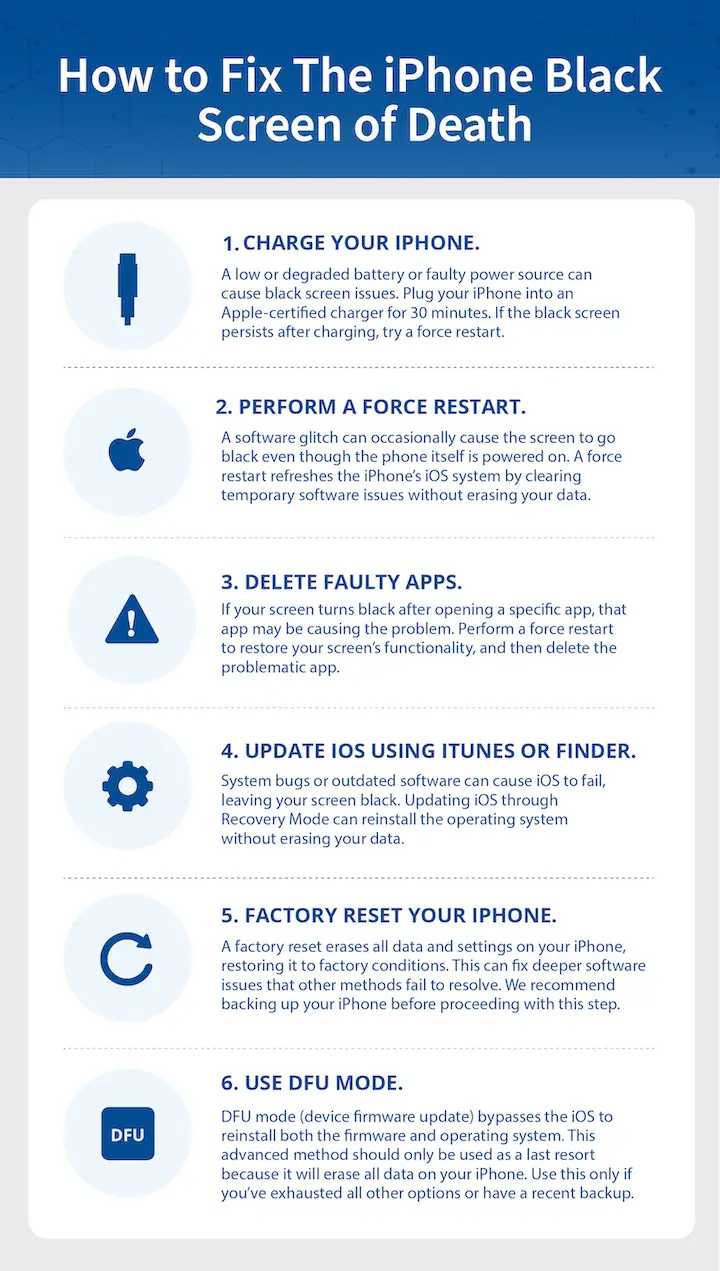
Performing a factory reset can be the ultimate solution when your device is plagued with persistent problems that refuse to go away. It’s like hitting the reset button on your technology, wiping out all glitches and deep-seated issues. While it might seem drastic, a factory reset can often restore your device’s performance to its original state, solving problems caused by malware, software corruption, or incompatible updates. However, it’s not a decision to take lightly, as it erases all your data and settings. Before you proceed, consider whether other troubleshooting methods have failed. If you’re at your wit’s end with a sluggish, crashing, or unresponsive device, a factory reset could be your last resort to breathe new life into your tech. Just remember to back up everything vital before making the leap.

Performing a Factory Reset as Last Resort to Eliminate Deep Issues
Understanding Why You Might Need a Factory Reset
Sometimes devices start acting strangely, and simple troubleshooting doesn’t solve the problem. In these cases, performing a factory reset can be the most effective way to fix deep-rooted issues. It essentially restores your device to its original settings, removing all personal data and installed apps.
A factory reset is often considered when problems like frequent crashes, persistent malware, or sluggish performance continue despite other solutions. Remember, this process should be your last step because it deletes all your data. Before proceeding, it’s important to evaluate whether a reset will solve your issue.
When Is a Factory Reset Necessary?
A factory reset becomes necessary when a device suffers from issues such as:
- Persistent software glitches that don’t respond to updates or repairs
- Severe malware infections that cannot be eradicated with antivirus tools
- Device lagging or freezing often, impairing usability
- Problems with hardware recognition that persist after troubleshooting
- Failed attempts at restoring factory settings through less drastic means
In such scenarios, resetting to factory settings is a reliable way to eliminate the problem completely.
Preparing for a Factory Reset
Before resetting your device, take some essential steps to ensure you’re ready:
Back Up Data
Since a factory reset deletes all your data, it’s crucial to save important files. Use cloud storage, external drives, or SD cards to back up photos, documents, contacts, and app data.
Charge Your Device
Ensure your device has at least 50% battery or is plugged into power. A shutdown during the reset process can cause further issues.
Note Down Important Settings
Record Wi-Fi passwords, app credentials, and customized settings. Restoring these later might require some manual input.
Disable Security Features
If your device has security features like Find My Device or device encryption, disable them temporarily. This helps prevent issues during the reset process.
How to Perform a Factory Reset: Step-by-Step Guide
The process differs depending on your device’s make and model, but the general steps remain similar. Here is a typical guide:
For Smartphones and Tablets
- Open the Settings app on your device.
- Scroll to find the “System” or “General Management” section.
- Select “Reset” or “Reset Options.”
- Tap on “Factory Data Reset” or “Erase All Data.”
- Confirm your choice, review the warning, and enter your device password if prompted.
- Allow the device to restart and complete the reset process.
For Computers
Depending on your OS, the process varies:
- Windows: Go to Settings > Update & Security > Recovery > Reset this PC > Get started.
- Mac: Restart your Mac in Recovery Mode (hold Command + R), then choose “Disk Utility” to erase the disk. Reinstall macOS afterward.
Important Considerations During Reset
Understand that a reset is irreversible; once started, it cannot be stopped. Ensure all data is backed up and accounts are deactivated if necessary. Also, be aware that you might need the original setup information afterward.
Dealing with Post-Reset Issues
After resetting, your device will restart in its original state. Expect to go through setup processes such as signing into your accounts and reinstalling apps. If problems persist, they might be hardware-related, requiring professional repair.
When to Seek Professional Help
If resetting does not resolve your issues, or if the device shows signs of hardware failure like abnormal noises or unresponsive screens, consult a technician. Some deep issues require specialized diagnosis and repair.
Preventing Future Deep Issues
After a reset, protect your device by:
- Regularly updating the software
- Installing trusted antivirus programs
- Avoiding suspicious links and downloads
- Keeping backups of important data
- Monitoring device performance for early signs of problems
Summary of When and How to Use a Factory Reset
Performing a factory reset is a powerful but final tool. It’s best used when all other troubleshooting steps fail. Always prepare by backing up your data and understanding the process fully. Follow device-specific instructions carefully, and seek professional help if necessary.
Additional Tips for a Smooth Reset Experience
Making sure your device is fully charged and disconnecting any peripherals can prevent mishaps. Double-check that you’ve saved all critical information and notes. This preparation ensures a smoother reset process and easier recovery afterward.
Related Topics to Consider
Other maintenance tips that can help prevent deep issues include:
- Performing regular system updates
- Running malware scans periodically
- Cleaning the device physically to prevent overheating
- Monitoring storage space to avoid performance lag
These practices will help keep your device functioning better longer, reducing the need for drastic measures like factory resets.
By understanding when and how to perform a factory reset, you can effectively use it as a last resort to eliminate persistent problems. Proper preparation and cautious execution guarantee the best chance of restoring your device’s performance without further complications.
How to Factory Reset an Android Mobile Phone (Hard Reset) (42)
Frequently Asked Questions
What steps should I take before performing a factory reset to address persistent device issues?
Before performing a factory reset, back up all important data to prevent data loss. Try troubleshooting common software problems by updating your device’s software, removing recently installed apps, and clearing cache. If these steps do not resolve the issues, consider performing a factory reset as a last resort to restore the device to its original settings.
How can I ensure my data is secure before initiating a factory reset?
To keep your data safe, back up your files, contacts, photos, and important documents to an external storage device or cloud service. Use built-in backup options provided by your device’s operating system. Once you confirm that your data is securely stored, proceed with the reset to eliminate deep-seated problems.
What are the potential risks associated with performing a factory reset?
Performing a factory reset will erase all data and settings from your device, restoring it to its initial state. This process can sometimes lead to data loss if backups are not made beforehand. Additionally, if underlying hardware issues exist, a reset may not solve the problems and could further complicate troubleshooting efforts.
How long does the reset process typically take, and what should I expect afterward?
The reset process usually takes a few minutes to complete, depending on the device and the amount of data stored. After the reset, your device will restart, and you will need to set it up again, including reconfiguring settings and reinstalling apps. Expect to spend some time restoring data if you have backed it up previously.
When should I seek professional help instead of attempting a factory reset?
If your device continues to experience issues after a reset or if you encounter hardware problems, seek assistance from a professional technician. Persistent software or hardware problems might require specialized repair methods beyond a factory reset to fully resolve the issues.
Final Thoughts
Performing a factory reset as last resort to eliminate deep issues can effectively restore your device to its original state. It clears persistent errors and eliminates software glitches that other troubleshooting steps may not resolve. Although it erases personal data, it often provides a fresh start.
Consider this step only after trying other solutions, as it is a definitive fix. If problems persist, a factory reset can restore normal operation and prevent further complications.
