

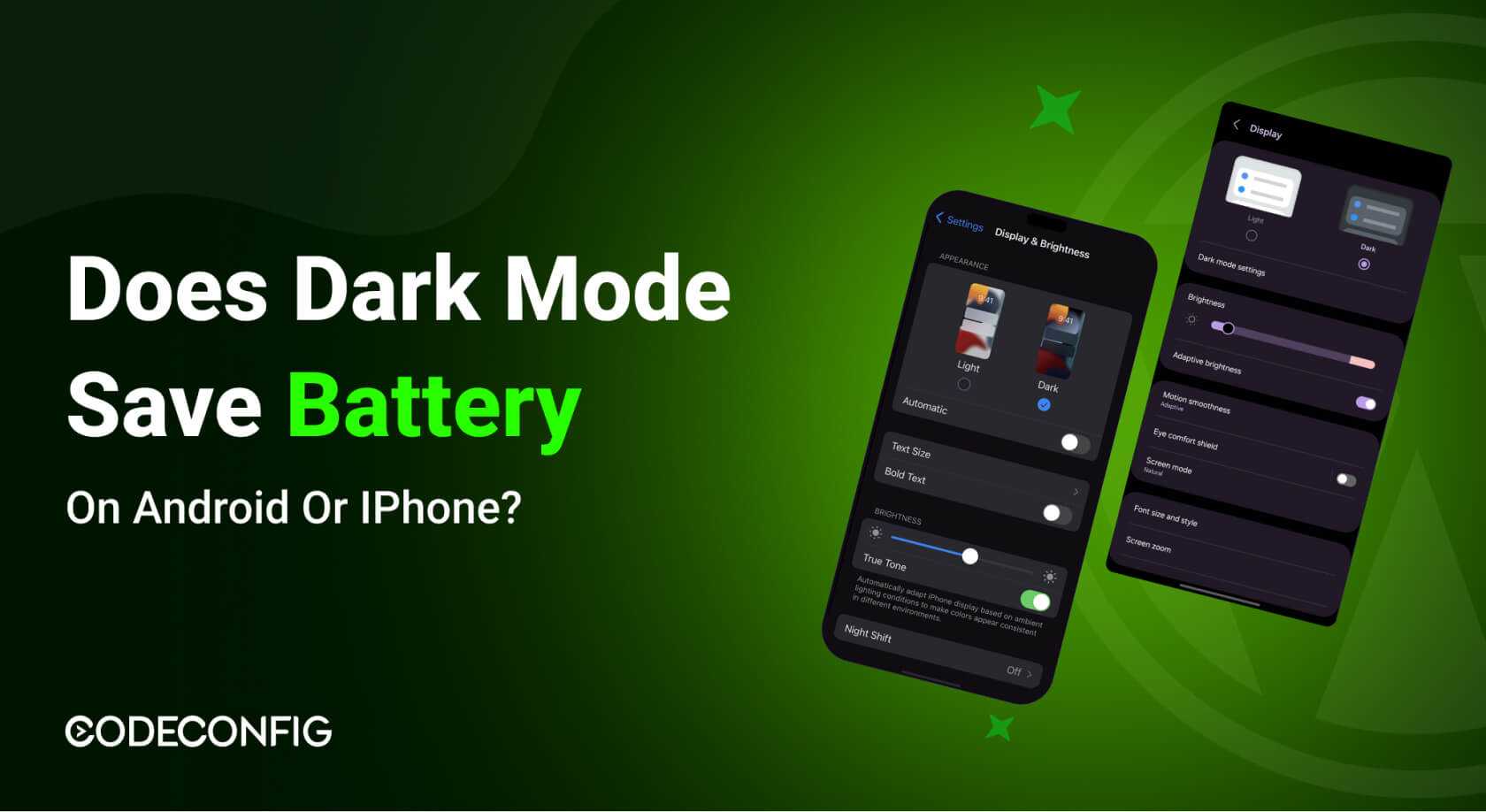
Switching to dark mode can significantly boost your device’s battery life, especially if you use an OLED screen. Dark mode reduces the amount of light emitted by pixels, cutting down power consumption and helping your device last longer between charges. This simple toggle can make a noticeable difference, particularly during prolonged use or when you’re often away from charging sources. In this article, we’ll explore how enabling dark mode can be a quick and effective way to extend your device’s battery life, along with tips to maximize its benefits. Whether you’re a casual user or a heavy phone user, adopting dark mode might just be the battery-saving hack you need.
Using dark mode can help conserve battery by reducing power usage on screens with OLED technology. It’s an easy switch that can lead to longer device uptime, making it a smart choice for anyone looking to squeeze extra life out of their batteries. By understanding when and how to use dark mode effectively, you can enjoy your device longer without constantly hunting for the charger.

Using dark mode to extend battery life
What is dark mode and how does it work?
Dark mode is a display setting that changes the background from light colors to dark shades like black or gray. This mode makes text and icons stand out more against the dark background, making it easier to read in low light. It also reduces the amount of bright light emitted from your screen, which can save battery power.
Why does dark mode help save battery life?
Most screens on smartphones and devices are made with OLED or AMOLED technology. Each pixel on these screens emits its own light. When displaying dark colors, especially black, these pixels are turned off or emit very little light. Because of this, dark mode reduces energy consumption significantly on devices using OLED or AMOLED screens.
The difference between OLED and LCD screens in battery usage
LCD screens use a backlight that illuminates all pixels at once. Whether displaying dark or bright colors, the backlight stays on, so dark mode doesn’t save much power on LCD screens. Conversely, OLED and AMOLED screens turn off pixels to display black, leading to noticeable battery savings with dark mode.
Summary of screen technologies and battery impact
| Screen Type | Power Consumption in Dark Mode | Power Consumption in Light Mode |
|---|---|---|
| OLED / AMOLED | Lower (pixels turn off for black) | Higher (all pixels lit) |
| LCD | Minimal difference | Minimal difference |
How to enable dark mode on your device
Most devices and apps offer simple ways to switch to dark mode. For smartphones, go to display settings and find the dark mode or night mode option. For computers, look into system preferences or display settings to activate this feature. Many popular apps like social media, browsers, and messaging platforms also have their own dark mode settings.
Steps to activate dark mode on common devices
- iPhone or iPad: Open Settings, tap Display & Brightness, then select Dark
- Android phones: Go to Settings, look for Display, then choose Dark theme
- Windows PC: Open Settings, select Personalization, then Colors, and pick Dark
- Mac: Click the Apple menu, choose System Preferences, then General, and select Dark from Appearance options
Impact of dark mode on device battery life: real-world results
Switching to dark mode can sometimes extend your device’s battery life by up to 20 to 30 percent, especially on OLED screens. The actual savings depend on how much you use dark mode and the type of display your device has. For heavy screen users, turning on dark mode can make a meaningful difference.
Studies and user reports on battery savings
Various tests reveal that OLED devices experience notable power savings in dark mode, sometimes even doubling battery life during intensive use. Users report longer periods between charges when utilizing dark mode regularly, especially on high brighter settings. These benefits are more prominent on newer devices with OLED screens.
Additional tips to maximize battery efficiency
Switching to dark mode helps, but combining it with other practices can extend battery life further. Lower screen brightness, disabling unnecessary notifications, and turning off location services when not needed all contribute to energy savings. Using battery saver modes offered by many devices also helps optimize power consumption.
Helpful practices for saving battery
- Reduce screen brightness or enable auto-brightness
- Limit background app activity and close unused apps
- Use Wi-Fi instead of mobile data when possible
- Disable Bluetooth and NFC when not in use
- Turn on airplane mode in areas with poor signal to prevent constant network searching
Related topics: optimizing your device for battery longevity
To further boost your device’s battery life, consider managing your apps’ permissions and update settings. Regularly updating your device ensures improvements in energy efficiency. Also, avoiding extreme temperatures and keeping your software current helps maintain optimal battery health.
Using dark mode with other power-saving features
Combining dark mode with features like adaptive brightness, power-saving mode, and auto-lock can significantly extend your device’s battery runtime. These options work together to minimize unnecessary energy expenditure, giving you longer usage between charges.
Limitations and considerations of dark mode
While dark mode benefits OLED screens, it offers little to no battery saving on LCD displays. Also, some users may find the contrast in dark mode harder to read or less visually appealing. It’s best to test and see if dark mode improves your viewing experience and device longevity.
When not to rely solely on dark mode
If your device has an LCD screen or if you work in bright environments, maintaining high brightness levels may be necessary for visibility. Remember, battery savings are just one aspect; user comfort and readability are equally important.
Future developments in dark mode and display technology
Display tech continues to evolve with advancements like low-power screens and adaptive brightness features. Manufacturers are also exploring new materials that could make dark mode even more energy-efficient. Staying updated on these innovations can help you maximize device performance and battery life.
Dark mode saves battery life?
Frequently Asked Questions
How does using dark mode affect the power consumption of different types of displays?
Dark mode reduces power consumption primarily on OLED and AMOLED screens, where individual pixels emit light. When displaying darker colors, fewer pixels need to light up, conserving energy. On LCD screens, the backlight remains on regardless of colors displayed, so switching to dark mode has a minimal impact on power usage. Understanding your device’s display type helps determine how effective dark mode can be in extending battery life.
Are there specific apps or activities where dark mode offers more battery savings?
Yes, activities that require prolonged screen time, such as browsing, reading, or using social media apps, benefit more from dark mode. Since these apps display a lot of content on the screen, switching to dark mode reduces the energy needed to illuminate pixels. This results in noticeable battery savings during extended usage, especially on devices with OLED screens.
Can enabling dark mode impact the readability or user experience on my device?
Enabling dark mode can improve readability in low-light environments by reducing glare and eye strain. However, it might make certain text or interface elements harder to see for some users, especially if the design isn’t optimized for dark backgrounds. Most devices and apps allow you to customize or toggle between modes, giving you control over your viewing experience without sacrificing usability.
Does using dark mode require any additional settings or configurations?
Most devices automatically adapt to dark mode once you enable it through system settings or individual app options. Some operating systems allow scheduling dark mode to activate at specific times or based on ambient lighting conditions. You might need to adjust display brightness or other settings to achieve the best balance between visual comfort and energy efficiency.
Are there potential drawbacks or limitations to using dark mode for battery saving?
While dark mode can save battery on certain screens, it may not significantly impact energy consumption on LCD displays. Additionally, some users find that dark mode affects readability or visual clarity, especially with certain color schemes or content. It’s important to evaluate whether the mode suits your personal preferences and device capabilities to ensure a comfortable experience while conserving power.
Final Thoughts
Using dark mode to extend battery life can significantly improve your device’s performance. It reduces the power consumption of OLED and AMOLED screens by limiting the use of bright pixels. This allows your device to run longer between charges.
Switching to dark mode is simple and accessible on most devices, making it an easy way to save energy daily. Plus, it can lessen eye strain during nighttime use, enhancing comfort.
In conclusion, implementing dark mode to extend battery life offers both efficiency and comfort. Adopting this setting helps you maximize your device’s battery life effortlessly.
