

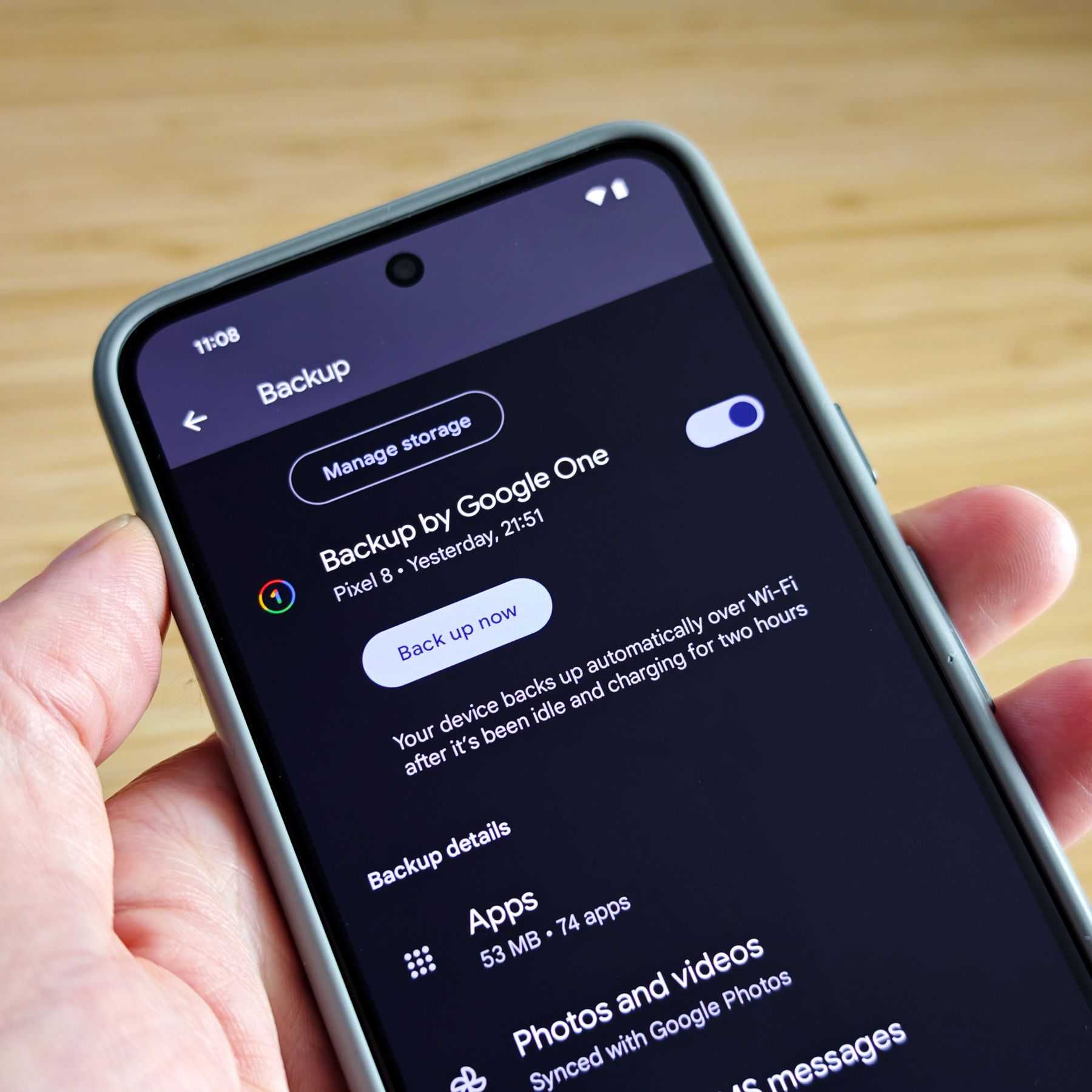
To backup your Android phone properly, start by using built-in tools like Google Backup for photos, contacts, and app data, and consider third-party apps for more comprehensive backups. Regularly updating these backups ensures your data is safe from accidental loss or device failure. Make sure to keep your backup stored securely, either in the cloud or on your computer, to ensure easy recovery when needed.
Backing up your Android phone is essential to protect your personal data and memories from unexpected mishaps. Whether you’re upgrading to a new device or just want peace of mind, knowing how to back up your data properly can save you a lot of trouble down the line. In this guide, I’ll show you simple yet effective ways to safeguard your information, so you can enjoy your device without worry. From automatic cloud backups to manual methods, let’s explore everything you need to know to keep your Android data safe and sound.

How to backup your Android phone properly
Understanding the importance of backing up your Android device
Backing up your Android phone is essential to protect your personal data. It includes photos, contacts, messages, apps, and settings. Without a backup, losing your device or experiencing a malfunction can mean losing everything. Having a backup ensures you can restore your data quickly and easily.
Types of data you should back up
Your Android device stores different types of data, each requiring proper backup. These include:
- Contacts and call logs
- Photos and videos
- Messages and chat histories
- Apps and app data
- Device settings and preferences
Identifying important data helps prioritize what to back up regularly.
Backup options available for Android phones
Android offers several backup methods. Understanding each helps choose what works best for you:
Google Account Backup
Google provides automatic backup for app data, contacts, calendar events, and settings. It’s simple to enable via your device’s settings.
Manual Backup to a PC
Connecting your phone to a computer via USB allows manual transfer of files and photos. This method gives you more control over specific data.
Cloud Storage Services
Apps like Google Drive, Dropbox, or OneDrive can automatically sync and store your files securely.
Third-party Backup Apps
Specialized apps can back up your entire device or selected data types with additional features.
How to enable Google Backup on your Android device
Google Backup is a straightforward way to keep your data safe. Follow these steps:
- Open your device’s Settings app
- Tap on ‘Google’ then ‘Backup’
- Activate ‘Back up to Google Drive’ or similar option
- Ensure ‘Backup my data’ or ‘Automatically back up’ is enabled
- Choose your Google account if prompted
This setup automatically backs up app data, Wi-Fi passwords, and device settings regularly.
Backing up photos and videos with Google Photos
Google Photos offers free storage for high-quality photos and videos. To back up:
- Open the Google Photos app
- Go to Settings
- Tap on ‘Backup & Sync’
- Toggle ‘Backup & Sync’ on
- Select upload quality (High quality is free, Original counts towards your storage)
Your media files will upload automatically when connected to Wi-Fi.
Manual backup of files and media to your PC
Manual backup gives you control over specific files:
- Connect your Android device to your PC via USB cable
- Allow file transfer if prompted on your device
- Open your device’s storage on your PC
- Copy and paste important files, photos, and videos into a folder on your computer
- Safely eject your device once transfer completes
Repeat this process periodically for up-to-date backups.
Using third-party backup apps for comprehensive data protection
Third-party apps can provide additional backup options:
- Titanium Backup (for rooted devices)
- Helium App Sync and Backup
- Super Backup & Restore
These apps can back up app data, SMS, call logs, and more, often storing backups in cloud storage or local storage.
Best practices for backing up your Android device
Effective backup habits include:
- Backing up regularly, especially before major updates or resets
- Checking that backups complete successfully
- Storing backups in multiple locations for safety
- Keeping your backup apps and services updated
- Reviewing backed-up data periodically to ensure accuracy
Implementing these practices helps keep your data secure and accessible.
Automating your backup process for convenience
Automation saves time and effort:
Set up scheduled backups
Use your device’s native backup settings or third-party apps to schedule regular backups at convenient times.
Enable cloud sync
Ensure services like Google Photos and Drive automatically sync new files and data.
Use backup reminders
Set calendar alerts to remind you to perform manual backups periodically.
Restoring data from backups on your Android phone
Restoring your data is easy once backups are in place:
- For Google backups, reset your phone or set up a new device, then select ‘Restore from Google Backup’ during setup
- For manual backups, connect your device to your PC and copy files back to your phone’s storage
- For cloud services, log into the app and download your files
- Use third-party backup apps to restore app data and settings as needed
Always verify that your data has been successfully restored after the process.
Keeping your backup secure and private
Your backups contain sensitive information. To keep them safe:
- Use strong, unique passwords for your cloud accounts
- Enable two-factor authentication where available
- Encrypt local backups if possible
- Regularly update your backup app and security software
Storing backups in multiple secure locations adds an extra layer of protection.
Common backup mistakes to avoid
Avoid these pitfalls:
- Failing to update backups regularly
- Not verifying that backups work correctly
- Storing backups only in one location
- Ignoring security features like encryption and passwords
- Relying solely on manual backups without scheduling
Steady and secure backups ensure your data is always recoverable.
Additional tips for effective Android backup management
Consider:
- Labeling backup files clearly for easy identification
- Using backup logs to monitor success
- Testing restoring from backups periodically
- Keeping enough storage space in your cloud accounts
Staying organized helps prevent data loss or confusion in emergencies.
Related topics to explore
Additional areas worth exploring include:
Data recovery tools for Android
Learn how to recover accidentally deleted files or corrupted data.
Security tips for mobile backups
Discover best practices for protecting backups against theft or hacking.
Managing storage space for backups
Find tips on how to optimize storage and avoid unnecessary costs.
Achieving a proper backup routine on your Android phone involves understanding your data, choosing suitable methods, and maintaining regular, secure backups. These steps provide peace of mind and ensure your important information remains safe even in unexpected situations.
Help Desk: How to backup your Android phone
Frequently Asked Questions
What are the best methods to ensure your backups are up-to-date regularly?
To keep your Android backups current, set a regular schedule that fits your usage habits. Enable automatic backups through your device settings or cloud services, such as Google Drive. Additionally, manually back up important files and app data periodically to prevent data loss from unexpected events.
How can I verify that my backup contains all my essential data?
After completing a backup, review its contents by checking your cloud storage or backup folder. Confirm that all critical information, including contacts, photos, app data, and settings, is saved. Perform a test restore on a secondary device or emulator to ensure the backup works properly and contains everything you need.
What precautions should I take before performing a manual backup?
Before initiating a manual backup, ensure your device has sufficient storage space and a stable internet connection if backing up to the cloud. Close all running apps to prevent data corruption, and consider charging your device or connecting it to power to prevent interruptions during the process. It’s also wise to back up recent changes or new files just before starting.
Are there specific apps or tools recommended for backing up Android data effectively?
Yes, several reliable apps and tools can simplify the backup process. Google’s built-in backup service captures your app data, settings, and contacts. You can also use third-party apps like Titanium Backup or Helium for more comprehensive backups, especially if you root your device. Always choose tools with high user ratings and regular updates to ensure compatibility and security.
Can I back up my Android data to an external device instead of cloud storage?
Absolutely. Using a USB cable or SD card, you can transfer files manually to an external storage device such as a computer or external hard drive. Connect your device to your computer via USB, then copy important files and folders. This approach provides an additional layer of security and quick access to your data without relying on internet connectivity.
Final Thoughts
To backup your Android phone properly, start by choosing a reliable cloud service or connecting to a computer. Regular backups ensure your data stays safe against loss or theft. Use built-in features like Google Backup to automate the process.
Maintaining a consistent backup schedule helps keep your information current. Verify your backups occasionally to confirm they work correctly and include all essential data.
How to backup your Android phone properly involves simple steps that protect your valuable information. Following these practices guarantees easy recovery and peace of mind in any situation.
