

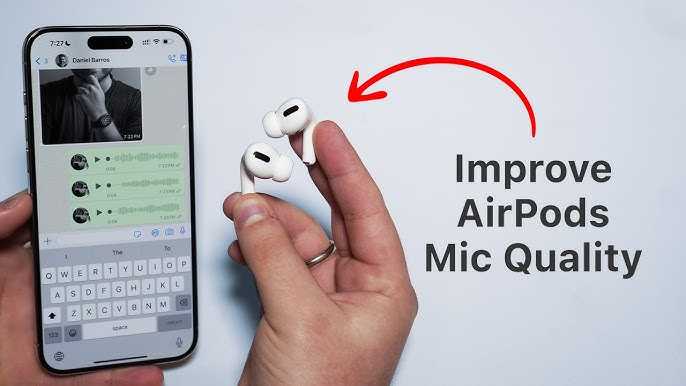
To instantly improve your AirPods mic sound, try cleaning the microphone, adjusting your device settings, and ensuring a good fit. Updating your firmware and reducing background noise can also make a huge difference. These simple tweaks can significantly enhance voice clarity during calls and recordings.
If you want your AirPods mic to sound clearer and more professional, start by checking for dirt or debris blocking the microphone. Adjust your device’s audio settings for better input quality, and ensure your AirPods sit comfortably and correctly in your ears. Regularly updating your AirPods’ firmware can also help fix bugs that impact microphone performance. By following these quick steps, you can enjoy crisper, more natural sound during all your calls and voice recordings.
If your AirPods mic sounds muffled or unclear, it might be time to troubleshoot. Many users overlook simple fixes like cleaning the mic or checking your device settings. Whether you’re taking an important work call or recording a video message, having a clear microphone is essential. In this article, we’ll explore easy and effective ways to boost your AirPods microphone quality, so you always sound your best. From cleaning tips to technical adjustments, get ready to upgrade your audio experience effortlessly.

How to Make AirPods Microphone Sound Better
Understanding the Common Problems with AirPods Microphone
Many users notice that their AirPods microphone doesn’t sound clear or gets muffled during calls. This issue can happen for several reasons, including hardware limitations, environmental noise, or connection issues. Recognizing these problems is the first step toward improving your microphone quality.
Ensure Proper Fit and Placement of Your AirPods
The position of your AirPods plays a significant role in sound quality. Make sure your AirPods sit comfortably in your ears, with the microphone aligned close to your mouth. For optimal sound pickup:
- Adjust the AirPods so they don’t sit too loose or too tight.
- Keep the microphone area aimed toward your mouth.
- Use the ear tips that fit best to reduce background noise.
Proper fit reduces wind noise and improves voice clarity during calls.
Update Your AirPods Firmware for Better Performance
Apple occasionally releases firmware updates that fix bugs and enhance features. Keeping your AirPods updated can improve microphone performance. To update:
- Connect your AirPods to your iPhone or iPad.
- Ensure your device is connected to Wi-Fi and has sufficient battery.
- Leave your AirPods connected to your device for some time; updates install automatically in the background.
Checking your firmware version helps confirm if you’re on the latest release.
Optimize Bluetooth Connection and Signal Strength
A weak or unstable Bluetooth connection can make your AirPods microphone sound worse. To improve connectivity:
- Keep your AirPods close to your device.
- Avoid obstacles like walls or metal objects between your AirPods and your device.
- Turn Bluetooth off and on again on your device to reset the connection.
- Forget the device and re-pair your AirPods to establish a fresh connection.
A strong, stable connection ensures better audio transmission for your microphone.
Control Environmental Noise for Clearer Voice Capture
Background noise can interfere with your AirPods microphone. To minimize ambient sounds:
- Use your AirPods in quieter environments whenever possible.
- Wear the AirPods closer to your mouth to boost voice pickup.
- Utilize noise reduction features available in some apps or devices.
Reducing ambient noise helps your voice sound clearer to the other person.
Adjust Microphone Settings on Your Apple Device
Your device offers settings that can influence microphone performance. To tweak these:
- Go to Settings on your iPhone or iPad.
- Select Bluetooth and find your AirPods in the list.
- Tap the ‘i’ icon next to your AirPods and check for any available options.
Some devices allow you to choose which microphone to use or adjust input levels, enhancing clarity.
Use Software and App Solutions to Improve Microphone Quality
Third-party apps can boost your AirPods microphone audio. Apps for voice enhancement include:
- Voice recording apps that offer noise reduction.
- Communication apps with built-in audio filters.
- Audio editing tools to clean up recordings post-call.
Testing different apps can help you find your preferred solution for clearer sound.
Try External Accessories for Better Microphone Input
If hardware limitations persist, consider using external microphones:
- Wireless microphones compatible with iOS devices.
- Microphone adapters designed for better audio input.
- Microphone attachments that clip onto your clothing for directly capturing your voice.
- Clean the microphone area gently using a dry, soft-bristled brush.
- Remove ear wax and debris that may block the microphone.
- Check for damage and replace if necessary.
- Put your AirPods into the charging case and close it.
- Open the lid, then hold the setup button on the case until the status light flashes amber and white.
- Reconnect your AirPods to your device and test the microphone again.
- Speak directly into your AirPods’ microphone during calls.
- Avoid covering the microphone with your hand or hair.
- Use voice commands or dictation in a quiet environment for higher accuracy.
- Best Ear Tips for AirPods: How different tips affect sound quality and comfort.
- Troubleshooting AirPods Connection Issues: Steps to fix pairing problems that impact microphone performance.
- Enhancing Call Quality on iOS Devices: Settings and apps that make calls clearer.
- Choosing External Microphones for Mobile Devices: Top options for recording and calls beyond AirPods.
These accessories can significantly improve sound quality during calls and recordings.
Maintain Your AirPods Regularly for Best Performance
Proper cleaning and maintenance keep your AirPods functioning well:
Regular upkeep prevents sound issues caused by dirt or damage.
Reset Your AirPods for Fresh Start
Resetting can resolve persistent microphone problems:
A reset often clears minor software glitches affecting sound quality.
Additional Tips for Improving AirPods Microphone Sound
Additional practices can help enhance microphone clarity:
Consistent habits ensure your microphone performs optimally over time.
Summary Table: Quick Tips to Improve Your AirPods Microphone Sound
| Tip | Details |
|---|---|
| Proper Fit | Adjust AirPods for close alignment to your mouth. |
| Firmware Update | Keep firmware current to benefit from fixes and features. |
| Stable Connection | Maintain close proximity to your device and reset Bluetooth if needed. |
| Reduce Background Noise | Use in quiet environments and position AirPods correctly. |
| Device Settings | Optimize microphone input options via device settings. |
| Use External Microphones | Consider accessories for advanced audio quality. |
| Regular Maintenance | Clean microphone area to prevent dirt build-up. |
| Reset AirPods | Perform a reset when issues persist. |
Related Topics to Explore
These strategies can help you get the most out of your AirPods microphone. Keeping your device updated, adjusting settings, and practicing good habits will lead to clearer, more natural-sounding voice calls.
Frequently Asked Questions
How can I improve the clarity of my AirPods microphone during calls?
To enhance clarity, ensure your AirPods are clean and free from debris or earwax that might block the microphone. Keep a close distance when speaking, ideally within a few inches of the microphone area. Additionally, avoid covering the microphone with your hand or hair, and consider reducing background noise by moving to a quieter environment to make your voice clearer to the listener.
What settings can I adjust on my device to improve AirPods microphone sound quality?
Check your device’s audio settings to optimize microphone performance. On iOS devices, go to Settings > Bluetooth, tap the info icon next to your AirPods, and select “Microphone” to ensure it’s set to “Automatic” or directly to the microphone you prefer. You can also disable noise cancellation features temporarily if they interfere with microphone pickup, and make sure your device’s software is up to date for optimal performance.
Are there any external factors that I should consider to enhance microphone sound quality?
Yes, environmental factors play a significant role. Use your AirPods in a quiet environment to minimize background noise. Reducing wind or airflow around the microphone can also improve sound quality. Additionally, avoid speaking too close or too far from the microphone, and keep your AirPods charged, as low battery levels can sometimes affect audio performance.
How can I update my AirPods firmware to ensure better microphone performance?
Ensure your AirPods are connected to your device and placed in their charging case with the lid closed. Connect the device to Wi-Fi and keep your AirPods near your device. Firmware updates happen automatically when certain conditions are met, so maintaining a stable connection and ensuring your device is updated can help improve microphone functionality over time.
What should I do if my AirPods microphone continues to sound muffled or unclear?
First, clean the microphone mesh with a soft, dry brush or cloth to remove any dirt or debris. Reset your AirPods by placing them in the case, closing the lid, waiting a few seconds, then reopening and reconnecting them to your device. If issues persist, consider testing the microphone with different devices or contacting Apple Support for further assistance.
Final Thoughts
To make airpods mic sound better, start by ensuring your AirPods are clean and free of debris. Poor sound quality often results from dirt blocking the microphones.
Adjust your device’s audio settings for optimal clarity, such as increasing the microphone sensitivity.
Lastly, keep your AirPods updated with the latest firmware to avoid bugs that may affect sound quality.
In summary, focusing on cleanliness, settings adjustments, and updates can improve the sound of your AirPods mic. This is how to make airpods mic sound better and ensure clear communication.
