

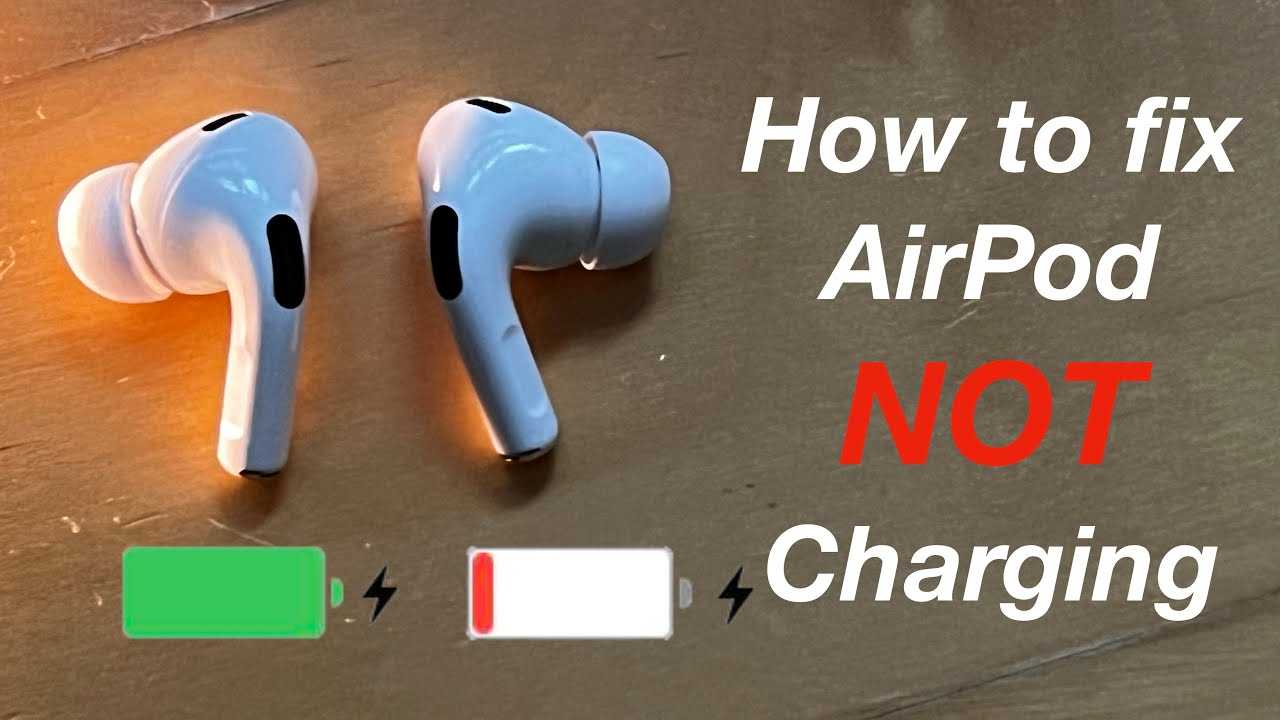
If your AirPods refuse to charge, don’t panic—there are simple steps to get them back in action quickly. First, check the charging case and your power source, ensure all connections are secure, and reset your AirPods if needed.
In short, troubleshoot by inspecting the charging case, try a different power outlet, and reset your AirPods to resolve charging issues. If those steps don’t work, consider contacting Apple support for further help.
Dealing with AirPods that won’t charge can be frustrating, especially when you’re eager to get back to your music or calls. Often, the problem isn’t with the AirPods themselves but with minor issues like a dirty charging port, a faulty cable, or a glitch in the connection between the AirPods and their case. Understanding how to troubleshoot this problem can save you time and money, and get your earbuds working smoothly again. Whether it’s a simple fix or a more detailed reset, knowing what to do will help you quickly identify and resolve the issue, so you’re never left without your favorite audio partner for long.

What to Do If AirPods Not Charging
Check Your Charging Cable and Power Source
First, make sure your charging cable is working properly. Try plugging it into a different power outlet to see if it charges your AirPods case. Inspect the cable for any visible damage like frays or bends that could prevent charging. Sometimes, the issue is with the power source rather than the AirPods.
Testing with Different Cables and Chargers
Use a different Lightning cable or wireless charger if available. Apple recommends using genuine accessories for the best performance. Avoid cheap or third-party chargers that may not provide the correct power output. If your AirPods charge with a different cable or charger, the original accessory might be faulty.
Ensuring Proper Connection
Verify that the cable is securely connected to your charging port. For wireless charging, make sure your AirPods case is correctly aligned with the charger. Small misalignments can prevent proper charging and cause the case to not charge at all.
Inspect the AirPods and Charging Case
Check your AirPods and case for dirt or debris that could block charging contacts. Use a soft, dry cloth to clean the charging port and the metal contacts inside the case. Dirt or grime can interfere with the electrical connection needed to charge.
Cleaning the Charging Contacts
Gently wipe the metal contacts inside the case with a soft cloth or cotton swab dipped in isopropyl alcohol. Make sure the contacts are free from dust, lint, or residue. Avoid using liquids directly on the case to prevent damage.
Examining for Damage
Look for any visible cracks, dents, or other damage to your case or AirPods. Physical damage can disrupt the charging process or even prevent it altogether. If damaged, professional repairs or replacements may be necessary.
Check Battery and Firmware Status
Sometimes, the issue isn’t with the charger but with the AirPods or case battery health. Connect your AirPods to your device and check their battery status. If the battery shows as extremely low or not charging, further troubleshooting is needed.
Updating Firmware
Ensure your AirPods firmware is up to date. Firmware updates often fix bugs that could interfere with charging. Connect your AirPods to your iPhone or iPad, and they typically update automatically when near a power source.
Battery Health Considerations
Over time, the battery capacity in your AirPods or case may decrease. If your devices are old, they might not hold charge as they used to. Consider replacing the batteries or purchasing new AirPods if batteries are no longer functioning properly.
Resetting Your AirPods
Resetting your AirPods can resolve many charging issues caused by software glitches or settings errors. To reset, follow these steps:
- Place both AirPods in the charging case and leave the lid open.
- Press and hold the setup button on the back of the case until the status light flashes amber, then white.
- Reconnect your AirPods to your device following the usual pairing process.
Resetting can often fix minor bugs that prevent charging or connections.
Check for Compatibility and Software Updates
Ensure your iPhone or other devices are updated to the latest software version. Compatibility issues may affect the charging process or the device’s ability to recognize your AirPods correctly. Keeping your device software current helps maintain optimal performance.
Verifying Device Compatibility
Make sure your device supports your AirPods model, especially if you have a newer or older version. Compatibility issues can sometimes interfere with features like firmware updates or charging detection.
Testing With Different Devices
Try charging your AirPods case with another compatible device or charger. This can help identify whether the problem lies with your original charger, device, or AirPods case. If your AirPods charge on a different device, focus on troubleshooting the original setup.
Updating or Replacing Hardware
If all steps fail and your AirPods still won’t charge, consider visiting an Apple Store or authorized repair center. Your device might require professional servicing or a hardware replacement. Apple offers options for battery replacement or case repair depending on warranty status.
Preventive Tips for Maintaining Charging Functionality
To avoid future charging issues, follow these simple tips:
- Keep charging contacts clean and free of debris.
- Avoid exposing your AirPods to liquids or extreme heat.
- Use original or certified charging accessories.
- Store your AirPods in a safe, dry place when not in use.
- Update firmware and device software regularly.
Additional Troubleshooting Options
If you have tried everything, consider these advanced steps:
- Reset your device’s network settings, as connectivity issues can sometimes affect charging detection.
- Check for any software conflicts or updates on your connected device.
- Consult Apple Support for further assistance if problems persist.
Summary of Effective Solutions
| Step | Action | Outcome |
| — | — | — |
| 1 | Test with different charger/cables | Identify faulty accessories |
| 2 | Clean charging contacts | Remove dirt causing poor connection |
| 3 | Reset AirPods | Fix software glitches |
| 4 | Update firmware and software | Ensure compatibility and bug fixes |
| 5 | Seek professional help | Address hardware issues |
Following these steps carefully can help resolve most issues related to your AirPods not charging and get your device back in working order. Regular maintenance and careful handling will prolong your AirPods’ lifespan and ensure reliable charging every time.
Frequently Asked Questions
Why aren’t my AirPods charging even when connected to the power source?
If your AirPods aren’t charging despite being plugged in, check if the charging cable and power source are working properly. Sometimes, the issue stems from a faulty cable or an outlet that isn’t providing power. Clean the charging connectors on both the AirPods case and the charging cable to remove any dirt or debris that might interfere with the connection. Ensure that the case closes securely and that the indicator light shows charging activity. If these steps don’t resolve the issue, try using a different cable or charger to see if the problem persists.
How can I reset my AirPods to fix charging issues?
Resetting your AirPods can often resolve charging problems. Place them in the charging case, then open the lid. Press and hold the setup button on the back of the case until the status light flashes amber a few times and then turns white. This resets the connection between your AirPods and your device. After resetting, reconnect your AirPods to your device, and check if they charge correctly. Make sure the case itself has enough battery to perform this reset procedure.
What should I do if my AirPods case isn’t charging properly?
If your AirPods case isn’t charging, verify that you’re using a compatible charging cable and power adapter. Inspect the charging port on the case for any dirt or damage and clean it gently if needed. Test the charger on another device or try a different charger to determine if the issue lies with the power source. Make sure the case’s charging contacts are clean and free from debris. If the case still won’t charge, contact Apple support or visit an authorized service provider for further assistance.
Final Thoughts
To conclude, if airpods not charging, start by checking the charging cable and port for dirt or damage. Ensure your AirPods are seated correctly in the charging case. If the issue persists, reset your AirPods and update their firmware. Taking these steps can resolve most charging problems efficiently.
