

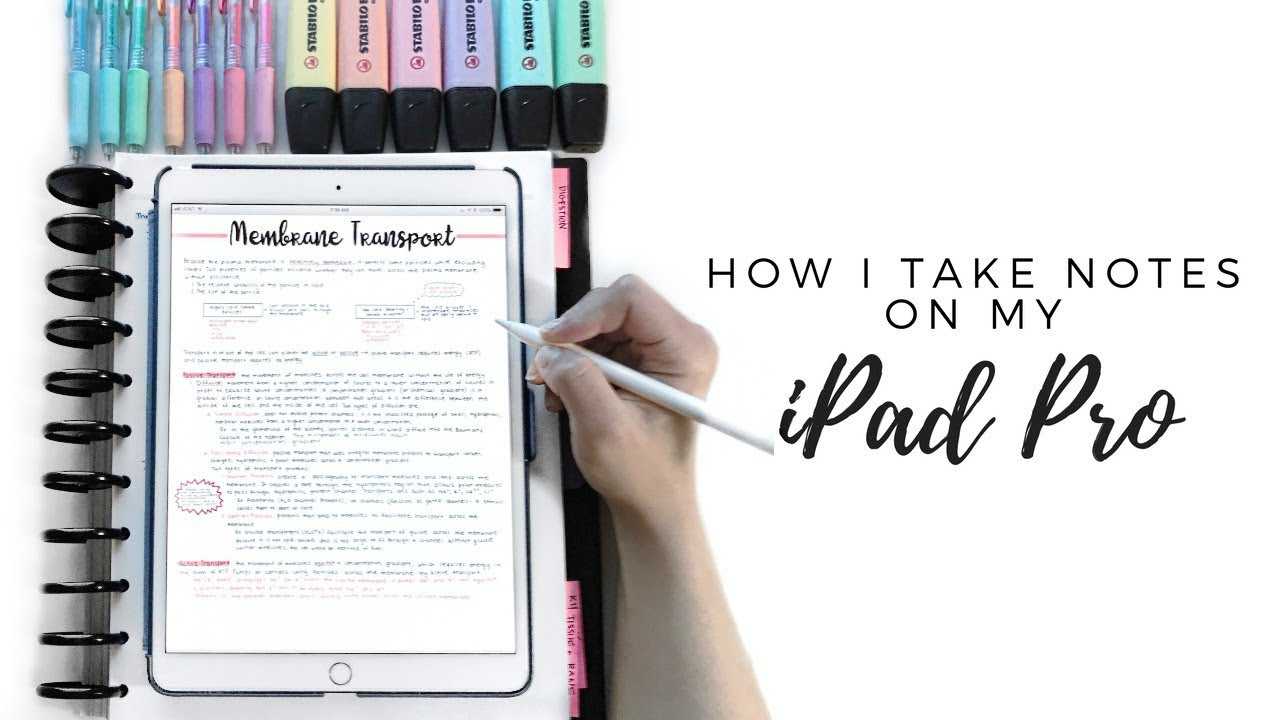
To take notes on an iPad efficiently, start by choosing the right app, such as Apple Notes, Notability, or GoodNotes, and use a stylus like the Apple Pencil for precision. Organize your notes with folders, utilize handwriting or typing, and take advantage of features like highlighting or adding images to make your notes more dynamic.
Taking notes on an iPad is a game-changer for students, professionals, or anyone looking to stay organized and productive. Whether you’re jotting down ideas during a meeting, highlighting key points from a lecture, or brainstorming creatively, the iPad offers a versatile platform to do it all. The key is selecting the right tools, apps, and techniques that match your style of note-taking. With the right setup, you can switch seamlessly between writing, typing, and annotating, making your notes more effective and easily accessible on the go. Dive into the best methods and tips to harness your iPad’s full potential for note-taking.

How to Take Notes on an iPad: A Complete Guide for Effective Note-Taking
Taking notes on an iPad is a convenient way to organize your thoughts, study material, or work-related information. With so many tools and features available, knowing how to use them efficiently can make your note-taking experience more enjoyable. This guide will help you understand everything from basic note-taking to advanced techniques on your iPad. Whether you prefer typing, handwriting, or a mix of both, you’ll find useful tips to suit your style.
Getting Started: Choosing the Right Notes App
The first step to effective note-taking on an iPad is selecting the right app. Apple’s Notes app is built-in and very user-friendly for beginners. However, other options like GoodNotes, Notability, and OneNote offer additional features that might better suit your needs.
Apple Notes
This app is free and seamlessly integrates with iCloud, making your notes accessible across all Apple devices. It supports both typing and handwriting with the Apple Pencil, allowing flexibility.
GoodNotes
Best for handwriting, annotations, and detailed sketches. It offers a variety of paper templates and excellent organization options. A paid app, but many users find its features worth the investment.
Notability
Popular for combining handwriting, typing, and audio recordings in one note. It’s ideal for students and professionals who record lectures or meetings while taking notes.
Microsoft OneNote
Great for users who work across multiple platforms and want integration with Office apps. It supports multimedia notes, handwriting, and collaboration.
Using the Apple Pencil for Handwriting and Drawing
The Apple Pencil transforms your iPad into a digital notebook. Its precision makes handwriting and drawing natural and effortless. To get started, connect your Pencil to your iPad and open your preferred notes app.
Tips for Effective Handwriting
- Maintain a comfortable grip for smooth writing.
- Choose the right paper template such as ruled lines or grid layouts.
- Adjust pen thickness and color to organize different sections or topics.
Drawing and Sketching
Use drawing tools to diagram ideas or highlight important points. Many note apps offer layering options and shape tools for clean diagrams.
Typing Notes on Your iPad
If you prefer typing, iPad offers several ways to create text-based notes. The virtual keyboard is the most common, but you can also connect external keyboards for faster input.
Using the On-Screen Keyboard
Open your notes app and tap anywhere to start typing. Use predictive text and autocorrect features to write efficiently. For longer notes or detailed formatting, consider using a Bluetooth keyboard.
External Keyboard Options
- Bluetooth keyboards provide a laptop-like experience.
- Mechanical keyboards can offer better tactile feedback.
- Keyboard shortcuts help speed up editing and formatting tasks.
Organizing Your Notes for Easy Access
Organization is key to staying productive. Most notes apps allow you to create folders, tags, or notebooks to categorize your notes.
Creating Folders and Notebooks
Group related notes together within folders or notebooks. For example, have separate folders for school subjects, work projects, or personal ideas.
Using Tags and Labels
Tags help you find notes quickly based on keywords or topics. Add tags when creating or editing notes to improve search functionality.
Enhancing Notes with Multimedia
Adding images, audio recordings, or links can make your notes more informative and interactive. Many apps support embedding multimedia directly into your notes.
Inserting Images and Photos
Use the camera or photo library to add visual aids. This is especially helpful in subjects requiring diagrams or charts.
Recording Audio
Apps like Notability allow audio recordings linked to notes. This is useful during lectures or meetings for capturing spoken information.
Adding Links and Files
Insert hyperlinks or attach documents for quick reference. This helps keep all relevant information in one place.
Using Features for Better Note-Taking
Explore additional features like highlighting, underlining, and annotating to make your notes clearer and more organized.
Highlighting and Underlining
Emphasize important points or keywords using different colors. Many apps have customizable highlighting tools.
Annotating PDFs and Images
Import PDFs or images and add notes or markings directly on them. This helps in reviewing complex material.
Search Functionality
Use the search bar to find specific notes, keywords, or tags instantly. This saves time compared to manual scrolling.
Creating and Managing Multiple Notes
Switching between several notes is easy with tabbed interfaces or sidebar navigation. Keep your workspace tidy by closing or archiving unused notes.
Pinning and Favoriting Notes
Mark important notes as favorites for quick access. Pinned notes stay at the top of your list for convenience.
Archiving Old Notes
Archive completed or less relevant notes to reduce clutter, but keep them accessible for future reference.
Syncing and Backing Up Your Notes
Ensure your notes are always safe by syncing with iCloud or other cloud services. Regular backups prevent data loss.
Using iCloud
Enable iCloud sync to access your notes across all Apple devices seamlessly. It also auto-saves your work in real time.
Backing Up on Other Platforms
Export notes as PDFs or other formats to your computer or cloud storage services like Dropbox for extra security.
Tips for Efficient Note-Taking on Your iPad
- Set up a comfortable workspace with proper lighting and posture.
- Organize your notes regularly to keep your digital filing system clean.
- Practice familiarizing yourself with app features to speed up your note-taking process.
- Use shortcuts and templates for recurring note types, such as meeting notes or study guides.
Additional Resources for iPad Note-Takers
Join online communities, watch tutorial videos, or read blogs dedicated to iPad note-taking to discover new tricks and tools.
Adapting Your Note-Taking Style to Your Needs
Experiment with handwriting, typing, or a mix of both to find what works best for you. Combining methods can often improve your learning and productivity.
Remember, the key to effective note-taking on an iPad is staying consistent and organized. Keep exploring new features and techniques to make your notes more useful and enjoyable to review.
Frequently Asked Questions
What are some effective ways to organize notes on an iPad?
To keep your notes well-organized on an iPad, create different folders for various subjects or projects. Use color coding or tags to categorize your notes for quick access. Additionally, taking advantage of note-taking apps that support hierarchical structures can help you easily find and manage your information.
How can I annotate PDFs or images on my iPad?
You can annotate PDFs or images directly within compatible apps like Apple Books, Notability, or GoodNotes. Open the document or image and use the markup tools to highlight, draw, or add comments. This feature allows you to mark up content and keep all your notes and annotations in one place.
What features should I use to improve note-taking efficiency on an iPad?
Utilize features such as Apple Pencil support for handwriting and sketches, voice-to-text transcription to quickly convert spoken words into text, and shortcut gestures to access your most-used tools. These functions help you take notes more quickly and organize your ideas effectively.
Are there tips for syncing notes across different devices?
Yes, ensure you use cloud-based services like iCloud or third-party apps such as Dropbox or OneDrive. Syncing your notes with these services allows you to access and update your notes seamlessly across your iPad, Mac, or other devices, keeping everything synchronized in real-time.
How can I search through my notes efficiently?
Many note-taking apps offer powerful search functions that let you find specific keywords or phrases within your notes. Use tags or keywords consistently to categorize information, making it easier to locate relevant notes quickly when needed.
Final Thoughts
To take notes on an iPad effectively, choose the right app like Notability or GoodNotes. Use the Apple Pencil for precise writing and easy navigation. Organize your notes with folders and tags for quick access.
Practice quick sketching and highlighting to emphasize key points. Sync your notes with cloud services to access them anytime, anywhere.
In summary, knowing how to take notes on an iPad involves selecting suitable tools, staying organized, and utilizing features efficiently. These steps help you make the most of your device and enhance your note-taking experience.
