

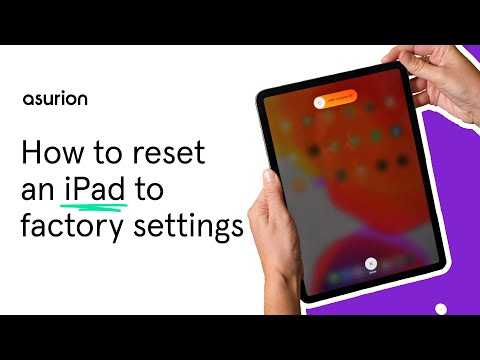
To reset your iPad to factory settings, simply go to Settings > General > Transfer or Reset iPad > Erase All Content and Settings, and confirm. This process wipes all your data and restores the device to its original factory state. Make sure to back up any important information beforehand to avoid losing valuable files.
If you’re looking to give your iPad a fresh start, resetting it to factory defaults is a quick and effective way. Whether you’re planning to sell your device or troubleshoot persistent issues, knowing how to perform this reset can save you time and frustration. No matter the reason, restoring your iPad to its original settings can help improve performance and resolve software glitches. In this guide, we’ll walk you through the simple steps to reset your iPad safely and securely, ensuring you’re ready for a new beginning with your device.

How Do I Reset My iPad to Factory Default?
Resetting your iPad to factory default can seem daunting, but it is a straightforward process once you understand the steps involved. Whether your device is running slow, experiencing glitches, or you want to give it to someone else, resetting can fix many issues and clear all your data securely. In this guide, we will walk you through all the methods and considerations for resetting your iPad to its original settings.
Understanding Why You Might Reset Your iPad
Before diving into the reset process, it’s helpful to understand why resetting is useful. Common reasons include fixing software issues, removing personal data, or preparing the device for sale or transfer. Resetting restores the iPad to the state it was in when you first bought it, erasing all apps, settings, and files.
Different Types of Resets for Your iPad
There are mainly two types of resets you can perform: a soft reset and a hard reset. A soft reset simply reboots your device and can resolve minor glitches. A hard reset, or factory reset, erases all content and settings, returning the device to its original state.
Soft Reset
This is often called a restart. You can do it without erasing any data. It helps fix minor issues like freezing or unresponsive apps. To perform this, press and hold the power button until the “slide to power off” slider appears. Drag it to turn off your iPad, then press the power button again to turn it back on.
Hard Reset or Factory Reset
This process wipes all data and restores factory settings. It is useful when troubleshooting serious problems or preparing the device for resale. It’s important to back up your data before proceeding with a factory reset, as all information will be lost.
Prerequisites Before Resetting Your iPad
Ensure you have a recent backup of your data either via iCloud or iTunes/Finder on a computer. Check that your device is charged or connected to a power source. Confirm that you know your Apple ID and password, as you may need them afterward to set up the device again.
How to Back Up Your iPad
Backing up ensures you do not lose important photos, contacts, or app data. You can back up via iCloud or by using a computer. Here’s how:
Backing Up with iCloud
- Connect your iPad to Wi-Fi.
- Go to Settings and tap your Apple ID at the top.
- Select “iCloud” and then “iCloud Backup.”
- Tap “Back Up Now” and wait for the process to finish.
Backing Up with a Computer
- Connect your iPad to your Mac or Windows PC using a cable.
- Open iTunes (on Windows or macOS Mojave and earlier) or Finder (on macOS Catalina and later).
- Select your device and click “Back Up Now.”
Steps to Reset iPad to Factory Default Using Settings
This method is easy and does not require a computer. Follow these steps:
Using Your iPad’s Settings Menu
- Open the Settings app.
- Scroll down and tap on “General.”
- Find and tap “Reset” or “Transfer or Reset iPad” on newer iOS versions.
- Select “Erase All Content and Settings.”
- Enter your passcode if prompted.
- Input your Apple ID password to confirm the reset.
- Tap “Erase” and wait for the device to restart and wipe everything.
Resetting Your iPad via Computer
If your iPad is unresponsive or you prefer using a computer, follow these steps:
Using iTunes on Windows or macOS Mojave and Earlier
- Connect your iPad to your computer via USB cable.
- Open iTunes and select your device when it appears.
- Click “Restore iPad” in the summary panel.
- Confirm your choice and allow iTunes to erase and install the latest iOS firmware.
- The device will restart after the process completes.
Using Finder on macOS Catalina and Later
- Connect your iPad to your Mac with a cable.
- Open Finder and locate your device in the sidebar.
- Click on your device, then select “Restore iPad.”
- Follow prompts, and the device will be reset and updated.
What to Do After Resetting Your iPad
Once your reset is complete, your iPad will restart and display the initial setup screen. You can choose to set it up as new or restore from a backup if you have one. Don’t forget to sign in with your Apple ID and set up preferences as needed.
Common Issues and Troubleshooting Tips
Device Not Resetting or Getting Stuck
If your device freezes during reset, try force restarting it. For iPads with a Home button, press and hold the Home and Power buttons simultaneously. For newer models without a Home button, press and quickly release Volume Up, then Volume Down, then press and hold the Power button until the Apple logo appears.
Forgotten Apple ID or Password
If you cannot verify your device due to Apple ID issues, visit the Apple ID account page to reset your password. You may need to unlock your account before completing the reset.
Additional Tips for a Smooth Reset
- Ensure your battery has at least 50% charge or keep your device plugged in during the process.
- Double-check that you have your Apple ID credentials ready for activation after the reset.
- Make sure all your important data is backed up beforehand to prevent data loss.
Related Topics to Consider
- How to Backup and Restore iPad Data: Protect your information before resetting.
- Updating Your iPad Software: Keep your device current for a smoother reset process.
- How to Erase Apple ID and Activation Lock: Important before selling your device or giving it away.
Resetting your iPad to factory default is a simple process when you follow the correct steps and prepare properly. Whether you choose to reset through the device settings or via a computer, this guide provides all the necessary information to do it safely and effectively. Remember to back up your data regularly to avoid losing valuable information whenever you perform a reset.
How to factory reset | Delete all your data securely | Apple iPad, iPad Pro & iPhone
Frequently Asked Questions
What steps should I follow to erase all data and settings on my iPad?
To wipe your iPad clean, go to Settings, then tap General. Scroll down and select Reset, then choose ‘Erase All Content and Settings.’ Confirm your choice by entering your Apple ID password or device passcode. Your iPad will restart and begin the reset process, erasing all personal data and restoring it to factory settings.
Can I reset my iPad if I forgot my passcode?
Yes, you can reset your iPad even if you forget the passcode by connecting your device to a computer with iTunes installed. Enter recovery mode by pressing and holding specific buttons depending on your iPad model. When prompted, select ‘Restore’ in iTunes to erase all data, including the forgotten passcode, and reinstall the latest iOS version.
Is it possible to reset my iPad without using a computer?
Absolutely. If you haven’t enabled Find My on your device, you can reset directly from the iPad. Navigate to Settings > General > Reset and tap ‘Erase All Content and Settings.’ You’ll need to confirm your Apple ID password. If Find My is enabled, you’ll need to use a computer or visit iCloud.com to erase your device remotely.
Will resetting my iPad delete all my apps and media?
Yes, performing a factory reset removes all apps, media, and personal settings from your iPad. It restores the device to its original state as when you first bought it. Be sure to back up any important data beforehand if you want to restore it later.
What should I do before resetting my iPad to ensure data safety?
Before initiating a reset, back up your data via iCloud or iTunes to prevent loss of important information. Remove any sensitive information and sign out of your Apple ID to disable Activation Lock. This preparation helps you restore your data easily after the reset, if needed.
Final Thoughts
To reset your iPad to factory default, ensure you back up your data first. Navigate to Settings, then General, and select Reset. Choose ‘Erase All Content and Settings’ to initiate the reset process. Confirm your choice and wait for the device to restart.
This process deletes all personal information and settings, returning your iPad to its original state. If you ask yourself, ‘how do I reset my iPad to factory default,’ following these steps makes it straightforward. Remember, this action is irreversible, so double-check your backups before proceeding.
