

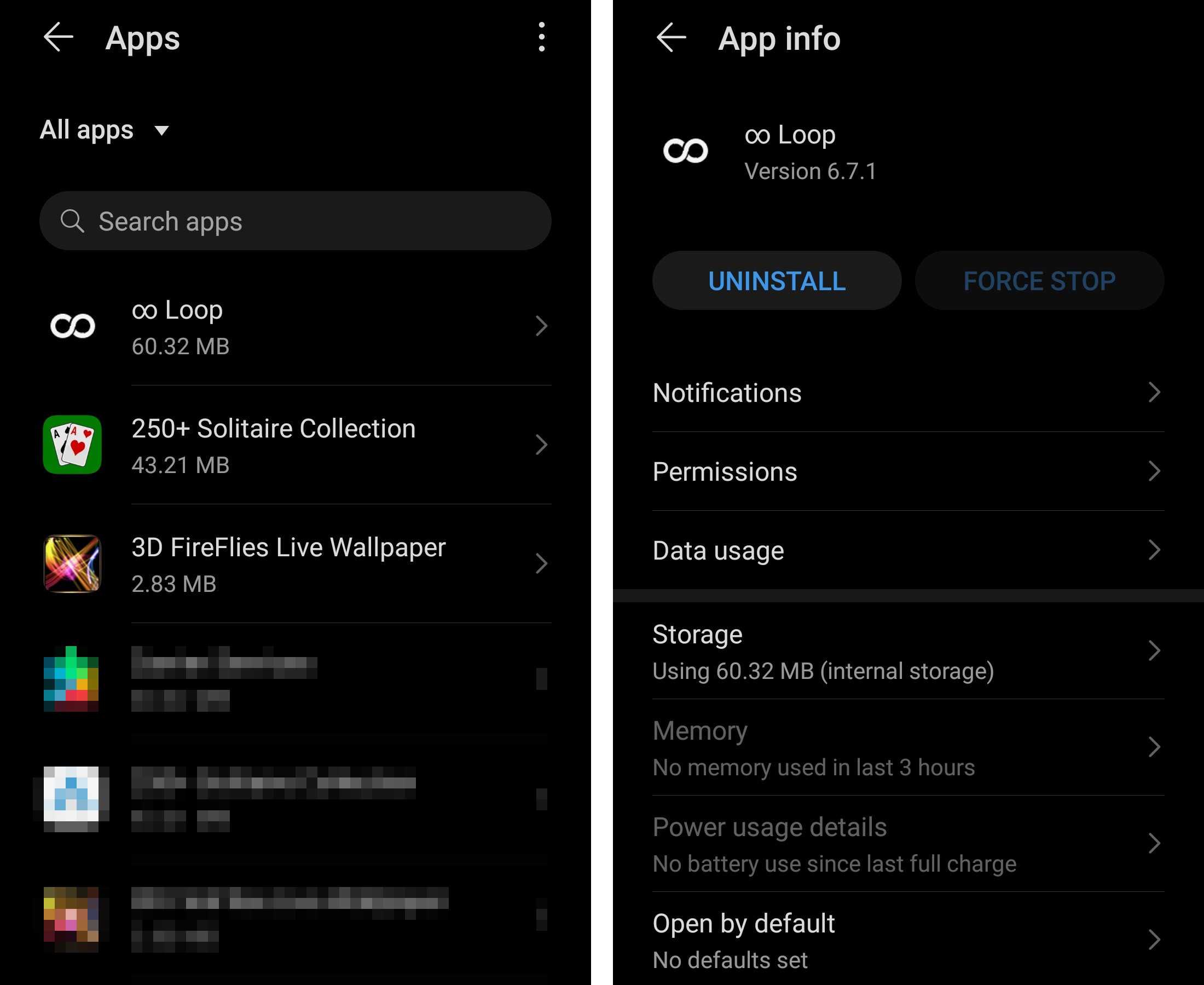
To disable an Android app without uninstalling it, simply head to your device settings, find the app, and tap ‘Disable.’ This quickly turns off the app, freeing up resources and preventing it from running in the background, all without deleting it from your device.
Disabling an app is a handy way to stop unwanted or unused applications without the hassle of uninstalling and reinstalling later. It’s perfect for freeing up storage, improving device speed, or temporarily turning off apps you don’t need while keeping them installed for future use. Whether you want to pause social media apps or block system bloatware, this simple method allows you to manage your apps efficiently without losing important data or settings. Just a few taps in your device settings are all it takes to regain control and optimize your Android experience.

How to Disable Android App Without Uninstalling: A Complete Guide
Sometimes, you want to stop an app from running on your Android device without removing it entirely. Disabling an app is a simple way to do this, especially if you want to conserve battery or stop notifications. This guide will show you how to disable Android apps step-by-step, using built-in settings or other easy methods.
Understanding What Disabling an Android App Means
Disabling an app turns it off so it doesn’t run or appear on your device. This is useful for removing pre-installed apps or bloatware without deleting them permanently. Disabled apps won’t send notifications, use data, or take up much space.
Why Disable Apps Instead of Uninstalling
Disabling is helpful when you’re unsure if you want to delete an app forever. It keeps the app on your device but prevents it from working. Plus, some system apps can only be disabled and not uninstalled.
How to Disable Android Apps Using Settings
Step-by-step Guide to Disable Apps
- Open the Settings app on your device.
- Scroll down and tap on Apps & Notifications.
- Tap See All Apps or App Management.
- Find and select the app you want to disable.
- Tap Disable.
Some apps may show a warning before disabling. Confirm your choice, and the app will be turned off.
Disabling System vs. User Apps
System Apps
These apps come pre-installed on your device. You can disable many of them, but some are essential for your phone’s operation.
User-installed Apps
Apps you’ve added from the Google Play Store can always be disabled. They are easier to disable and re-enable.
Using Quick Settings to Disable Apps
Some Android devices allow disabling apps directly from the quick settings menu. Swipe down from the top of your screen to access quick settings. Tap and hold the app icon to see options like disable or app info.
Disabling Apps via Google Play Store
While the Google Play Store doesn’t let you disable apps directly, you can manage updates or uninstall updates to reduce app activity. To do this, open the Play Store, go to My Apps & Games, select the app, and choose Uninstall Updates.
Using Third-party Apps to Manage Disabling
Some third-party apps from the Play Store claim to help disable or freeze apps. Use these cautiously, as they might require root access and can impact device security.
What to Do If Disable Button Is Greyed Out
If you see the Disable button grayed out, the app may be essential to your device or cannot be disabled. In that case, consider alternatives like managing notifications or restricting background data.
Restricting App Permissions Without Disabling
Controlling Notifications
- Go to Settings
- Select Apps & Notifications
- Choose the app
- Tap Notifications and switch it off
Limiting Data Usage
- In app info, select Mobile Data & Wi-Fi
- Toggle off Background Data
How to Re-Enable Disabled Apps
- Open Settings
- Go to Apps & Notifications
- Find the disabled app in the list
- Tap on it and select Enable
Disabling Apps on Different Android Versions
The process is similar across Android versions, but menu labels may differ slightly. For Android 10 and above, look for Apps & Notifications. On older devices, it may appear as Applications.
Best Tips for Managing Disabled Apps
- Disable rarely used or unwanted apps to improve performance
- Regularly review your disabled apps list to keep it manageable
- Be cautious with disabling system apps to avoid device issues
Related Topics: Alternative Ways to Manage Apps
Using App Lockers
App lockers can password-protect apps without disabling them. This ensures privacy without affecting app functionality.
Uninstalling Apps
If you no longer need an app, consider uninstalling it instead of disabling. This frees up storage space.
Factory Reset
As a last resort, resetting your device restores it to default settings but erases all data. Use this only if necessary.
Summary of Key Points
- Disabling an app stops it from running without deleting it
- Navigate through device Settings to disable apps easily
- System apps might be restricted from disabling
- Disable apps you rarely use to improve device performance
- Re-enable apps anytime through Settings
Knowing how to disable Android apps without uninstalling gives you greater control over your device. It can help keep your phone clutter-free and improve battery life, all while keeping important apps on hand should you need them again.
How to Disable Any App on Android Smartphone? Turn OFF Default Android Applications!
Frequently Asked Questions
Can I temporarily disable an app on Android without deleting it?
Yes, you can temporarily disable an app without uninstalling it. To do this, go to your device’s Settings, select “Apps” or “Applications,” find the app you want to disable, tap on it, and then choose the “Disable” option. Disabling an app prevents it from running and appearing in your app drawer but keeps its data intact.
What steps are involved in turning off app notifications without removing the app?
Disabling notifications allows you to stop alerts from an app without uninstalling it. Open Settings on your device, navigate to “Apps & notifications,” select the app, and tap on “Notifications.” Here, you can toggle off notifications or customize individual notification settings to reduce disruptions while keeping the app active.
Is there a way to disable pre-installed apps on Android devices?
In many cases, pre-installed apps can be disabled through the device’s Settings. Navigate to “Apps” or “Applications,” select the pre-installed app, and tap on “Disable.” If the option isn’t available, your device may not permit disabling certain system apps without rooting the device, which could void your warranty.
How can I disable an app temporarily to improve device performance?
Disabling apps you do not use frequently can free up system resources and improve performance. Access your device’s Settings, go to “Apps” or “Applications,” choose the app, and select “Disable.” This action stops background processes and notifications related to the app without removing it from your device.
Does disabling an app delete its data or files?
No, disabling an app does not delete its data or files. The app remains installed on your device, and all its data is preserved. When you decide to enable the app again, everything should be as it was before disabling it, allowing you to use the app without losing information.
Final Thoughts
Disabling an Android app without uninstalling offers a simple way to improve device performance and save battery life. You can do this through the device’s settings by locating the app and selecting “Disable.” This action stops the app from running in the background.
Alternatively, use third-party apps or shortcuts for quick access to disable or enable apps as needed. It’s a practical method to manage your apps without permanently removing them.
In summary, understanding how to disable android app without uninstalling helps you control app activity efficiently. This simple approach ensures your device runs smoothly while keeping apps available for future use.
