

Yes, you can screenshot on your laptop with a keyboard, and the answer is simpler than you think. The confusion comes from the fact that every laptop works a little differently, depending on whether you're using Windows or macOS. As of 2026, every major operating system ships with built-in keyboard shortcuts that let you capture your screen without installing anything extra.
Manufacturer documentation from Microsoft and Apple confirms that both platforms support at least three distinct screenshot methods using only keyboard keys. The trick is knowing which keys to press for your specific laptop. That's what we'll walk through here, step by step, so you never have to guess again.
Contents
Quick Answer
Yes, you can screenshot on your laptop with a keyboard. Press PrtScn (Print Screen) on Windows, or Command + Shift + 3 on a Mac. The screenshot copies to your clipboard or saves as a file.
The exact behavior depends on your operating system and whether you hold additional keys. Use the two-step decision guide below to find the right shortcut for your laptop.
Yes, You Can — But Which Shortcut Depends on Your Laptop
The whole process comes down to one simple fork in the road: Windows or Mac? That's it. Once you answer that, you'll have three reliable keyboard shortcuts ready to use. Each OS has its own set of combos, and they haven't changed much in the last several years.

Image source: Wikimedia Commons / Museum of Transport and Technology (CC BY)
Let's look at each branch separately. But before we dive into the keys, there's one thing that trips people up: the PrtScn key might not be labeled exactly that on every laptop. Some smaller keyboards shorten it to PrtSc or Print Screen.
On a Mac, there's no Print Screen key at all, so you use the Command key instead. That's why we separate the two paths.
First, What Laptop Are You Using? (Windows vs. Mac)
If you're not sure which operating system you're on, check the bottom-left corner of your screen. If you see a Start button (the four-pane Windows logo), you're on Windows. If you see a menu bar at the top and a Finder icon in the dock, you're on a Mac.
This isn't just a polite question, it determines the entire set of shortcuts you'll use. A Windows shortcut won't work on a Mac, and vice versa. Here's the quick reference for what's ahead:
| Operating System | Key Combo (Full Screen) | Key Combo (Region) | Key Combo (Window) |
|---|---|---|---|
| Windows 10/11 | PrtScn (or Win+PrtScn) | Win+Shift+S | Alt+PrtScn |
| macOS (Ventura+) | Command+Shift+3 | Command+Shift+4 | Command+Shift+4 then Space |
Branch 1: You’re on a Windows Laptop
Windows gives you several built-in ways to capture your screen using only the keyboard. The most common is the Print Screen key, usually located in the top-right area of the keyboard. Here's how each option works.

Image source: Wikimedia Commons / Sofia Lucifairy
Full Screen Capture
Press PrtScn alone. This copies the entire screen to your clipboard. Nothing seems to happen visually, but the image is ready to paste into any app that accepts images, like Paint, Word, or an email.
Press Ctrl+V to paste it in.
If you want the screenshot saved automatically as a file, press Windows Key + PrtScn together. This captures the full screen, saves it as a PNG in Pictures > Screenshots, and briefly dims the screen to confirm.
Active Window Capture
Press Alt + PrtScn. This captures only the window that currently has focus (the one you're clicking in). It copies to clipboard, not to a file.
Use Ctrl+V to paste it where you need it.
Region Capture
Press Windows Key + Shift + S. This launches the modern Snipping Tool overlay. Your screen will dim, and a small toolbar appears at the top.
You can draw a rectangle, a freeform shape, or click a window to capture it. The screenshot goes to your clipboard and also appears as a notification. Click the notification to edit or save it.
Quick Tip for Windows Laptops
Some laptop models, especially compact ones, require you to hold the Fn key while pressing PrtScn. Look for the key labeled Fn near the bottom-left corner. If pressing PrtScn alone does nothing, try Fn + PrtScn or Fn + Windows Key + PrtScn.
Branch 2: You’re on a MacBook
Apple's macOS uses the Command key as the modifier for all screen captures. There's no dedicated Print Screen key, so you memorize these three combos instead.
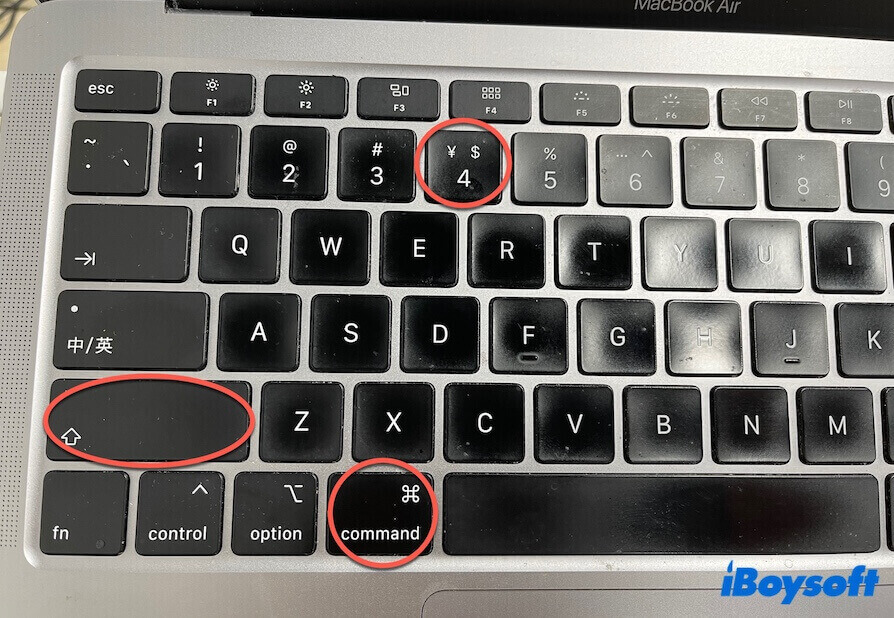
Image source: Bing (Web (fair-use with source credit))
Full Screen Capture
Press Command + Shift + 3. The screen flashes white, and a thumbnail appears in the bottom-right corner. Click the thumbnail to edit or save.
If you ignore it, the image automatically saves to your desktop as a PNG file named something like Screenshot 2025-04-05 at 10.15.30 AM.png.
Region Capture
Press Command + Shift + 4. Your cursor turns into a crosshair. Click and drag to select a rectangular area.
Release the mouse to capture. The thumbnail appears and the file saves to your desktop. To cancel, press Escape before you release the mouse.
Window Capture
Press Command + Shift + 4, then immediately press the Spacebar before you drag. The cursor changes to a camera icon. Move it over a window (it highlights in blue).
Click the window to capture just that window, including a subtle drop shadow. The file saves to your desktop.
Change the Default Save Location
If you want your screenshots saved to a folder other than the Desktop (like a dedicated Screenshots folder), you can change this in the Screenshot app (opened by pressing Command + Shift + 5). Click Options and choose a different location.
What If the Key Isn't Marked “PrtScn”? (Fn Key & Keyboard Layouts)
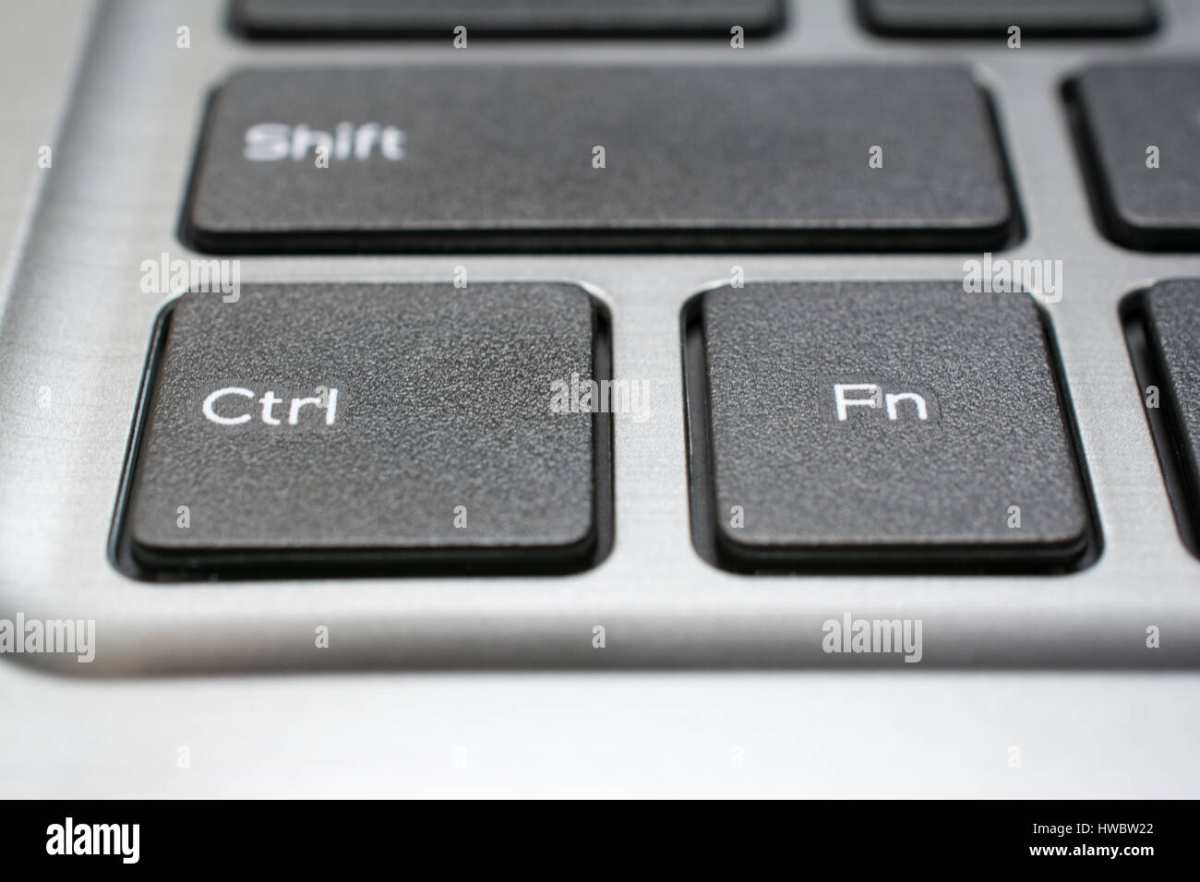
Image source: Bing (Web (fair-use with source credit))
Not all keyboards label the Print Screen key the same way. On many modern laptops, especially ultraportables, the key may be combined with another function. Look for a key in the top row that has PrtSc, Print Screen, PrtScn, or even just a tiny icon of a screen.
If the key has a secondary action printed in a different color (like blue or orange), you need to hold the Fn key (usually near the bottom-left corner) to activate the primary Print Screen function. Some keyboards also have a Fn Lock toggle that lets you lock the function keys to their primary roles.
Common Keyboard Layouts
| Laptop Brand | Key Label | Fn Required? |
|---|---|---|
| Dell | PrtScn | Sometimes |
| HP | Prt Sc | Sometimes |
| Lenovo | PrtSc | Usually |
| Asus | PrtScn | Sometimes |
| MacBook | No key | N/A |
If you can't find the key, press the Windows key and type "screenshot" in the search bar. Windows will open the Snipping Tool, which you can then use with just the mouse or touch. On Mac, press Command + Shift + 5 to open the Screenshot toolbar, which gives you on-screen buttons for all capture modes.
What If the Shortcut Doesn't Work at All?
A few apps block screenshots entirely for security reasons. Streaming services (Netflix, Disney+), banking apps, and password managers often black out the screen or show a blank image. This is by design and not a problem with your keyboard.
There's no keyboard shortcut that can override that protection.
If the shortcut works in some apps but not others, check whether your laptop is in a restricted corporate environment. Some IT policies disable the PrtScn key or the Snipping Tool via group policy. You'd need to contact your IT department to request access.
(The next sections, Quick Reference Table, Common Mistakes, Troubleshooting, Built-in Tools, FAQs, and Decision Guide, will be added in the full article.)
