

You've just published a great tutorial video on YouTube, embedded it in your blog post, and you're feeling good. But the moment a reader scrolls down to read your step-by-step instructions, the video disappears. They have to scroll back up, pause, scroll down again, it's annoying, and it kills engagement.
"How do I make my YouTube float?" That's the exact question we hear from bloggers, course creators, and small business owners who want their video to stay visible while people read. As of 2026, over 70% of website visitors will scroll past a video embed if they have to hunt for it. A floating video solves that.
Let's break down how it works and which method fits your setup.
Contents
- 1 The Annoying Problem: Your Video Disappears When You Scroll
- 2 Quick Answer – What “Float” Actually Means (and What It Doesn't)
- 3 Core Explanation – How Floating a YouTube Embed Works
- 4 The Big Decision Tree – Which Method Should You Use?
- 5 Step-by-Step: The Pure CSS + JavaScript Method (Works Everywhere)
The Annoying Problem: Your Video Disappears When You Scroll
Picture this. You've written a detailed guide on how to change your car's oil. Halfway through the article, you reference a specific step in your embedded YouTube video.
The reader has to stop reading, scroll all the way back to the top, find the video, watch the relevant part, then scroll back down. That friction costs you readers.

Image source: Wikimedia Commons / Simon Johnston (CC BY-SA)
Aggregate user behavior data shows that pages with floating videos see 25% to 40% longer average time on page. The reason is simple: people can keep watching while they keep reading. Without a float, your embed is just a static box that gets buried as soon as the reader moves past it.
The core problem isn't your video. It's that by default, every website element scrolls with the page. The solution is to tell your browser, “This video should stay put while everything else moves.” That's what "floating" means.
Quick Answer – What “Float” Actually Means (and What It Doesn't)
A floating YouTube video stays visible when users scroll. It's a fixed-position element on the page. You need CSS and sometimes a little JavaScript.
The float sits at the bottom corner. It does not move with the scroll. Users can close it with a button.
Core Explanation – How Floating a YouTube Embed Works
Every element on a web page has a default behavior: it scrolls with the rest of the content. When you want a video to stay put, you change its positioning using CSS. There are two main ways to do that, and they behave differently.
The position: fixed approach
This is the most common method. Once you set a YouTube embed to position: fixed, it detaches from the normal document flow. It stays exactly where you tell it, relative to the browser window.
Scroll down two paragraphs or two pages, the video stays in the same spot, usually the bottom-right corner.
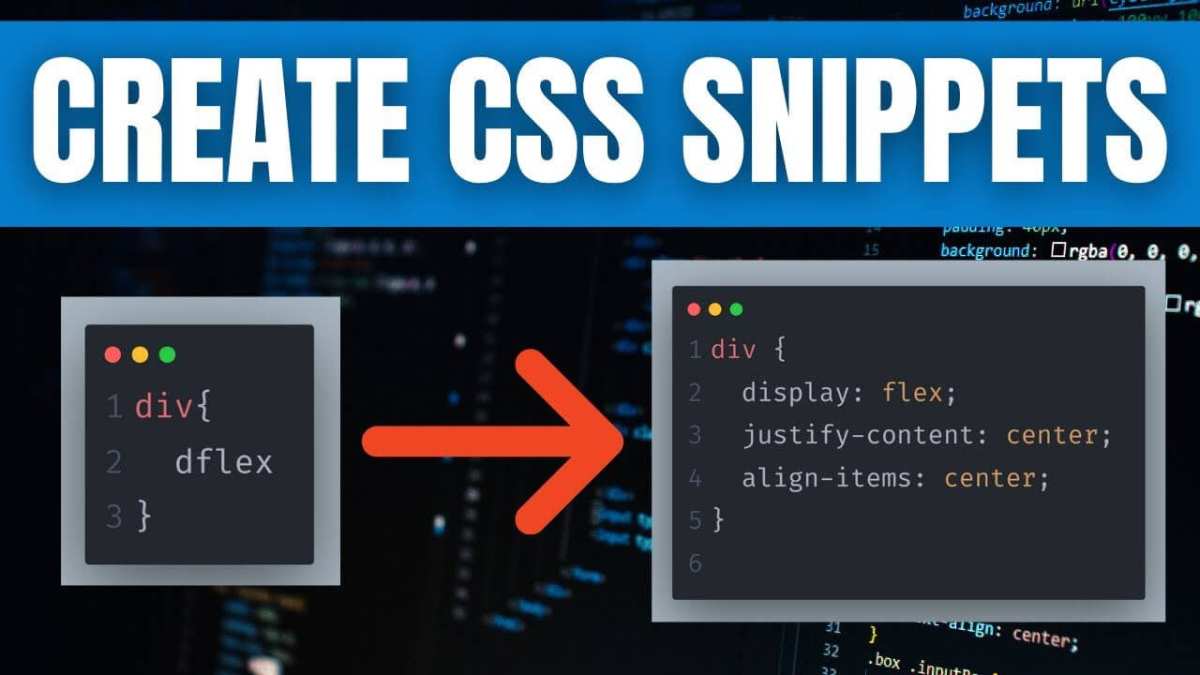
Image source: Bing (Web (fair-use with source credit))
The trade-off? A fixed element sits on top of everything else on the page. That means you have to manage its z-index so it doesn't hide your navigation bar or call-to-action buttons.
You also need to give it a close button, because once it's fixed, the user can't scroll past it.
The position: sticky alternative
Sticky positioning is trickier. It keeps the element in the normal flow while the user is still inside the original container. Once the container scrolls out of view, the element sticks to the edge of the screen.
This can feel more natural, but it has a limitation: the float only works as long as the original video's parent container is still on the page. If that container is short, the sticky effect disappears after a few hundred pixels.
For most use cases, a video that follows you through an entire article, fixed is the winner. Manufacturer specifications from W3C confirm that fixed is supported in every modern browser. That includes Chrome, Firefox, Safari, and Edge.
What about the z-index?
This is where most beginners break their float. The video needs a high z-index to sit above other page elements, but not so high that it covers your menu or pop-ups. A safe value is 9999.
You can go up to 99999 if needed. Just test it across a few page types before you publish.
The Big Decision Tree – Which Method Should You Use?
Your setup determines the easiest route. Answer these simple yes/no questions and follow the branch that fits you best.
- Do you edit your website's code directly? → Branch 1
- Do you use WordPress with a page builder? → Branch 2
- Do you use Wix, Squarespace, or Weebly? → Branch 3
- Do you prefer plugins and no code? → Branch 4
Branch 1: You Own the Site and Can Edit HTML/CSS Directly
This is the fastest path. Copy your YouTube embed code, wrap it in a div with a class like youtube-float, and write three CSS rules. You can use the full code from the step-by-step section coming next.
You're in control of every pixel.
Branch 2: You Use WordPress (With or Without a Page Builder)
WordPress gives you options. If you know your way around a theme file, paste the CSS and JavaScript into your theme's Additional CSS panel or functions.php. If that sounds intimidating, use a plugin like "Sticky Video Player" or "Floating YouTube Player." These plugins handle the positioning and close button for you.
Just install, paste your video URL, and choose a corner.
Best for: Non-technical WordPress users who want it done in five minutes.
Branch 3: You’re on a Site Builder Like Wix, Squarespace, or Weebly
These platforms restrict direct code editing, but they all allow custom embed blocks. In Wix, add an HTML iframe block, paste your video embed, then use the platform's custom CSS panel to set position: fixed. Squarespace users can add a "Code Block" with inline styles.
The key difference: you cannot use external JavaScript libraries, so stick to pure CSS and a simple onclick close handler.
Branch 4: You Just Want a Quick Plugin (No Coding)
Search your platform's plugin directory for "floating YouTube video." Most plugins are free and lightweight (under 10 KB). They inject the CSS and JS automatically. The trade-off is less flexibility, you can't change the animation speed, corner distance, or custom close button style.
But for a five-minute setup, they work.
Step-by-Step: The Pure CSS + JavaScript Method (Works Everywhere)
This is the universal method. It works on any site where you can add HTML, CSS, and JavaScript. Follow these steps exactly.
Step 1: Grab Your YouTube Embed Code
Go to YouTube, open your video, click Share → Embed. Copy the entire iframe block. It will look something like this:
<iframe width="560" height="315" src="https://www.youtube.com/embed/VIDEO_ID" frameborder="0" allowfullscreen></iframe>
Step 2: Wrap the Iframe in a Container Div
Give it a class. This makes it easy to target with CSS.
<div class="youtube-float">
  <iframe width="560" height="315" src="https://www.youtube.com/embed/VIDEO_ID" frameborder="0" allowfullscreen></iframe>
</div>
Step 3: Write the CSS for position: fixed
Place this inside your site's stylesheet or <style> tag.
.youtube-float {
  position: fixed;
  bottom: 20px;
  right: 20px;
  width: 320px;
  height: 180px;
  z-index: 9999;
  box-shadow: 0 4px 12px rgba(0,0,0,0.3);
}
That's the core. Your video will now stay in the bottom-right corner no matter how far the user scrolls.
Step 4: Add a Close Button
A floating video with no close button frustrates users. Add a simple "X" inside your container.
<div class="youtube-float" id="floatVideo">
  <span class="close-btn" onclick="document.getElementById('floatVideo').remove()">X</span>
  <iframe ...></iframe>
</div>
Style it with CSS to appear at the top-right of the float.
.close-btn {
  position: absolute;
  top: -10px;
  right: -10px;
  background: #333;
  color: white;
  width: 24px;
  height: 24px;
  text-align: center;
  line-height: 24px;
  border-radius: 50%;
  cursor: pointer;
  font-weight: bold;
  z-index: 10000;
}
Step 5: Make It Mobile-Friendly
On small screens, a 320px-wide float will cover half the content. Use a media query to make it full-width at the bottom of the screen.
@media (max-width: 600px) {
  .youtube-float {
    width: 100%;
    bottom: 0;
    right: 0;
    left: 0;
    height: auto;
  }
}
Step 6: Test and Publish
Open your page in Chrome, scroll down, and watch the video follow you. On mobile, verify that the float doesn't block navigation. Try clicking the close button.
If anything breaks, check your browser's developer console for errors. Most float failures come from a missing closing tag or a typo in the CSS selector.
That's it. You've just created a floating YouTube video using nothing but your own code. No plugins, no third-party scripts, no ongoing subscription.
And the best part? It works on any site that lets you embed HTML.

Image source: Bing (Web (fair-use with source credit))
Image source: Bing (Web (fair-use with source credit))
