

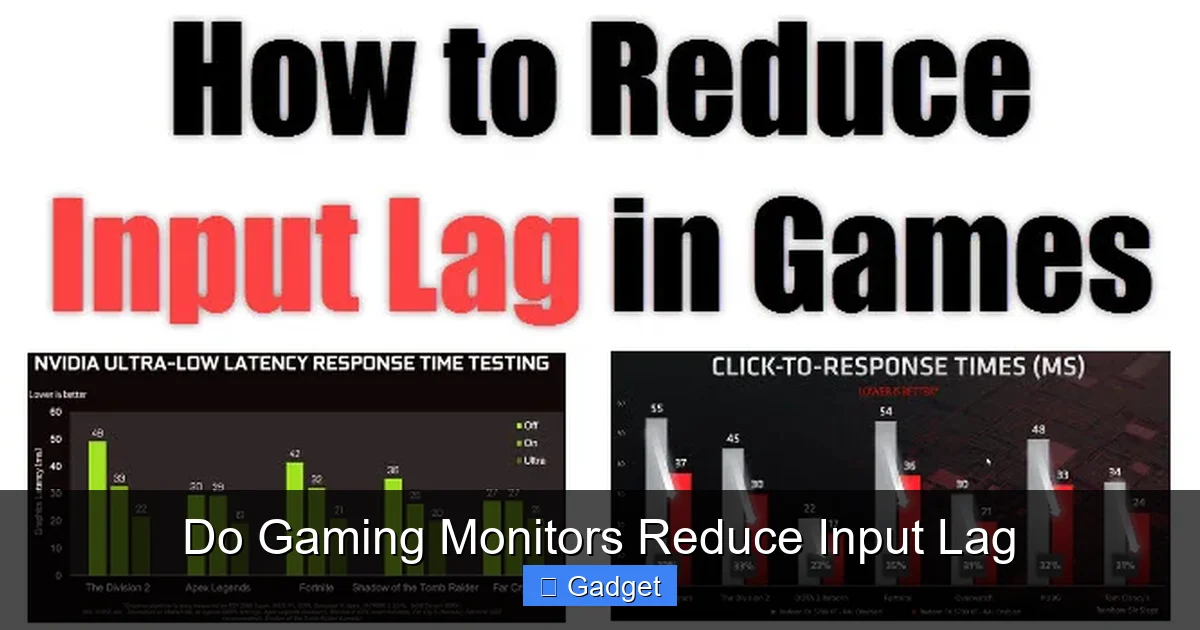
This guide explores the relationship between gaming monitors and input lag. We’ll break down how gaming monitors can reduce input lag by focusing on key specifications like refresh rate and response time. You’ll learn what to look for when choosing a monitor for a smoother, more responsive gaming experience.
Contents
Key Takeaways
- Gaming monitors are designed to minimize input lag compared to standard displays, offering a noticeable advantage in fast-paced games.
- Higher refresh rates (e.g., 144Hz, 240Hz) allow the monitor to display more frames per second, reducing the perceived delay between your input and the on-screen action.
- Faster response times (e.g., 1ms) minimize motion blur and ghosting, contributing to a crisper and more responsive visual experience.
- Specific gaming monitor technologies like NVIDIA G-Sync and AMD FreeSync help eliminate screen tearing and stuttering, further enhancing smoothness.
- Connection type and settings also play a role; using DisplayPort and ensuring game-specific optimizations are enabled can help reduce overall input lag.
- Not all gaming monitors are equal; understanding the specifications and features relevant to input lag is crucial for making an informed purchase.
Do Gaming Monitors Reduce Input Lag
Ever found yourself in a crucial gaming moment, only to feel a slight delay between your button press and the action on screen? That frustrating lag can be the difference between victory and defeat. Many gamers wonder if investing in a dedicated gaming monitor can solve this problem. The short answer is: yes, absolutely! Gaming monitors are specifically engineered with features that aim to reduce input lag, providing a much more responsive and enjoyable gaming experience.
In this comprehensive guide, we’ll dive deep into what input lag is, why it matters in gaming, and how gaming monitors tackle this issue. You’ll learn about the key specifications to look for, the technologies that make a difference, and practical tips to ensure you’re getting the most responsive setup possible. By the end of this guide, you’ll be equipped to make an informed decision about whether a gaming monitor is the right upgrade for your gaming needs.
Understanding Input Lag: The Gamer’s Nemesis
Before we explore how gaming monitors help, let’s define input lag. Input lag is essentially the total delay between when you perform an action (like pressing a button on your controller or mouse) and when you see that action reflected on your screen. It’s a combination of several factors, including:
- Controller/Keyboard/Mouse Lag: The time it takes for your input device to register and send the signal.
- System Processing Lag: The time your computer or console takes to process your input and generate the next frame of the game.
- Transmission Lag: The time it takes for the signal to travel from your system to the monitor.
- Monitor Processing Lag: The time the monitor takes to process the incoming signal and display it.
- Display Lag: The actual time it takes for the pixels on the screen to change.
For most users, the first two types of lag are less controllable by monitor choice. However, the latter three – transmission, monitor processing, and display lag – are areas where a gaming monitor can significantly make a difference.
Why Input Lag Matters in Gaming
In casual gaming, a few milliseconds of delay might not be noticeable. But in fast-paced genres like first-person shooters (FPS), fighting games, or real-time strategy (RTS) games, even a small amount of input lag can be detrimental. Quick reflexes are paramount, and a delay can mean:
- Missing that critical headshot.
- Being unable to dodge an incoming attack.
- Executing combos incorrectly in fighting games.
- Reacting too late to enemy movements.
A responsive gaming monitor reduces this delay, giving you the edge you need to compete and enjoy your games to their fullest.
How Gaming Monitors Combat Input Lag

Visual guide about Do Gaming Monitors Reduce Input Lag
Image source: inputdelay.com
Gaming monitors employ a variety of design choices and technologies to minimize input lag. The primary areas where they excel are refresh rate, response time, and specialized gaming features.
The Power of High Refresh Rates
One of the most significant factors in reducing perceived input lag is the monitor’s refresh rate.
What is Refresh Rate?
Refresh rate is measured in Hertz (Hz) and indicates how many times per second the monitor updates the image on the screen. A standard monitor might have a refresh rate of 60Hz, meaning it refreshes the image 60 times every second. A gaming monitor, however, often boasts much higher refresh rates, such as 120Hz, 144Hz, 240Hz, or even higher.
How High Refresh Rates Reduce Input Lag
A higher refresh rate directly translates to displaying more frames per second (FPS). If your gaming system can produce 120 FPS, a 60Hz monitor can only display 60 of those frames, effectively discarding the other 60. A 120Hz monitor, on the other hand, can display all 120 frames.
Think of it like this: each frame represents a snapshot in time. The more snapshots your monitor can show you each second, the more up-to-date the image will be. This means the image on your screen is a more accurate and current representation of what’s happening in the game, and thus, your reaction to it will be based on more recent information.
Example:
If your system outputs 120 frames per second, and you have a 60Hz monitor, the time between each frame being displayed is approximately 16.7 milliseconds (1000ms / 60Hz).
If you have a 120Hz monitor, the time between each frame is approximately 8.3 milliseconds (1000ms / 120Hz).
This doubling of frame rate, and halving of the delay between frames, can make a significant difference in how responsive the game feels.
The Crucial Role of Fast Response Times
Response time is another critical specification for gaming monitors, and it works in conjunction with refresh rate to minimize visual artifacts and enhance perceived responsiveness.
What is Response Time?
Response time is the measure of how quickly a pixel on the monitor can change from one color to another. It’s typically measured in milliseconds (ms) and is often quoted as a “gray-to-gray” (GtG) or “black-to-white” (BtW) transition time.
How Fast Response Times Help
When images on your screen change rapidly – which is constant in gaming – slow response times can lead to motion blur and ghosting. Ghosting occurs when a faint trail of a previous image lingers behind a moving object. Motion blur makes fast-moving objects appear smudged and unclear.
A gaming monitor with a low response time (e.g., 1ms, 4ms) ensures that pixels update quickly enough to keep up with the action. This results in:
- Clearer visuals: Moving objects appear sharper and more defined.
- Reduced ghosting: Trails behind moving objects are minimized or eliminated.
- Smoother motion: The overall visual experience is less jarring and more fluid.
While response time is different from input lag, minimizing motion blur and ghosting contributes to a cleaner image, making it easier for your eyes to track fast movement and react accurately. It improves the clarity of what you’re seeing, which indirectly aids in faster and more precise input.
Leveraging Specialized Gaming Technologies
Beyond refresh rate and response time, many gaming monitors incorporate proprietary technologies designed to further enhance the gaming experience by synchronizing the monitor’s output with the graphics card’s output.
Adaptive-Sync Technologies (G-Sync and FreeSync)
Screen tearing and stuttering are common visual artifacts that can occur when your graphics card’s frame rate doesn’t perfectly align with your monitor’s refresh rate.
- Screen Tearing: This happens when the monitor starts displaying a new frame before the previous one is fully drawn. The result is an image that looks “torn” horizontally.
- Stuttering: This occurs when the graphics card has to wait for the monitor to refresh before it can display a new frame, causing the game to momentarily freeze or jump.
Adaptive-Sync technologies, namely NVIDIA’s G-Sync and AMD’s FreeSync, solve these problems by allowing the monitor’s refresh rate to dynamically adjust to the frame rate being output by the graphics card.
- NVIDIA G-Sync: This is a proprietary technology developed by NVIDIA. It requires a compatible NVIDIA GeForce graphics card and a G-Sync certified monitor. G-Sync often involves dedicated hardware modules within the monitor for optimal performance and can be more expensive.
- AMD FreeSync: This is AMD’s open standard adaptive-sync technology, based on the VESA Adaptive-Sync standard. It works with compatible AMD Radeon graphics cards and FreeSync certified monitors. FreeSync is generally more widely available and can be more affordable than G-Sync.
By synchronizing the refresh rate with the frame rate, these technologies eliminate screen tearing and stuttering, resulting in a significantly smoother and more fluid gaming experience. This smoothness contributes to a feeling of reduced lag because the visual output is consistent and free of jarring interruptions.
Other Technologies to Consider
Some gaming monitors also offer features like:
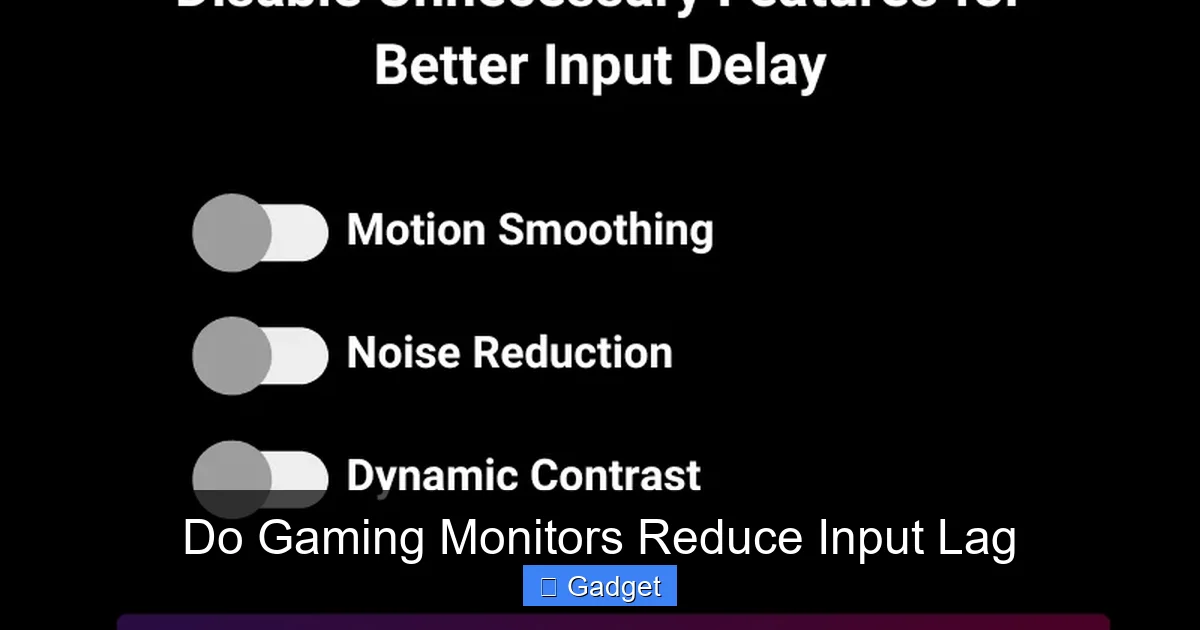
- Low Input Lag Mode / Game Mode: Many monitors have specific “game modes” or “low input lag modes” that disable certain image processing features (like aggressive noise reduction or motion smoothing) which can add latency. These modes prioritize speed over image enhancement.
- Black Stabilizer / Shadow Boost: These features can brighten dark areas of the screen, making it easier to spot enemies in dimly lit environments. While not directly reducing input lag, they improve visibility, which can indirectly help players react faster.
Connection Type and Settings Matter
Even with a high-end gaming monitor, how you connect it and what settings you use can impact input lag.
Using DisplayPort
Generally, for high refresh rates and resolutions, the DisplayPort connection is preferred over HDMI. DisplayPort offers higher bandwidth, which is crucial for transmitting the large amounts of data required for high refresh rates and resolutions without compression or limitations that can increase latency. While newer HDMI standards (like HDMI 2.1) are catching up, DisplayPort has historically been the go-to for PC gaming.
Optimizing Monitor Settings
Beyond just enabling a “Game Mode,” check your monitor’s on-screen display (OSD) menu for other settings that might affect input lag. Some monitors have options to adjust overdrive settings (related to response time) or other image processing features. While aggressive overdrive can reduce ghosting, overly aggressive settings can sometimes introduce inverse ghosting or overshoot, so it’s often best to stick to the manufacturer’s recommended settings for your specific model or experiment cautiously.
Choosing the Right Gaming Monitor for Reduced Input Lag
Visual guide about Do Gaming Monitors Reduce Input Lag
Image source: inputdelay.com
Now that you understand the factors at play, let’s talk about how to choose a gaming monitor that prioritizes low input lag.
Prioritize Key Specifications
When browsing for a gaming monitor, keep these specs at the top of your list:
- Refresh Rate: Aim for at least 144Hz. If your budget allows and your PC can push the frames, 240Hz or higher offers even greater fluidity.
- Response Time: Look for 1ms GtG. While response times aren’t the sole determinant of input lag, a low number is essential for clear motion.
- Adaptive-Sync: Ensure the monitor supports G-Sync or FreeSync, and that it’s compatible with your graphics card.
Read Reviews and Benchmarks
Specifications can be a good starting point, but real-world performance is what matters. Look for professional reviews that specifically test input lag and motion clarity. Websites that measure input lag using specialized equipment can provide the most accurate data. Pay attention to how monitors perform in different scenarios and if they achieve their advertised specifications.
Consider Your Gaming Needs
What types of games do you play most often?
- Competitive FPS/Fighting Games: These genres benefit the most from the lowest possible input lag and highest refresh rates.
- RPGs/Strategy Games: While still important, the impact of a few extra milliseconds of lag might be less critical compared to twitch-based games.
- Console Gaming: While consoles have their own input lag factors, a gaming monitor with a high refresh rate and low response time can still offer a smoother experience, especially on newer consoles that support higher frame rates and adaptive sync.
Budget Considerations
Gaming monitors that excel in low input lag are often more expensive. High refresh rates, fast response times, and G-Sync modules all add to the cost. Determine your budget and find the best balance of features that are most important for your gaming style. Sometimes, a 144Hz monitor with good response times and FreeSync can offer excellent value without breaking the bank.
Troubleshooting Input Lag Issues

Visual guide about Do Gaming Monitors Reduce Input Lag
Image source: maketecheasier.com
Even with a dedicated gaming monitor, you might still encounter input lag. Here are some common troubleshooting steps:
Check Your Settings
* Game Settings: Ensure any in-game V-Sync options are managed appropriately. While V-Sync can prevent screen tearing, it can also introduce input lag. Adaptive-Sync technologies are generally a better alternative. Look for any “low latency” modes within the game.
* Graphics Card Control Panel: In NVIDIA Control Panel or AMD Radeon Software, ensure that display settings are optimized. For example, set the refresh rate to the maximum your monitor supports. Some NVIDIA settings like “Low Latency Mode” can be set to “On” or “Ultra” for competitive gaming.
* Monitor OSD: Double-check that your monitor’s “Game Mode” or “Low Input Lag Mode” is enabled. Ensure any image processing features you don’t need are turned off.
Hardware and Connection Checks
* **Cables:** Ensure you are using a high-quality DisplayPort cable (or the latest HDMI standard if applicable) and that it’s securely connected at both ends.
* **Input Device:** Try a different mouse or controller to rule out issues with your input device itself.
* **USB Ports:** If using a wired controller or mouse, try plugging it into a different USB port, preferably a USB 3.0 or higher port, which can offer better responsiveness.
Software and System Performance
* **Close Background Applications:** Any unnecessary programs running in the background can consume system resources and contribute to lag.
* **Update Drivers:** Ensure your graphics card drivers and monitor drivers (if available) are up to date.
* **Overheating:** Overheating components can throttle performance, leading to lag. Ensure your PC has adequate cooling.
Conclusion
So, do gaming monitors reduce input lag? The answer is a resounding yes. By offering higher refresh rates, faster response times, and implementing sophisticated adaptive-sync technologies, gaming monitors significantly reduce the delay between your actions and what you see on screen. This makes them an invaluable tool for any gamer looking to improve their performance, reaction time, and overall gaming enjoyment.
While system performance and other factors contribute to the overall lag you experience, a high-quality gaming monitor is a cornerstone of a responsive gaming setup. By understanding the key specifications like refresh rate and response time, and by leveraging technologies like G-Sync and FreeSync, you can choose a monitor that transforms your gaming experience from sluggish to sublime. Invest wisely, optimize your settings, and get ready to feel the difference that a truly responsive display can make!
