
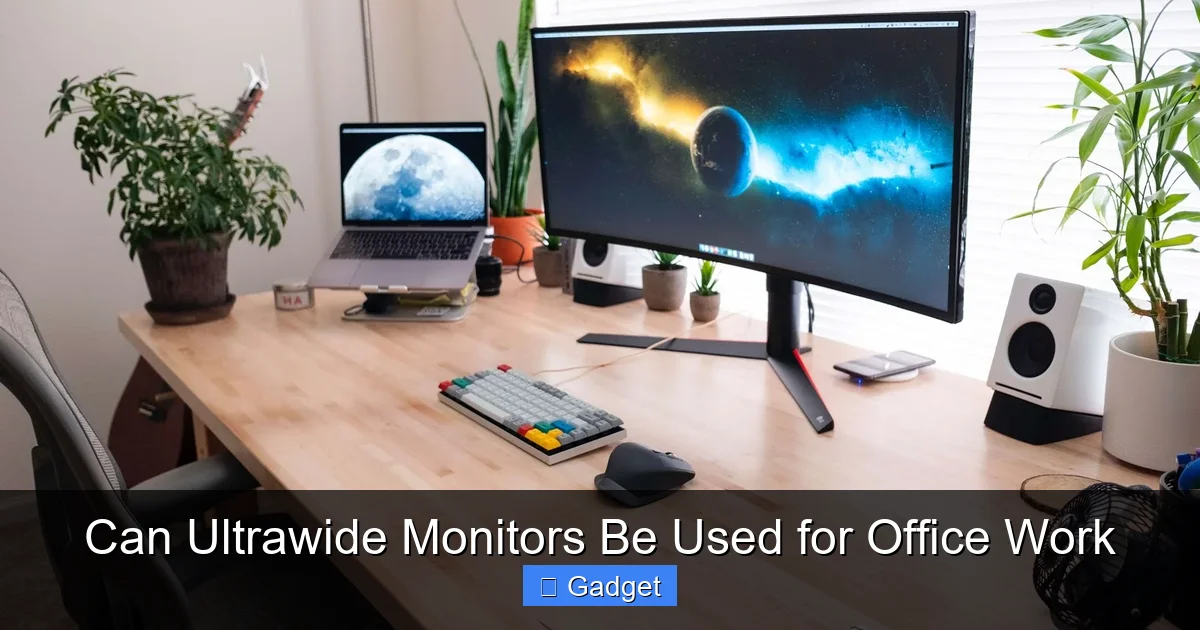
Yes, ultrawide monitors can significantly boost office productivity by offering an expansive workspace for multitasking and immersive focus. Learn how to leverage their benefits, overcome potential challenges, and optimize your setup for a more efficient and enjoyable work experience. This guide details everything you need to know.
Are you staring at your current monitor setup and wishing for more space? Do you find yourself constantly Alt-Tabbing between endless windows, breaking your concentration? If so, you’ve probably encountered the allure of the ultrawide monitor. These sleek, panoramic displays promise a new level of productivity. But can these cinematic screens truly be practical for the everyday grind of office work? The answer is a resounding yes, with a few important considerations.
In this comprehensive guide, we’ll dive deep into the world of ultrawide monitors and their applicability to the office environment. We’ll explore the benefits they bring, potential drawbacks you might encounter, and most importantly, how to set up and optimize your ultrawide monitor for maximum efficiency and comfort. By the end of this guide, you’ll have a clear understanding of whether an ultrawide monitor is the right choice to supercharge your office productivity.
Contents
Key Takeaways
- Expansive Workspace: Ultrawide monitors provide a massive horizontal screen real estate, ideal for running multiple applications side-by-side without constant window switching, enhancing productivity.
- Enhanced Multitasking: Their extended width allows for a more natural and efficient arrangement of windows, making it easier to compare documents, manage emails, and reference information simultaneously.
- Immersive Focus: For certain tasks, the panoramic view can create a more immersive experience, reducing distractions and allowing for deeper concentration on complex projects.
- Potential Drawbacks: Considerations include increased desk space requirements, potential for neck strain if not positioned correctly, and the need for software or operating system support for optimal window management.
- Setup and Optimization: Proper ergonomics and utilizing window management tools are crucial for maximizing the benefits and minimizing any potential discomfort.
- Cost-Benefit Analysis: While often more expensive than standard monitors, the productivity gains can justify the investment for many professionals.
Understanding Ultrawide Monitors
Before we get into the nitty-gritty of office work, let’s quickly define what an ultrawide monitor is. Unlike standard 16:9 aspect ratio monitors, ultrawide monitors typically feature an aspect ratio of 21:9 or even 32:9. This means they are significantly wider, offering a panoramic viewing experience. Think of it as fitting two standard monitors side-by-side, but with a seamless, uninterrupted screen.
The resolution also tends to be higher to accommodate this wider screen. Common resolutions include 2560×1080 (similar to Full HD but wider), 3440×1440 (Quad HD ultrawide), and even 5120×1440 (a dual QHD setup on a single screen). The larger the resolution, the sharper the image and the more detail you can display.
The Case for Ultrawide Monitors in the Office
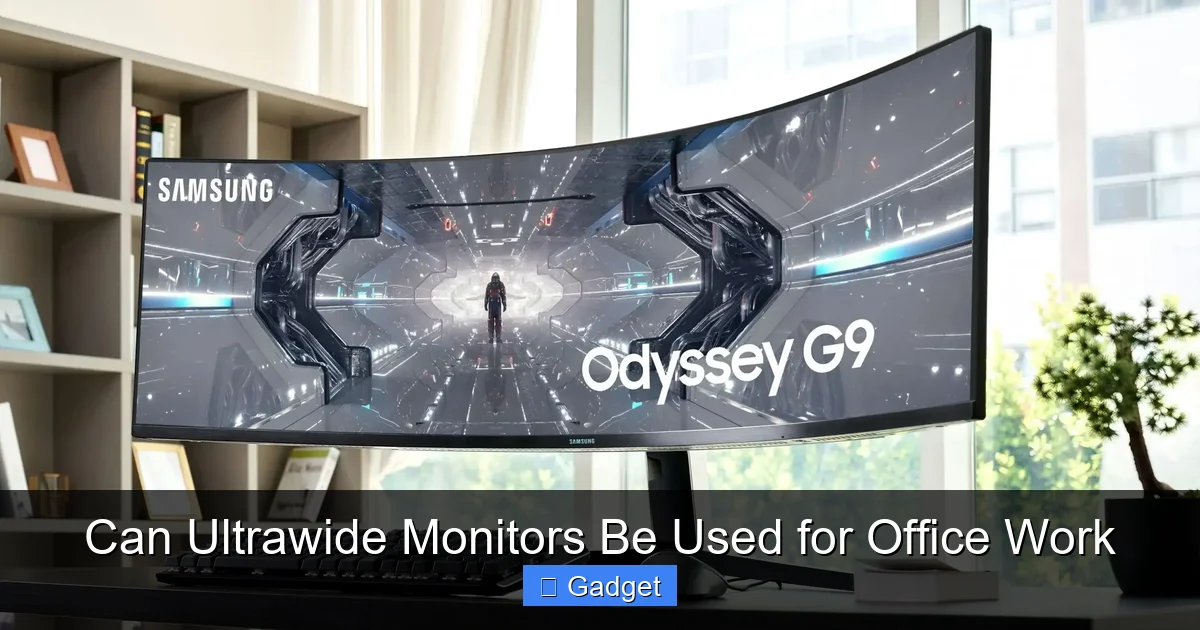
The primary advantage of an ultrawide monitor for office work boils down to one thing: space. This expansive horizontal real estate unlocks a new dimension of productivity.
Visual guide about Can Ultrawide Monitors Be Used for Office Work
Image source: pcworld.com
H2: Enhanced Multitasking Capabilities
This is where ultrawide monitors truly shine. Imagine this:
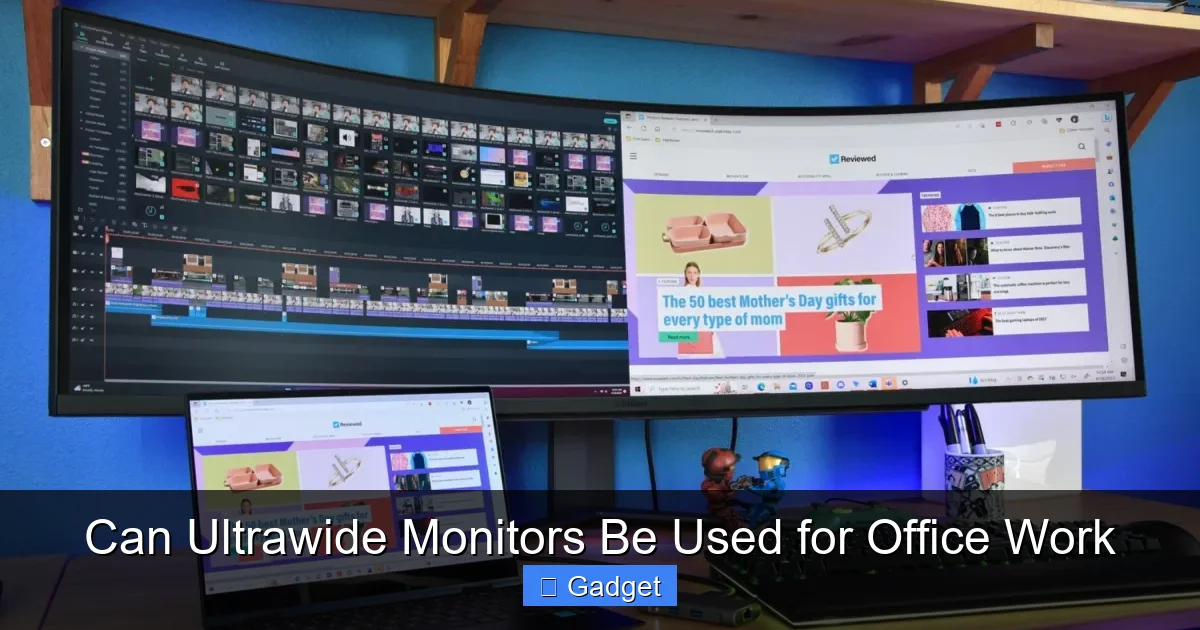
- One side of your ultrawide monitor displays your primary document or spreadsheet.
- The other side shows your email client, allowing you to respond to messages without losing your train of thought on your main task.
- A third, smaller window can be dedicated to your communication app, like Slack or Microsoft Teams, keeping you connected without constant interruptions.
This seamless arrangement drastically reduces the need to constantly switch between applications. No more clicking through your taskbar or using Alt+Tab! This fluid workflow can save precious minutes, even hours, over the course of a workday, especially for roles that involve a lot of information cross-referencing or managing multiple communication streams.
H2: Immersive Focus and Reduced Distractions
For tasks that require deep concentration, such as coding, writing, graphic design, or video editing, an ultrawide monitor can offer a more immersive experience. The expansive view can draw you into your work, minimizing visual clutter and potential distractions from other windows or your physical surroundings.
When working on a large project, you can have all your reference materials, code editor, and output preview visible at once. This “all-in-one” view helps maintain context and reduces the mental overhead of jumping between different applications.
H2: Improved Workflow for Specific Professions
Certain professions naturally benefit more from the ultrawide format:
- Programmers: Visualize more code at once, with room for documentation or debugging tools.
- Financial Analysts: Spreadsheets can be wider, showing more columns of data simultaneously for easier analysis.
- Content Creators: Timeline views in video editing software become more manageable, and large design canvases can be displayed with room for toolbars.
- Researchers: Compare multiple research papers or datasets side-by-side without squinting or resizing.
- Customer Support: Manage CRM software, knowledge bases, and communication tools on a single screen.
H2: Aesthetics and Desk Real Estate
Let’s be honest, ultrawide monitors look impressive. They can elevate the look of your workspace. Furthermore, replacing two separate monitors with a single ultrawide can sometimes free up desk space, especially if you were using bulky stands for your dual monitor setup.
Potential Drawbacks and How to Overcome Them
While the benefits are compelling, it’s important to acknowledge the potential challenges of using an ultrawide monitor in an office setting.
Visual guide about Can Ultrawide Monitors Be Used for Office Work
Image source: reviewed-com-res.cloudinary.com
H2: Desk Space Requirements
The Challenge: Ultrawide monitors are, as their name suggests, wide. They require a significant amount of desk depth and width. If you have a small workstation, a large ultrawide might feel overwhelming.
The Solution:
- Measure your desk: Before purchasing, carefully measure the available space.
- Consider monitor arms: A sturdy monitor arm can lift the ultrawide off your desk, saving valuable surface area and allowing for more flexible positioning. This is often a game-changer for small desks.
- Choose the right size: Ultrawides come in various sizes. A 29-inch ultrawide is significantly less imposing than a 49-inch one.
H2: Ergonomics and Neck Strain
The Challenge: Because ultrawide monitors are so wide, your eyes and neck might have to constantly scan from one end to the other. If not positioned correctly, this can lead to discomfort and strain.
The Solution:
- Proper Placement is Key: Position the monitor directly in front of you, centered to your primary field of vision. Don’t push it too far back.
- Adjust Tilt and Height: Ensure the monitor is at eye level and tilted slightly downwards.
- Utilize Window Management: As we’ll discuss later, intelligent window snapping can reduce the need for extreme head movements. If you’re consistently looking at something on the far left or right, consider adjusting your seating position or the monitor’s angle slightly.
- Take Breaks: Regular breaks to stretch your neck and eyes are always beneficial, regardless of your monitor type.
H2: Software and Operating System Compatibility
The Challenge: While most modern operating systems and applications handle ultrawide displays well, some older software or niche applications might not scale or display correctly. You might encounter stretched images or interfaces that don’t utilize the full screen space.
The Solution:
- Check Application Support: Before investing, research the applications you use daily. Most productivity suites (Microsoft Office, Google Workspace) and common development tools are well-optimized.
- Utilize Window Management Tools: This is crucial. Operating systems have built-in snapping features (e.g., Windows Snap Assist), but dedicated software can offer more advanced control.
- Graphics Driver Updates: Ensure your graphics card drivers are up to date. This can often resolve display issues.
H2: Gaming and Media Consumption
The Challenge: While not strictly “office work,” many people use their work monitors for personal use. Some older games or movies might not support the 21:9 or 32:9 aspect ratio, resulting in black bars on the sides or stretched images.
The Solution:
- Check Game/Movie Support: Most modern games and streaming services support ultrawide resolutions.
- Graphics Card Settings: Your graphics card control panel (Nvidia Control Panel, AMD Radeon Software) often has settings to adjust aspect ratio behavior, allowing you to force scaling or maintain aspect ratio.
- Consider a Second Monitor: For dedicated gamers who play many older titles, a small secondary monitor might still be a consideration.
H2: Cost
The Challenge: Ultrawide monitors are generally more expensive than their standard 16:9 counterparts with similar specifications (resolution, refresh rate). The cost can be a significant barrier for individual purchases or office budget allocations.
The Solution:
- Prioritize Productivity Gains: If the productivity increase significantly outweighs the cost, the investment is justified. Calculate the potential time saved and its monetary value.
- Look for Sales: Monitor prices fluctuate. Keep an eye out for holiday sales, Black Friday deals, or manufacturer promotions.
- Consider Refurbished Options: Reputable retailers often sell refurbished ultrawide monitors at a discount.
Setting Up Your Ultrawide Monitor for Success
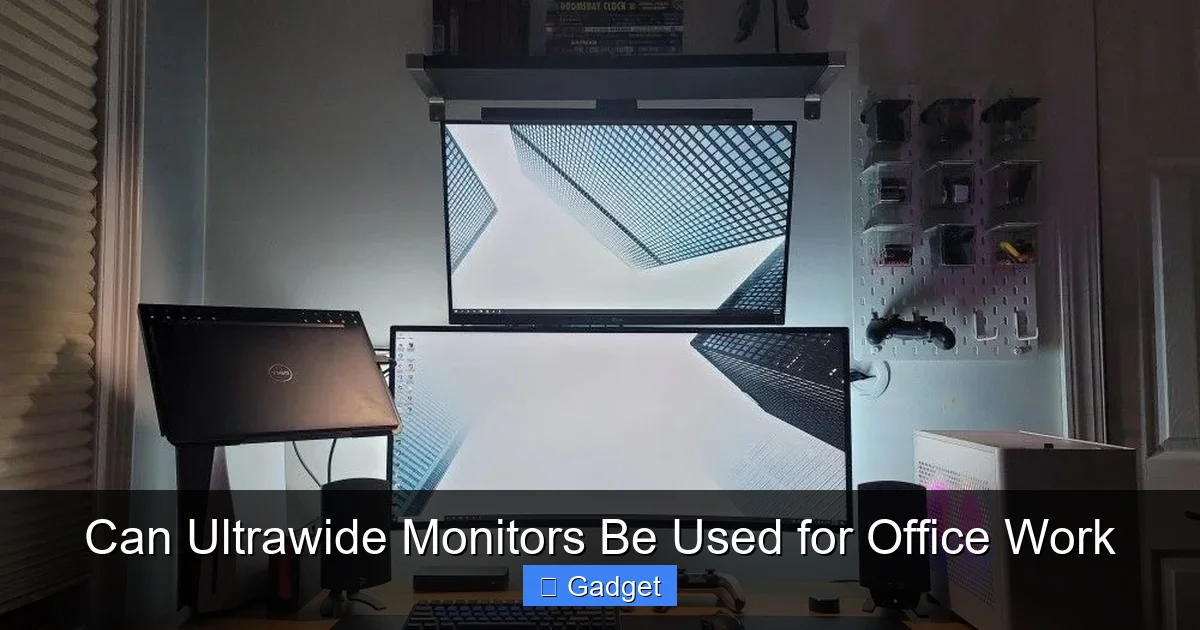
Once you’ve decided an ultrawide is for you and you’ve navigated the potential hurdles, setting it up correctly is paramount to unlocking its full potential.
Visual guide about Can Ultrawide Monitors Be Used for Office Work
Image source: i.pinimg.com
H2: Physical Placement and Ergonomics
This is non-negotiable. A poorly placed monitor, no matter how advanced, will lead to discomfort.
- Centering: Position the physical center of the screen directly in front of your head. Your primary focus area should be here.
- Distance: The ideal viewing distance is generally an arm’s length away, but this can vary based on the size of the monitor and personal preference. You should be able to comfortably see both edges of the screen without excessive head turning.
- Height: The top of the screen should be at or slightly below your eye level. Use a monitor stand or adjustable desk if needed.
- Tilt: A slight downward tilt (around 10-15 degrees) can improve comfort and reduce glare.
- Lighting: Position your desk to avoid direct light sources (windows, overhead lights) reflecting off your screen. This reduces eye strain.
H2: Leveraging Window Management Tools
This is where the magic happens for multitasking.
- Operating System Snap Features:
- Windows Snap Assist: Drag a window to the left or right edge of your screen, and it will snap to that half. Drag it to a corner, and it will occupy a quadrant. With an ultrawide, you can easily create a 3-column layout by snapping windows to the left, center, and right.
- macOS Split View: Similar to Windows Snap, macOS allows you to enter Split View for full-screen apps, which can be useful for two primary applications side-by-side.
- Third-Party Window Managers: For more granular control and advanced layouts, consider these tools:
- Microsoft PowerToys (FancyZones): A free utility from Microsoft that allows you to create custom snap zones and layouts on your ultrawide monitor. This is highly recommended for ultrawide users on Windows.
- Magnet (macOS): A popular and intuitive app that lets you snap windows into predefined arrangements with keyboard shortcuts or by dragging them to screen edges.
- DisplayFusion: A powerful, feature-rich application for Windows that offers extensive multi-monitor and ultrawide management, including custom taskbars and more.
Experiment with different layouts. For example, you might dedicate the left third to your email, the middle third to your main work document, and the right third to your communication app. Or, you might prefer a wider central area for your main task and smaller side panels for supporting information.
H2: Adjusting Display Settings
Don’t forget to fine-tune your display settings for optimal viewing.
- Resolution: Ensure you’re running your ultrawide at its native resolution for the sharpest image.
- Refresh Rate: Set your monitor to its highest refresh rate (e.g., 120Hz, 144Hz) for smoother scrolling and a more fluid visual experience.
- Color Settings: If you do creative work, calibrate your monitor or use its built-in color profiles to ensure accurate color representation.
- Brightness and Contrast: Adjust these to a comfortable level that reduces eye strain, especially during long work sessions.
Troubleshooting Common Ultrawide Issues
Even with the best setup, you might encounter a few hiccups.
H2: Stretched or Pixelated Images
Problem: Certain applications or games appear stretched or pixelated.
Solution: This usually means the application is not running at the correct resolution or aspect ratio. Check the application’s display settings or your operating system’s display settings. Ensure your graphics drivers are up to date. Sometimes, you might need to force a specific aspect ratio in your graphics card’s control panel.
H2: Inconsistent Window Snapping
Problem: Windows don’t snap neatly or consistently on your ultrawide.
Solution: This is often where third-party window management tools like FancyZones or Magnet become essential. They provide more reliable and customizable snapping behavior than the native OS features alone.
H2: UI Scaling Issues
Problem: Text and interface elements appear too small or too large in certain applications.
Solution: Most operating systems allow you to adjust scaling for the entire display (e.g., Windows 10/11 display scaling). For specific applications, check their individual preferences or settings for text size or UI scaling options.
Conclusion
So, can ultrawide monitors be used for office work? Absolutely. They offer a significant leap in productivity through unparalleled multitasking capabilities and immersive focus. While there are considerations regarding desk space, ergonomics, and software compatibility, these are largely manageable with proper setup and the right tools.
For professionals who juggle multiple applications, require extensive data visualization, or simply crave a more streamlined and less interrupted workflow, an ultrawide monitor can be a game-changer. By investing in the right hardware and dedicating a little time to optimize your setup, you can transform your office workspace into a more efficient, comfortable, and visually engaging environment. The panoramic future of office productivity is here, and it’s wide open.
