

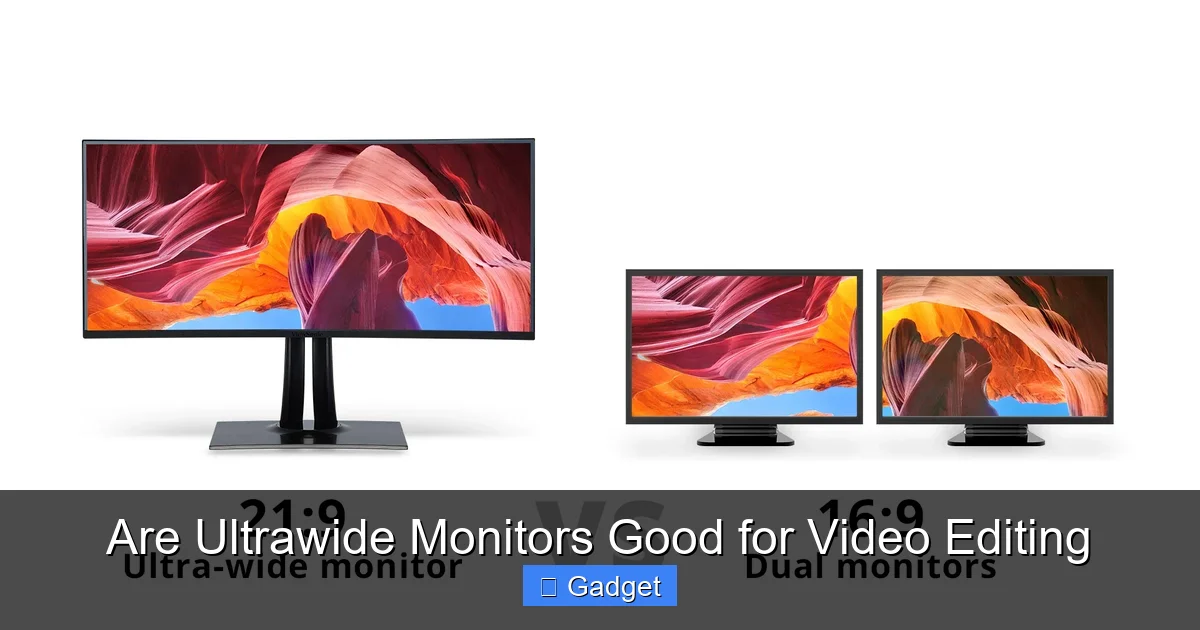
Ultrawide monitors offer a significant advantage for video editing by providing expanded screen real estate. This allows for a more organized and efficient timeline view, better asset management, and a more immersive editing experience. While there are some considerations, such as potential compatibility issues and the need for powerful hardware, the benefits for many video editors are substantial.
Key Takeaways
- Expanded Workspace: Ultrawide monitors provide a much wider canvas, displaying more of your timeline, bins, and tools simultaneously without constant scrolling or window resizing.
- Enhanced Workflow Efficiency: By reducing the need to switch between panels and windows, ultrawide monitors can significantly speed up your editing process.
- Improved Color Accuracy and Detail: Many ultrawide monitors are designed with high-quality panels that offer excellent color reproduction and detail, crucial for accurate video grading.
- Potential Software Compatibility: While most modern editing software supports ultrawide resolutions, older or niche applications might require some tweaking for optimal display.
- System Performance Considerations: Driving an ultrawide monitor, especially at higher resolutions, demands a more powerful graphics card and processor to ensure smooth playback and rendering.
- Ergonomic Considerations: The wider aspect ratio might require some adjustments to your desk setup and viewing distance to maintain comfortable ergonomics and avoid neck strain.
- Cost Factor: Ultrawide monitors, particularly those with high-end features like 4K resolution and excellent color accuracy, can represent a significant investment.
Are Ultrawide Monitors Good for Video Editing? A Comprehensive Guide
As a video editor, your monitor is your window into your creative world. It’s where you craft stories, fine-tune every shot, and bring your vision to life. For years, the standard 16:9 aspect ratio has been the norm. But lately, the allure of the ultrawide monitor has grown, and many creators are wondering: are ultrawide monitors good for video editing? The short answer is a resounding yes, for many editors, but it’s not a simple one-size-fits-all situation.
This guide will dive deep into the world of ultrawide monitors and their impact on video editing workflows. We’ll explore the advantages they bring, address potential drawbacks, and offer practical tips to help you decide if an ultrawide is the right upgrade for your editing suite. By the end of this article, you’ll have a clear understanding of how these expansive displays can transform your editing experience.
Understanding Ultrawide Monitors
Before we get into the specifics of video editing, let’s clarify what an ultrawide monitor is. Unlike traditional widescreen monitors with a 16:9 aspect ratio, ultrawide monitors typically boast a 21:9 or even a 32:9 aspect ratio. This means they are significantly wider, offering more horizontal screen real estate. Common resolutions include 2560 x 1080 (UW-FHD), 3440 x 1440 (UW-QHD), and 5120 x 1440 (DQHD), with some even pushing into 7680 x 2160 (8K ultrawide). This extra width is where the magic happens for creative professionals.
The Advantages of Ultrawide Monitors for Video Editing
The primary benefit of an ultrawide monitor for video editing boils down to one key factor: **more screen space**. Let’s break down how this translates into tangible improvements in your workflow.
1. Enhanced Timeline and Workspace Organization
This is arguably the biggest game-changer. Video editing software, like Adobe Premiere Pro, Final Cut Pro, DaVinci Resolve, and Avid Media Composer, thrives on having multiple panels visible at once. On a standard 16:9 monitor, you’re often forced to compromise: either you have a large, dominant timeline that obscures other essential panels (like your project bin, effects controls, or preview window), or you have to constantly resize and reposition windows to see what you need.
With an ultrawide monitor, you can spread out your entire editing environment. Imagine having your timeline stretched across the majority of your screen, with your project bin, source monitor, program monitor, and effects controls all neatly arranged in dedicated sections. This means less clicking, less dragging, and significantly less time spent fumbling with windows. You can see more of your project at a glance, making it easier to spot errors, track audio levels, and manage your assets.
2. Improved Asset Management and Browsing
When you’re working with large projects, managing your media assets is crucial. The project bin in your editing software can quickly become a dense list of clips. On an ultrawide display, you can expand the project bin to show more columns, larger thumbnails, or a more detailed list view. This makes it easier to sort, filter, and find the specific clips you need without endless scrolling. You can even have a dedicated section for your media browser or a large preview window for your footage, speeding up the initial ingest and selection process.
3. More Immersive Editing Experience
The cinematic aspect ratio of an ultrawide monitor naturally aligns with the way we often consume video content. When you’re previewing your edits, watching your footage fill a wider screen can provide a more immersive and engaging experience. This can help you better judge pacing, composition, and the overall feel of your video. It can also be particularly beneficial when working with footage that is already shot in a wider aspect ratio, such as 2.35:1 or 2.39:1, as it minimizes letterboxing or the need for zooming and cropping.
4. Streamlined Color Grading and Visual Effects Work
Accurate color grading is paramount in professional video editing. Many ultrawide monitors are designed with high-quality panels that offer excellent color gamut coverage (like sRGB, Adobe RGB, or DCI-P3) and brightness. This means you can see your colors more accurately, making it easier to achieve the desired look and feel for your video. Furthermore, when working with visual effects, having ample space to view your footage alongside your VFX software or control panels can greatly enhance precision and efficiency.
5. Potential for Dual Monitor Replacement
For some editors, a single large ultrawide monitor can effectively replace a dual-monitor setup. Instead of having two separate screens with a bezel in the middle, you get one continuous, expansive workspace. This can simplify cable management and create a more unified and ergonomic setup. You can dedicate one side of the ultrawide to your editing timeline and the other to reference materials, web browsing, or communication tools.
Potential Drawbacks and Considerations
While the benefits are compelling, it’s important to be aware of the potential downsides of using an ultrawide monitor for video editing.
1. Software Compatibility and UI Scaling
Most modern video editing software is designed to handle ultrawide resolutions gracefully. However, older software versions or less common applications might not scale perfectly. You might encounter elements that appear stretched, cut off, or simply not optimized for the wider aspect ratio. This is becoming less of an issue with each software update, but it’s worth checking if you rely on any niche plugins or older editing suites.
When using software that doesn’t fully support ultrawide, you might have to work with black bars on the sides or accept a less-than-ideal UI layout. Fortunately, most major NLEs (Non-Linear Editors) like Premiere Pro and DaVinci Resolve have excellent support for ultrawide displays.
2. System Performance Requirements
Driving an ultrawide monitor, especially at higher resolutions like 3440 x 1440 or 5120 x 1440, requires more processing power from your graphics card. You’ll need a capable GPU to ensure smooth playback of your footage, especially when working with multiple video streams, complex effects, or high-resolution footage (like 4K or 8K). If your current system struggles with a standard 1080p or 1440p monitor, it will likely struggle even more with an ultrawide.
This also extends to your CPU. For demanding tasks like rendering and encoding, a more powerful CPU will complement your GPU and help you achieve faster export times.
3. Cost of Investment
Ultrawide monitors, especially those with high refresh rates, excellent color accuracy, and premium panel technology, can be more expensive than their 16:9 counterparts. You’re paying for the increased screen real estate and the advanced features that often come with these displays. If budget is a primary concern, you might need to weigh the cost against the potential productivity gains.
4. Ergonomics and Viewing Distance
The sheer width of an ultrawide monitor can present ergonomic challenges if not set up correctly. You might find yourself turning your head from side to side to take in the entire screen, which can lead to neck strain. It’s essential to position the monitor at an appropriate distance and angle to minimize head movement and ensure a comfortable viewing experience. This might involve adjusting your desk setup or using a monitor arm.
Choosing the Right Ultrawide Monitor for Video Editing
If you’ve decided that an ultrawide monitor is the right move for your video editing workflow, here are some key specifications to consider:
1. Resolution
* **3440 x 1440 (UW-QHD):** This is the sweet spot for many video editors. It offers a significant increase in horizontal resolution over 1920 x 1080 (FHD) without demanding an excessively powerful graphics card like 4K monitors. It provides ample space for your timeline and panels.
* **5120 x 1440 (DQHD):** This resolution is akin to having two 27-inch 1440p monitors side-by-side. It offers an incredible amount of screen real estate, ideal for editors who juggle many applications or work with very complex projects.
* **Higher Resolutions (e.g., 5120 x 2160, 7680 x 2160):** These are for professionals who demand the absolute best in terms of detail and workspace, but they come with a premium price tag and require very powerful hardware.
2. Panel Type
* **IPS (In-Plane Switching):** IPS panels are generally preferred for video editing due to their excellent color accuracy, wide viewing angles, and good color reproduction. Look for monitors with high sRGB, Adobe RGB, or DCI-P3 color gamut coverage.
* **VA (Vertical Alignment):** VA panels offer higher contrast ratios and deeper blacks, which can be appealing for HDR content. However, they sometimes have slightly poorer color accuracy and slower response times compared to IPS.
3. Color Accuracy and Calibration
This is critical. Look for monitors that are factory calibrated or can be easily calibrated using a colorimeter. A wide color gamut coverage (e.g., 95%+ DCI-P3 or Adobe RGB) is essential for accurate color grading.
4. Refresh Rate and Response Time
While not as critical as for competitive gaming, a higher refresh rate (e.g., 120Hz or 144Hz) and a lower response time (e.g., 1-5ms) can contribute to a smoother visual experience, especially when scrolling through timelines or scrubbing through footage. However, prioritize color accuracy and resolution over extreme refresh rates for editing.
5. Connectivity
Ensure the monitor has the necessary ports for your setup, such as DisplayPort and HDMI. For higher resolutions and refresh rates, DisplayPort is often the preferred connection.
Optimizing Your Workflow with an Ultrawide Monitor
Once you have your ultrawide monitor, here are some tips to get the most out of it:
1. Customize Your Software Layout
Spend time arranging your editing software panels to suit your preferences. Dedicate specific areas for your timeline, project bin, effects controls, and monitors. Save these custom workspaces so you can easily recall them.
* **Premiere Pro:** Utilize the “Window” menu to open and arrange all your desired panels. Go to “Window > Workspaces > Save Workspace” to save your custom layout.
* **DaVinci Resolve:** Resolve’s layout is highly customizable. Drag and drop panels to create your ideal arrangement.
* **Final Cut Pro:** FCPX has a more fixed interface, but you can still optimize the arrangement of your Browser, Viewer, and Inspector.
2. Consider Monitor Arm or Ergonomic Setup
To combat potential neck strain, invest in a good monitor arm that allows you to adjust the height, tilt, and swivel of your ultrawide display. Ensure the monitor is positioned at eye level and at a comfortable viewing distance.
3. Utilize Keyboard Shortcuts
Even with ample screen space, keyboard shortcuts remain your best friend for speed and efficiency. Learn and use shortcuts for common editing tasks to complement the visual advantages of your ultrawide monitor.
4. Test Your System Performance
If you experience lag or stuttering, it’s time to assess your hardware. You might need to upgrade your graphics card, increase your RAM, or ensure your storage drives are fast enough (e.g., SSDs).
Conclusion: The Ultrawide Advantage for Video Editors
So, are ultrawide monitors good for video editing? For most editors looking to boost their productivity and enjoy a more streamlined workflow, the answer is a definitive yes. The expanded screen real estate offered by ultrawide monitors fundamentally changes how you interact with your editing software, allowing for better organization, faster asset management, and a more immersive viewing experience.
While there are considerations regarding software compatibility, system performance, cost, and ergonomics, these are generally manageable with careful planning and the right hardware choices. The ability to see more of your project at once, reduce window juggling, and create a more integrated editing environment is a powerful advantage that can significantly improve your efficiency and creative output. If you’re looking to elevate your video editing setup, an ultrawide monitor is definitely worth serious consideration. For those also interested in photo editing, you might want to explore whether ultrawide monitors are good for photo editing as well. Additionally, if budget is a concern, check out our guide on the best budget ultrawide monitor options available. Finally, if you’re unsure whether an ultrawide is essential for your workflow, read our detailed analysis on whether an ultrawide monitor is necessary for video editing.
