

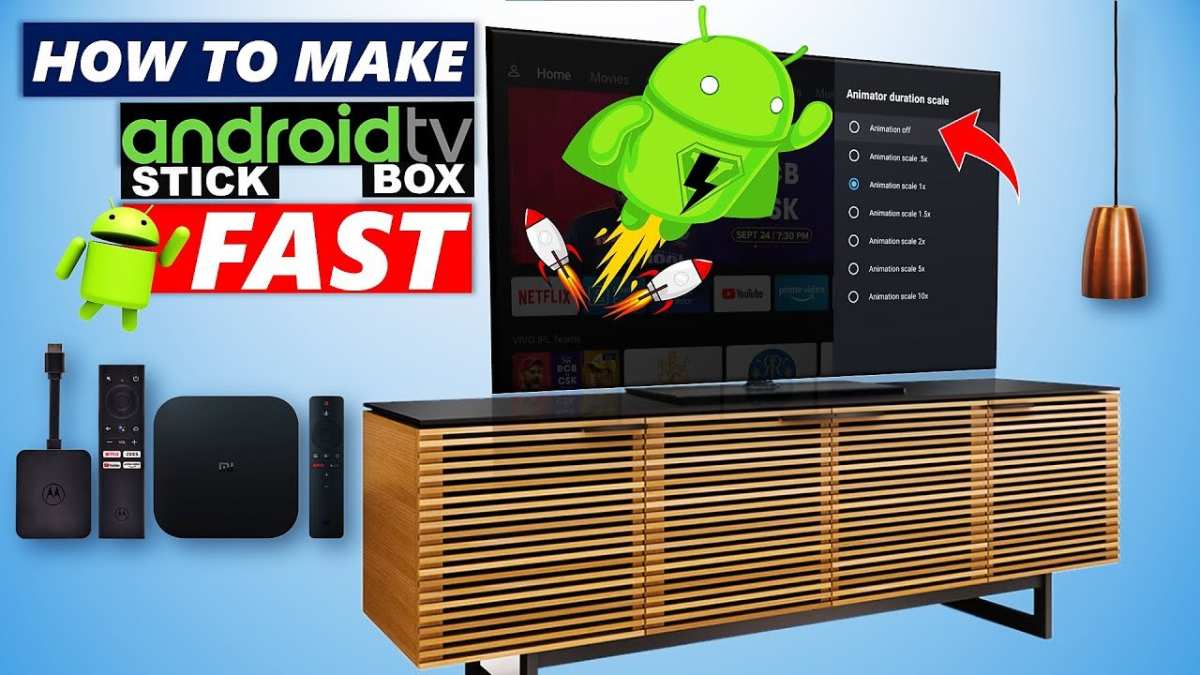
To make your Android TV fast, start by clearing cache and uninstalling unused apps. **This quick step can significantly boost performance right away.** Regularly restart your device to refresh its memory and close background processes. In addition, update your software to ensure you have the latest optimizations. Knowing how to make Android TV fast helps you enjoy smoother navigation and quicker access to your favorite content.

How to Make Android TV Fast
Having a fast and responsive Android TV enhances your viewing experience and makes navigating through apps much easier. Over time, your Android TV can slow down due to clutter, cache buildup, and outdated software. Fortunately, you can make your Android TV faster by following some simple yet effective steps. In this guide, we will explore detailed methods to boost your TV’s speed, from basic cleaning techniques to more advanced troubleshooting tips, all explained clearly to help you get the most out of your device.
Understanding Why Android TV Slows Down
Before diving into fixes, it’s helpful to understand why your Android TV might be running slowly. Common reasons include:
- Accumulation of cached data from apps, which takes up storage space
- Too many apps running in the background, consuming resources
- Outdated firmware or TV software
- Insufficient storage space for system operations
- Fragmentation of storage, causing delays in data access
- Overloaded launcher or home screen interface
Knowing these causes allows you to target your actions more effectively, ensuring your TV operates at optimal speed.
Clear Cache and App Data
One of the easiest ways to improve Android TV’s speed is to clear cached data from apps. Cached files are temporary and can pile up, slowing down device performance.
How to Clear Cache for Individual Apps
- Go to the Settings menu on your Android TV.
- Select Apps or Applications.
- Browse through the list of installed apps and select the one causing slowdowns, like YouTube or Netflix.
- Choose Clear Cache to delete temporary files without affecting your login information or app data.
Clearing All Cached Data at Once
While Android TV doesn’t provide a built-in option to clear all cache simultaneously, you can use third-party apps or reset your device’s storage settings in some cases. Alternatively, uninstalling and reinstalling problematic apps can also reset their cache.
Uninstall Unnecessary Apps and Games
Too many apps installed can clutter your device and slow down performance, especially if some apps run in the background or tend to auto-start.
- Review your installed apps regularly.
- Remove apps you no longer use or need by selecting them and choosing Uninstall.
- Limit the number of apps that launch on startup to reduce initial load times.
Disable or Limit Background Processes
Some apps keep running in the background, consuming CPU and memory resources, which impacts speed.
How to Limit Background Activity
- Go to Settings and select Apps.
- Choose an app that you suspect is consuming too much resources.
- Select Data Usage or Background Data.
- Turn off Allow background activity or restrict background data.
This can help free up RAM and processing power, making your Android TV quicker and more responsive.
Update Firmware and Apps
Keeping your Android TV’s software current is crucial for performance. New updates often include bug fixes, performance improvements, and security patches.
Checking for Firmware Updates
- Go to Settings.
- Select About or Device Preferences.
- Choose System Update.
- If an update is available, follow the on-screen instructions to install it.
Updating Apps
- Open the Google Play Store on your Android TV.
- Select My Apps or Updates.
- Update all apps with pending updates.
Regular updates can significantly improve speed and prevent crashes.
Free Up Storage Space
Limited storage can cause slowdowns because the system struggles to manage apps and data efficiently. Freeing up space will boost speed.
How to Clear Storage
- Uninstall apps you no longer use.
- Delete large files such as movies, pictures, or downloaded videos.
- Use a file manager app to identify storage-consuming files.
- Clear cached data from apps and system files.
Using Storage Cleaner Apps
Some third-party apps specifically designed for cleaning Android devices can help identify and remove unnecessary files safely.
Optimize Launcher and Home Screen
A cluttered home screen or launcher can slow down your Android TV, making it less responsive.
Steps to Improve Launcher Performance
- Use a lightweight launcher app, if necessary, from Google Play Store.
- Remove unnecessary widgets and shortcuts.
- Limit animated backgrounds or transitions.
- Organize apps into folders to improve navigation speed.
A quick clean-up can significantly reduce the load on your device, allowing faster access to apps and menus.
Factory Reset as a Last Resort
If all else fails, performing a factory reset can restore your Android TV to its original state, wiping out any software issues or accumulated clutter.
How to Factory Reset Your Android TV
- Navigate to Settings > Storage & Reset.
- Select Factory Data Reset.
- Confirm and wait for the process to complete.
Remember, this will erase all your settings, apps, and personal data, so back up important information before proceeding.
Additional Tips to Boost Your Android TV Speed
- Ensure your internet connection is stable and fast, especially when streaming content.
- Use wired connections rather than Wi-Fi for better stability.
- Limit the number of connected devices that may interfere with network speed.
- Disable or remove unwanted notifications or apps that you rarely use.
By implementing these steps, you can enjoy a much speedier and more enjoyable Android TV experience. Regular maintenance and updates keep your device running smoothly and ensure you don’t miss out on smooth streaming, quick app launches, and easy navigation.
Frequently Asked Questions
What steps can I take to free up storage space on my Android TV?
To free up storage, delete unused apps and clear their cache regularly. You can also review downloaded files and remove any unnecessary media or files. Moving some content to an external device or cloud storage helps keep your internal storage free and ensures your Android TV runs smoothly.
How can I improve the performance of my Android TV’s user interface?
Reducing animations and background processes enhances your TV’s responsiveness. Access the developer options to tweak animation scales or disable unnecessary features. Additionally, avoid installing multiple apps that run in the background, as they can slow down the interface.
Are there specific settings or applications that can optimize my Android TV’s speed?
Yes, using system optimization apps or built-in settings aimed at cleaning cache and managing background processes can help. Turning off auto-update features for apps and disabling unnecessary notifications also reduce background activity, resulting in a faster user experience.
Final Thoughts
To make Android TV fast, start by clearing app cache and uninstalling unused apps. Regularly update your device to ensure optimal performance. Disabling background processes also helps improve speed.
Rearranging apps and limiting widgets can prevent unnecessary lag. Restart your TV periodically to refresh its memory and boost performance.
In conclusion, learning how to make android tv fast involves simple steps like clearing cache, updating software, and managing apps. These actions ensure your device runs smoothly and efficiently.
