

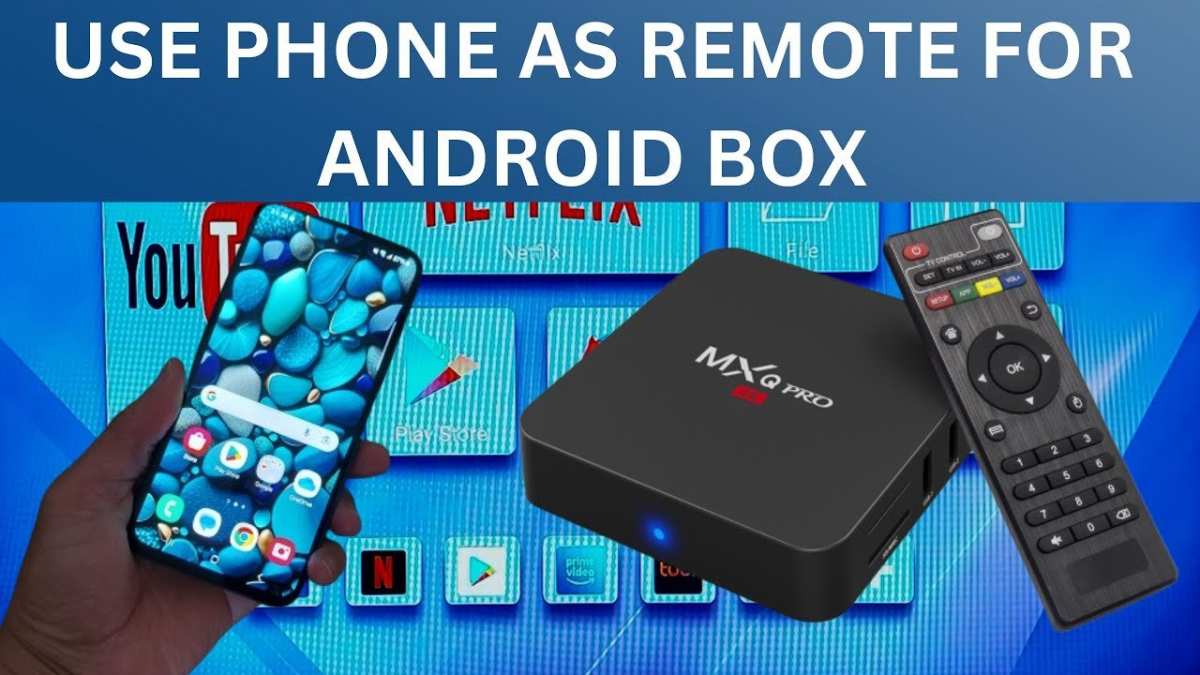
To use an Android TV box without a remote, you can connect a smartphone or use a Bluetooth keyboard and mouse. **This makes navigation simple without the original remote.** Simply enable the device’s remote control features through settings using your phone’s app or connect external input devices directly.
Knowing how to use Android TV box without remote saves you time and frustration when the remote is misplaced or broken. With a few quick steps, your TV stays fully functional, letting you enjoy your content seamlessly.

How to Use Android TV Box Without Remote
Using an Android TV box without its remote might seem tricky at first, but don’t worry. There are many simple and effective ways to control your device without the original remote. Whether your remote is lost, broken, or you just want a different method, this guide has you covered. We’ll go through various options, step by step, so you can easily manage and enjoy your Android TV box without hassle.
Why Would You Need to Use Your Android TV Box Without a Remote?
Before diving into the methods, it helps to understand why you might want to use your Android TV box without the remote:
- Remote is lost or misplaced
- Remote is broken or not functioning properly
- Want a more convenient control method
- Using an alternative device for better comfort or accessibility
Knowing these reasons can motivate you to explore your options, and ensure you aren’t stuck when your remote isn’t available.
Control Your Android TV Box Using Your Smartphone
Many Android TV boxes support smartphone control through dedicated apps. Using your phone as a remote is a popular and very practical solution.
Using the Official Android TV Remote App
The easiest way is through the official app available for both Android and iPhone devices.
- Download the “Android TV Remote Service” or “Android TV Remote Control” app from Google Play Store or Apple App Store.
- Ensure your smartphone and Android TV box are connected to the same Wi-Fi network.
- Open the app on your phone. It will automatically search for available devices.
- Select your Android TV box from the list.
- The app will pair with your device. Once connected, you can see your TV’s interface and control it directly from your phone.
This method is straightforward, does not require any additional hardware, and offers features like voice search and keyboard input, making browsing much easier.
Alternative Smartphone Apps
If the official app doesn’t work well or you want other options, consider third-party apps such as:
- Mi Remote Controller
- AnyMote Universal Remote
- Peel Smart Remote
Make sure to check if these apps are compatible with your device. Usually, they require your phone to have a built-in IR blaster, which some newer models lack. In that case, the Wi-Fi method remains your best choice.
Using a Wireless Keyboard and Mouse
Connecting a wireless keyboard and mouse can be a game-changer when using an Android TV box without a remote. It’s simple to set up and provides easy navigation.
Connecting via Bluetooth
Most Android TV boxes support Bluetooth peripherals. Here’s how to connect your devices:
- Put your Bluetooth keyboard and/or mouse into pairing mode (refer to device manual).
- Navigate to your Android TV box’s Settings menu. If your remote is not working, you can also do this through the smartphone app mentioned earlier.
- Select “Remote & Accessories” or “Bluetooth” settings.
- Choose “Add Bluetooth device” or “Pair new device.”
- Locate your peripheral on the list and select it.
- Once paired, you can control your TV box using the keyboard and mouse.
Using a keyboard and mouse gives you full access to apps, settings, and menus, making your experience much smoother and more comfortable.
Connecting via USB
If your Android TV box has USB ports, you can connect a USB keyboard and mouse directly.
- Plug your wired keyboard and mouse into the USB ports of your Android TV box.
- Your device will recognize them automatically.
- Start navigating and controlling your TV box using the connected peripherals.
This method offers a stable connection and is very easy to set up, especially if you prefer wired devices.
Using a Game Controller or Other Compatible Devices
Many Android TV boxes support various game controllers and other input devices.
Connecting a Game Controller via Bluetooth
Follow these steps:
- Put your controller into pairing mode (refer to the device’s manual).
- Access Bluetooth settings on your Android TV box or connect through the smartphone app.
- Scan for devices and select your controller from the list.
- Pair the device.
Once connected, you can navigate using the controller’s joysticks and buttons. This option works well if you also use your Android TV box for gaming or media playback.
Using Other Compatible Devices
Some Android TV boxes support:
- Wireless gaming controllers
- Air mice and remote keyboards
- Wireless trackpads
Check your device manual to see compatible peripherals. These can often make navigation easier and more intuitive.
Connecting a Physical Remote or Universal Remote
If your original remote is broken or lost, you can use a universal remote or purchase a replacement remote compatible with your Android TV box.
Using a Universal Remote
Many universal remotes can be programmed to work with Android TV boxes.
- Find the correct code for your device model, usually included in remote instructions or online.
- Follow the programming steps to sync your remote with the TV box.
- Test the control functions. If they work, you’re all set.
This method offers a physical control option but may require some initial setup.
Buying a Replacement Remote
Many brands sell dedicated remotes for Android TV boxes. When buying:
- Check compatibility with your device model.
- Look for features you prefer, such as voice control or backlit keys.
- Purchase from reputable sellers to avoid issues with counterfeit products.
Once received, pairing typically involves simple instructions included with the remote.
Using HDMI-CEC for Control via TV Remote
If your TV supports HDMI-CEC (Consumer Electronics Control), you can control your Android TV box with your TV’s remote.
Enabling HDMI-CEC on Your TV
The process depends on your TV brand:
| TV Brand | How to Enable HDMI-CEC |
|---|---|
| Samsung | Go to Settings > General > External Device Manager > Anynet+ (HDMI-CEC) and turn it on. |
| LG | Settings > All Settings > Connection > HDMI-CEC and enable it. |
| TCL/Android TV | Settings > System > CEC > Enable CEC. |
Using TV Remote to Control Android TV Box
Once HDMI-CEC is enabled:
- Use your TV’s remote to navigate, select, and control apps on your Android TV box.
- This method works best for basic navigation and media playback controls.
Note that HDMI-CEC support varies among devices, so double-check compatibility.
Final Tips for Using Your Android TV Box Without Remote
– Keep your smartphone app updated for the best experience.
– Use a combination of methods; for example, a Bluetooth keyboard and smartphone app together.
– Consider purchasing a universal remote compatible with your device to avoid future control issues.
– Regularly check for firmware updates on your Android TV box to ensure compatibility with new peripherals.
– Store your remote in a safe place or invest in a remote tracking device if you frequently misplace it.
By exploring these options, you can comfortably control your Android TV box without the original remote, ensuring uninterrupted entertainment and easy navigation. Whether using your phone, peripherals, or HDMI-CEC, these methods offer flexible solutions for any situation.
Frequently Asked Questions
How can I control my Android TV box using a smartphone app?
You can control your Android TV box with a compatible remote control app available on your smartphone. Download the official app from the Google Play Store or any trusted source, connect your phone and TV box to the same Wi-Fi network, and follow the pairing instructions within the app. Once connected, you can navigate menus, input text, and control playback directly from your phone.
What methods allow navigation without a physical remote?
If you don’t have a remote, you can use a compatible wireless keyboard or mouse to navigate your Android TV box. Plug in a USB keyboard or mouse directly into the device’s USB port or connect via Bluetooth if supported. These peripherals enable easy navigation and control, especially for typing search queries or entering passwords.
Can I use voice commands to operate my Android TV box without a remote?
Yes, some Android TV boxes support voice commands through built-in microphone features or by connecting voice assistant devices. If your TV box has voice control capabilities, activate the feature in the settings menu. You can then issue commands such as opening apps, searching content, or adjusting volume using your voice, eliminating the need for a remote.
Is there a way to connect a game controller to manage my Android TV box?
Yes, many Android TV boxes support game controllers. You can connect a compatible Bluetooth game controller or a wired USB controller to your device. Once connected, you can use the controller to navigate menus, select apps, and control media playback, offering an alternative method to a traditional remote control.
Final Thoughts
Using an Android TV box without a remote is simple and efficient. You can connect a smartphone or tablet via apps like Google TV or Android TV Remote Control to navigate easily. Alternatively, utilize a wireless keyboard or mouse for quick control.
Many Android TV boxes support voice commands through Google Assistant, making navigation even more straightforward. Remember, knowing how to use android tv box without remote helps you stay connected and enjoy your content seamlessly.
