

To make your wifi faster on android, start by restarting your device and router. **This simple step can significantly improve your connection speed.** Next, ensure your device is close to the router and free from obstructions.
Check for any app updates or system updates that might optimize your network. Simply adjusting your network settings or switching to a 5GHz band can boost your wifi performance effortlessly.

How to Make Your Wifi Faster on Android
Making your WiFi faster on Android can seem tricky, but with a few simple steps, you can enjoy faster internet speeds and a smoother browsing experience. Whether you’re streaming videos, playing online games, or just browsing your favorite websites, a faster WiFi connection makes everything better. In this guide, we’ll explore many ways to boost your WiFi speed on Android devices, including tips you can try right now and some longer-term solutions. Let’s get started!
Check Your Current WiFi Speed and Signal Strength
Before you start changing settings, it’s good to know what kind of connection you currently have. You need to identify if the problem lies with your WiFi signal or the device itself.
How to Test Your WiFi Speed
Testing your WiFi speed helps you understand if your internet service provider (ISP) is delivering the promised speeds.
- Download a speed test app from the Google Play Store, such as Speedtest by Ookla or Fast.com.
- Open the app and tap the “Go” or “Start” button to measure upload and download speeds.
- Repeat this test at different locations in your home to see where the signal is strongest.
Check Your Signal Strength
Your WiFi signal strength is visually represented by the WiFi icon on your Android device. The more bars, the better the connection.
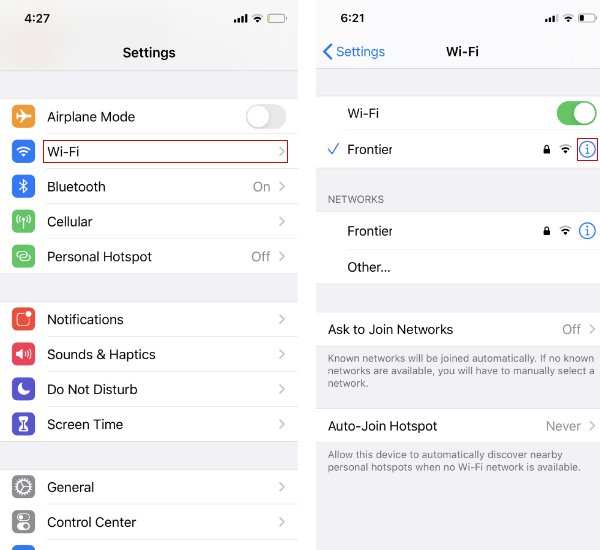
- Go to Settings > Wi-Fi and look for your connected network.
- If your signal is weak, try moving closer to your router.
Knowing your current connection status helps decide which steps will be most effective in boosting your WiFi speed.
Optimize Your Router Settings for Better Speed
Your router is the heart of your WiFi network. Changing some settings here can improve your connection on Android devices.
Change the WiFi Channel
Routers broadcast on different channels. If too many nearby networks use the same channel, interference can slow down your WiFi.
- Access your router’s admin panel by typing its IP address (like 192.168.1.1) into a browser.
- Log in with your username and password (usually found on the router or in the manual).
- Locate the wireless settings and change the channel to one less congested, often 1, 6, or 11.
- Save your settings and reconnect your Android device to the WiFi network.
Use the 5 GHz Band
Most modern routers support dual-band WiFi: 2.4 GHz and 5 GHz.
- Connect to the 5 GHz network if available, as it offers faster speeds and less interference.
- Go to Settings > Wi-Fi, select your network, and tap “Forget” then reconnect, choosing the 5 GHz SSID.
Update Your Router Firmware
Manufacturers often release updates that improve performance.
- Visit your router manufacturer’s website or use the router’s app to check for updates.
- Follow instructions for updating firmware to enhance stability and speed.
Improve Your Android Device Settings
Your device’s settings also play a crucial role in WiFi speed. Let’s explore some ways to enhance on your Android device.
Forget and Reconnect to Your WiFi Network
Sometimes, simply resetting your connection can help.
- Go to Settings > Wi-Fi.
- Tap on your network and select “Forget.”
- Reconnect by selecting your WiFi network and entering your password.
Turn Off Background Apps
Apps running in the background can consume bandwidth, slowing your connection.
- Access Recent Apps or the App Drawer.
- Close apps that are not necessary or use data in the background.
- Use Settings > Apps to force stop apps that you don’t need running.
Enable Airplane Mode and Reconnect
Turning Airplane Mode on and off resets network connections.
- Pull down the notification shade and tap the airplane icon.
- Wait a few seconds, then turn it off.
- Reconnect to your WiFi network.
Limit the Number of Devices Using Your Network
Too many devices connected at once can overwhelm your WiFi, reducing speed for everyone.
- Access your router’s admin panel to see connected devices.
- Disconnect devices that are not in use.
- Consider upgrading your internet plan if multiple users stream or game at the same time.
Use a WiFi Extender or Mesh Network
If you have a large house or thick walls, your WiFi signal may not reach every corner.
WiFi Extenders
These devices boost your existing WiFi signal.
- Place the extender midway between your router and the area with weak signal.
- Follow the manufacturer’s setup instructions to connect it to your network.
Mesh Networking Systems
These provide multiple access points to create a seamless WiFi network across your home.
- Replace your router with a mesh system or add nodes in different rooms.
- Follow the setup procedures for your system for quick installation.
Manage Data Usage for Better Performance
Heavy data usage can reduce WiFi speeds.
- Monitor data consumption in Settings > Network & internet > Data usage.
- Limit automatic updates, cloud backups, or large downloads during peak hours.
- Set your device to update apps manually or during off-peak times.
Additional Tips for Maintaining Fast WiFi on Android
Here are some extra tips to keep your WiFi running smoothly:
- Restart your router periodically to clear temporary glitches.
- Keep your device’s software updated, as updates often include performance improvements.
- Remove unnecessary apps that may be using data or running in the background without your knowledge.
- Use a WiFi analyzer app to identify the best channels and less crowded bands.
- Consider switching to a wired connection for devices that require the fastest speed and stability, like gaming consoles or desktop computers.
Summary of Key Steps to Speed Up WiFi on Android
The following points sum up the most effective actions:
- Test your current WiFi speed and signal strength regularly.
- Optimize your router settings, especially channels and frequency bands.
- Update your router’s firmware for the latest improvements.
- Reset your device’s WiFi connection by forgetting and reconnecting.
- Limit background apps and bandwidth-heavy activities on your Android device.
- Upgrade to a mesh network or use WiFi extenders if your home needs coverage improvements.
- Manage data usage to prevent throttling and slowdowns.
- Restart routers and keep your device’s software updated for optimal performance.
Improving WiFi speed on Android involves a combination of checking your current connection, tweaking network settings, optimizing your device, and sometimes investing in hardware upgrades. With these tips, you should see noticeable improvements in your internet speed, making your online experience faster and more reliable.
Frequently Asked Questions
What can I do to improve my Android device’s Wi-Fi connection stability?
To enhance your Android device’s Wi-Fi stability, try moving closer to your Wi-Fi router to improve signal strength. Avoid interference from other electronic devices and remove physical obstructions between your device and the router. Additionally, restarting your device and router periodically can resolve temporary connectivity issues. Updating your device’s software and router firmware can also ensure optimal performance and stability.
How can changing Wi-Fi settings on my Android help boost speed?
Adjusting your Android’s Wi-Fi settings can improve speed by switching to the 5 GHz band if your router supports dual-band Wi-Fi. This band usually offers faster speeds and less interference compared to the 2.4 GHz band. You can also disable any unused network modes and prioritize your device in the router’s settings. Turning off background apps that use Wi-Fi can free up bandwidth for more important tasks, resulting in faster connectivity.
What steps should I take to optimize my Android device for better Wi-Fi performance?
Optimizing your Android device involves clearing cache data and closing apps running in the background that consume bandwidth. Enable airplane mode for a few seconds before turning Wi-Fi back on to refresh your connection. Additionally, forget and reconnect to your Wi-Fi network to fix potential configuration issues. Keep your device updated to the latest Android version, as updates often include performance improvements that can enhance Wi-Fi speed.
Final Thoughts
To make your wifi faster on android, start by restarting your device to refresh the network connection. Check for app updates, as early versions may slow your connection. Additionally, move closer to your router or remove obstacles for a stronger signal.
Adjusting your router settings or switching to the 5GHz band can also boost speeds. Disable background apps that consume bandwidth and clear your cache regularly.
In conclusion, applying these tips will improve your wifi speed on android efficiently. Follow these simple steps to ensure a faster, more reliable connection every time.
