

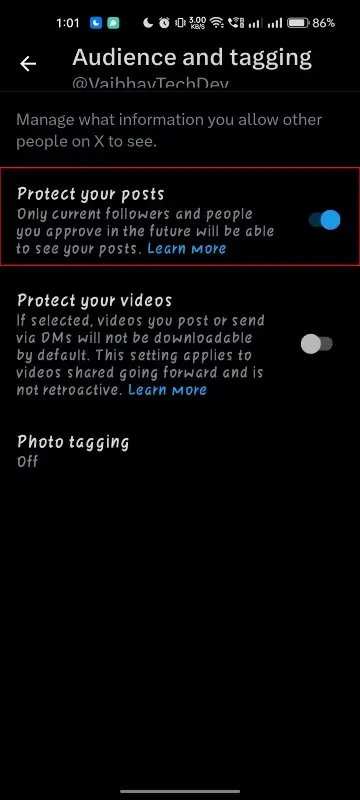
To make your Twitter account private on Android, simply navigate to the app settings and toggle the privacy option. **It’s a quick process that keeps your tweets visible only to approved followers.** If you’re unsure how to do it, follow these simple steps to protect your account.
Keeping your Twitter profile private gives you control over who can see your posts. Just a few taps, and your account becomes more secure. No need for complicated procedures—your privacy is just a few clicks away.

How to Make Your Twitter Account Private on Android
Making your Twitter account private is an important step if you want to control who sees your tweets and personal information. Many users prefer to keep their accounts private for safety, privacy, or just to share content with a select group of people. If you use an Android device, the process is simple, but you need to follow specific steps to ensure your account is set to private correctly. Let’s explore how to do this step by step, along with tips to manage your privacy settings effectively.
Understanding Why You Should Make Your Twitter Account Private
Before diving into the steps, it’s good to understand why making your account private matters. When your Twitter account is public, anyone can see your tweets, followers, and profile information. This openness can be risky if you want to keep your activities personal. By making your account private:
- Only approved followers can see your tweets and profile details.
- You gain better control over who interacts with you.
- It reduces the chance of unwanted comments or harassment.
- It helps protect your personal information from strangers or hackers.
Knowing these benefits gives you the motivation to set your account to private and stay safe online.
Step-by-Step Guide to Making Your Twitter Account Private on Android
The process is straightforward but needs careful attention. Follow these steps for a quick setup:
Open the Twitter App on Your Android Device
- Locate the Twitter icon on your home screen or app drawer.
- Tap to open the app.
Access Your Profile Settings
- Tap on your profile picture located at the top left corner or the hamburger menu (three horizontal lines) in the top left.
- From the menu, select “Settings and privacy.”
Navigate to Privacy and Safety Settings
- Within “Settings and privacy,” find the section labeled “Privacy and safety.”
- Tap on it to open privacy options.
Enable the ‘Protect Your Tweets’ Option
- Look for “Audience and tagging” or “Privacy” section.
- Find the toggle switch next to “Protect your Tweets.”
- Tap the toggle so it turns on, indicating your tweets are now private.
Confirm Your Privacy Settings
- A confirmation message may appear asking if you want to protect your tweets.
- Select “Yes” or “Confirm” to activate privacy mode.
Now, your account is set to private. Only followers you approve will see your tweets, and your profile is hidden from public searches.
Additional Privacy Options to Consider
Making your tweets private is just the start. To enhance your privacy further, consider adjusting these settings:
Control Who Can Find You
- Disable the option allowing others to find your account using your email address or phone number.
- This prevents strangers from discovering your profile through contacts.
Manage Who Can Tag or Mention You
- In “Privacy and safety,” look for “Tags and mentions.”
- Adjust the settings so only people you approve can tag or mention you.
Limit Who Can See Your Tweets When Logged Out
- Even with a private account, your tweets are hidden from non-followers.
- However, users can see your profile info and follower list unless you restrict it further.
How to Review and Manage Your Followers
Once your account is private, you might want to control who follows you:
Approve New Followers
- When someone requests to follow you, a notification appears.
- Review their profile before accepting or denying the request.
Remove Followers if Necessary
- Visit your profile, then tap on your followers list.
- Select the follower you wish to remove.
- Tap “Remove” or “Block” to prevent them from viewing your tweets in the future.
Switching Back to Public Mode
If you decide to make your account public again, follow similar steps:
- Go to “Settings and privacy.”
- Under “Privacy and safety,” disable the “Protect your Tweets” toggle.
- Confirm the change, and your tweets will be visible to everyone.
Why Your Privacy Settings May Not Be Effective Immediately
Sometimes, after changing settings, you might notice your tweets are still visible:
- Clear the app cache and restart your device.
- If you’re logged into multiple accounts, check each account’s privacy settings separately.
- Ensure you have the latest version of the Twitter app for all features to work correctly.
Tips for Maintaining Privacy on Twitter on Android
Keeping your account private is ongoing work. Here are some tips:
- Regularly check your privacy settings to stay updated.
- Be cautious about sharing personal information in your tweets or profile.
- Limit the visibility of your tweet replies if you want more control.
- Consider using the “Mute” or “Block” features to handle unwanted interactions.
Summary of Key Points
To make your Twitter account private on Android:
- Open the app, go to “Settings and privacy.”
- Tap “Privacy and safety.”
- Turn on “Protect your Tweets.”
- Review additional privacy options, such as who can see your info or mention you.
- Manage followers carefully and remove any unwanted followers.
Taking control of your Twitter privacy helps you enjoy social media safely and comfortably. With these clear steps, you can secure your account and share only what you want with the people you choose. Remember to revisit your privacy settings periodically to keep your online presence in your control.
Frequently Asked Questions
What steps should I follow to restrict access to my Twitter profile on an Android device?
Open the Twitter app on your Android device. Tap on your profile picture in the top-left corner to access the menu. Select ‘Settings and privacy,’ then tap ‘Privacy and safety.’ Under the ‘Your account’ section, find and toggle on the ‘Private account’ option. Confirm the change if prompted. Your tweets will now be visible only to approved followers.
Can I change my Twitter account privacy settings without deleting my existing followers?
Yes, switching your account to private does not remove your current followers. Once you make your account private, only followers you approve will see your tweets. Existing followers won’t need to do anything to stay connected, but new followers will need your approval before viewing your content.
Will making my Twitter account private affect my ability to find new followers?
Yes, setting your account to private restricts your profile from appearing in search results or suggestions. New users must request to follow you, and you need to approve their requests. This limits your exposure but offers better control over who can see your tweets.
Is it possible to switch my Twitter account back to public after making it private on Android?
Absolutely. To revert your account to public, go to ‘Settings and privacy,’ select ‘Privacy and safety,’ and toggle off the ‘Private account’ option. Confirm the change, and your tweets will become accessible to everyone again.
Are there any considerations I should keep in mind before setting my Twitter account to private?
Yes, turning your account private reduces your visibility on the platform, which can limit your reach. Consider how this change may affect your interactions and engagement. Also, remember that followers must resend requests to view your tweets if your account was previously public.
Final Thoughts
Making your Twitter account private on Android helps protect your personal information and control who sees your tweets. First, open the Twitter app and go to your profile. Tap the menu icon, then select ‘Settings and privacy.’ Under ‘Privacy and safety,’ toggle the ‘Protect your Tweets’ option on.
This action ensures only approved followers can view your tweets. Remember, managing your privacy settings is simple and effective. To keep your account secure, regularly review these settings.
In conclusion, how to make your twitter account private on android involves activating the ‘Protect your Tweets’ feature in your privacy settings. Stay proactive about your privacy by enabling this option to limit access to your tweets.
