

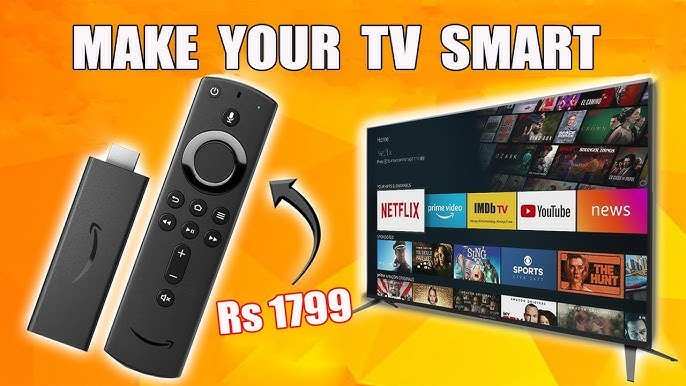
To make your TV Android, you simply need to install a compatible Android TV firmware or use a device like Chromecast with Google TV. **The process involves flashing your TV with the right software or connecting an Android-compatible device.** This guide walks you through the steps to convert your regular TV into an Android-powered smart TV. Whether you want access to apps, games, or streaming services, creating your own Android TV is straightforward with the right approach. Follow these simple instructions to enjoy a more versatile TV experience.

How to Make Your TV Android
Creating an Android TV from a regular television can seem complicated at first, but with a clear understanding of the process, you can turn your standard TV into a smart, Android-powered device. Whether you want to access streaming apps, browse the internet, or enjoy games, converting your TV is a smart way to enhance your viewing experience. In this section, we’ll explore every step of making your TV an Android device in detail, including the tools you’ll need, the installation process, and tips to optimize performance.
Understanding What an Android TV Is
Before diving into how to make your TV Android, it’s important to understand what Android TV actually offers. Android TV is a version of Google’s Android operating system designed specifically for TVs. It provides a user-friendly interface optimized for larger screens and remote controls.
- Access to Google Play Store: Download apps like Netflix, YouTube, Spotify, and many more.
- Voice Control: Use Google Assistant to search with your voice or control smart home devices.
- Screen Mirroring: Mirror your smartphone or tablet to the big screen easily.
- Regular Updates: Keep your device up to date with the latest features and security patches.
If your current TV doesn’t have these features, turning it into an Android TV is a great solution.
Choosing the Right Hardware for Your Android TV Setup
The first step in making your TV Android involves selecting suitable hardware. Depending on your TV type (smart or non-smart), the approach varies.
Using a Streaming Device
For most users, installing an Android-based streaming device proves to be the easiest and most cost-effective method.
- Popular options include: Google Chromecast with Google TV, Nvidia Shield TV, and Xiaomi Mi TV Stick.
- Installation: Plug the device into your TV’s HDMI port and connect to Wi-Fi.
- Setup: Follow on-screen instructions to connect to the internet, sign in with your Google account, and customize your preferences.
These devices come preloaded with Android TV OS, so there’s no complex setup involved.
Building a Custom Android TV using a Raspberry Pi
For tech-savvy users who want a more customized solution, turning a Raspberry Pi into an Android TV is an interesting project.
- Hardware needed: Raspberry Pi 4, microSD card, power supply, HDMI cable, keyboard, and mouse.
- Software: Install Android TV OS on the Raspberry Pi.
- Steps involve: Downloading the Android TV image, flashing it onto the microSD card, and configuring settings.
This approach offers flexibility but requires some technical knowledge.
How to Install Android TV on Your Device
Once you’ve chosen your hardware, the next step is the actual installation process. Here’s how to do it in simple terms.
Installing Android TV on a Streaming Stick or Box
Most Android TV devices come with their OS pre-installed. If you’re upgrading, follow these steps:
- Connect the device to your TV and ensure it’s powered on.
- Follow the on-screen instructions to connect to Wi-Fi and sign in with your Google account.
- Update the device firmware if prompted to ensure you have the latest version.
Flashing Android TV on a Raspberry Pi
If you’re using Raspberry Pi, the process involves downloading an Android TV image and installing it:
- Download an Android TV image compatible with Raspberry Pi (e.g., LineageOS for Pi).
- Use software like balenaEtcher to flash the image onto the microSD card.
- Insert the microSD card into the Raspberry Pi and power it on.
- Follow the initial setup to connect to network and configure preferences.
Configuring Your Android TV for Optimal Use
After installation, customizing your Android TV ensures smooth operation and a tailored experience.
Setting Up Your Google Account
Your Google account syncs your apps, preferences, and subscriptions. To set it up:
- Navigate to the Settings menu.
- Select ‘Accounts & Sign-In’.
- Enter your Google account credentials.
This allows access to Google Play Store and synchronization of apps.
Downloading Essential Apps
Once your account is connected:
- Open the Google Play Store app.
- Search for popular streaming services like Netflix, Hulu, Amazon Prime Video, and others.
- Install apps by selecting ‘Install’ and follow any permissions prompts.
Adjusting Display and Sound Settings
Ensure the picture and sound are optimized:
- Navigate to Settings > Display to adjust resolution, screen size, and aspect ratio.
- Go to Settings > Sound to balance volume levels and select appropriate audio output.
Customizing these settings makes your viewing experience more comfortable.
Ways to Improve Performance and User Experience
To keep your Android TV running smoothly, consider these tips:
Regular Software Updates
Keeping your device updated ensures you get the latest features and security patches.
Manage Storage Space
Remove unused apps or clear cache files to free up space:
- Navigate to Settings > Apps.
- Select an app and choose ‘Clear Cache’ or ‘Uninstall’ if not needed.
Using External Storage Devices
Connect USB drives or external hard drives to expand storage for your media files and downloads.
Optimizing Network Connection
A fast and stable Wi-Fi connection improves streaming quality:
- Position your router closer to the device.
- Use a wired Ethernet connection if possible for better stability.
Protecting Your Android TV from Security Threats
Security is important even for smart devices:
- Install Antivirus Apps: Use reliable antivirus software compatible with Android TV.
- Keep Software Updated: Regularly check for system updates.
- Download Apps from Trusted Sources: Only install apps from Google Play Store or verified sources.
Taking these steps helps secure your device against malware and unauthorized access.
Additional Tips for a Better Android TV Experience
Here are some extra pointers:
- Use a universal remote compatible with Android TV for easier navigation.
- Customize the home screen by adding your favorite apps for quick access.
- Configure parental controls if children will be using the device.
- Explore voice commands to control your TV more conveniently.
With these tips, you turn your Android TV into a user-friendly entertainment hub.
—
Making your TV an Android device involves selecting the right hardware, installing the operating system properly, and customizing settings to suit your preferences. Whether you opt for a simple streaming device or a DIY Raspberry Pi project, you can enjoy a smarter, more versatile TV experience. Remember to keep your device updated, secure, and optimized for the best performance. Happy viewing!
Frequently Asked Questions
What steps should I follow to install Android TV on my existing television?
To install Android TV on your current television, first check if your device supports firmware updates. If it does, download the latest firmware that includes Android TV from the manufacturer’s website. Follow the installation instructions carefully, which typically involve downloading the update to a USB drive and connecting it to your TV. Once installed, restart your TV and set up Android TV by following the on-screen prompts, including signing into your Google account and configuring your preferences.
Can I use an external device to convert my TV into an Android TV?
Yes, you can use external devices like Android TV sticks or boxes, such as Chromecast with Google TV or NVIDIA Shield. Connect the device to your TV’s HDMI port and power it on. Follow the setup instructions to connect to your Wi-Fi network, sign into your Google account, and customize your settings. These devices effectively turn your existing TV into an Android TV platform, giving you access to apps, streaming services, and games.
Is it possible to sideload Android TV applications onto my device?
Yes, you can sideload Android TV apps onto your device if they are not available in the Google Play Store. Enable the installation of apps from unknown sources in your device settings. Download the APK files from a trusted source and transfer them to your device via USB, cloud storage, or direct download. Use a file manager app to locate and install these APKs. Just ensure that you trust the sources to avoid security issues.
What hardware requirements are necessary to run Android TV on my set?
Your TV or device must have at least a dual-core processor, 2GB of RAM, and 8GB of storage to run Android TV smoothly. A compatible HDMI port and a Wi-Fi or Ethernet connection are essential for streaming. For external devices, ensure they meet the specifications outlined by the manufacturer. Upgrading your existing set might involve installing a compatible Android TV box or stick that fits these requirements.
How do I troubleshoot performance issues after installing Android TV?
If your Android TV runs slowly or encounters glitches, start by restarting the device. Check for software updates that might improve performance. Clear cache and unnecessary data from app settings to free up storage. Reduce background processes and close apps you aren’t using. If problems persist, consider resetting the device to factory settings and reinstalling essential apps. Maintaining a stable internet connection also helps ensure smooth streaming and operation.
Final Thoughts
Pour faire de votre téléviseur Android, commencez par vérifier la compatibilité de votre appareil avec le système Android TV. Ensuite, téléchargez l’application d’installation APK ou utilisez une clé USB pour transférer le fichier d’installation.
Installez l’APK en activant les sources inconnues dans les paramètres de votre téléviseur. Suivez les instructions à l’écran pour compléter la configuration.
En résumé, pour faire votre TV Android, il suffit de suivre ces étapes simples. Le processus est accessible et efficace.
