

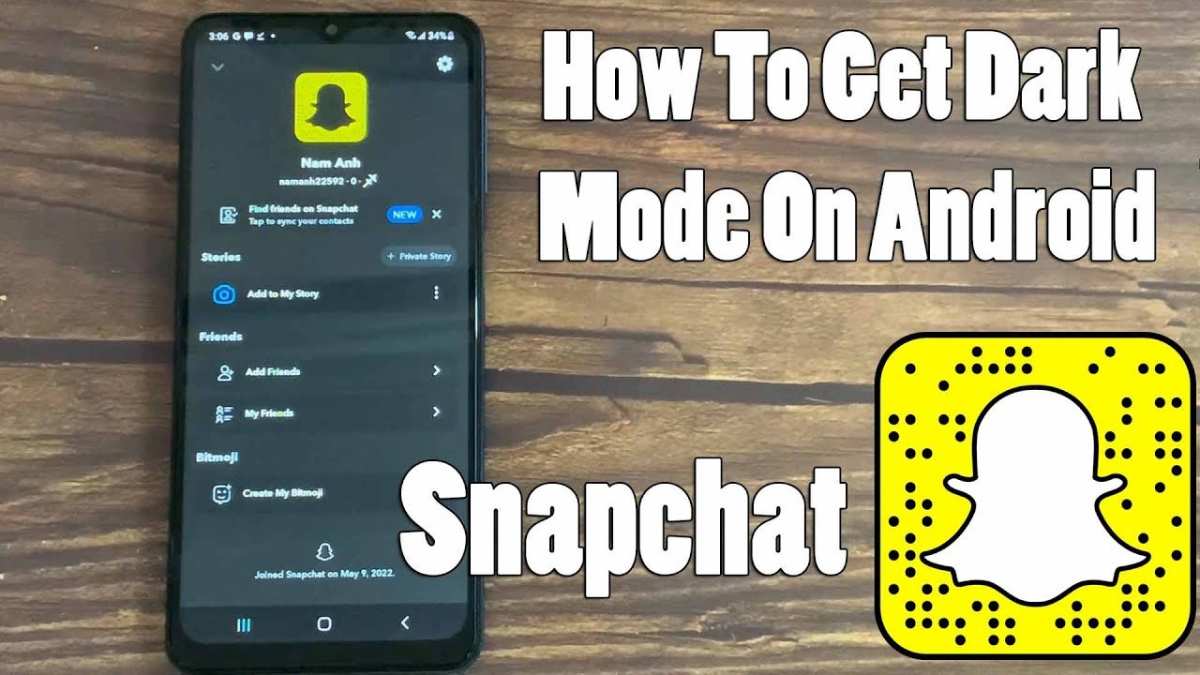
To make your Snapchat black on Android, you need to enable dark mode within the app settings or use a system-wide dark theme. **This simple change instantly switches Snapchat to a sleek black interface.** If you want to know how to make your Snapchat black on Android, start by checking your app version, as newer updates support dark mode. Applying these steps makes your experience more comfortable, especially in low-light environments, and saves battery life on your device. The process is quick and straightforward, letting you enjoy Snapchat’s new look right away.

How to Make Your Snapchat Black on Android
If you enjoy using Snapchat but want a darker interface for easier night-time use or to save your phone’s battery, changing the app to a black theme is a great choice. While Snapchat doesn’t offer a built-in dark mode for Android devices in all versions, there are several methods to achieve a black or dark theme for your Snapchat app. In this guide, we’ll walk you through different techniques to make your Snapchat interface dark on Android devices, including official features, settings adjustments, and third-party solutions.
Understanding Why You Might Want a Black Snapchat Theme
Before diving into how to make your Snapchat dark, let’s explore why many users prefer a dark interface:
- Eye Comfort: Dark themes reduce strain on your eyes, especially in low-light environments or at night.
- Battery Saving: On OLED screens, black pixels require less power, allowing your phone to conserve energy.
- Personal Preference: Some users simply find dark interfaces more modern and stylish.
Knowing your reasons helps you choose the best method suited to your needs, whether it’s an official feature or a workaround.
Using Android System Dark Mode to Change Snapchat’s Theme
The easiest way to get Snapchat into a dark or black theme is to turn on your Android system dark mode. Many apps, including Snapchat, follow system-wide themes if they support it. Here’s how you can set it up:
Enabling Dark Mode on Your Android Device
Depending on your device’s manufacturer and Android version, the process might vary slightly. Here are the general steps:
- Go to your device’s Settings menu.
- Scroll down and find Display.
- Look for an option called Dark theme or Dark mode.
- Toggle the switch to activate it.
Once enabled, supported apps like Snapchat will automatically switch to a dark theme, making your experience easier on the eyes.
Checking If Snapchat Supports System Dark Mode
In recent updates, Snapchat has added support for system-wide themes on Android. To confirm if your app has this feature:
- Ensure your Snapchat app is updated to the latest version from the Google Play Store.
- Open Snapchat and go to your profile icon.
- Navigate to Settings (the gear icon).
- Look for a Appearance option or similar.
- If available, select Use System Setting.
Choosing this option will make Snapchat adopt your phone’s current theme, turning it black if you have dark mode enabled system-wide.
Enabling Dark Mode Through Snapchat Settings (If Available)
If your Snapchat version supports in-app theme choices, follow these steps:
Steps to Switch to Dark Mode in Snapchat
- Open the Snapchat app.
- Tap on your profile icon at the top left corner.
- Go to Settings.
- Find the Appearance or Theme section.
- Select Dark or Black theme.
This method is straightforward but relies on Snapchat rolling out this feature for your device.
Using Third-Party Apps and Modifications
If Snapchat doesn’t support a dark theme natively, you can consider third-party solutions. Be cautious—these involve risks like violating app terms or exposing your device to security threats. Always back up data before trying these methods.
Applying Dark Mode with Substratum or Other Theme Engines
Some Android devices rooted or using custom ROMs can use theme engines like Substratum to force dark modes:
- Install a theme engine compatible with your device (like Substratum).
- Download a dark theme that supports Snapchat.
- Follow the theme engine’s instructions to apply the theme systematically across apps.
Note: Rooting your device can void warranties and may lead to security issues if not performed properly.
Using Accessibility or Developer Options
Android offers certain accessibility features that can tweak app appearances:
- Enable Force Dark Mode via developer options (available in Android 10 and above).
- Navigate to Settings > About Phone and tap Build Number seven times to unlock Developer Options.
- Go to Developer Options and turn on Override Force Dark.
This method applies a dark overlay system-wide, which can turn some apps like Snapchat darker, but results vary depending on app compatibility.
Using Alternate Launchers and Customization Apps
Certain third-party launchers and customization apps may add additional themes, including dark modes:
- Download launchers like Nova Launcher, which allow theme customization.
- Set wallpapers and icons that match your dark theme preferences.
- Use apps like Substratum or Theme Galaxy for further adjustments.
While these do not directly change Snapchat’s interface, they enhance overall device aesthetics and can complement dark mode features.
Important Tips and Precautions
When trying to make Snapchat black on Android, keep these points in mind:
- Always back up your data before modifying system settings or installing third-party apps.
- Update your Snapchat app regularly to access new features and improvements.
- Be aware of security risks when rooting devices or using unofficial apps.
- Check compatibility with your Android version and device hardware.
- Read user reviews and guides for third-party tools to avoid malware or misconfiguration.
Summary of Methods to Make Snapchat Black on Android
| Method | Ease of Use | Reliability | Notes |
|—————————————|———————|—————————–|—————————————————-|
| System-wide Dark Mode | Very easy | High | Works if supported by your device and Android version |
| In-app Settings (if available) | Easy | Good | Depends on Snapchat update status |
| Third-party Themes and Apps | Moderate to complex| Varies | Use with caution, may void warranty or cause issues |
| Developer Options (Override Dark Mode)| Moderate | Experimental | May cause display glitches |
| Custom Launchers and Icon Packs | Easy | Moderate | Aesthetic only, doesn’t change Snapchat UI |
By choosing the right method that matches your comfort level and device capabilities, you can enjoy Snapchat with a sleek black theme that’s easier on your eyes and more battery-friendly.
This guide covers everything you need to know about making your Snapchat app dark on Android. Whether you prefer an official update, system-wide settings, or third-party solutions, you now have a clear pathway to customize your experience.
Frequently Asked Questions
Can I change the Snapchat background to black using the app’s settings?
Snapchat does not offer a built-in option to switch the background to black within its settings. To achieve a dark background, you need to enable device-wide dark mode or use third-party solutions. Enabling your device’s dark mode affects supported apps, including Snapchat, providing a darker interface across the system.
What steps should I follow to enable dark mode on an Android device to make Snapchat appear darker?
To make Snapchat appear darker, go to your device’s Settings, navigate to Display, and toggle on Dark Theme or Dark Mode. This change applies system-wide, including Snapchat if the app supports dark mode. Make sure your device has the latest updates to ensure compatibility and better appearance.
Are there any third-party apps or modifications I can use to darken Snapchat’s background on Android?
Using third-party apps or modifications to change Snapchat’s appearance may pose security risks and violate Snapchat’s terms of service. Proceed with caution, as such methods can lead to account restrictions or bans. The safest approach is to use system-wide dark mode or official app updates that support dark themes.
Will updating Snapchat help me switch to a darker interface?
Updating Snapchat might introduce new themes or features, including a dark mode if the developers add it in future updates. Ensure your app is current by checking the Google Play Store regularly. However, until dark mode becomes an official feature, enabling device-wide dark mode remains the best option.
Final Thoughts
To make your Snapchat black on Android, start by enabling dark mode in the app’s settings if available. If not, switch your device to dark mode through your phone’s display settings. Using third-party apps or custom themes can also help achieve a black background.
Adjusting your display settings ensures a consistent dark appearance across the device. Remember, ‘how to make your snapchat black on android’ hinges on combining app settings with system-wide themes for the best effect. This approach allows you to enjoy a sleek, dark Snapchat experience effortlessly.
