

To make your own ringtones for Android, start by choosing your favorite sound clip and editing it with simple apps. **This process is straightforward and requires just a few taps.** You can trim, cut, or add effects to create a personalized ringtone. Once edited, easily set your new creation as your ringtone directly through your device settings. Learning how to make your own ringtones for Android puts your unique touch on your phone’s soundscape, making it more fun and entirely yours.

How to Make Your Own Ringtones for Android
Creating your own ringtones for Android phones can be a fun way to personalize your device and make your notifications stand out. Instead of settling for default tones, crafting custom ringtones allows you to choose your favorite songs, sounds, or recordings. In this guide, we’ll walk through everything you need to know—from the tools required to step-by-step instructions—so you can create perfect ringtones tailored just for you.
Understanding Ringtone Basics on Android
Before diving into making your own ringtones, it’s helpful to understand how Android manages ringtones. Android devices typically accept audio files in specific formats, mainly MP3, WAV, or OGG. Ringtones usually have a duration of 30 seconds or less, so your audio clips should be concise.
**Common formats supported by Android:**
- MP3 (Most popular and widely compatible)
- WAV (High quality but larger file size)
- OGG (Open source and efficient)
**Important tips for ringtone files:**
- Keep the file size small for quick loading
- Avoid audio files with loud background noise or distortion
- Choose clear, recognizable sounds or music clips
Gathering Your Audio Sources
To create a ringtone, you’ll first need an audio source. This could be a song on your device, a recorded sound, or any audio clip you want to turn into a ringtone.
**Steps to find or select your audio source:**
- Access your music library or download MP3 files from trusted sources
- Record your voice or sound using a voice recorder app
- Save the audio file to your device’s internal storage or SD card
**Things to remember when choosing your audio:**
- Pick a segment that is catchy or relevant—usually between 10 to 30 seconds
- Avoid lengthy songs; focus on short, distinctive parts
- Ensure the audio quality is high for a better sound experience
Using Built-in Tools to Edit Ringtones
Many Android devices come with built-in editors that make it easy to cut and create custom ringtones without needing third-party apps.
**How to trim audio directly on Android:**
- Open your device’s default music or sound app
- Select the audio file you want to edit
- Look for an “Edit,” “Trim,” or “Cut” option in the menu
- Use the sliders or input fields to select the start and end points of your desired ringtone section
- Save your newly created clip as a separate file
**Limitations of built-in tools:**
- Some devices may have basic editing features only
- Limited options for fine-tuning or adding effects
If your device’s default tools are insufficient for detailed editing, consider using dedicated apps.
Popular Ringtone Maker Apps for Android
For more advanced editing capabilities, several free and paid apps provide user-friendly interfaces and additional features.
**Top apps to create ringtones:**
- Ringdroid: Known for its simplicity and effectiveness, Ringdroid allows you to cut clips easily and set them as ringtones directly.
- MP3 Cutter and Ringtone Maker: Offers advanced editing tools, volume normalization, and supports various audio formats.
- Zedge: Besides offering pre-made ringtones, Zedge allows you to create custom ringtones from your music files.
- Ringtone Maker: Provides multi-clip editing, fade effects, and easy sharing options.
**How to use these apps:**
– Download and install the app from Google Play Store
– Open the app and grant any necessary permissions
– Import or select your audio file
– Use the app’s editing tools to trim and customize the sound
– Save the final clip and set it as your ringtone directly from the app or your device settings
Step-by-Step Guide to Creating a Ringtone with Ringdroid
Ringdroid is one of the most popular free apps for creating ringtones.
**Steps to make your own ringtone:**
- Download Ringdroid from Google Play and install it on your device
- Open the app and browse your music files
- Select the song or audio clip you want to edit
- Use the sliders to set the start and end points of your desired segment
- Preview the clip to ensure it sounds good
- Tap the save button and give your ringtone a name
- Set the saved clip as your default ringtone or assign it to specific contacts
**Tips for best results:**
– Choose a segment that’s clear and lacks abrupt transitions
– Listen to the clip multiple times to confirm it’s perfect
– Keep the clip within the 30-second limit for most devices
How to Assign Your Custom Ringtone to Your Android Device
Once you’ve created your perfect ringtone, it’s time to set it on your device.
**Setting a new ringtone:**
- Go to your device’s Settings app
- Find and select “Sound & Vibration” or “Sound” depending on your device
- Tap on “Phone Ringtone” or “Ringtone”
- Scroll through the list to find your custom ringtone
- Select it to set as your default ringtone
**Assigning ringtones to specific contacts:**
– Open your contacts or people app
– Select the contact you want to assign a custom ringtone to
– Tap on the edit or pencil icon
– Look for the “Ringtone” option within their contact details
– Choose your custom ringtone from the list
– Save your changes
Additional Tips for Creating Better Ringtones
Making great ringtones sometimes requires a few extra tips.
**Keep these in mind:**
- Use a clear, recognizable sound or melody—avoid overly complex or noisy clips
- Make sure the volume is sufficient for ringing but not painfully loud
- Experiment with different segments of a song to find the catchiest part
- Use fade-in or fade-out effects for a smoother sound transition
- Mix or add effects if your app supports it to create unique sounds
**Troubleshooting common issues:**
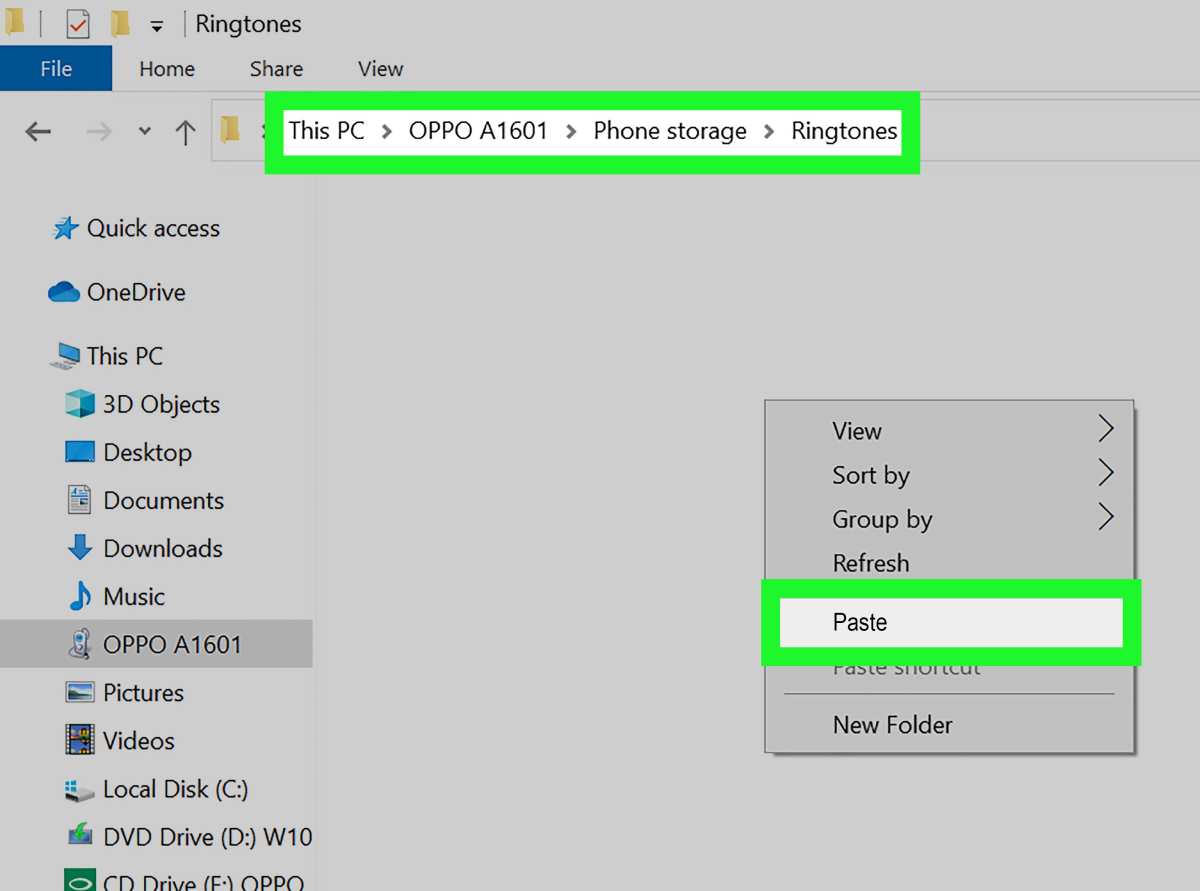
– If your ringtone isn’t showing up, make sure it’s saved in the correct folder (usually “Ringtones” folder in internal storage)
– If the audio plays poorly, check the format and quality of your file
– Restart your device if newly created ringtones aren’t appearing
Backing Up Your Ringtones and Sharing
Once you’ve made your custom ringtones, you might want to back them up or share with friends.
**Sharing your ringtones:**
- Use file-sharing apps like Google Drive, Dropbox, or Bluetooth to transfer files
- Email the ringtone file to yourself or friends
**Backing up your ringtones:**
– Save the ringtone files to a cloud service or a computer regularly
– Keep copies in a dedicated folder on your device for easy access
Creating your own ringtones for Android is straightforward once you understand the tools and steps involved. Whether you use built-in features or third-party apps, customizing your ringtone allows you to express your personality and make your device truly your own. Enjoy crafting sounds that make your phone uniquely yours!
Frequently Asked Questions
What are some free apps I can use to create custom ringtones on my Android device?
Several free apps are available for creating personalized ringtones on Android, including Ringtone Maker, MP3 Cutter, and Audio Cutter. These apps allow you to trim audio files, add effects, and set your creations directly as ringtones or alarms. Simply download the app from the Google Play Store, select your audio source, edit it as desired, and save your new ringtone.
How can I ensure my custom ringtone fits the required length for Android?
To fit Android’s standard ringtone length, typically around 30 seconds, use an audio editing tool within your chosen app to trim or cut your audio clip precisely. Most apps offer visual waveforms, making it easy to select the exact start and end points. Play back the segment before saving to confirm it fits your preferences and adheres to the length restriction.
What steps should I follow to set my newly created ringtone as the default on Android?
After creating your ringtone, navigate to your device’s Settings, then tap Sounds or Sound & Vibration. Select Ringtone or Phone Ringtone, browse through the options, and find your custom file. Tap on it to set it as your default ringtone. Some apps also offer a direct option to set the ringtone immediately after editing, simplifying the process.
Can I create ringtones from any audio file on my Android device?
Yes, you can make ringtones from most audio files stored on your device, such as music tracks or recorded clips. Use an audio editor to open the desired file, select the segment you want, and save it as a new ringtone. Ensure the file format is compatible (like MP3 or WAV), which most editing apps support.
Is it possible to make different ringtones for specific contacts on Android?
Yes, Android allows you to assign custom ringtones to individual contacts. After creating a ringtone, open your Contacts app, select the contact, and tap Edit. Look for the option to set a specific ringtone, then choose your custom file from the list. This way, you can identify callers by their unique tones.
Final Thoughts
Making your own ringtones for Android allows for a personalized experience. Use apps like Ringtone Maker or Audacity to trim your favorite song. Save the clip in MP3 format for easy transfer. Transfer the file to your phone via USB or cloud storage.
Set your new ringtone by opening Settings, selecting Sound, then Ringtone. Choose the custom file from your device. This simple method keeps your notifications unique and tailored.
In conclusion, how to make your own ringtones for Android offers a fun way to customize your device. Follow these easy steps to create and set your personalized ringtones effortlessly.
