

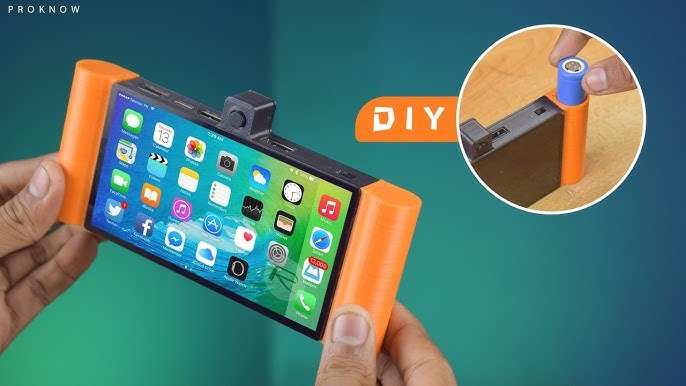
To make your own android tablet, you need essential components like a Raspberry Pi, a touchscreen display, and compatible batteries. **Assemble these parts carefully, install Android OS, and configure your device.** Knowing how to make your own android tablet can be straightforward with basic technical skills. This project offers a rewarding way to customize your device and understand its inner workings. Follow simple steps to create a functional and personalized tablet tailored to your needs.

How to Make Your Own Android Tablet
Creating your own Android tablet might seem like a complicated project, but with the right tools and a clear plan, you can build a personalized device that fits your needs. Whether you’re interested in crafting a tablet for gaming, reading, or productivity, this guide will take you through each step in a detailed and understandable way. Building a custom Android tablet involves choosing the right hardware components, installing the operating system, and setting up the device for everyday use. Let’s walk through this process together so you can confidently make your own Android tablet from scratch.
Understanding the Basics of Building an Android Tablet
Before diving into the technical instructions, it’s important to understand what makes up an Android tablet. Essentially, a tablet consists of hardware components and software. The main hardware parts include:
- Display screen (touchscreen)
- Processor (CPU)
- Memory (RAM)
- Storage (internal memory)
- Battery
- Motherboard (circuit board)
- Input/output ports (USB, headphone jack, etc.)
- Casing or enclosure
The software side involves installing the Android operating system and necessary drivers to make all hardware components work smoothly together.
Selecting the Hardware Components
Choosing the right parts is the most critical step because they determine your tablet’s performance, size, and features. Here are some key considerations:
Display Screen
– Size: Common sizes are between 7 to 10 inches.
– Resolution: Aim for at least HD (1280×720) for clear visuals.
– Touch sensitivity: Ensure the screen supports responsive touch input.
Processor (CPU)
– Look for ARM-based processors similar to those used in commercial tablets.
– Popular options include the Raspberry Pi or more powerful single-board computers like the Odroid or BeagleBone.
– Consider performance needs—more power for gaming or multitasking, less for simple reading.
Memory and Storage
– RAM: 2GB to 4GB RAM is generally sufficient for most tasks.
– Storage: Start with at least 16GB internal space; add a microSD card slot to expand storage.
Battery
– Select a battery with enough capacity to power your device for several hours.
– Look for batteries with a capacity of 3000mAh or higher, depending on your size and power needs.
Casing and Enclosure
– Use lightweight materials like plastic or aluminum.
– Ensure the case has openings for the screen, ports, and buttons.
– Consider custom cases or 3D printing options for personalized designs.
Gathering the Necessary Tools and Supplies
Building a tablet requires specific tools and supplies:
- Soldering iron (if connecting components manually)
- Screwdrivers suitable for small electronics
- Wire strippers and testers
- Thermal paste (for heat management)
- Adhesive or double-sided tape
- Multimeter (for testing circuits)
- Operating system image (such as LineageOS or Android-x86)
- MicroSD card with firmware
Ensure your workspace is clean, well-lit, and static-free to prevent damaging sensitive electronic parts.
Building the Hardware
Once you gather all components and tools, it’s time to assemble your device:
Preparing the Motherboard
– Connect the processor to the motherboard if it isn’t pre-installed.
– Attach the RAM modules and storage (microSD or eMMC).
– Install the battery onto the motherboard, making sure connections are secure.
– Mount the motherboard inside the casing, ensuring all ports are aligned and accessible.
Connecting the Display
– Attach the touchscreen cable to the motherboard.
– Secure the display to the casing with appropriate mounting hardware.
– Make sure the display is properly connected and free of loose connections.
Integrating Input/Output Ports
– Connect USB ports, headphone jack, and charging port.
– Use soldering or connectors depending on your components’ design.
– Test each port before completing assembly.
Final Assembly
– Secure all components with screws or adhesive.
– Ensure the device is well-organized and free of wires that could snag.
– Close the casing firmly but carefully to prevent damage.
Installing the Android Operating System
After assembling your hardware, the next vital step is installing the Android OS. This process involves flashing the OS onto your device’s storage.
Choosing the Right Android Firmware
– Use custom ROMs like LineageOS for better compatibility and performance.
– Download an Android-x86 image if you prefer a desktop-style Android experience.
– Ensure the firmware is compatible with your hardware specifications.
Creating a Bootable MicroSD Card
– Use software like Etcher or Rufus to write the OS image to your microSD card.
– Follow the software instructions carefully to create a bootable installer.
Booting and Flashing the Firmware
– Insert the microSD card into your device.
– Power on while holding the boot key (specific to your hardware).
– Enter the BIOS or boot menu to select the microSD card as the boot device.
– Follow on-screen instructions to install the OS onto your device’s storage.
Configuring and Customizing Your Android Tablet
Once the OS installs successfully, turn on your tablet:
- Set up your Google account and preferences.
- Customize the home screen, widgets, and apps.
- Install drivers for peripherals like printers, cameras, or external storage.
- Adjust device settings for battery life, display, and security.
Adding custom apps and tweaking settings ensures your tablet functions exactly as you want it.
Testing and Troubleshooting
Before you start using your tablet daily, test all features:
- Check the touchscreen responsiveness.
- Test all ports, including USB and headphone jack.
- Ensure the battery charges and holds power properly.
- Run performance tests to detect any hardware or software issues.
If problems arise, revisit connections or re-flash the OS. Forums and online communities dedicated to DIY electronics can be invaluable for troubleshooting solutions.
Enhancing Your DIY Android Tablet
Once your tablet runs smoothly, consider enhancements:
- Add a protective case or screen protector.
- Include external accessories like keyboards or styluses.
- Set up cloud storage or remote access for easier file management.
- Experiment with custom themes and icon packs to personalize your device.
Building an Android tablet isn’t just about the end product; it’s about understanding how devices work and creating something tailored to your needs.
Safety Tips and Best Practices
Remember to prioritize safety throughout your project:
- Work in a static-free environment to protect electronic components.
- Handle batteries carefully to avoid punctures or short circuits.
- Follow manufacturer instructions for all components.
- Double-check connections before powering on your device.
By taking precautions, you minimize the risk of damaging parts or causing injury.
Building your own Android tablet combines technical skills with creativity. While the process requires patience and attention to detail, the result gives you a unique device that matches your specific needs and interests. With the right planning, components, and perseverance, you can turn your idea into a functional, personalized Android tablet that you built yourself.
Frequently Asked Questions
What components are essential to build an Android tablet from scratch?
To assemble an Android tablet, you need a compatible motherboard with a processor, touchscreen display, battery, storage (such as an eMMC or SSD), Wi-Fi and Bluetooth modules, and appropriate casing. Additionally, you require an operating system image, mounting tools, and connectors to link all components securely. Selecting high-quality parts ensures reliability and smoother performance.
How can I install Android on my custom-built tablet?
Start by downloading a suitable Android firmware or custom ROM that matches your hardware specifications. Use a computer to flash the firmware onto the device’s storage via tools like Odin or Fastboot. Make sure to follow detailed instructions specific to your hardware model to prevent any issues. After flashing, perform necessary initial configurations to complete the setup process.
What considerations should I keep in mind regarding power management for a homemade Android tablet?
Choose a battery compatible with your device’s power requirements, ensuring it has sufficient capacity for your intended use. Implement efficient power regulation circuits to manage charging and discharging safely. Proper wiring and insulation are vital to prevent short circuits. Testing the battery’s performance over time helps to identify any potential safety or longevity issues early on.
Final Thoughts
To make your own android tablet, start by selecting suitable hardware components like a compatible motherboard, display, and battery. Assemble these parts carefully, following guides or tutorials to ensure proper connections. Install an Android operating system tailored for tablets, and configure the settings for optimal performance.
Understanding the necessary steps helps you personalize your device and save costs. Making your own android tablet requires patience and attention to detail. Ultimately, knowing how to make your own android tablet allows you to craft a device that meets your specific needs precisely.
