

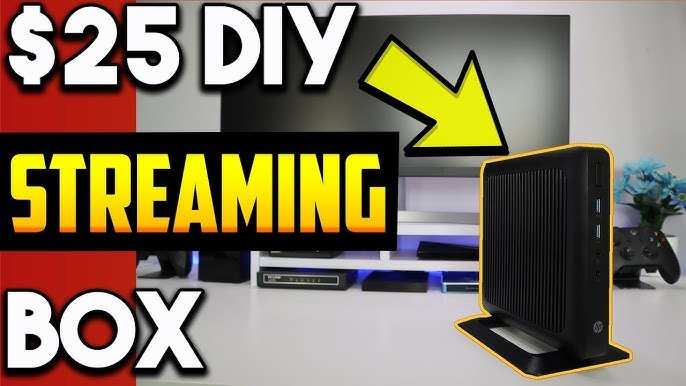
To make your own android box, you simply need a compatible single-board computer, like a Raspberry Pi, and the right software. **Assembling your device involves installing an Android-based operating system and connecting the necessary peripherals.** Once set up, you can enjoy a customizable media experience tailored to your preferences. Understanding the essential steps makes creating your android box straightforward and rewarding. Stay focused, and you’ll have a functional device in no time.

How to Make Your Own Android Box
Building your own Android TV box might sound complicated, but with the right guidance, it becomes an enjoyable project that lets you customize your entertainment setup. Whether you want a sleek media center for streaming videos, playing games, or browsing the internet, creating your own Android box gives you full control over what you watch and how you watch it. Let’s walk through the steps to make your own Android box, exploring everything from choosing the perfect hardware to setting up your device for optimal performance.
Understanding What an Android Box Is
Before diving into the building process, it’s helpful to understand what an Android box does. An Android TV box is a small device that connects to your TV and runs on the Android operating system. It allows you to access various apps like Netflix, YouTube, Hulu, and countless others, providing a smart TV experience. Instead of using a cable box or a traditional streaming device, you create a custom device tailored to your needs.
An Android box can run on different hardware specifications, depending on your budget and use case. Some are simple and affordable, perfect for basic streaming, while others are powerful enough to handle gaming, 4K videos, and multitasking.
Choosing the Right Hardware Components
The first step in building your own Android box is selecting the right hardware. The key components include:
- Single Board Computer (SBC): This is the main part. You can choose a popular SBC like the Raspberry Pi 4, Odroid, or other mini PCs designed for media applications. For example, the Raspberry Pi 4 with 4GB or 8GB RAM works well for most media needs.
- Power supply: Ensure you have a reliable power source that meets the needs of your SBC. Most SBCs come with specific power adapters.
- Storage: Use a high-speed microSD card or an SSD if your SBC supports it. Opt for at least 32GB storage for apps and files, but 64GB or more is better for larger media libraries.
- Case and cooling: Protect your hardware with a case. Good ventilation and optional cooling fans help prevent overheating during extended use.
- HDMI cable and monitor: Connect your device to your TV or monitor with an HDMI cable. Make sure your display supports the resolution you want, especially if you plan on streaming 4K content.
- Remote control or keyboard/mouse: For easier navigation, pick a compatible remote or wireless keyboard and mouse combo.
Preparing Your Hardware for Setup
Once you’ve gathered all your components, it’s time to prepare your hardware:
- Assemble the device: Insert the microSD card into the Raspberry Pi or other SBC, ensuring the card has enough space and speed to run the operating system smoothly.
- Connect peripherals: Attach the HDMI cable, keyboard, mouse, and power supply.
- Initial power-up: Turn on the device and check if it boots properly. You should see the initial setup screen shortly after powering up.
Installing the Operating System
The heart of your Android box is the operating system. You need a version of Android optimized for TV use.
Selecting the Android OS Image
Choose an Android TV version that suits your needs:
- LineageOS for Android TV: A customizable version that’s popular among DIY enthusiasts.
- Android x86: A full Android OS for PCs and SBCs. Supports most hardware and provides a familiar interface.
- Emteria.OS: A commercial Android OS designed for embedded systems, offering stable updates and support.
Flashing the OS onto MicroSD or Storage
Follow these steps to install your chosen OS:
- Download the OS image from the official website or trusted sources.
- Use imaging software like Balena Etcher or Raspberry Pi Imager.
- Insert your microSD card into your computer and use the software to flash the OS image onto it.
- Once complete, eject the microSD card and insert it into your SBC.
Configuring Your Android TV Box
After installing the OS, you need to configure your device for smooth operation:
- Initial setup: Follow the on-screen prompts to select language, network, and other preferences.
- Network connectivity: Connect your device to Wi-Fi or Ethernet for internet access.
- Updating software: Check for OS updates to ensure you have the latest features and security patches.
- Installing apps: Use the Google Play Store or other app stores to download streaming services, media players, and entertainment apps.
Customizing Your Android Box for Better Performance
Optimizing your device enhances the overall user experience:
- Disable unnecessary apps: Free up resources by removing pre-installed apps you don’t need.
- Adjust display settings: Set your preferred resolution and screen refresh rate for better video quality.
- Install media center apps: Use apps like Kodi or Plex to organize and play your media files.
- Set up remote control: Pair your Bluetooth remote or smartphone app for easy navigation.
Enhancing Your Android Box with Accessories
Adding accessories can make using your Android box more enjoyable:
| Accessory | Benefit |
|---|---|
| Wireless Remote | Easier to navigate menus from across the room |
| Bluetooth Game Controller | Play Android games comfortably |
| External Storage | Expand your media library |
| Air Mouse | Combine the functions of a mouse and remote for smoother control |
Troubleshooting Common Issues
Even with careful setup, you might encounter issues:
- Device won’t boot: Check power supply and SD card connection.
- Poor video quality: Verify display settings and update your graphics drivers.
- Apps crashing: Clear cache, update the apps, or reinstall if needed.
- Network connectivity problems: Reboot your router, reset network settings, or switch to a wired connection for stability.
Maintaining and Updating Your Android Box
Keep your device running smoothly by regular updates:
- Update the OS when new versions are available.
- Install security patches to protect your device.
- Back up your media files and settings periodically.
- Clean the hardware and ensure proper ventilation to prevent overheating.
Building your own Android box is a rewarding project that offers a personalized media experience. By choosing the right hardware, installing a suitable Android OS, and customizing your device, you can enjoy seamless streaming, gaming, and browsing on your TV. Once set up, your DIY Android box will be a powerful hub for all your entertainment needs, giving you greater control and flexibility compared to pre-made devices.
Frequently Asked Questions
What are the essential components needed to build an Android box at home?
To create your own Android box, you need a compatible single-board computer like a Raspberry Pi or an ODROID device, a microSD card or eMMC storage for the operating system, a power supply, and necessary peripherals such as a keyboard, mouse, and display. You should also have a reliable internet connection and an HDMI cable to connect the device to your TV or monitor. Additionally, consider a case to house the components for protection and aesthetics.
How can I install the Android operating system on my custom device?
Start by downloading a suitable Android OS image designed for your hardware, like Android TV or LineageOS. Use software like Balena Etcher or Rufus to flash the OS image onto your microSD card or eMMC storage. Insert the prepared storage into your device, connect it to power, and turn it on. Follow the on-screen instructions to complete the setup process, ensuring your device boots correctly into Android.
What are the best practices for configuring my Android box for optimal performance?
Begin by updating the system to the latest firmware and applications. Adjust display settings for optimal resolution and refresh rate. Install a reputable launcher for smoother navigation and customize your home screen layout. Enable automatic updates and set up a dedicated Wi-Fi connection for stability. You should also disable unnecessary background services, install essential apps, and configure your media libraries to ensure a seamless entertainment experience.
Final Thoughts
Pour faire votre propre box Android, commencez par choisir des composants de qualité, tels qu’un processeur puissant et une mémoire suffisante. Ensuite, assemblez soigneusement votre matériel en suivant un guide étape par étape. Téléchargez une version d’Android adaptée et configurez-la pour répondre à vos besoins.
En faisant cela, vous pouvez créer une box Android personnalisée qui offre une expérience fluide et adaptée à vos préférences. Appliquez ces conseils pour apprendre comment faire votre propre android box avec facilité et efficacité.
