

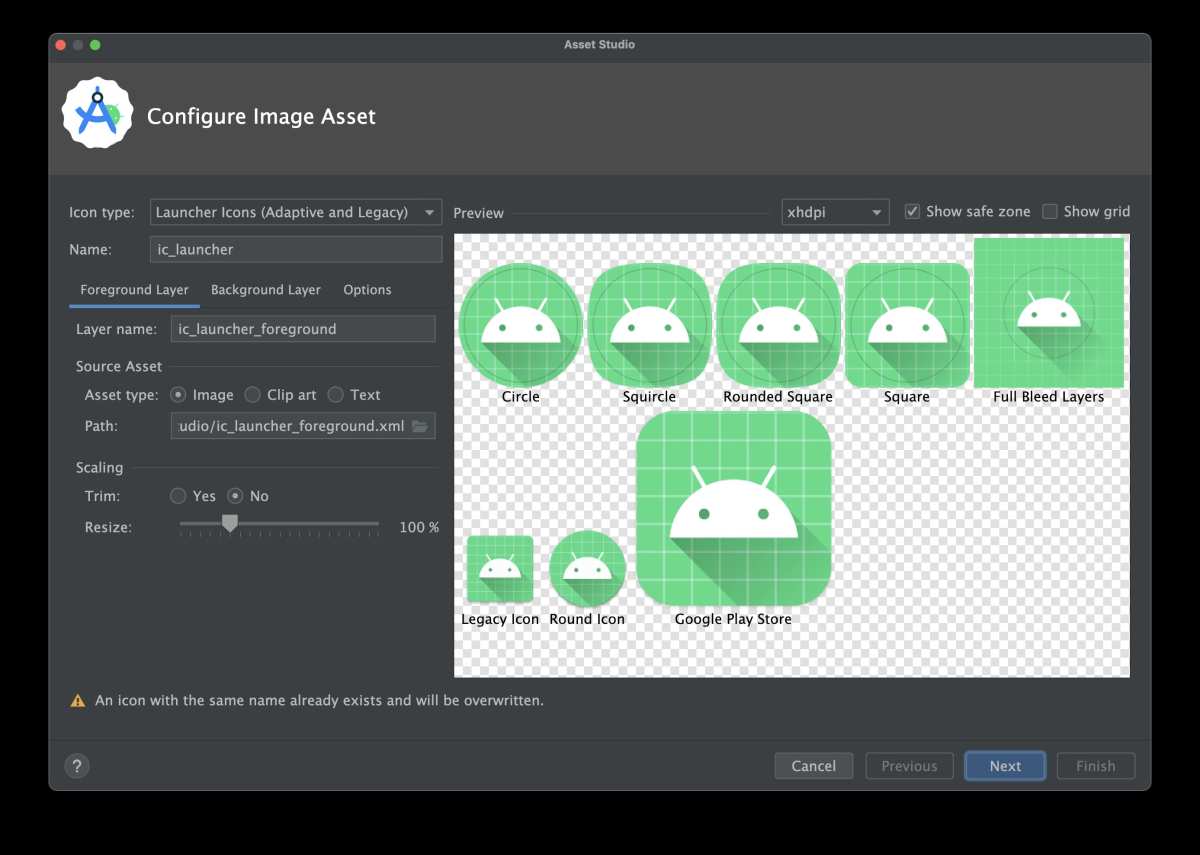
Creating your own Android app icons is simpler than you might think. **The key is using the right tools and following basic design principles.** To make your own Android app icons, start with graphic design software like Canva or Adobe Illustrator. Choose a simple, recognizable theme, and keep your design consistent across icons. With a little practice, you’ll be able to craft unique icons that match your app’s personality effortlessly.

How to Make Your Own Android App Icons
Creating your own Android app icons can seem challenging at first, but with some simple tools and clear steps, you can craft icons that match your app’s personality perfectly. Whether you’re designing a fresh icon for your first app or updating existing ones, knowing how to make your own Android app icons gives you full control over your app’s look. This guide walks you through everything you need to know, from understanding icon styles to preparing your artwork for different device screens.
Understanding the Importance of Custom App Icons
Before diving into the design process, it’s important to understand why custom icons matter. Your app icon acts as the first impression for users. A well-designed icon attracts attention, communicates your app’s purpose, and encourages downloads. Here are some reasons why custom icons boost your app’s appeal:
- Brand Recognition: Unique icons help users easily identify your app among many others.
- Professional Look: Custom icons give your app a polished, professional appearance.
- Consistency: Matching your icon style with your app’s overall design creates a cohesive user experience.
- Stand Out in the App Store: Eye-catching icons can improve your app’s visibility and downloads.
Getting Started: Planning Your App Icon
Effective icon creation begins with good planning. Here are key aspects to consider:
Define Your App’s Style and Theme
Think about your app’s core purpose and target audience. Are you building a playful game, a business tool, or a social media platform? The style of your icon should reflect this:
- Color Scheme: Bright and lively for fun apps, subdued and professional for business tools.
- Shape and Symbolism: Use simple shapes and symbols that represent your app’s function.
- Style: Flat, material, or skeuomorphic designs each give a different look and feel.
Selecting the Right Icon Shape
Android icons are generally square with rounded corners, but you can also design icons with custom shapes for unique branding. Keep in mind:
- The standard Android icon uses a square with slightly rounded corners.
- Some brands prefer icons that extend beyond the square for a distinctive look.
Tools and Resources for Making Your Icons
Choosing the right tools makes the process smoother. Here are some popular options:
Design Software
You can create icons using both free and paid software:
- Adobe Illustrator: Excellent for vector graphics, perfect for scalable icons.
- Photoshop: Great for raster images and detailed designs.
- Inkscape: A free, open-source vector graphics editor.
- Canva: User-friendly online tool with pre-made templates.
Icon Generators and Templates
If you prefer quick options or need to stay consistent:
- Use online icon generators like Favicon.io or Favicon.io.
- Download customizable templates from sites like Flaticon or Icons8.
Designing a Catchy Icon Step-by-Step
Here’s a detailed step-by-step process to help you create a memorable app icon:
Start with Sketches
Begin by sketching your ideas on paper or digital drawing apps. Focus on:
- Simplifying shapes for clarity.
- Using symbols that represent your app’s function.
- Exploring different color combinations.
Create a Digital Draft
Transfer your best sketch into your design software:
- Use vector shapes for scalable icons.
- Maintain symmetry and balance in your design.
- Test different color schemes.
Pay Attention to Icon Details
Less is often more. Keep your design simple:
- Avoid cluttered details that don’t scale well.
- Ensure your icon looks good at small sizes.
- Use high-contrast colors for visibility.
Design for Different Sizes and Screen Densities
Android devices have various screen sizes and resolutions. Prepare your icon for all of them:
| Icon Size | Density | Description |
|---|---|---|
| 48×48 px | mdpi | Standard size for baseline density screens |
| 72×72 px | hdpi | High-density screens |
| 96×96 px | xhdpi | Extra-high-density screens |
| 144×144 px | xxhdpi | Extra-extra-high-density screens |
| 192×192 px | xxxhdpi | Ultra-high-density screens, common for newer devices |
Ensure your icon maintains clarity and visual appeal at each size.
Preparing Icon Files for Android
Once your icon design is ready, you must save and organize your files correctly:
Exporting Your Icons
Export your icons in PNG format for best compatibility:
- Use the sizes listed above for different device screens.
- Save each size with a clear naming convention (e.g., icon_mdpi.png, icon_hdpi.png).
Organizing Files for Your App
Place your icon files in appropriate folders within your Android project:
- res/mipmap-mdpi/ for 48×48 px
- res/mipmap-hdpi/ for 72×72 px
- res/mipmap-xhdpi/ for 96×96 px
- res/mipmap-xxhdpi/ for 144×144 px
- res/mipmap-xxxhdpi/ for 192×192 px
This organization ensures Android uses the right icon for each device.
Implementing Your Icon in the App
After organizing your icon files, follow these steps to set your icon in your Android app:
Update the Manifest File
Open your app’s AndroidManifest.xml file and locate the application tag. Add or update the android:icon attribute:
<application
    android:icon="@mipmap/your_icon_name"
    ... >
Replace your_icon_name with the name of your icon files (without the extension).
Testing Your App Icon
Run your app on different devices or emulators to see how your icon appears across screens. Confirm that the icon:
- Looks clear and recognizable.
- Maintains consistency across device densities.
- Resonates with your app’s theme.
Best Practices for Making Stunning Android App Icons
Following these tips helps you achieve professional-looking icons:
- Simplicity: Stick to simple shapes and minimal details.
- Consistency: Match your icon style with your app’s overall branding.
- Color Choice: Use eye-catching but harmonious colors.
- Test at Small Sizes: Always check how your icon appears on small screens.
- Follow Android Guidelines: Use rounded square shape, as per Material Design standards.
Final Tips for Your Icon-Making Journey
Creating a compelling app icon takes patience and practice. Here are some final suggestions:
- Iterate your designs based on feedback.
- Keep your icons updated as your app evolves.
- Use high-quality images to ensure clarity.
- Stay aware of current design trends to keep your icons fresh and appealing.
Making your own Android app icons is a rewarding process that boosts your app’s visual identity. By understanding the basics of design, utilizing the right tools, and following proper sizing and implementation practices, you can craft icons that stand out and resonate with your users. Remember, a good icon is simple, distinctive, and aligned with your app’s overall look and feel. Happy designing!
Frequently Asked Questions
What tools are best for designing custom Android app icons?
Popular graphic design tools like Adobe Illustrator, Adobe Photoshop, and free alternatives such as GIMP or Canva provide versatile features for creating detailed and attractive app icons. These tools allow you to work with vector graphics, add intricate details, and customize your designs to fit your app’s style. Additionally, icon design-specific apps like Icon Slate or Iconfinder can streamline the process and offer templates to help you start quickly.
How can I ensure my app icons meet Android’s design guidelines?
Review the Material Design guidelines provided by Google, which specify size, shape, and visual consistency requirements for app icons. Use the recommended size of 512×512 pixels at 72 DPI, and create icons with transparent backgrounds in PNG format. Keep the design simple, with clear symbolism and minimal details, so they remain recognizable at smaller sizes. Testing your icons across different device screens ensures they look good in various contexts.
What are some tips for making icons that stand out on Android devices?
Focus on simplicity and clarity to make your icons easily recognizable. Use bold colors and distinct shapes to differentiate your app from others. Incorporate familiar symbols related to your app’s function, and avoid cluttering the design with unnecessary elements. Maintain consistency with your app’s branding, such as color schemes and style. Regularly preview your icons on different screen sizes to ensure they remain visually appealing and effective.
Final Thoughts
To make your own android app icons, start by choosing a clear and attractive design using graphic tools like Canva or Adobe Illustrator. Keep the icons simple and recognizable at small sizes. Save your designs in PNG format with transparent backgrounds to ensure versatility. Finally, add your icons to your app project and update your app’s manifest to use them. Practicing these steps will help you create unique icons that enhance your app’s visual appeal and user experience.
