

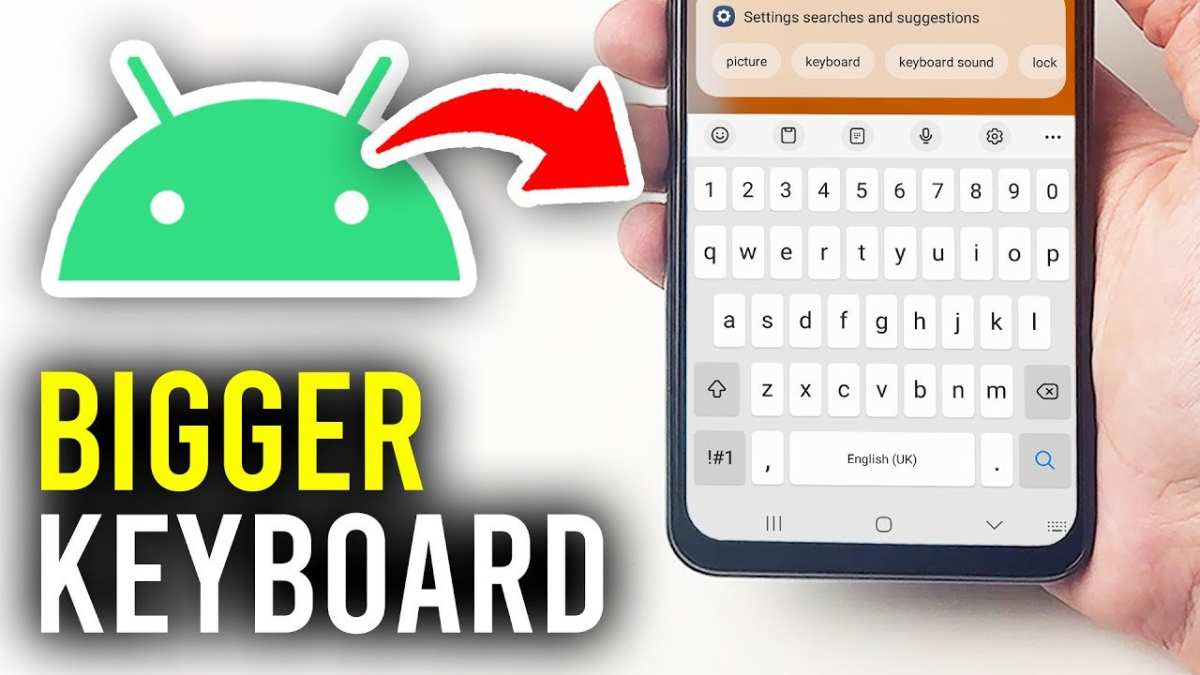
To make your keyboard bigger on Android phone, simply adjust the keyboard size settings or enable a third-party keyboard with customizable options. **This quick change can greatly improve your typing comfort.** When you ask how to make your keyboard bigger on android phone, these simple steps will help you easily enlarge the keyboard. Just go to your device’s settings or download an app that offers resizing features. Clear and straightforward, this approach gets your keyboard to the perfect size fast.

How to Make Your Keyboard Bigger on Android Phone
Having a keyboard that is the right size can make typing on your Android phone much easier and more comfortable. If your keyboard feels too small, leading to typos or frustration, don’t worry—you can make it bigger. In this guide, we will explore the different methods to increase your keyboard size effectively. Whether you want an enlarged keyboard for easier typing or just prefer a more visible layout, this article covers everything you need to know.
Understanding Why Your Keyboard Size Matters
Before diving into solutions, let’s talk about why keyboard size is important. When a keyboard is too small:
- It becomes harder to tap on the correct keys, leading to more mistakes.
- Typing feels cramped and uncomfortable, especially for users with larger fingers or those who have visual impairments.
- You may find yourself frequently switching to voice input or other shortcuts, disrupting your flow.
Making your keyboard larger improves accuracy, speeds up your typing, and enhances your overall experience when using your Android device.
Options to Increase Your Keyboard Size on Android
There are several straightforward ways to enlarge your keyboard on an Android phone:
- Adjusting keyboard settings directly within your current keyboard app
- Switching to a different keyboard app that offers larger key options
- Changing device display or font size for overall visibility improvements
- Using accessibility features meant for ease of use
Let’s explore each of these options in detail.
Using Built-in Keyboard Settings to Change Size
Most Android devices come with pre-installed keyboards like Gboard (Google Keyboard), Samsung Keyboard, or others. These usually have adjustable settings for key size.
Adjusting Key Size in Gboard
Gboard is one of the most popular keyboard apps on Android. To change its size:
- Open your device’s Settings app.
- Scroll to find and select “System” or directly search for “Languages & Input.”
- Tap on “Keyboard & Input Methods,” then select “Gboard.”
- Choose “Preferences.”
- Look for the “Keyboard height” slider or option. Drag this to the right to make keys larger.
- Exit Settings, and your keyboard will now display larger keys.
This method is quick and effective if you’re already using Gboard.
Adjusting in Samsung Keyboard
If you have a Samsung device:
- Open Settings.
- Tap on “General Management” or “Language and Input.”
- Select “On-screen keyboard,” then tap “Samsung Keyboard.”
- Navigate to “Style & Layout.”
- Adjust the “Keyboard size” slider according to your preference.
- Test out the new size by opening your keyboard in any app.
These settings allow you to customize your keyboard size without installing extra apps.
Installing a Third-Party Keyboard App for Larger Keys
If your current keyboard doesn’t offer enough customization, try downloading a third-party app designed for accessibility and size customization.
Best Keyboard Apps for Larger Keys
Some popular options include:
- Big Keyboard: Designed specifically to enlarge key sizes for easier typing.
- Simple Keyboard: Offers minimalistic design with adjustable key sizes.
- AnySoftKeyboard: Highly customizable, supports resizing and themes.
To get started with a new keyboard:
- Visit Google Play Store and search for the keyboard app.
- Install your chosen app and follow the setup instructions.
- During setup, look for options to increase key size or adjust layout.
- Enable the new keyboard in your device settings under “Languages & Input.”
Using third-party keyboards allows greater flexibility in resizing your keys to fit your needs.
Adjusting Device Display and Font Size for Overall Visibility
Sometimes, increasing the size of text, icons, and other elements can help improve your overall experience, including the keyboard.
Enlarging Font and Display Size
To do this:
- Open Settings on your Android device.
- Tap on “Display.”
- Look for options like “Font Size” and “Display Size.”
- Adjust the sliders to make text and UI elements larger.
- Return to your keyboard and see if the keys become more visible and easier to tap.
This adjustment benefits users who have difficulty seeing small elements on their screens.
Using Accessibility Features for Better Typing Experience
Android devices come with built-in accessibility tools that can help enlarge touch targets and improve usability.
Enabling Touch & Hold Delay
This feature allows for easier access to keys:
- Go to Settings > Accessibility.
- Select “Touch & Feedback” or similar options.
- Adjust the “Touch & Hold” delay to a longer duration to prevent accidental presses.
Using Magnification Gestures
For users who need larger visuals:
- Open Settings > Accessibility > Magnification.
- Toggle on magnification gestures.
- Use pinch gestures to zoom in on your screen, including the keyboard area.
While this doesn’t resize the keyboard itself, it makes the keys appear bigger when needed.
Tips for Customizing and Making the Most of Your Enlarged Keyboard
Once you have adjusted the size, consider these tips:
- Test your keyboard in different apps to find the best size for each situation.
- Use themes or skins that increase contrast for better visibility.
- Ensure your hands are comfortable when typing—if you increase size too much, it might impact your typing speed.
- Regularly update your keyboard app for new features and improvements.
By personalizing your keyboard, you create a more comfortable and efficient typing environment.
Common Troubleshooting for Larger Keyboard Issues
Here are some typical problems and solutions:
- Keys aren’t resizing or changes aren’t applying: Restart your device after making adjustments.
- Keyboard overlaps with screen elements: Re-adjust size or switch to a different layout.
- Third-party app isn’t working as expected: Check app permissions and update to the latest version.
If issues persist, consider resetting the keyboard settings or reinstalling the keyboard app.
Summary
Making your keyboard bigger on an Android phone is simple once you know where to look. Use built-in settings in your current keyboard app, try third-party options, adjust your device’s display settings, or activate accessibility features. Experiment with different approaches to find what best suits your needs, making typing more comfortable and efficient.
Remember, customizing your device to fit your preferences improves your overall experience and reduces frustration. With just a few adjustments, your keyboard will become more user-friendly, allowing you to type faster and more accurately without straining your eyes or fingers.
Frequently Asked Questions
Can I change the size of my keyboard on an Android device through its settings?
Many Android keyboards allow you to adjust their size directly within the settings. To do this, open your keyboard, access the settings menu (usually by tapping the gear icon), and look for options related to keyboard size or layout. If available, increase the height or adjust the scale to make the keyboard bigger. Not all keyboards offer this feature, so check the specific app’s options for customization.
Are there third-party keyboard apps that let me customize keyboard size more easily?
Yes, several third-party keyboards like Gboard, SwiftKey, and Fleksy offer more flexible customization options, including adjusting the keyboard’s size. Download and install one of these apps from the Google Play Store, set it as your default keyboard, and explore its settings to modify the keyboard dimensions. These apps often provide more detailed control over layout and size compared to stock keyboards.
How can I increase the size of the keyboard temporarily when typing?
Some keyboards support quick resizing during use. For instance, in Gboard, you can access the settings and enable options like “One-handed mode” or tap and hold the spacebar to find size adjustments. Additionally, certain keyboards may allow you to temporarily enlarge specific sections or features for easier typing. Check your current keyboard’s settings to see if such features are available and how to activate them.
Is it possible to change only the keys’ size without affecting the entire keyboard layout?
Most standard keyboards do not support individual key size adjustments without altering the overall keyboard size. However, some third-party apps or custom keyboard layouts may offer this feature. Search for keyboard apps that emphasize customization and check their features to see if they allow resizing or reshaping individual keys or sections of the keyboard to suit your preferences.
Can updating my keyboard app improve adjustable features like size customization?
Yes, developers regularly update their keyboard apps to include new features and improvements. Updating your current keyboard app can unlock new options for resizing or customizing the keyboard size, as well as improve overall functionality and user experience. Visit the app store, check for updates, and install the latest version to benefit from these enhancements.
Final Thoughts
To make your keyboard bigger on Android phone, you can easily adjust the keyboard height in the settings of your preferred app. Many keyboards, like Gboard, allow you to customize the size directly within their options. Alternatively, try switching to a different keyboard app that offers larger layouts and more customization features.
Concluding, understanding how to make your keyboard bigger on Android phone can significantly improve your typing experience. Adjust settings or try new apps till you find the size that feels most comfortable.
