

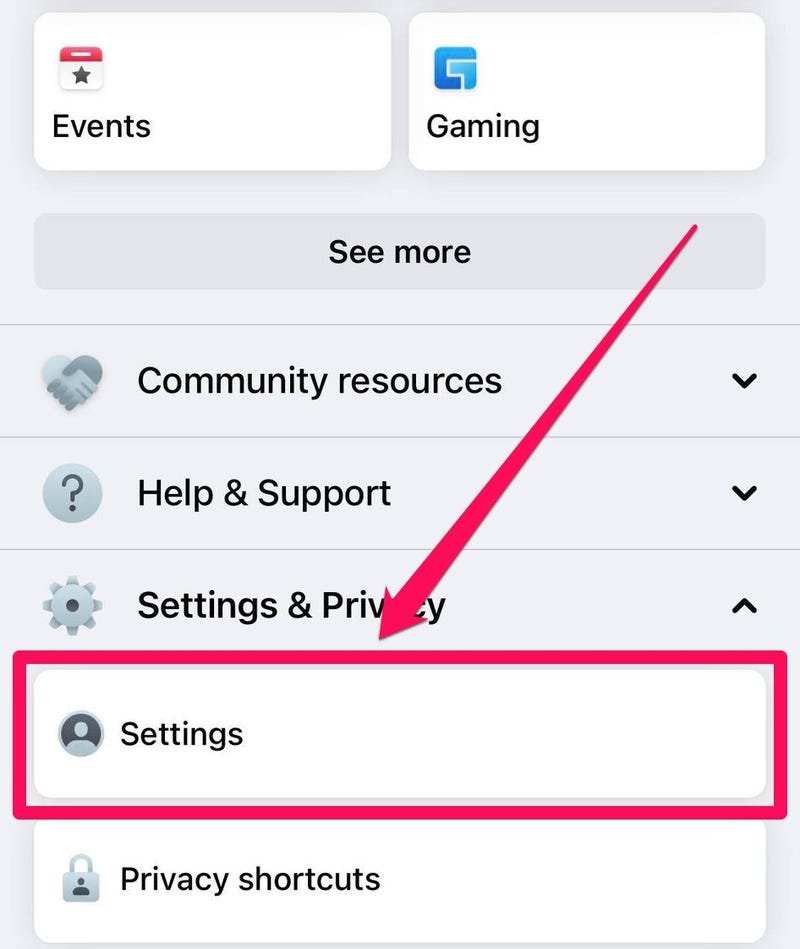
To make your friends list private on Facebook Android, you simply need to adjust your privacy settings. **Go to your profile, tap the menu, then Settings & Privacy, and select Privacy Checkup.** From there, you can modify who sees your friends list. This quick process helps protect your privacy and keeps your social circle discreet. It’s an easy way to control what others see and enjoy a safer online experience.

How to Make Your Friends List Private on Facebook Android
Keeping your online presence safe and private is important, especially when it comes to your social media profiles. If you’re using Facebook on your Android device, you might want to control who can see your friends list. Making your friends list private helps protect your privacy and gives you peace of mind. In this guide, we’ll walk through step-by-step how to set your friends list to private on Facebook Android, explore why privacy matters, and share tips to manage your Facebook privacy settings effectively.
Understanding Why You Should Make Your Friends List Private
Before diving into the instructions, let’s discuss why you might want to hide your friends list. Your friends list reveals who you interact with on Facebook, and in some cases, revealing this might:
- Protect your privacy: Keep your personal connections away from public view.
- Prevent potential online stalking: Make it harder for strangers to see who your friends are.
- Control your online image: Decide what information you share, even if it’s just your friends.
Feeling in control of your privacy gives you confidence to enjoy social media without worry. Now, let’s learn how to make those privacy adjustments directly on your Android device.
Step-by-Step Guide to Making Your Friends List Private on Facebook Android
Getting your friends list private is straightforward if you follow these steps carefully. Here’s a detailed walkthrough:
Open the Facebook App on Your Android Device
First, launch the Facebook app. Make sure you’re logged into the correct account where you want to adjust privacy settings.
Access Your Profile
Tap on your profile picture or your name usually located at the top of the screen or in the menu bar at the top.
Find and Tap on the Friends Section
Once on your profile, scroll down a little and tap on the ‘Friends’ button. This will show your complete friends list.
Open Friends List Privacy Settings
Within the friends section, locate the three dots (…) or the gear icon, usually in the upper right corner of the friends list page. Tap on it, and then select ‘Edit Privacy’ or a similar option.
Change Who Can See Your Friends List
A new menu appears with options like:
- Public: Anyone can see your friends list.
- Friends: Only your friends can see it.
- Only Me: Only you can view your friends list.
- Custom: Choose specific people or lists.
Select the ‘Only Me’ option if you want to keep your friends list private. Confirm your selection.
Save Your Settings
After selecting the desired privacy option, tap ‘Done’ or ‘Save’ to apply your changes.
Additional Tips for Managing Facebook Privacy on Android
Controlling your friends list is just one step to protect your privacy. Consider these extra tips:
Review Your Overall Privacy Settings
Navigate to the account menu (three lines in the top right corner), then tap ‘Settings & Privacy’ > ‘Settings’ > ‘Privacy’. Here, you can adjust who can see your future posts, who can look you up, and more.
Limit Who Can Find You Using Contact Info
In privacy settings, look for options like ‘Who can find you using the email address you provided?’ or ‘Who can find you using your phone number?’ Set these to ‘Friends’ or ‘Only Me’ based on your preference.
Manage Your Profile and Tagging Settings
Under privacy settings, you can control who can see your profile information and who can tag you in posts. Adjust these to further restrict your profile visibility.
Common Mistakes to Avoid When Setting Privacy on Facebook
Even with good intentions, some errors can reduce your privacy. Keep these in mind:
- Not updating privacy settings regularly: Facebook updates features often; revisit your privacy settings periodically.
- Sharing sensitive information in posts: Be mindful of the information you share publicly.
- Allowing strangers to see your friends list: Always double-check your privacy settings to prevent accidental exposure.
Using Privacy Checkup on Facebook Android
Facebook offers a ‘Privacy Checkup’ tool that simplifies reviewing your privacy settings. To access it:
- Open the Facebook app on your Android device.
- Tap the three horizontal lines (menu) in the top right corner.
- Scroll down and tap ‘Settings & Privacy.’
- Select ‘Privacy Checkup.’
- Follow the prompts to review who can see your posts, your profile info, and your friends list.
This feature helps you to quickly see what information is visible and make necessary adjustments.
Why Some Users Prefer to Keep Their Friends List Hidden
Many users prefer hiding their friends list to maintain privacy and avoid potential online risks. Here are some common reasons:
- Preventing social engineering: Strangers can’t easily gather information about your connections.
- Privacy in personal relationships: Keep your friends and interactions private from coworkers or acquaintances.
- Reducing unwanted contact: Limit requests or messages from unknown users.
Understanding these reasons might motivate you to keep your friends list private and set appropriate privacy levels on your Facebook profile.
Final Thoughts on Managing Facebook Privacy on Android
Controlling who sees your friends list is an important part of managing your overall privacy on Facebook. By following the simple steps we’ve outlined, you can hide your friends list, review your entire privacy profile, and make sure you share information only with who you want to see it. Regularly checking your privacy settings keeps your profile secure and allows you to enjoy social media with confidence. Remember, privacy isn’t a one-time setup but an ongoing process as Facebook updates its features and privacy policies. Make it a habit to review your settings periodically and adjust them as needed to stay protected.
Frequently Asked Questions
How can I access the privacy settings for my friends list on Facebook Android?
Open the Facebook app and tap the menu icon (three horizontal lines). Scroll down and select “Settings & Privacy,” then tap “Settings.” Under the “Privacy” section, find and select “Who can see your friends list?” Here, you can choose your preferred audience, such as Friends, Only Me, or a custom setting.
What steps should I follow to hide my friends list from specific people on Facebook Android?
Navigate to your profile and tap “Friends” to view your friends list. Tap the three-dot menu (more options) next to “Find Friends” and select “Edit Privacy.” In the privacy menu, choose “Only Me” to hide your friends list completely or customize the visibility to specific friends. Save your changes to apply the new settings.
Can I change my friends list privacy settings without going to my profile?
Yes, you can modify privacy settings directly through the Facebook app’s main menu. Tap the menu icon, then “Settings & Privacy” followed by “Settings.” Find “Privacy” and select “Who can see your friends list?” Adjust the audience as needed without visiting your profile page.
Is it possible to make my friends list visible only to certain groups of friends on Facebook Android?
Yes, you can set custom privacy options. After accessing “Who can see your friends list?” in the privacy settings, select “Custom.” Here, you can include or exclude specific friends, groups, or lists, allowing you to control exactly who can view your friends list.
Final Thoughts
Making your friends list private on Facebook Android helps protect your privacy and control who sees your connections. First, open the Facebook app and tap the menu icon. Go to Settings & Privacy, then select Settings. Tap Privacy Settings and find the Who can see your friends list option.
Select the audience you want, such as Only Me or Friends except. Confirm your choice, and your friends list becomes private. Remember, how to make your friends list private on Facebook Android is simple and quick to set up, ensuring your privacy stays intact.
