

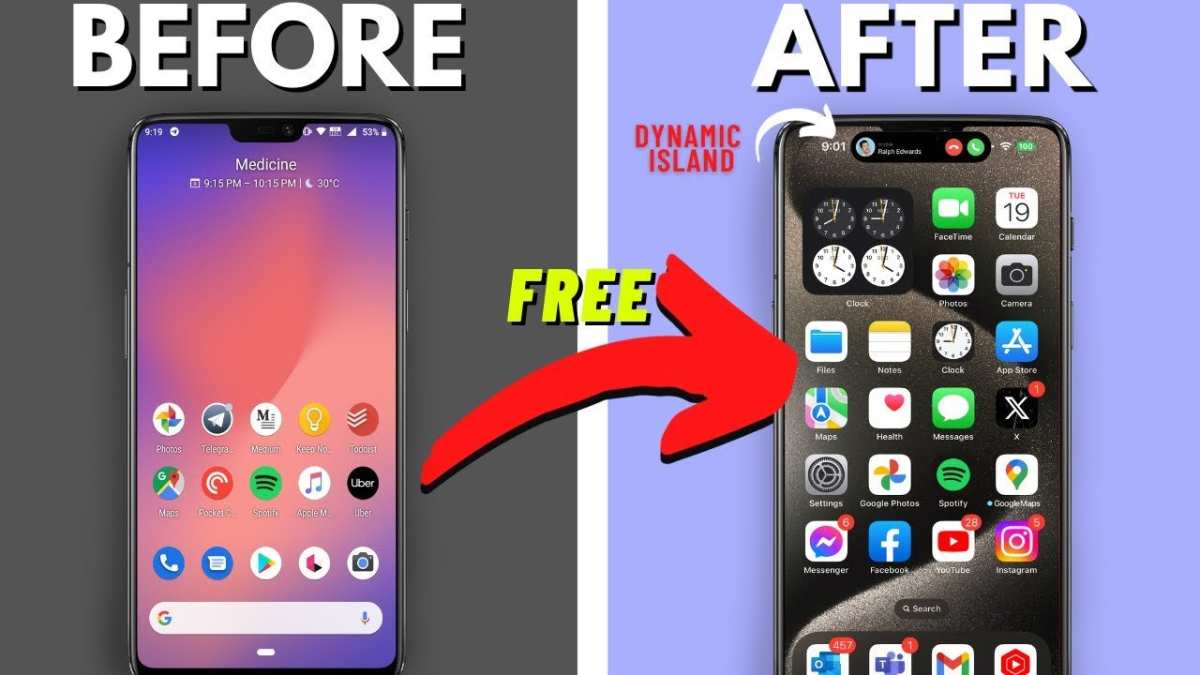
To make your Android phone look like iOS, start by installing a launcher that mimics the iOS interface. **You can easily do this by choosing a popular iOS launcher from the Play Store.** Custom icons and wallpapers also help achieve the authentic feel. Simply adjusting your home screen setup allows for a seamless iOS experience without changing devices. Learning how to make your Android phone look like iOS becomes straightforward with these simple tweaks. Now, you can enjoy the sleek, minimalist style of iOS right on your Android device.

How to Make Your Android Phone Look Like iOS
If you love the sleek and simple design of iPhones but prefer using an Android device, you’re in luck. Though Android and iOS are different platforms, you can customize your Android phone to mimic the look and feel of iOS. This makes your device feel more familiar, especially if you’re used to Apple’s interface. In this guide, we’ll walk you through step-by-step how to bring the aesthetic of iOS to your Android phone, covering everything from wallpapers to app icons and beyond.
Choosing the Right Launcher for iOS Feel
The first step in transforming your Android device into an iPhone clone involves selecting a launcher that can replicate iOS’s interface.
What is a Launcher?
A launcher is an app that controls the home screen, app icons, and overall user interface on your Android device. By installing an iOS-style launcher, you can replace your default home screen with one that looks exactly like an iPhone.
Top iOS-Style Launchers
There are several popular launchers designed to emulate iOS, each with unique features:
- iOS Launcher – OS15: Offers a clean iOS-style interface with customizable icons and wallpapers.
- Phone 13 Launcher: Mimics the latest iPhone interface, including app arrangements and dynamic wallpapers.
- iOS 16 Launcher: Provides an authentic iOS experience with smooth animations and interface effects.
How to Install and Set Up
To install a launcher:
- Open the Google Play Store and search for your preferred iOS launcher.
- Tap “Install” and wait for the app to download.
- Once installed, open the app and follow the on-screen instructions to set it as your default launcher.
- Usually, the app will prompt you to grant certain permissions, such as accessibility and display overlays. Allow these for proper functioning.
Remember, you can switch back to your original launcher anytime by going into your device settings under “Apps” or “Default apps.”
Customizing Your Home Screen for iOS-Style Layout
Once you’ve installed your preferred launcher, the next step is to tweak the layout to resemble iOS’s simple grid.
Designing the Icon Grid
iOS uses a clean grid with evenly spaced icons. To replicate this:
- Open your launcher settings and locate the “Grid” or “Home Screen Layout” option.
- Set the grid to a configuration similar to iOS — typically, 4×5 or 5×6, depending on your screen size.
- Adjust icon size if available to match the proportion seen on iOS.
Creating a Dock with Essential Apps
iOS features a bottom dock with four to five frequently used apps:
- Choose essential apps like Phone, Messages, Safari, and Mail.
- Place them carefully into your launcher’s dock area.
- Some launchers allow you to hide all other apps except those in the dock, keeping your home screen clean.
Replacing App Icons with iOS-Inspired Icons
Icons are a core part of the iOS aesthetic. Replacing your app icons will go a long way toward achieving that look.
How to Change App Icons
Most launchers offer an icon pack feature:
- Download an icon pack that mimics iOS icons from the Play Store. Search for terms like “iOS icon pack” or “iPhone icon pack.”
- Open your launcher’s settings and locate the “Icons” or “Icon Pack” option.
- Select the iOS icon pack you downloaded and apply it.
Custom Icon Creation
For a more personalized look:
- Use apps like “Icon Changer” or “Nova Icon Pack” to customize individual icons manually.
- Choose images that resemble iOS icons for each app you want to change.
- Tap on the app icon, select “Change,” choose your custom icon, and save.
Setting Up iOS-Style Wallpapers and Themes
A significant part of the iOS experience is its wallpapers. Setting a similar background ties the whole look together.
Selecting iOS Wallpapers
– Search for high-resolution iPhone wallpapers online or on wallpaper apps.
– Download your favorite images to your device.
– Set them as your home screen background via your launcher or device settings.
Applying Consistent Themes
– Use launcher themes that replicate iOS’s color schemes, fonts, and overall design.
– Some launchers come with built-in themes; explore and apply the one closest to iOS’s look.
– For further customization, install custom fonts that look similar to iOS fonts using font apps or launcher options.
Making Notifications and Settings Feel Like iOS
Beyond the home screen, you can tweak system notifications and other settings for an iPhone feel.
Notification Shade Appearance
– Use notification panel apps that mimic iOS’s Control Center design.
– Example apps include “Control Center iOS” or “iOS Notification Panel.”
– These apps replace your default notification shade with an iOS-style one.
Customizing Settings and Quick Toggles
– Add only essential toggles, and arrange them similarly to iOS Control Center.
– Use customizable widgets to showcase weather, time, or calendar in an iOS-like format.
Additional Tips for the Perfect iOS Look
– Keep your home screen minimalistic with only a few apps visible.
– Use rounded corner icons to resemble iOS’s app icons.
– Adjust font sizes and styles if possible, opting for fonts similar to San Francisco, iOS’s default.
Maintaining the iOS Look Over Time
– Regularly update your icon packs and wallpapers.
– Remove clutter and unnecessary widgets to keep the interface clean.
– Explore new themes and launcher updates for enhanced realism.
Transforming your Android device into an iOS lookalike requires some effort, but the process is rewarding. By choosing the right launcher, customizing icons and wallpapers, and tweaking settings, you can enjoy a device that feels familiar yet offers the flexibility of Android. Remember, the key is consistency — every element from icons to wallpapers should work together to create that sleek, minimalistic Apple-inspired design.
Once you get everything set up, you’ll have a device that not only looks like an iPhone but also feels just right for your daily use. So, take your time, experiment with different options, and enjoy your new iOS-style Android device!
Frequently Asked Questions
How can I customize my home screen to resemble iOS’s layout on an Android device?
To mimic the iOS home screen, start by installing a launcher app that offers iOS-style interfaces. Once installed, set it as your default launcher. You can then organize app icons in a grid similar to iOS, and customize the dock to display frequently used apps. Additionally, adjusting icon sizes and removing app labels can help closely replicate the clean look of iOS.
What are some popular apps that can give my Android notifications and control center an iOS appearance?
Apps like Control Center iOS Style or iNotification Center can replace your default notifications and add an iOS-like control center. These apps enable you to access quick settings, toggle Wi-Fi, Bluetooth, and other features with a swipe, similar to iOS. They also give you options to customize the design and layout to match iOS aesthetics.
How can I change my app icons to match the iOS icon style on Android?
You can install third-party icon packs from the Google Play Store designed to resemble iOS icons. Use a launcher that supports custom icon packs, then apply the chosen pack to replace your app icons. Some launchers also allow you to manually select icons for individual apps, further refining the overall look to match iOS icons.
Are there any widgets that emulate the iOS experience on Android devices?
Yes, you can find widget apps that replicate iOS widgets, including weather, calendar, and clock. Installing these from the Play Store and positioning them on your home screen allows you to achieve a similar user interface. Customizing widget styles and sizes helps in creating a more cohesive iOS-like environment.
What steps should I take to change my Android wallpaper and theme to match iOS’s design?
Search for high-quality iOS-style wallpapers online and set them as your home screen background. Additionally, select themes within your launcher or icon pack settings that mimic iOS’s minimalist and clean aesthetic. Consistently applying similar color schemes and wallpaper choices enhances the overall resemblance to iOS.
Final Thoughts
To make your android phone look like iOS, start by installing a launcher that mimics iOS’s interface, such as iOS Launcher or Nova Launcher. Customize your home screen with iOS-style icons and widgets for a cohesive appearance. Download an iOS-style control center and notification bar for seamless integration.
Adjust your wallpaper to a clean, iOS-inspired design. With these simple steps, your android phone can closely resemble an iPhone, providing a familiar look and feel. Making your android phone look like iOS becomes easy with these easy-to-follow tips.
