

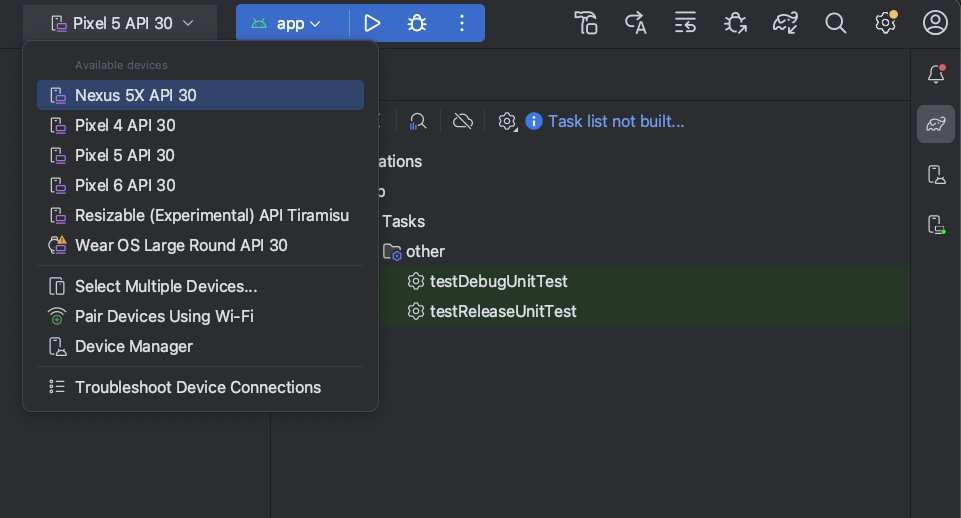
To make an APK in Android Studio, first build your project and then generate the signed APK through the build menu. **Android Studio how to make APK** involves these straightforward steps, making the process quick and efficient. Open your project, navigate to Build, and select Generate Signed Bundle / APK. Follow the prompts, and you’ll have your APK ready for testing or distribution in no time. This guide helps you understand the essential steps to create an APK confidently without any fuss.

Android Studio How to Make APK: A Complete Guide
Creating an APK file from your Android Studio project might seem complex at first, but once you understand the steps, it becomes a straightforward process. In this guide, we’ll walk you through every detail, so you can confidently build your own APK and prepare it for sharing or publishing. Whether you’re new to Android development or looking for a handy refresher, this overview covers everything you need to know about making an APK file in Android Studio.
Understanding What an APK Is
Before diving into the actual steps, it helps to know what an APK is. APK stands for Android Package Kit, and it’s the file format Android uses to distribute and install apps. Think of it as a package that contains all the code, resources, assets, and manifest files needed for an app to run on an Android device.
Knowing this, your goal is to generate a properly signed APK that can be uploaded to app stores or shared with others. Creating an APK involves compiling your code, packaging your resources, and signing the file to ensure authenticity and security.
Preparing Your Project for APK Generation
Before creating your APK, it’s essential to check that your project is ready:
- Ensure all code is working properly and free of errors
- Update the app version number in the build.gradle file
- Test your app on different devices and screen sizes if possible
- Optimize your images and resources for faster loading
- Remove any unused code or assets to minimize the APK size
By doing these simple checks, you reduce potential issues later and create a smooth build process.
Configuring Build Settings in Android Studio
Android Studio uses build configurations to compile your app. You’ll mainly work with the build.gradle files located in your project to set up build variants and signing options.
- Open the build.gradle (Module: app) file
- Check the defaultConfig section to confirm the versionCode and versionName are correct
- Set the buildTypes to define whether you’re building a debug or release version
- If you plan to release your app, configure the signingConfig for signing your APK
These configurations determine how your APK will be built and signed, which affects how it runs on devices and whether it can be uploaded to app stores.
Creating a Signed APK
Most applications need to be signed before they can be distributed, especially for app stores like Google Play. Here’s how to set this up:
- Generate a keystore: This is a file that holds your signing key. You’ll need to create a new keystore or use an existing one.
- Create a key: Inside the keystore, you assign a key with a unique alias and password.
- Configure signing in Android Studio: Select the keystore, enter the passwords, and choose the key alias during the build process.
You can generate a keystore through Android Studio’s GUI to simplify the process.
Building the APK in Android Studio
Once your project is prepared and the signing information is ready, you can start building the APK:
Using the Build Menu
Follow these steps:
- Click on the Build menu at the top of Android Studio
- Select Build Bundle(s) / APK(s)
- Click on Build APK(s)
This process compiles your app and produces an APK file, usually stored in the app/build/outputs/apk directory within your project folder.
Generating a Signed APK
For publication, use this approach:
- Go to Build, then Generate Signed Bundle / APK
- Select APK, then click Next
- Choose or create your keystore and enter the necessary credentials
- Select the build type (release) and finish the wizard
This creates a signed APK ready for distribution.
Optimizing Your APK for Release
Before sharing your APK, consider optimization:
- Use ProGuard to shrink and obfuscate your code — it reduces APK size and adds some security
- Remove debug information to prevent users from seeing internal details
- Test the final APK on various devices to ensure compatibility
- Verify that all resources are packaged correctly
You can enable code shrinking and obfuscation in your build.gradle file with:
buildTypes {
    release {
        minifyEnabled true
        proguardFiles getDefaultProguardFile('proguard-android-optimize.txt'), 'proguard-rules.pro'
    }
}
Deploying and Sharing Your APK
After building your APK, you can distribute it in different ways:
- Upload to the Google Play Store after completing any necessary procedures
- Share via email or cloud services for testing or personal use
- Host on your website or app repository for downloads
Always remember to keep your keystore and signing credentials secure, especially if you plan to update your app in the future.
Common Issues and Troubleshooting
Building an APK might sometimes lead to errors. Common problems include:
- Build errors due to misconfigured build.gradle files
- Signing issues when keystore or key alias are incorrect
- Missing resources or assets causing the build to fail
- APK size too large — consider shrinking resources or enabling code minification
Most issues can be resolved by reviewing the error logs in Android Studio’s console and verifying configurations.
Best Practices for Making a Successful APK
To ensure your APK performs well:
- Test your app on multiple devices and Android versions
- Optimize images and resource files for size and performance
- Configure your app for accessibility and user experience
- Keep your signing keys secure and backed up safely
- Stay updated with Android Studio’s latest features and tools
Following these principles will help you build high-quality APKs that users can enjoy smoothly.
In conclusion, making an APK in Android Studio involves several clear steps: preparing your project, configuring build settings, signing your APK, and testing the final product. While it may seem daunting at first, familiarizing yourself with each stage simplifies the process. With patience and practice, you’ll confidently generate APK files that are ready for distribution, testing, or publishing on the app store.
Frequently Asked Questions
What are the initial steps to prepare an Android project for APK creation?
Begin by setting the correct build variants in your project. Ensure that your app’s version code and version name are properly configured in the build.gradle file. Resolve any existing errors or warnings, and sign your app with a release key if you plan to publish it on app stores. Additionally, optimize your project’s code and resources to ensure smooth performance and a smaller APK size.
How do I configure signing options for my APK in Android Studio?
Navigate to the ‘Build’ menu and select ‘Generate Signed Bundle / APK.’ Choose ‘APK’ and click ‘Next.’ Create a new keystore if you do not have one, or select an existing keystore. Enter your keystore and key passwords, specify alias, and fill in the required credentials. After completing these steps, Android Studio signs your APK with your provided key, ready for deployment.
What are the steps to build a release APK in Android Studio?
First, ensure your project is free of build errors and properly signed. Then, go to the ‘Build’ menu and select ‘Generate Signed Bundle / APK.’ Choose ‘APK’ and proceed through the setup to select your keystore and key. Specify your build options, such as build type (release), and click ‘Finish.’ Android Studio will compile your project and generate a signed APK in the designated output folder.
Can I customize the APK build process in Android Studio?
Yes, you can customize the build process by editing your build.gradle files. Adjust build configurations, add custom signing configurations, or include additional build flavors. You can also define different resource sets or dependencies for specific build variants. These modifications help tailor the APK to specific requirements or environments.
How do I verify the contents of my generated APK before releasing it?
Use tools like APK Analyzer in Android Studio or third-party applications to inspect your APK’s contents. This allows you to verify the included resources, confirm the correct signing, and ensure the size and structure meet your expectations. Reviewing the APK helps catch potential issues early and maintain quality before distribution.
Final Thoughts
Creating an APK in Android Studio involves several straightforward steps. First, you need to build your project and prepare it for release by configuring your build settings. Then, navigate to the ‘Build’ menu and select ‘Generate Signed Bundle / APK’. Follow the prompts to choose your key store, key, and set your build options.
Once completed, Android Studio assembles the APK, ready for distribution. Understanding how to make an APK in Android Studio simplifies app deployment, helping developers share their work efficiently.
