

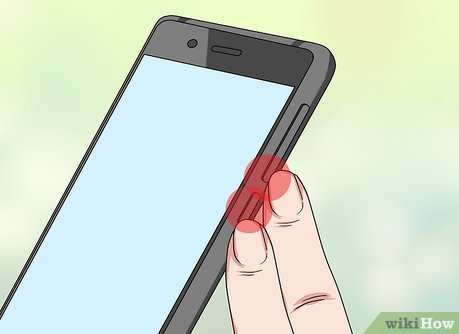
To take a screenshot on your Android device, simply press the power and volume down buttons at the same time. This quick action captures whatever is on your screen instantly. If you’re wondering about ‘android how to make screenshot,’ this method works on most devices.
Some phones offer additional options like palm swipe or quick settings. Check your device’s settings or user manual for tailored instructions. Taking screenshots becomes effortless once you know these simple steps.

Android How to Make Screenshot
Taking a screenshot on your Android device is a simple task that can come in handy many times a day. Whether you want to save a funny meme, capture an important message, or keep a record of something interesting on your screen, knowing how to take a screenshot is essential. In this section, we’ll explore various ways you can capture your screen on Android devices, including different methods suitable for different phone models and Android versions. By understanding these options, you’ll never miss a chance to snapshot what’s on your screen again.
Understanding Why Screenshots Matter
Screenshots serve many useful purposes in daily life. Here are some reasons why capturing your screen can be beneficial:
- Saving important information like website details or contact numbers
- Sharing funny or interesting moments with friends
- Keeping evidence of transactions, messages, or notifications
- Recording gameplay or app activity for later review
- Creating visual tutorials or guides
Knowing how to take a screenshot empowers you to quickly save and share information without having to take photos with another device or record videos. This simple skill enhances your overall device experience and makes daily tasks easier.
Standard Method for Taking a Screenshot on Most Android Devices
The most common way to capture your screen involves pressing specific hardware buttons simultaneously. Although this method may slightly differ depending on your device, the general process remains similar across most Android phones and tablets.
Steps to Take a Screenshot Using Hardware Buttons
Follow these simple steps:
- Navigate to the screen you want to capture
- Press and hold the power button and the volume down button at the same time
- Hold both buttons for about a second or two until you see a visual indicator, such as a flash or animation
- You might hear a shutter sound, indicating a successful screenshot
- The screenshot will be saved automatically in your device’s Gallery or Photos app
**Note:** Some devices may have a different combination, such as power + home button or volume up + power. If you’re unsure, consult your device’s manual or search for your specific model.
Using Notification Shade to Capture a Screenshot
Many modern Android devices offer a quick way to take screenshots directly from the notification shade or quick settings panel.
Steps to Capture a Screenshot via Quick Settings
Here’s how:
- Swipe down from the top of your screen to open the notification shade
- Look for the “Screenshot” or “Capture” icon in the quick settings menu
- Tap on the icon to instantly take a screenshot
- The screenshot is saved automatically, and a notification may appear allowing you to share or edit it
This method is especially handy when your device supports it, allowing you to capture screenshots quickly without pressing any buttons.
Using Google Assistant to Take a Screenshot
Your Android device’s voice assistant can also help you take screenshots hands-free. If your phone is compatible with Google Assistant, follow these steps:
Steps to Capture a Screenshot with Voice Command
- Say “Hey Google” or activate Google Assistant manually
- Say “Take a screenshot”
- The device will process your command and capture the current screen
- The screenshot will be saved in your device’s gallery, and you may get options to share or edit
Using voice commands makes capturing screens effortless, especially if your hands are busy or if you prefer voice control.
Screen Capture on Different Android Devices and Versions
While the methods above work well on most devices, some manufacturers add unique options or shortcuts. Let’s review specific procedures for popular brands.
Samsung Devices
Samsung phones often use the hardware button combination of power + volume down, but they also offer additional options:
- Using palm swipe gesture: Enable this feature in Settings > Advanced features > Motions and gestures. Then, swipe the edge of your palm across your screen to screenshot.
- Using S-Pen (on Galaxy Note series): Use the stylus to select the screen capture option from the Air Command menu.
Google Pixel Phones
Pixel devices stick to the basic method of power + volume down. Google also offers a “Hold power + volume down” for a few seconds, which is useful if quick button presses are difficult.
Other Brands
Brands like Xiaomi, OnePlus, Huawei, and Oppo often follow the standard button combination but can include additional features such as scrolling screenshots, which allow capturing extended pages.
Using Gestures and Shortcuts for Easier Screenshots
Some Android phones incorporate gesture controls and shortcuts that make taking screenshots more straightforward:
- Palm Swipe: Swipe the edge of your palm across the screen from left to right or right to left to take a screenshot. Active in Settings > Motions & Gestures.
- Volume Button Shortcut: On some devices, press and hold the volume down button combined with the power button for a few seconds to capture a screenshot.
These options are excellent for quick captures, especially when you don’t want to remember combinations of buttons.
Editing and Sharing Your Screenshots
Once you take a screenshot, you might want to edit or share it immediately.
Editing Screenshots
Most Android devices provide a built-in editing tool right after capturing:
- Tap the screenshot thumbnail that appears on your screen to open the editing interface
- You can crop, add text, draw, or highlight parts of the image
- Save the edited image to your gallery or share it directly
Sharing Screenshots
Share your screenshots easily by:
- Accessing your gallery, selecting the screenshot, and tapping the share icon
- Choosing your preferred app, such as messaging, email, or social media platforms
- Following the prompts to complete the sharing process
Using these features, you can quickly distribute important or fun images to friends and colleagues.
Organizing Your Screenshots
To stay organized:
| Method | Description |
|---|---|
| Default Gallery App | Screenshots are automatically saved here for easy access |
| Creating Albums | Create specific albums for different types of screenshots, like work or fun |
| Using Cloud Storage | Save screenshots to Google Photos or other cloud services for backup and access across devices |
Organizing your screenshots ensures you find what you need quickly without clutter.
Troubleshooting Common Screenshot Issues
Sometimes, capturing a screenshot might not work as expected. Here are tips to troubleshoot:
- If the button combination doesn’t work, try restarting your device
- Ensure your device software is up to date
- Check if any custom settings or apps are disabling screenshot functionality
- Try alternative methods like voice commands or gestures
- If all else fails, consult your device manufacturer’s support page
Addressing these issues can help you resume taking screenshots smoothly.
Knowing how to take a screenshot on your Android device is a quick and easy process that can significantly improve how you save and share information. Whether you prefer using hardware buttons, quick settings, gestures, or voice commands, Android provides multiple options suited for different devices and user preferences. Remember to explore your device’s specific features, customize gestures if available, and organize your captured images for easy access later. Mastering these methods ensures you’re always ready to capture any moment on your screen without hassle.
Frequently Asked Questions
What is the method to take a screenshot on an Android device using physical buttons?
Press and hold the Power button and the Volume Down button simultaneously for about a second. The screen will flash briefly, indicating that the screenshot has been captured. You can then find the image in your device’s Gallery or Photos app.
How can I take a scrolling screenshot on my Android phone?
If your device supports it, after capturing a standard screenshot, tap the “Scroll” option that appears on the screen. This allows you to extend the screenshot vertically to capture more content, such as long articles or webpages. Keep tapping until you’ve captured everything you need, then save the image.
Are there any built-in tools or gestures to take screenshots on Android?
Many Android devices include gesture controls or quick settings tiles for taking screenshots. For example, some phones allow you to swipe palm across the screen or use a three-finger swipe. You can enable these options in your device’s settings under gestures or motions, making it easier to capture screenshots without using hardware buttons.
Can I customize the screenshot process on my Android device?
Yes, you can adjust settings or install third-party apps to modify how you take or edit screenshots. Some apps provide additional features like editing, annotations, or capturing specific screen areas. Check your device’s settings or explore app stores for tools that fit your needs.
Final Thoughts
In summary, knowing how to make a screenshot on Android is simple and quick. You can usually press the power button and volume down button simultaneously. Some devices may have alternative methods, like using gestures or quick settings.
Practicing these steps will help you capture screens effortlessly. Whether for sharing content or saving important information, taking a screenshot is an essential skill. Remember, the next time you ask ‘android how to make screenshot,’ you’ll know exactly how to do it.
