

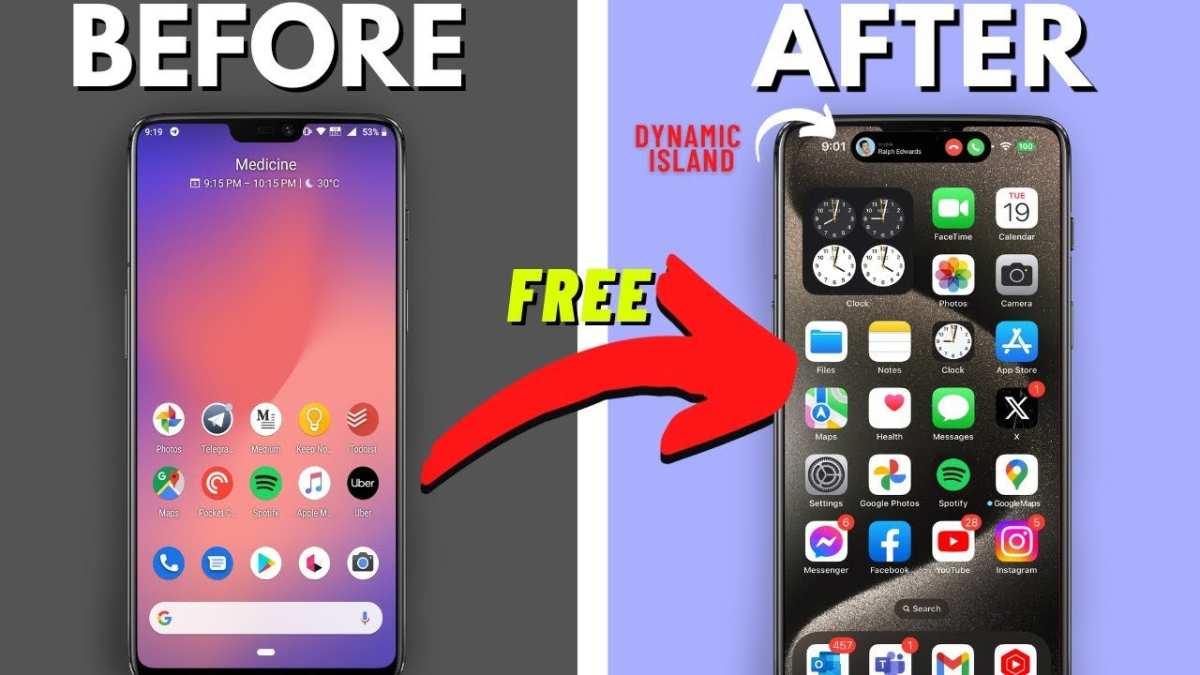
To make your Android resemble an iPhone, start by customizing its interface with specific launchers and icon packs. **You can replicate the iPhone look by installing a suitable launcher and theme.** This simple change gives your device a sleek, iOS-inspired appearance.
Next, adjust your widgets and app icons to match the iOS style. Focus on small details like notifications and wallpapers to complete the illusion.
Knowing how to make your Android an iPhone makes your device feel familiar and stylish without switching platforms.

How to Make Your Android Look and Feel Like an iPhone
Switching from Android to iPhone can be tempting, but not everyone wants to buy a new device. Luckily, you can make your current Android phone resemble an iPhone without spending a dime. With a few tweaks, you can change your phone’s appearance, behavior, and even some functionalities to mimic an iPhone. In this section, we’ll explore how you can give your Android the sleek look and intuitive experience of an iPhone.
Customizing Your Home Screen for an iPhone Look
Your home screen is the first thing you see. To get that iconic iPhone appearance, you’ll want to customize your icons, wallpaper, and layout.
Use iPhone-Style Launchers
Launchers are apps that customize your Android interface completely. They change icons, app drawer style, and even animations.
- Download a launcher that mimics iOS: Popular options include “iLauncher,” “Phone IX Launcher,” or “X Launcher.” These launchers emulate the iPhone’s overall look and feel.
- Set the launcher as default: After installing, open the app and follow the instructions to set it as your default home app.
- Customize further: Most launchers allow you to adjust icon size, grid layout, and animations to closely resemble iOS.
Change Your Wallpaper
iPhones often showcase vibrant, minimalistic wallpapers. Find high-quality images online or download wallpaper apps to select backgrounds similar to those on iPhones.
- Search for “iPhone wallpaper” in your favorite image app or website.
- Use a simple, clean background with soft colors or nature scenes.
- Set your wallpaper through your Android’s settings or via the launcher options.
Replace Icons with iOS-Style Icons
Icons are crucial for the aesthetic. You can replace Android icons with iPhone-like icons for a more authentic look.
- Download icon packs designed to resemble iOS from the Google Play Store.
- Use icon customization apps like “Icon Pack Studio” or “Icondrop” to apply these icons.
- Arrange icons neatly on your home screen, mimicking the grid layout of iOS devices.
Emulating iPhone’s User Interface and Behavior
Beyond looks, you want your device to act like an iPhone. Here’s how to adapt your Android to behave more like iOS.
Control Center Mimicry
iPhones have a quick-access control center. You can replicate this on Android with custom switches and panels.
- Download apps like “Control Center iOS 15” or “Quick Control Panel” from Google Play.
- Configure them for quick toggles such as Wi-Fi, Bluetooth, brightness, and music controls.
- Set the control center to slide from the top or bottom, similar to iOS.
Notification Style and Management
iOS offers a clean notification style with grouped alerts.
- Use notification management apps like “NotiStar” or “Super Status Bar” for a similar look.
- Adjust notification colors and grouping to match iOS style.
- Turn off unnecessary banners and set your alerts to appear in a tidy, organized manner.
Gestures and Navigation
iPhones primarily use gestures for navigation.
- On Android, enable gesture navigation in your device settings if available.
- Use gesture-based apps to mimic iPhone gestures, such as swipe up for home or swipe down for notifications.
- Adjust sensitivity to make gestures more fluid and similar to iPhones.
iOS Style App Drawer and Folder Management
Organization matters to replicate iPhone experience.
Creating App Folders
iOS excels in organizing apps into folders.
- Create folders by dragging one app icon over another.
- Name folders clearly, e.g., “Social,” “Games,” or “Productivity.”
- Use consistent icon styles to keep a clean look.
Simplify Your App Drawer
Instead of cluttered app drawers, keep only essential apps or arrange them into categories.
- Use drawer organizers within your launcher.
- Hide unnecessary apps from the drawer to keep things tidy.
- Stick to a minimal number of apps on the home screen for that iOS simplicity.
Replacing Default Apps for an iOS-Like Experience
iPhones have specific default apps that define their experience.
Browser
- Download Safari-like browsers such as “Firefox Focus” or “Brave” to emulate Safari’s clean interface.
- Customize home screen shortcuts for quick access.
Messaging
- Use iMessage alternatives like “Telegram” or “WhatsApp” for a familiar messaging experience.
- Adjust notification sounds and bubbles to match iOS style.
Music and Media
- Install apps like “Spotify” or “Apple Music” to access your favorite tunes.
- Use media widgets that resemble the Apple Music interface.
Adding iOS-like Features Via Apps
Some features are unique to iPhones but can be mimicked.
Voice Assistant
- Download “Google Assistant” or “Siri Shortcuts” apps for a voice-controlled experience similar to Siri.
- Set up voice commands for common tasks.
Lock Screen Customization
- Download lock screen apps like “Lock screen OS 15” to have a lock screen that resembles iOS’s passcode or Face ID look.
- Configure widgets to display time, weather, and notifications on the lock screen.
Animations and Transitions
- Some launchers include transition effects similar to iOS animations.
- Adjust animation speed and style for a smoother and more authentic experience.
Maintaining Your iPhone-Style Android
Once you have everything set up, maintaining this look and feel involves regular updates and tweaks.
- Update launcher and customization apps to get new features.
- Rearrange icons and folders periodically for aesthetic consistency.
- Experiment with new wallpapers or themes to keep the look fresh.
- Ensure your device’s performance remains smooth by clearing cache and managing storage.
Final Tips for a Realistic iPhone Experience on Android
- Consistency is key. Stick to icon packs, wallpapers, and layout choices that resemble iOS.
- Be patient when configuring settings; getting everything just right can take some time.
- Explore community forums and YouTube tutorials for specific launcher settings and customization ideas.
- Always back up your current setup before making major changes.
By following these steps, you can make your Android device resemble an iPhone visually and functionally. While it may not be an exact replica, these tweaks will give you nearly the same look and feel, making your Android experience feel familiar and stylish.
Frequently Asked Questions
How can I customize my Android to resemble the iPhone’s home screen?
To make your Android look like an iPhone’s home screen, you can install a launcher’s that mimics iOS, such as the iOS launcher apps available on the Play Store. Set the launcher as your default, and then customize the icons, grid layout, and widgets to match the iPhone’s style. Additionally, download icon packs that resemble iOS icons for a more authentic appearance.
What steps should I follow to add iOS-like features to my Android device?
You can add features like a control center and notification style similar to iOS by installing specific apps. For instance, a control center app can replicate the quick settings menu, while notification apps can modify how alerts appear. Customize the settings within these apps to align with the iPhone’s user interface, ensuring a seamless experience.
How do I change the weather and clock widgets on my Android to match those on an iPhone?
Look for widget apps that emulate the sleek look of iOS widgets. Many apps offer customizable clock and weather widgets with similar aesthetics. Once installed, add these widgets to your home screen and adjust their size and style to mirror the simple, clean design found on iPhones.
Can I make my Android’s app icons look like iPhone icons?
Yes, you can change your app icons by installing icon packs designed to resemble iPhone icons. Use a launcher that supports custom icon packs and apply the desired pack. You can also manually change individual icons for specific apps to match the iOS style, giving your device a cohesive look.
What are some apps that can mimic iOS features on Android?
Apps like iLauncher, Control Center for Android, and iOS Widgets offer features that replicate iOS functionalities. These apps provide options for using iOS-style home screens, control centers, notifications, and widgets, helping your Android device look and feel more like an iPhone.
Final Thoughts
To make your Android an iPhone, start by customizing your launcher to mimic iOS’s clean interface. Download a launcher that offers iOS-like icons and layout options. Next, install apps that replicate iOS features, such as control center or notification styles.
Adjust your settings for a more streamlined experience, changing fonts and color schemes to match iPhone aesthetics. By doing so, you create a more familiar look and feel.
In conclusion, to make your Android an iPhone, focus on visual customization and app replacements. These steps help you achieve an iPhone-like experience efficiently.
