

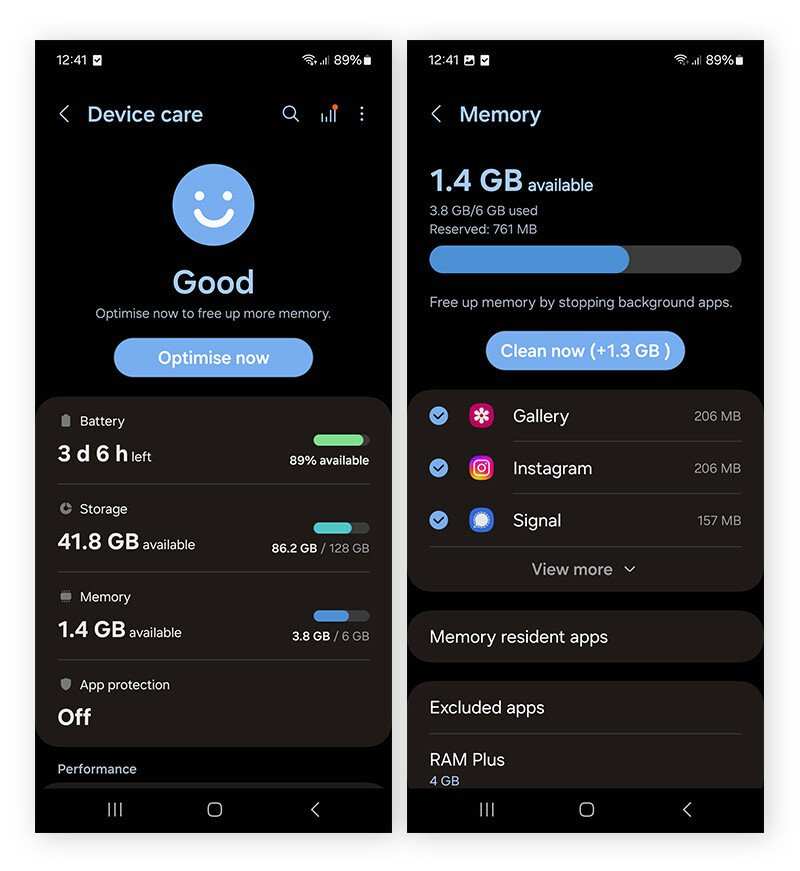
To make space on internal storage Android, start by deleting unnecessary apps and clearing cache files. **This quickly frees up significant space and improves device performance.** If your storage remains tight, transfer photos and videos to an SD card or cloud service. Knowing how to make space on internal storage Android becomes simple with these straightforward steps, keeping your device running smoothly without hassle.

How to Make Space on Internal Storage Android
Having a phone that runs out of space can be frustrating. Whether you want to save new photos, install an app, or just free up some space, knowing how to make more room on your Android device is essential. In this guide, we’ll go through simple but effective ways to clear up internal storage. You’ll learn about cleaning apps, deleting unnecessary files, and managing your data more efficiently. Let’s dive into the steps to give your Android phone more breathing room.
Understanding the Internal Storage on Android
Before we begin, it helps to understand what internal storage is. It’s the space inside your phone where all your apps, pictures, videos, music, and system files are stored. Over time, this space can fill up with cache files, duplicate data, and large files you no longer need.
Some basic facts about Android internal storage:
- Apps, including their data, can take up significant space.
- Photos and videos stored locally consume a large portion of storage.
- Downloaded files, such as PDFs or music, add to storage use.
- Cache files from apps can build up and take unnecessary space.
Knowing what eats up storage can help you target the right files for deletion or moving.
Check Your Storage Space
Before starting to free up space, check how much storage is available. Here’s how:
- Open your device’s Settings app.
- Scroll down and tap on Storage or Storage & USB.
- Review the total space and how much is used.
- Tap on ‘Apps’ or ‘Other Apps’ to see which ones take up the most storage.
This step lets you identify the biggest culprits of storage consumption.
Clear App Cache and Data
Apps often save temporary files called cache, which can pile up over time. Clearing cache is a quick way to free space.
How to clear cache for individual apps
- Go to Settings > Apps & notifications.
- Select the app you want to clear cache for.
- Tap on Storage & cache.
- Click Clear Cache.
Clear cache for all apps at once
- In Settings, tap on Storage.
- Look for Cached data.
- Tap on Cached data and confirm to delete all cache files.
Remember, clearing cache won’t delete your personal data, just temporary files that can be easily recreated.
Remove Unnecessary Apps
Apps you no longer use take up space even if they are not open. Removing these apps helps free storage.
- Go to Settings > Apps & notifications > See all apps.
- Scroll through your list and identify apps you haven’t used recently.
- Select an app, then tap Uninstall.
You can also delete pre-installed apps (bloatware) if your phone allows, but be cautious not to remove essential system apps.
Delete Large Files and Media
Your phone may have big media files like videos, photos, or music that are no longer needed. Here’s how to find and delete them:
Using File Manager
- Open your phone’s file manager app.
- Navigate to folders like DCIM (photos), Downloads, or Videos.
- Sort files by size to find the largest ones quickly.
- Select unwanted files and delete them.
Using Gallery or Music App
- Open your Photos or Gallery app.
- Delete duplicate or blurry photos.
- Go to your Music app and remove downloaded songs you no longer listen to.
**Tip:** Always back up important media to cloud services or a computer before deleting.
Manage Downloads and Offline Files
Downloads often accumulate over time and can be forgotten. Clear out your Downloads folder regularly.
- Open the Files or My Files app.
- Go to Downloads.
- Review files and delete ones you no longer need.
Similarly, clear offline content from messaging apps or streaming services.
Utilize Cloud Storage Services
To keep your device free from large files, consider moving photos, videos, and documents to cloud storage providers like Google Photos, Google Drive, or Dropbox.
- Open the cloud app of your choice.
- Upload your media files.
- Once uploaded, delete local copies to free space.
This method ensures your data is safe and accessible without taking up device storage.
Use Storage Management Tools
Android includes built-in tools that guide you to free up space efficiently.
Smart Storage and Recommendations
- Go to Settings > Storage > Free up space.
- Follow the prompts to delete unnecessary files, such as backed-up photos or unused apps.
Third-Party Cleaning Apps
While not all are necessary, some trusted cleaning apps can help identify junk files, duplicate pictures, and large files.
- Research and choose reliable apps like Files by Google or CCleaner.
- Scan your device and review suggested files for deletion.
- Be cautious and avoid apps that request unnecessary permissions.
Move Apps and Data to SD Card
If your device supports microSD cards, use them to expand storage. Many apps can be moved to SD card to free up internal space.
- Go to Settings > Apps & notifications.
- Select an app you want to move.
- Tap Storage, then choose Change or Move to SD card if available.
Note: Some apps cannot be moved due to restrictions or system requirements.
Reset Your Device as Last Resort
If all else fails, and storage issues persist, performing a factory reset might be necessary. Be sure to back up all your data before doing this.
- Go to Settings > System > Reset options > Erase all data (factory reset).
- Follow the prompts to reset your device.
This step resets your phone to its original state, clearing unnecessary files and settings.
Maintain Your Storage Regularly
Frequent maintenance is key to keeping your Android device running smoothly. Set a monthly reminder to:
- Clear cache files.
- Review and delete large media files.
- Remove unused apps.
- Backup important data to the cloud.
Keeping your storage tidy ensures your device remains responsive and ready for new files and apps.
—
With these detailed steps, you’re equipped to free up space on your Android device effectively. Remember, regular checkups and diligent management help prevent storage from filling up unexpectedly. Whether it’s deleting cache, removing unused apps, or moving data to the cloud, each action contributes to a snappier, more efficient device that fits your needs.
Frequently Asked Questions
What are effective ways to identify large files taking up space on my Android device?
Use built-in tools like the device’s storage settings to see a breakdown of different file categories. You can also utilize third-party apps that scan your device and highlight files or folders that occupy significant space. Regularly reviewing these files helps you decide which ones to delete or move.
How can I clear cache data from apps to free up storage on my Android?
Go to your device settings, select “Apps” or “Applications,” then choose individual apps. Tap on “Storage” and select “Clear Cache.” Doing this regularly removes temporary files that can accumulate over time and reduce available storage without affecting app data.
Are there safe ways to remove unnecessary media files without losing important data?
Yes, transfer media such as photos and videos to cloud services or external storage devices. Use the device’s gallery or file manager to review and delete duplicates or unwanted media. Creating backups before deleting ensures you don’t lose valuable data.
What settings can I adjust to prevent apps from storing large amounts of data automatically?
Check each app’s settings for options related to data saving or media auto-download. Disabling automatic downloads or limiting background activity reduces unwanted data storage. Additionally, adjusting app permissions can prevent apps from saving unnecessary files.
How does performing a factory reset impact device storage, and should I consider it?
A factory reset erases all data, including apps, files, and settings, providing a clean slate that can recover storage space. However, back up essential data before proceeding. Perform a reset only if you’re comfortable restoring your device and ensuring that storage issues persist after other methods.
Final Thoughts
To make space on internal storage Android, start by deleting unused apps and clearing app caches. Move photos, videos, and files to an external SD card or cloud storage to free up significant space.
Regularly review downloaded files and uninstall apps that are no longer needed. Use built-in storage management tools to identify large files and optimize storage efficiently.
In conclusion, knowing how to make space on internal storage Android helps maintain device performance and prevents slowdowns. Implement these simple steps to free up your device’s internal storage effectively.
