

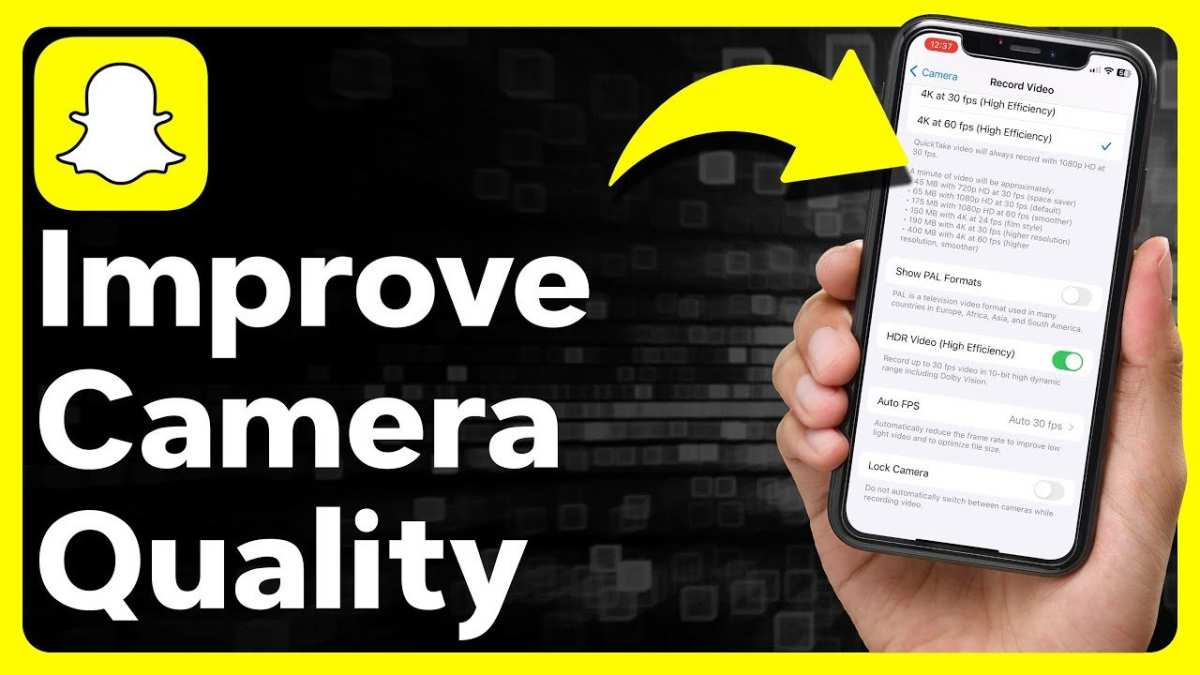
If you want to improve your Snapchat quality on Android, the solution is straightforward: adjust your app settings and ensure your device is optimized. **Increasing your camera resolution and enabling high-quality uploads can make a significant difference.** Sometimes, Snapchat defaults to lower quality to save data, but changing these settings boosts clarity.
Clearing cache, updating the app, or optimizing your device’s performance also helps. These quick steps ensure your snaps look sharp and vibrant, making your experience much better without fuss.

How to Make Snapchat Quality Better on Android
If you’re tired of blurry images, pixelated videos, or disappointing Snapchat visuals on your Android device, you’re not alone. Many users find that the app’s media quality isn’t always as sharp as they want, but the good news is that there are ways to improve it. In this guide, we will walk you through detailed and effective steps to enhance Snapchat’s quality on your Android phone. From adjusting app settings to optimizing your device and internet connection, you’ll learn how to make your snaps look clearer, crisper, and more vibrant.
Understanding Why Snapchat Quality Can Be Lower on Android
Before diving into solutions, it’s helpful to understand why Snapchat quality may not be up to par on your device. Several factors influence the visual quality of snaps and videos, including:
- Device hardware limitations: The camera sensor and display quality play a big role in how media appears.
- App settings: Default app configurations may reduce quality to save data or improve performance.
- Network connection: Slow or unstable internet can cause Snapchat to lower image resolution for faster uploads and downloads.
- Software updates: Outdated Snapchat or Android OS versions might cause compatibility issues affecting media quality.
- Background apps and storage: Excessive background activity or low storage space can impair app performance.
Adjusting Snapchat Settings for Better Media Quality
One of the most straightforward ways to enhance your Snapchat visuals involves tweaking in-app settings. By default, Snapchat may prioritize quick sharing or low data usage, which can reduce image and video quality. Here’s how to change that:
Enable High-Quality Media Uploads
Snapchat offers options to upload media in higher resolution. To activate these settings:
- Open Snapchat and tap your profile icon in the top left corner.
- Tap the gear icon to access Settings.
- Scroll down to the “Videos” section and select “Video Upload Quality.”
- Choose “Auto” or “Higher Quality” if available. Keep in mind that selecting higher quality might increase data usage.
Adjust Data Usage Settings
If your internet connection is slow, Snapchat may reduce quality to speed up sharing. To counter this:
- In Settings, find the “Additional Services” section.
- Select “Manage” or similar options related to data management.
- Enable options like “Use Less Data” to turn off or disable, or adjust accordingly to allow higher data use for better quality.
Use Camera in App for Better Control
Sometimes, using the built-in camera within Snapchat rather than importing media from your gallery yields better image quality. To do this:
- Open Snapchat and switch to the Camera tab.
- Tap the shutter button to take photos immediately within the app.
- This ensures that the media is captured with Snapchat’s optimized camera settings for clarity and sharpness.
Optimizing Your Android Device for Better Snapchat Performance
Besides app settings, your device’s overall optimization can significantly influence Snapchat’s quality. Here are key tips to improve device performance:
Update Your Android OS and Snapchat App
Keeping both your device’s operating system and Snapchat up to date ensures you benefit from the latest features and bug fixes that can improve media handling:
- Go to Settings > About Phone > System Updates to check for OS updates.
- Visit Google Play Store, search for Snapchat, and tap “Update” if available.
Clear Cache and Data for Snapchat
Sometimes, accumulated cache can cause app performance issues. Clearing cache can help improve media quality:
- Go to Settings > Apps > Snapchat.
- Select Storage > Clear Cache.
- Restart Snapchat and check if media appears clearer.
Remove Unnecessary Background Apps
Background apps consume resources that could slow down Snapchat, affecting media quality. To optimize your device:
- Use the recent apps button or device settings to close apps running in the background.
- Disable apps that aren’t needed to free up RAM and processing power.
Free Up Storage Space
Insufficient storage can slow down media processing. Make sure your device has enough free space:
- Delete unwanted photos, videos, or apps.
- Use device storage settings to identify and remove large or unnecessary files.
Improve Internet Connection for Higher Quality Media
Snapchat depends heavily on a stable and fast internet connection to upload and view high-resolution media. Here’s how to optimize your connection:
Switch to a Faster Wi-Fi Network
If you’re using mobile data, check your network speed and consider switching to a Wi-Fi network with higher bandwidth. To do this:
- Go to Settings > Wi-Fi > Select a network with a strong signal and high speed.
Disable VPNs or Proxy Servers
VPNs or proxies can slow down your internet and reduce Snapchat quality. Turn these off temporarily to see if media improves:
- In your device’s network settings, disable VPN apps or proxy configurations.
Limit Background Data Usage
Restrict background apps from consuming too much bandwidth:
- Go to Settings > Data usage > Background data and disable it for apps that are not essential.
Use External Tools and Accessories for Better Media Capture
If you want your snaps to look top-notch, consider utilizing external tools. Here are some helpful accessories:
Use a Higher-Quality Camera App
Some third-party camera apps provide more control over focus, exposure, and resolution. Try apps like Open Camera or Camera FV-5 for enhanced photo quality before sharing on Snapchat.
Attach External Lenses or Tripods
External lenses can improve image clarity, while tripods stabilize your phone to avoid blurry shots. These accessories can help you take sharper pictures that look even better when uploaded to Snapchat.
Enable HDR Mode for Better Dynamic Range
If your device’s camera supports HDR, enable it to capture images with more detail in shadows and highlights. Higher-quality photos tend to look clearer on Snapchat.
Final Tips to Enhance Snapchat Video and Image Quality
Beyond settings and device optimization, keep these quick tips in mind:
- Always clean your camera lens for clear shots.
- Use natural lighting whenever possible for vibrant images.
- Avoid taking photos or videos in low light environments to prevent grainy content.
- Record videos at a higher resolution in your device settings, if available.
- Preview your media before sharing to ensure it’s sharp and clear.
By combining these settings adjustments, device optimizations, and proper media capturing techniques, you can significantly improve Snapchat quality on your Android device. Remember, the key lies in balancing quality with data usage and device performance, so try different combinations to find what works best for you. With a little effort, your Snapchat stories will showcase your moments in sharper, more vibrant detail whenever you share them.
Frequently Asked Questions
What settings can I adjust on my Android device to improve Snapchat image quality?
To enhance Snapchat’s image quality, start by increasing the camera resolution in your device settings. Ensure your device’s software is up to date, as updates often include camera improvements. Additionally, disable any battery saver modes that might restrict camera performance, and adjust the camera resolution within Snapchat if such an option is available. Using a stable internet connection also helps in uploading high-quality images without compression issues.
How does lighting affect the quality of Snapchat photos on Android, and how can I optimize it?
Good lighting significantly impacts photo clarity and detail. When taking snaps, ensure you have sufficient light; natural light works best. Avoid backlit scenes that may cause silhouettes or shadows. If lighting is poor, consider using your device’s flash or adjusting the exposure settings in Snapchat if available. Proper lighting reduces noise and enhances overall image sharpness.
Are there specific camera apps or filters I should use to improve Snapchat quality on Android?
Using a high-quality camera app can improve your original photos before sharing them on Snapchat. Select apps that allow manual focus, exposure, and resolution adjustments. After capturing, you can filter or edit images for better appearance. Applying filters and enhancements prior to uploading ensures that your images maintain clarity and vibrancy when posted on Snapchat.
How does the app update process influence Snapchat’s image quality on Android devices?
Regularly updating Snapchat ensures you receive the latest features and performance improvements. Updates often include bug fixes, camera optimizations, and new tools that can enhance photo and video quality. Keeping your device’s operating system updated also plays a role in ensuring compatibility and optimal camera functionality, resulting in better content sharing experiences.
What impact does cache clearance have on Snapchat’s media quality on Android?
Clearing the cache can improve app performance and prevent lag or glitches that affect media quality. When Snapchat’s cache becomes full, it may reduce the quality of photos and videos saved or viewed within the app. Regularly clearing cache through your device settings helps maintain smooth operation and preserves the original quality of your media content.
Final Thoughts
Enhance your Snapchat experience by adjusting your device settings. Reduce background apps and clear cache to improve performance. Update your Snapchat app regularly to benefit from the latest features and optimizations.
Optimizing camera settings on your Android can boost photo quality. Use the highest resolution available and enable HDR mode for clearer images. Keep your camera lens clean for better results.
In conclusion, knowing how to make Snapchat quality better on Android involves tweaking app and device settings. By taking these simple steps, you can enjoy sharper, clearer snaps and videos every time.
