

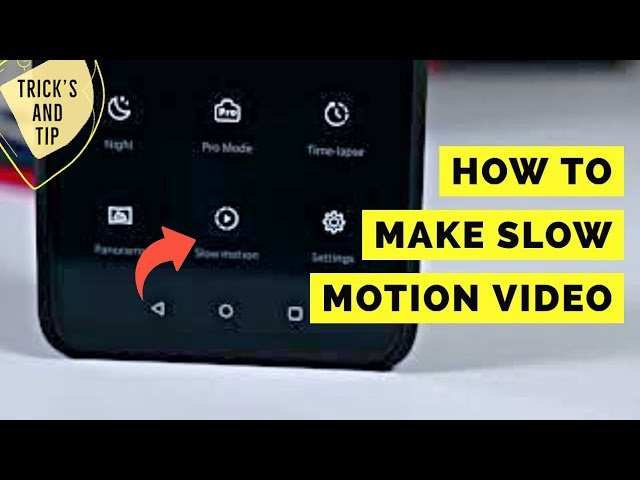
To make a slow motion video on an Android phone, simply use the built-in camera app or download a dedicated slow-motion app. **Tap the video recording mode and select the slow-motion option if available.** This process is quick and straightforward, allowing you to create dramatic effects effortlessly.
If your phone doesn’t have a slow-motion feature integrated, several apps in the Play Store can help. All it takes is a few taps to start recording in slow motion or edit existing videos.

How to Make Slow Motion Video on Android Phone
Creating slow motion videos on an Android phone can be a fun way to highlight special moments or create artistic effects in your videos. Whether you want to show off a sports move, capture a bouncing ball, or add a dramatic touch to your clips, knowing how to shoot and edit slow motion videos is a handy skill. In this guide, we’ll walk through everything you need to know—starting from capturing slow motion footage to editing it perfectly on your Android device. Let’s explore how you can turn ordinary videos into captivating slow motion scenes easily!
Understanding Slow Motion Videos and How They Work
Before diving into the steps, it helps to understand what slow motion videos actually are and how they work. When you record videos in slow motion, your phone samples frames at a higher rate than the standard playback rate. This means more frames are captured per second, allowing your device to stretch out the footage smoothly when played back at a normal speed.
- Frame Rate: The number of individual frames recorded per second (fps). Typical videos shoot at 30 fps, but slow motion videos often require 120 fps or higher.
- Playback Speed: When you play a high fps video at normal speed (like 30 fps), it appears slow because the original frames are spread out over a longer period.
- Device Compatibility: Not all Android phones support high fps recordings, so check your device specs first.
Knowing these basics helps you understand the capabilities of your phone and how to best utilize slow motion features.
Choosing the Right Android Phone for Slow Motion Recording
The ability to create smooth slow motion videos depends significantly on your phone’s hardware. Here are tips for selecting or checking your device:
- High Frame Rate Support: Look for phones that support recording at 120 fps, 240 fps, or even 960 fps for ultra slow motion effects.
- Camera Quality: A good camera ensures clear, high-resolution videos, crucial when slowing footage down.
- Video Editing Features: Some phones come with built-in slow motion editing tools that make your workflow easier.
- Popular Models: Samsung Galaxy S series, Google Pixel series, and OnePlus phones are known for their slow motion capabilities.
If your current device lacks high fps recording, you can still create slow motion effects through editing apps, which we’ll discuss later.
Using Your Phone’s Built-in Slow Motion Feature
Most modern Android phones include a built-in slow motion video recording feature. Here’s how to access and use it:
Steps to Record Slow Motion with Built-In Camera App
- Open your device’s default Camera app.
- Look for the mode selector—this could be labeled as “Video,” “Super Slow-Mo,” or similar.
- Switch to the “Slow Motion” or “Super Slow-Mo” mode.
- Set your desired resolution and fps if options are available.
- Frame your shot and press the record button.
- Capture your footage naturally, ensuring steady hands and good lighting for best results.
Once recorded, you can often edit the slow motion segment directly within the camera app or the native gallery app. Many phones allow you to select specific portions of the video to apply slow motion effects.
Editing Slow Motion Videos on Android
If your phone doesn’t have a built-in slow motion feature, or if you want to enhance your videos further, editing apps come in handy. Here’s how you can do that:
Best Apps for Slow Motion Video Editing
- Google Photos: Free and easy to use, with basic slow motion editing features.
- PowerDirector: Offers advanced control over speed adjustments, filters, and effects.
- Remini: Uses AI to improve video quality and add slow motion effects.
- Videoshop: Simple interface, allows you to change playback speed and add music or effects.
- InShot: Popular for quick edits, including adjustable slow motion segments.
How to Edit Slow Motion Videos Effectively
Follow these steps for the best results:
- Download and install your preferred editing app from the Google Play Store.
- Open the app and import your recorded video.
- Locate the speed adjustment or slow motion feature within the app’s tools.
- Gradually decrease the playback speed; options typically range from 50% to 10% of the original speed.
- Preview your video to ensure the slow motion effect is smooth and clear.
- Add transitions, music, or filters if desired.
- Save or export your edited video in high quality.
Keep in mind that reducing speed too much can sometimes cause choppiness. To avoid this, record at a higher frame rate when possible, as it provides more frames for a smoother slow motion effect.
Tips to Capture Better Slow Motion Videos
Great slow motion videos don’t happen by accident. Here are some practical tips to improve your footage:
- Use Good Lighting: Well-lit scenes help your camera capture clearer frames, especially at high fps.
- Hold Steady: Use both hands or a tripod to keep your shot steady, avoiding shaky footage.
- Plan Your Shot: Think about the motion you want to capture—fast, fluid movements work best.
- Frame the Scene Carefully: Keep the subject in focus, and use the grid lines to compose your shot neatly.
- Practice Timing: Practice starting your recording just before the action begins for a smooth shot.
Applying these tips ensures your slow motion videos look professional and engaging.
Common Challenges and How to Overcome Them
While making slow motion videos is straightforward, you might encounter some issues. Here’s how to address common problems:
Choppy or Stuttering Playback
– **Solution**: Record at higher fps, such as 240 fps or above, if your device supports it.
– **Tip**: Keep your phone steady and avoid abrupt movements during recording.
Low Video Resolution After Editing
– **Solution**: Export in the highest possible quality and avoid excessive compression.
– **Tip**: Use editing apps that preserve original resolution.
Difficulty in Achieving Smooth Slow Motion
– **Solution**: Use a tripod or stabilize your phone with a mount.
– **Tip**: Record in well-lit environments for more detailed frames.
Additional Tools and Accessories for Better Slow Motion Videos
Enhance your slow motion videos with the right tools:
- Tripods and Stabilizers: Improve stability and reduce shakes.
- Lighting Kits: Brighten scenes for clearer footage.
- External Microphones: Capture better audio if you’re recording sound alongside slow motion clips.
While these aren’t strictly necessary, they can significantly improve your final videos.
Making slow motion videos on your Android phone is a fun and accessible process. Whether you use your device’s built-in features or third-party apps, you can create impressive clips with just a few simple steps. Remember to shoot with good lighting, keep your camera steady, and choose the right fps settings. Editing tools will help refine your footage, adding extra flair and professionalism. With a little practice, you’ll be able to produce stunning slow motion videos that captivate your friends and family. Happy recording!
Frequently Asked Questions
What apps can I use to create slow-motion videos on an Android phone?
You can use various apps like Google Camera, FilmoraGo, PowerDirector, or Adobe Premiere Rush. These apps allow you to record or import videos and then apply slow-motion effects with easy-to-use editing tools. Check the app’s features to ensure it supports slow-motion editing before installing.
How do I ensure my slow-motion videos look smooth on my Android device?
To achieve smooth slow-motion videos, record at the highest possible frame rate your device supports, such as 120fps or higher. When editing, avoid applying too many effects or abrupt speed changes. Export your video at a higher bitrate for better quality, and consider using slow-motion-specific settings within your editing app for optimal results.
Can I create slow-motion videos from existing recordings on my Android?
Yes, you can convert existing videos into slow-motion clips using editing apps. Import the video into the app, then select the section you want to slow down. Adjust the playback speed to your desired slow-motion rate, and export the edited video. Make sure your original video has a high frame rate for best quality in slow motion.
Are there any tips to improve the quality of slow-motion videos on Android?
Use a stable mount or tripod to avoid shaky footage during recording. Record at the highest frame rate possible, and ensure good lighting conditions. When editing, avoid excessive compression and choose high-resolution export options. These steps help maintain clarity and detail in your slow-motion videos.
How can I edit the speed of specific parts of my video on Android?
Most video editing apps allow you to split your video into sections. After importing your video, cut it into segments, then apply slow-motion effects to the parts you want to emphasize. You can also adjust the speed of individual clips and add transitions to create a seamless slow-motion sequence.
Final Thoughts
Making slow motion videos on Android phones is straightforward with the right tools. Many devices come with built-in features, allowing you to easily record and adjust playback speed. Alternatively, you can choose from various third-party apps available on the Google Play Store.
Using these apps, you simply upload your video and select the slow-motion effect. Adjust the speed as needed, then save your new creation. With some experimentation, you’ll produce smooth, eye-catching slow motion videos.
In conclusion, how to make slow motion video on android phone involves choosing the right app and editing your footage accordingly. Practice to perfect your videos, and soon you’ll create captivating slow-motion clips effortlessly.
