

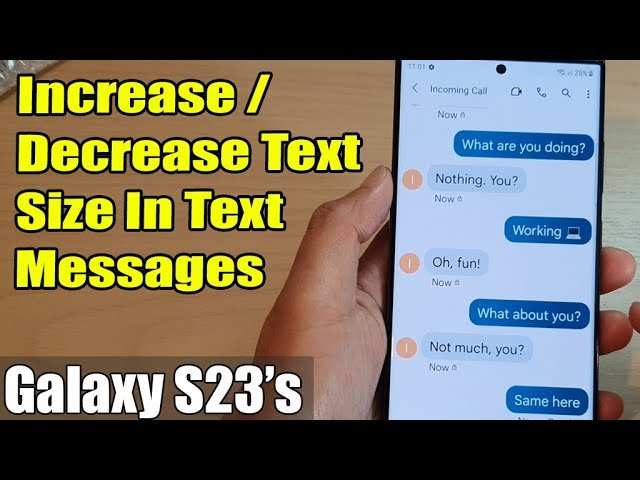
To make text smaller on Android messages, simply adjust the font size in your device settings. **This quick change allows you to customize your chat experience easily.** When asking how to make text smaller on Android messages, it’s all about navigating your display settings or accessibility options.
You don’t need to go through complicated steps; the process is straightforward. Just a few taps, and your messages will be easier to read or fit perfectly on your screen.

How to Make Text Smaller on Android Messages
Making text smaller in Android Messages can help you customize your messaging experience, especially if you prefer a more compact view or want to improve readability on your device’s screen. Whether you’re dealing with overly large text that takes up too much space or just want a more streamlined look, adjusting the font size is a straightforward process. This guide covers everything you need to know about reducing the size of your text in Android Messages, including built-in options, accessibility settings, and tips for better control over how your messages appear.
Understanding Android Messages and Font Size Settings
Before diving into the steps, it’s good to understand how Android Messages displays text and where font size settings are typically located. Android Messages is the default messaging app on many Android devices, but it doesn’t always have a dedicated font size setting within the app itself. Instead, font size adjustments often depend on your device’s overall display settings, accessibility options, or specific app features.
Your device’s operating system provides several ways to customize text appearance, which can influence the size of text within Android Messages. These include:
- Changing the overall display size or font size through device settings
- Adjusting accessibility options for specific apps
- Using zoom features or enabled display scaling
Understanding these options helps you select the right method to make your messages smaller and more comfortable for your eyes.
Adjusting Font Size via Device Settings
Most Android devices allow you to change the font size or display size through system settings. This method affects all apps, including Android Messages, giving you a universal way to reduce text size across your device.
Steps to change font size on Android devices
- Open the Settings app on your device. You usually find this icon on your home screen or app drawer.
- Scroll down and tap on “Display” or “Display & Brightness,” depending on your device model.
- Look for options named “Font size,” “Font size and style,” or “Display size.”
- Tap on this option and then drag the slider or select the smallest size available.
- Some devices let you preview the change instantly. Adjust until you reach the preferred smaller text size.
- Once adjusted, exit settings. Your Android Messages app will now display smaller text based on the new display settings.
*Note:* Changing the display size reduces all text and icons system-wide, so it will impact your experience beyond just messaging.
Using Accessibility Settings for Smaller Text
In some cases, the system-wide font size might still be too large or not flexible enough for your needs. Android’s accessibility features allow more precise control over text appearances, including options to make text smaller.
How to access accessibility font size options
- Open Settings and navigate to “Accessibility” or “Accessibility & Lab” on your device.
- Find and select “Font size” or “Display size,” depending on your device.
- Use the slider to reduce font size to your desired smaller level.
- Confirm your choice. The change will immediately reflect in supported apps, including Android Messages.
*Tip:* Some devices include an “Extra Small” or “Small” option, so explore the available options to find the perfect size for your comfort.
Zoom and Display Scaling Features
Another way to make text smaller involves zoom or display scaling features. These are especially useful if you want to temporarily or quickly reduce text size without changing system settings.
Using display zoom or scaling
- Access your device’s display settings.
- Look for “Display size” or “Screen zoom.”
- Adjust the slider towards the “smaller” end.
- Apply the changes, and your screen, including message text, will appear smaller.
These features often allow more rapid control over text size without affecting other display elements, making them useful for specific scenarios.
Modifying Font Size Within Android Messages (If Supported)
While Android Messages itself doesn’t usually offer a built-in font size adjustment, some custom or third-party messaging apps do. If you want more control within the app:
- Check if your version of Android Messages supports in-app font adjustments. Usually, official updates don’t include this feature.
- Explore the app’s settings menu for any font or appearance options. If available, there might be a “Font size” setting.
*Tip:* For more options, consider third-party messaging apps with customizable text settings if in-app font adjustments are essential for you.
Using Third-Party Apps for Custom Font Sizes
If the native options aren’t enough, third-party apps can help you further control your text size. These apps often include features like:
- Custom font scaling
- Overlay text adjustments
- Additional display modifications
Examples include screen overlay tools or accessibility apps that enhance font control. Always ensure you download apps from trusted sources, like the Google Play Store.
Tips for Maintaining a Comfortable Reading Size
Even when reducing text size, it’s essential to maintain readability. Here are some practical tips:
- Test different sizes to find a balance between space-saving and readability.
- Use the zoom feature for specific messages or conversations if needed.
- Combine font size reduction with display brightness adjustments to ease eye strain.
- Ensure your device’s screen resolution and display quality support clear, smaller text.
Adjustments can make your messaging experience more efficient and less tiring.
Additional Customization for Better Messaging Experience
Apart from font size, consider customizing other aspects of your messaging app for better readability:
- Change message bubble colors or font styles, if supported.
- Enable dark mode to reduce glare, especially when using smaller text.
- Use a high-contrast theme for easier viewing of smaller text.
These little tweaks can help you create a messaging environment that feels comfortable and tailored to your preferences.
Reducing text size in Android Messages involves a combination of system-wide display adjustments, accessibility features, and possibly third-party apps. By exploring these options, you can find the perfect balance that suits your visual preferences and makes messaging more comfortable. Remember, making text smaller doesn’t mean sacrificing clarity; it’s about customizing your device to better fit your needs and ensuring you enjoy a smooth, effortless messaging experience.
Frequently Asked Questions
How can I adjust the font size in Android Messages without changing system settings?
To change the font size specifically for Android Messages, open the app and tap on the menu icon (three dots) in the top right corner. Select ‘Settings,’ then go to ‘Chat Settings’ or ‘General Settings’ depending on your device. Look for an option labeled ‘Font size’ or ‘Text size.’ Adjust the slider to make the text smaller or larger. This change applies only to the Messages app without affecting other system fonts.
Is there a way to make individual messages appear smaller or larger within Android Messages?
Android Messages doesn’t support changing the size of individual messages directly. However, you can pinch to zoom within the conversation window to temporarily adjust the text size for viewing that particular message. This zoom level affects only your current view and doesn’t modify the default font size for future messages within the app.
What shortcut can I use to quickly decrease text size in Android Messages?
Android Messages does not include a built-in shortcut for changing text size. To make text smaller, navigate through the app’s settings as described earlier. Alternatively, you can adjust the font size for the entire device in system settings, which will also reduce the text size in Android Messages and other applications for consistent viewing.
Does changing the device’s display size settings affect text size in Android Messages?
Yes, adjusting the display size or screen zoom in your device’s settings impacts how text appears in Android Messages. To do this, go to your device’s ‘Display’ settings, select ‘Font size’ or ‘Display size,’ and decrease the slider. This change makes text and other UI elements smaller across all apps, including Android Messages.
Can I use third-party apps to modify text size in Android Messages?
While some third-party apps claim to customize or enhance messaging features, they often cannot directly alter the text size within Android Messages. Be cautious when using such apps, as they might not be compatible or could pose security risks. It’s safest to stick with built-in settings or system-level adjustments to change text size effectively.
Final Thoughts
To make text smaller on Android messages, start by opening the app and navigating to settings. Look for the display or font size option. Adjust the slider to reduce the text size to your preference. This simple change enhances readability and comfort.
In conclusion, knowing how to make text smaller on Android messages helps you customize your experience easily. Adjusting font size makes reading more comfortable without hassle, ensuring you stay connected comfortably.
