

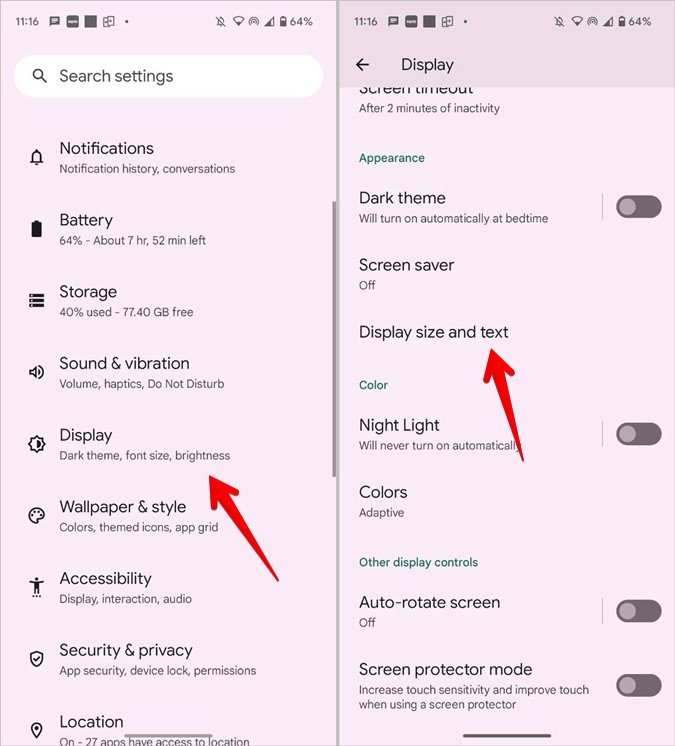
To make text larger on your Android phone, simply adjust the display size in settings. If you want an immediate solution, go to Settings, then Display, and select Font Size. This quick step improves readability instantly.
Wondering how to make text larger on Android phone? You can also enable Accessibility features like magnification or text-to-speech for extra support. These options make it easier to navigate and read on your device.

How to Make Text Larger on Android Phone
Making text larger on your Android phone can make your device much easier to use, especially if you find small text hard to read. Whether you want to see messages clearly, read articles comfortably, or browse websites with less strain on your eyes, increasing text size is a simple process. Here’s everything you need to know about adjusting text size on your Android device in detail.
Understanding Why You Might Want to Increase Text Size
Before diving into the steps, let’s talk about why increasing text size benefits you. Some common reasons include:
- Improving readability for aging eyes or visual impairments
- Reducing eye fatigue after long screen time
- Creating a more accessible experience for all users
- Making browsing social media, emails, or reading web pages more comfortable
Recognizing these reasons can motivate you to personalize your device for a better user experience.
Basic Methods to Make Text Larger on Android
There are several straightforward ways to increase text size, and the best method depends on whether you want to change font size system-wide or just in certain apps. Let’s explore the most common options.
Adjust Font Size via Display Settings
This is the primary way to make text larger across most Android devices.
- Open the Settings app on your Android device.
- Scroll down and tap on “Display” or “Screen”.
- Look for an option called “Font size” or “Font size and style”.
- Slide the slider to the right to increase the font size. The more you slide, the larger the text becomes.
- Some devices may show a preview as you adjust, so you can see how the text will look.
- Once satisfied, tap “OK” or simply exit the settings. The change should take effect immediately.
*Tip:* If your device has a “Dark Mode” or “Night Mode,” enabling these can also sometimes improve readability, especially combined with larger text.
Change Display Size for Overall Screen Elements
Adjusting the display size affects not just text, but icons and UI elements as well.
- Go to “Settings”.
- Tap on “Display”.
- Select “Display size” or “Screen size”.
- Move the slider to the right for larger display items. This makes everything bigger on your screen, including text.
- Test the new size and confirm if it suits your needs.
*Remember:* Increasing display size can sometimes make some elements look a little blurry or pixelated, but it usually improves overall readability.
Using Accessibility Features for Larger Text
Android devices come with powerful accessibility features that support users with visual challenges.
Enable Larger Text with Accessibility Settings
This method allows for very large text, often more than the standard font size setting.
- Open “Settings”.
- Navigate to “Accessibility”.
- Tap on “Font size” or “Text and display”.
- Use a dedicated slider to increase font size beyond the normal maximum if available.
- Some devices may have a “Magnification” feature that lets you zoom into parts of the screen when needed.
- Activate “Large Text” or similar options to ensure text is significantly bigger system-wide.
*Note:* Accessibility options are designed to maximize visibility and ease of use for everyone.
Adjusting Font Size in Specific Apps
While system-wide adjustments work well for most tasks, some apps have independent settings for font size.
Changing Font Size in Browsers
Most mobile browsers allow you to set default zoom levels or text sizes:
- Open your preferred browser (Chrome, Firefox, Edge, etc.).
- Access the browser’s menu (usually marked by three dots or lines).
- Look for “Settings” or “Preferences”.
- Find options labeled “Text size,” “Zoom,” or “Font size”.
- Adjust the slider or select a larger percentage to increase text size.
Modifying Font Size in Messaging Apps and Email
Many popular apps support font size changes:
- Open the app and go to settings or preferences.
- Search for “Display” or “Text” options.
- Adjust the font size slider to increase text size.
- Some apps may not support font size changes; in that case, use device settings for overall adjustment.
Additional Tips for Better Readability
Making text larger is just one way to enhance readability. Here are some tips to improve your overall viewing experience:
- Use high contrast themes or dark mode to reduce eye strain.
- Adjust screen brightness or enable auto-brightness for comfortable viewing in different lighting conditions.
- Consider using larger fonts in apps when available, or enable custom fonts for better clarity.
- Keep your device’s software updated to access the latest accessibility features and improvements.
Troubleshooting Common Issues
Sometimes, adjusting font size can lead to unwanted effects or issues. Here’s how to handle common problems:
Text Looks Blurry or Pixelated
Increasing display size or font size might cause blurriness on some devices. To fix this:
- Reduce the display size slightly.
- Update your device’s software for newer display handling features.
- Use accessibility options if available for larger, clearer text.
Text Doesn’t Change in Certain Apps
Some applications ignore system font size adjustments:
- Check if the app has its own font settings and increase size there.
- Update the app to the latest version.
- If the app still doesn’t respond, consider alternative apps with better support for accessibility features.
Large Text Makes Interface Cluttered
Adjusting display size might make your home screen or menus crowded:
- Try a slightly smaller font or display size adjustment.
- Organize apps and widgets for a cleaner look.
- Use grid size options if available to organize home screens more efficiently.
Making the font size larger on your Android device is quick, and it significantly improves your experience. Whether you prefer system-wide adjustments or app-specific changes, exploring the display and accessibility settings can help you find the perfect balance. Remember to customize your device based on your needs so that every interaction becomes more comfortable and enjoyable.
Frequently Asked Questions
How can I increase the font size for all apps on my Android device?
To make text larger across your Android device, go to the Settings menu. Tap on “Display,” then select “Font size” or “Font size and style.” Use the slider to increase the text size until you reach your desired level. This change affects most apps and system menus, ensuring better readability.
What steps should I follow to enable a larger text size only for specific apps?
Many Android devices allow you to customize font sizes for individual apps through accessibility settings. Navigate to Settings > Accessibility or Display. Check if there is an option called “App-specific font size” or “Font size for individual apps.” If available, select the app and adjust the font size accordingly. If not, some third-party apps can help you modify font sizes within specific applications.
Is it possible to temporarily increase text size for better visibility without changing system settings?
Yes, you can use the magnification feature on your Android device. Enable the “Magnification” or “Accessibility Magnification” option in Settings > Accessibility. Once activated, triple-tap the screen to zoom in on content, making the text larger temporarily. You can also adjust the zoom level with pinch gestures, allowing for quick and flexible viewing.
How do I change font size settings if my Android device runs on an older version of Android?
If your device runs on an older Android version, access the Settings app and look for “Display” or “Accessibility.” In some cases, you might find “Font size” under the “Display” settings. Adjust the slider to increase the font size. If these options are unavailable, consider installing a third-party app from the Google Play Store that offers font size customization features compatible with your device.
Can I adjust font size for better readability while reading PDFs or e-books?
Yes, most PDF viewers and e-book apps allow you to change the text size. Open your document or book in the respective app, then tap on the screen to access the menu options. Look for “Text size” or “Font size” settings and increase the size as needed. This customization helps you read more comfortably without modifying overall device settings.
Final Thoughts
Making text larger on an Android phone is simple. First, open the Settings app and navigate to Display. Tap on Font Size or Font and adjust the slider to your preferred size. Alternatively, you can enable Accessibility features like Magnification or Large Text for easier reading. These options ensure your text is more visible and comfortable to read. Remember, how to make text larger on android phone can be achieved easily through these settings, enhancing your mobile experience.
