

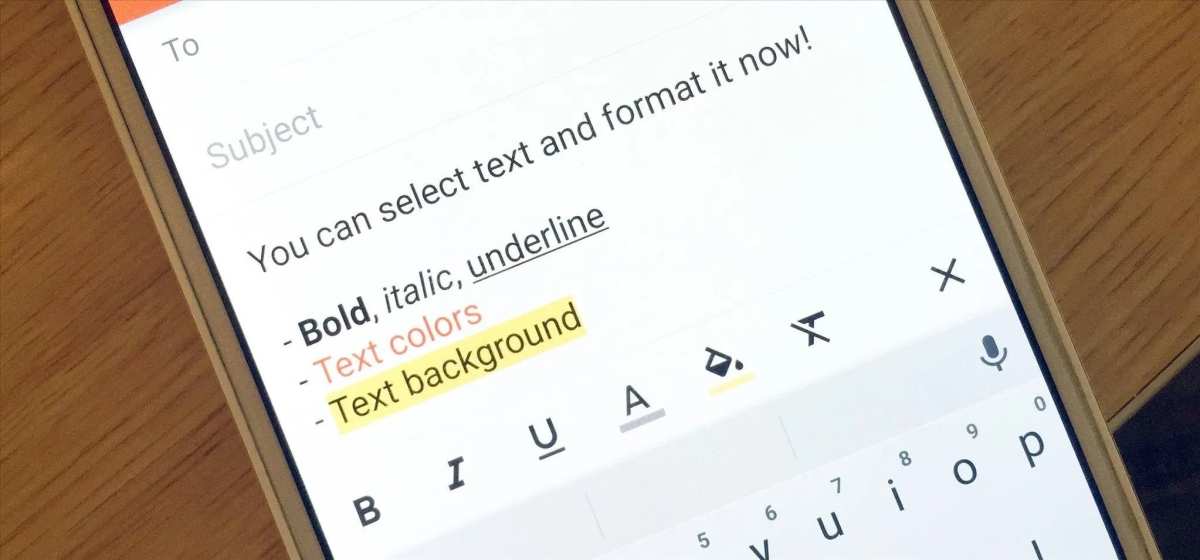
To make text italic on Android, simply select the text, then tap the “B” icon to toggle italics. It’s quick and straightforward. If you want to know how to make text italic on Android, this method works across most messaging apps and note-taking tools.
Just highlight your message and choose the italics option. It’s an easy way to emphasize important points or add style to your texts. You’ll find it enhances your communication without extra effort.

How to Make Text Italic on Android
Making text appear in italics on an Android device might seem tricky at first, especially if you’re new to using smartphones or tablets. However, once you understand the different methods, you’ll find it easy to add emphasis to your messages, notes, or social media posts. In this comprehensive guide, we’ll explore various ways to make text italic on Android, including built-in features, keyboard options, and third-party apps. Whether you’re drafting emails, messaging friends, or editing documents, this guide will help you perfect your text formatting skills.
Understanding Italic Text and Its Uses on Android
Before diving into the how-to steps, it’s good to understand why and when to use italics. Italic text in digital communication serves multiple purposes:
- Emphasize a specific word or phrase, making it stand out in a sentence
- Express thoughts, titles of books, movies, or songs
- Indicate sarcasm or irony in written form
- Highlight foreign words or technical terms
Italics help your message appear more expressive and clear, ensuring your audience understands the emphasis you intend.
Built-in Text Formatting Options in Popular Apps
Many Android apps support text formatting, including italics, without needing extra tools. Let’s look at some common apps and how you can format text within them.
Google Docs on Android
Google Docs is a popular choice for editing documents on Android. To italicize text:
- Open your document in Google Docs app.
- Select the text you want to italicize by tapping and dragging your finger over it.
- Tap the “A” icon with a pencil or the formatting menu at the top of your screen.
- Choose Italic from the dropdown menu. You’ll see the selected text change to italics immediately.
**Tip:** You can also use the keyboard shortcut Ctrl + I if you have a physical keyboard connected to your Android device.
Gboard Keyboard
Google’s Gboard is the default keyboard for many Android phones, and it provides straightforward ways to italicize text:
- Type your message normally.
- Select the text you want to italicize by tapping and holding, then dragging the selection handles.
- Tap the “BIU” icon that appears above your keyboard.
- Choose Italic from the options.
**Note:** The italic function in Gboard may vary depending on the app you’re using. It usually works in apps like messaging, email, or notes.
Using Markdown Style for Italics in Supported Apps
Markdown is a simple way to format text in apps that support it. You add certain symbols before and after your text to italicize it:
- Put an asterisk * or underscore _ before and after the word or phrase.
**Example:**
- *This text will be italic*
- _This text will also be italic_
This method works well in apps like Reddit, WhatsApp, or Markdown editors, but it won’t automatically convert your text into italics in all apps. You need to preview or send the message to see the formatted text.
How to Make Text Italic in Messaging and Social Media Apps
Messaging apps like WhatsApp and social media platforms like Instagram or Facebook have their own text formatting tricks.
WhatsApp allows you to add italics easily:
- Type your message.
- Enclose the word or phrase you want to italicize with underscores _.
**Example:**
_hello_ becomes *hello* in italics.
Facebook and Instagram
For Facebook posts or Instagram captions, you generally cannot directly choose italics within the app. However:
- Use third-party tools or websites that generate formatted text.
- Copy the styled text into your post or caption.
**Popular Websites for Formatting Text:**
Just type your text into these sites, select the italic style, copy it, and then paste it into your message or post.
Third-Party Apps for Advanced Text Formatting
If you want more options than basic italics, consider downloading third-party apps designed for custom text styles.
Text Editor Apps
Apps like “Fonts: Cool Text Fonts” or “Stylish Text” allow you to generate formatted text in various styles, including italics. Here’s how:
- Download and install your preferred font or text styling app from Google Play Store.
- Open the app and type your message.
- Select the italic style or customize your text as needed.
- Copy the styled text and paste it into your desired app, such as WhatsApp or social media.
Advantages of Third-Party Apps
- Access to a wide range of fonts and styles
- Better control over text appearance
- Share styled text easily across different platforms
Formatting Tips for Perfect Italics on Android
To ensure your italics look good and work across different platforms, follow these tips:
- Use consistent formatting: When using markdown or app-specific styles, stick to the same method for uniformity.
- Preview your text: Check how your message appears before sending, especially when using third-party style generators.
- Be mindful of compatibility: Some platforms may not support certain styling methods, so test your message first.
- Take advantage of keyboard shortcuts: If you have a physical keyboard, shortcuts like Ctrl + I can save time.
Common Mistakes to Avoid When Making Text Italic on Android
Even experienced users can slip up. Here are common errors and how to fix them:
- Not closing markdown symbols properly, leading to unformatted text. Always double-check for matching symbols.
- Using unsupported apps that don’t recognize formatting styles. Stick to apps known for supporting text styles.
- Overusing italics, making your message hard to read. Use italics sparingly to emphasize key points.
- Ignoring platform-specific rules. Remember that formatting does not always translate across all apps or websites.
Summary of Methods to Make Text Italic on Android
| Method | Suitable For | Steps Summary |
|—————————————————–|——————————————————–|——————————————————————————————————————|
| Built-in App Formatting (Google Docs, Notes) | Documents, notes, emails | Select text, open formatting menu, choose italics |
| Gboard Keyboard | Messaging, social media | Type, select text, tap “BIU”, choose italics |
| Markdown Style | Supported messaging apps | Enclose text with * or _ symbols |
| Third-Party Text Style Apps | Custom fonts and styles | Use external apps to generate styled text, copy and paste |
| Using Online Text Generators | Social media posts, creative messaging | Generate styled text online, copy, and paste |
Making text italic on Android offers many options. Choose the method that best fits your needs, whether it’s within an app, via keyboard shortcuts, or through third-party tools. Practicing these methods ensures your messages become clearer and more expressive, making your digital conversations more engaging.
Frequently Asked Questions
Can I italicize text in messaging apps on Android?
Yes, many messaging apps like WhatsApp and Telegram allow you to italicize text. Usually, you can do this by enclosing the desired text within specific symbols. For example, in WhatsApp, type an underscore before and after the text, such as _example_, which will display as *example*. Check the app’s formatting options or support guides for precise instructions.
Are there keyboard shortcuts to make text italic on Android devices?
Most Android keyboards don’t have dedicated shortcuts for text formatting, including italics. However, if you’re editing text in certain apps or using specialized keyboard apps with formatting features, you might find options or shortcuts. Otherwise, use context menus or formatting options provided within the app you’re using to apply italics.
How can I enable rich text formatting in Android notes or document apps?
To format text in Android notes or document applications, look for formatting icons like ‘B’ for bold or ‘I’ for italics in the toolbar. Tap on these icons to toggle italics on selected text. Some apps also support shortcut gestures or menu options for quick formatting, so explore the app’s features for easier access.
Final Thoughts
To make text italic on Android, you can use various apps like messaging platforms or note-taking tools that support formatting. Most of these apps have an option to style your text, often indicated by an “I” icon or a menu with formatting options. Simply select the text you want to italicize and tap the appropriate option.
In some cases, typing certain symbols (like underscores or asterisks) around your text can also create italics, especially in markdown-supported apps.
In conclusion, knowing how to make text italic on Android involves choosing the right app and using its formatting features. This ensures your text appears exactly as you want, making your messages and notes clearer and more engaging.
