

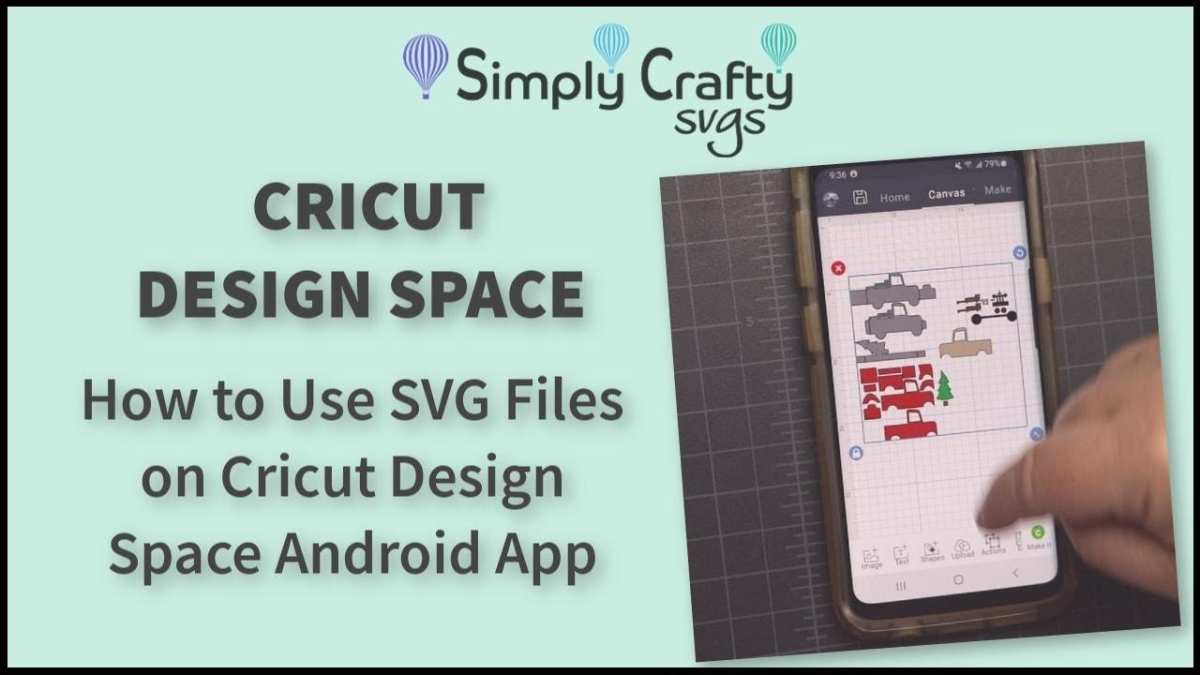
To make SVG files on Android, you can use user-friendly apps like Vector Ink or Inkscape. **Downloading a dedicated vector graphic app is the quickest way.** These tools allow you to create and edit SVG files directly on your device.
Simply open the app, start designing, and save your work as an SVG file. Knowing how to make SVG files on Android becomes effortless with these intuitive options, making your creative process smooth and accessible.

How to Make SVG Files on Android
Creating SVG files on an Android device might seem complicated at first, but with the right tools and guidance, it becomes a fun and straightforward process. SVG, which stands for Scalable Vector Graphics, is a popular format for creating crisp, high-quality images that look great on any screen size. Whether you’re a graphic design beginner or someone who needs custom icons or logos on the go, knowing how to make SVG files directly on your Android device can save you time and help bring your ideas to life. In this guide, we’ll walk through everything you need to know about creating SVG files on Android, from selecting the best apps to tips for designing and exporting your artwork.
Understanding SVG Files and Why They Matter
Before diving into the creation process, it helps to understand what SVG files are and why they are so useful.
What Is an SVG File?
An SVG file is a graphic file that uses XML-based text to describe how the image looks. Unlike raster images (like JPEG or PNG), SVG files are vector-based, meaning they use points, lines, and curves to define shapes. This makes SVG images infinitely scalable without losing quality — perfect for icons, logos, and complex illustrations.
Why Choose SVG Over Other Formats?
- High quality at any size: SVG images stay sharp whether they’re small icons or large banners.
- Editable: You can modify SVG files easily with vector editing tools.
- Small file size: SVG files are usually smaller than raster images, which helps your app or website load faster.
- Compatibility: Modern browsers and many apps support SVG files seamlessly.
Tools for Creating SVG Files on Android
The first step in making SVG files on Android is choosing the right app. Several options are available, ranging from simple editors to full-featured design programs.
Popular Android Apps for SVG Design
- Inkscape (via Linux emulators or remote desktop): While Inkscape is a desktop app, you can access it through remote desktop apps on Android or run it in a Linux environment with apps like UserLAnd.
- Vector Ink: A dedicated vector graphics editor that supports SVG editing with touch-friendly controls.
- Adobe Illustrator Draw & Adobe Illustrator: Adobe’s mobile apps that allow vector drawing and can export SVG files.
- SVG Editor & Maker Apps: Several lightweight apps focus solely on creating and editing SVGs, such as “SVG Editor” or “FlyerSVG.”
- Graphic design apps with SVG support: Apps like Canva or Pixlr may support SVG import/export, but their editing capabilities may be limited compared to dedicated vector apps.
Choosing the Right App for Your Needs
When selecting an app, consider:
- Ease of use — look for intuitive touch controls.
- Features — check if it supports importing sketches or images as layers.
- Export options — ensure it can save or export files as SVG.
- Compatibility — make sure it works well with your Android version.
Step-by-Step Guide to Creating SVG Files on Android
Once you’ve chosen an app, follow these steps to create your SVG image from scratch or by modifying existing images.
Starting with a Blank Canvas
Begin by opening your vector editing app, then:
- Create a new project or document, typically selecting the canvas size or resolution.
- Familiarize yourself with the drawing tools — such as pen, shape, and path tools.
- Set your preferred stroke and fill colors to prepare for designing.
Designing Your SVG Image
Creating an SVG involves drawing shapes, lines, and curves:
- Use basic shapes: Circles, rectangles, and polygons form the foundation of most graphics.
- Combine shapes: Use grouping and path operations to combine multiple shapes into complex designs.
- Adjust nodes and paths: Fine-tune curves and lines by editing node points for precision.
- Add text: Many apps allow you to add text elements, which can also be converted into SVG paths if needed.
Importing and Editing Existing Images
If you have a raster image or a sketch you want to convert into SVG:
- Import the image into your app.
- Use tracing or auto-trace features if available, to convert raster images into vector paths.
- Refine the traced paths to match your original idea.
Exporting and Saving Your SVG File
After designing your graphic:
- Look for an export or save option within your app.
- Select SVG as your preferred format.
- Choose the location on your device to save your file.
- Optionally, optimize your SVG file using online tools or apps to reduce size and improve performance.
Make sure to give your file a clear and descriptive name, especially if you plan to use it for multiple projects or share it with others.
Tips for Better SVG Design on Android
To make your SVG files look professional and clean:
- Stick to simple shapes: Complex designs can be tricky to draw accurately on small screens.
- Use layers: Keep different parts of your design on separate layers to make editing easier.
- Maintain symmetry and alignment: Use grid and snap features if available to keep your design balanced.
- Keep file size in mind: Simplify paths and reduce unnecessary points to make your SVG files lightweight.
- Test your SVG: View your file in different browsers or apps to see how it appears across devices.
Advanced Techniques for SVG Creation on Android
Once you’re comfortable with basic drawing, explore these techniques to create more complex SVG files:
Using Layers and Grouping
Organize your design by grouping related shapes, which makes editing easier. Many apps support grouping, which helps when you need to move or resize parts of your SVG without affecting the entire image.
Applying Gradients and Patterns
While simplicity is key on mobile, some apps allow you to add gradients or patterns to your SVG shapes. Use these features sparingly to enhance your design without overloading the file.
Incorporating Custom Fonts and Text Paths
Some vector apps support importing custom fonts or converting text into vector paths. This feature is helpful when designing logos or branding elements that require specific typography.
Using Scripts and External Resources
For more advanced users, you can generate parts of your SVG using scripts or integrate external SVG icons into your design, enhancing your workflow.
Sharing and Using Your SVG Files
Once finished, you can:
- Share your SVG files via email or cloud storage services like Google Drive or Dropbox.
- Embed SVGs into websites or apps directly, as many platforms support SVG integration.
- Use your SVG assets for digital products, presentations, or printing without losing quality.
Creating SVG files directly on an Android device offers a flexible way to bring your ideas to life while on the move. By selecting the right tools, practicing your drawing skills, and understanding the export options, you can make professional-quality SVG graphics that work perfectly across all platforms. Remember that starting simple and gradually exploring more advanced features will help you become confident in creating stunning vector images right from your Android device.
Frequently Asked Questions
What tools can I use on Android to create SVG files from scratch?
You can use vector graphic design apps like Adobe Illustrator Draw, Infinite Design, or Vector Ink. These tools allow you to draw directly on your device, create shapes, and export your artwork as SVG files. They typically offer features such as layer management, pen tools, and color options to help you craft detailed SVG graphics.
How do I convert existing images into SVG format on Android?
Use apps like Vectorize or Online Convert to upload raster images such as PNG or JPG and convert them into SVG vectors. These apps analyze your images, trace the outlines, and generate scalable vector files. Make sure to adjust settings for better accuracy and save the SVG files to your device or cloud storage.
Are there any online platforms that help generate SVG files directly on Android devices?
Yes, websites like Vecteezy Editor or SVG-Edit work well on Android browsers. You can create or edit SVG files directly through these online tools without installing additional apps. Simply open your browser, visit the platform, and use their interface to design or modify SVG graphics, then save the files locally or in the cloud.
Can I import SVG files into Android apps for editing purposes?
Many graphic apps support importing SVG files for further editing. Apps like Inkscape (via Android ports or similar), or specific SVG viewers/editors, allow you to open SVG files, modify shapes, colors, and paths, and then export the updated files. This process helps in refining your SVG graphics directly on your device.
What are some tips for designing detailed SVG graphics on Android devices?
Use a stylus or a high-quality touchscreen to draw more precisely. Start with simple sketches and build complexity gradually. Take advantage of grid and snapping features within your editing app to align elements accurately. Keep your designs organized in layers, and save frequently to prevent data loss. Using vector brushes and shape tools enhances the detail and quality of your SVG files.
Final Thoughts
Making SVG files on Android is simple with the right tools. Use graphic design apps like Vector Ink or Adobe Illustrator Draw to create and edit SVG images directly on your device. These apps offer intuitive interfaces suitable for both beginners and experienced users.
Export your designs as SVG files and save them locally or in cloud storage. This process ensures you have scalable, high-quality graphics ready for any project. Practicing regularly improves your ability to create precise SVG files.
In conclusion, how to make svg files on android involves using dedicated apps and practicing regularly. This approach allows you to develop sharp, scalable graphics without extra devices or software.
