

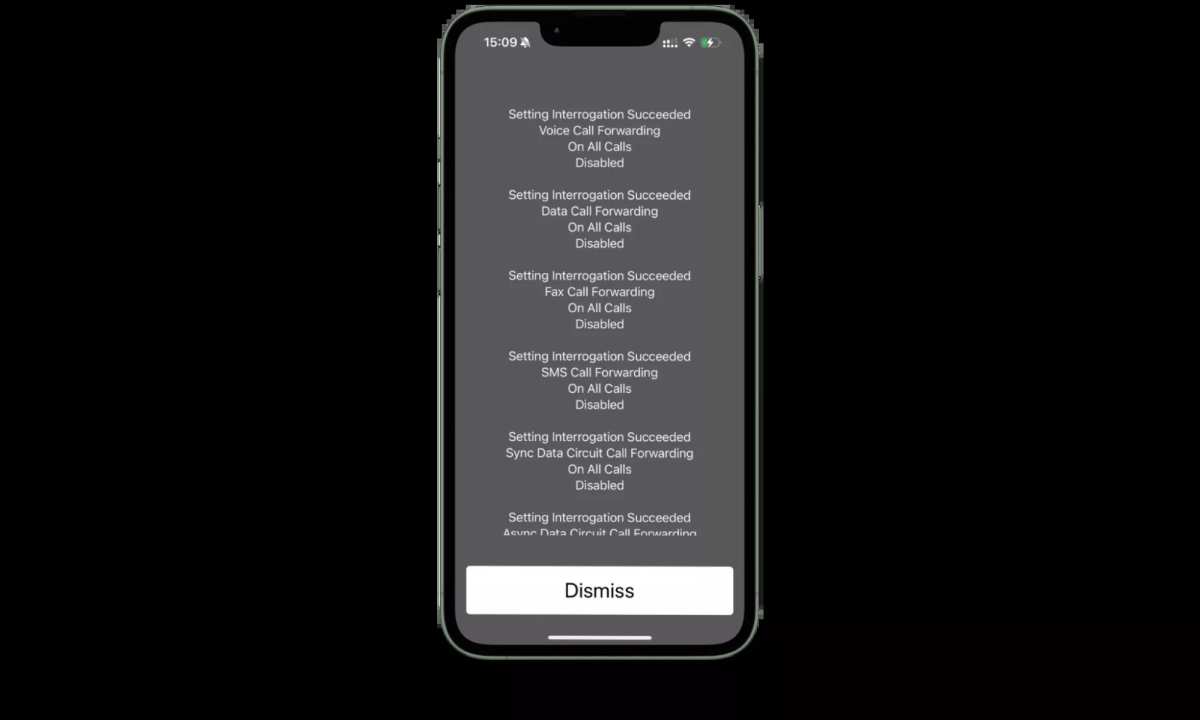
The best way to make sure your Android isn’t hacked is to stay vigilant and keep your device updated. **Regularly update your software and apps to patch security vulnerabilities.** Use strong, unique passwords for your accounts and enable two-factor authentication whenever possible. Avoid clicking on suspicious links or downloading apps from unofficial sources. By staying cautious and proactive, you can significantly reduce the risk of your Android device being compromised. Understanding these simple steps helps protect your personal information and keeps your device secure.

How to Make Sure Your Android Is Not Hacked
Protecting your Android device from hacking threats is essential in today’s digital world. Hackers are always looking for ways to access personal information, steal data, or even control your device remotely. Fortunately, there are many simple steps you can take to keep your Android safe. Let’s explore how to prevent your Android from being hacked and stay secure.
Understanding Common Android Security Threats
Before diving into protection methods, it helps to understand what threats you face. Some common security issues include:
- Malware: Malicious software that infects your device to steal data, track activities, or cause damage.
- Phishing: Fake websites or messages designed to trick you into revealing personal info like passwords or credit card numbers.
- Unauthorized Access: Hackers trying to get into your device through weak passwords or unsecured networks.
- Data Leakage: Apps that share your data without your permission.
Knowing these threats helps you take targeted actions to protect your Android.
Creating Strong Passwords and Using Biometric Security
The first line of defense is your device’s lock screen. Make sure you set a strong, unique password, PIN, or pattern. Avoid using simple combinations like “1234” or “password.”
How to Set a Strong Password
- Use a mix of uppercase and lowercase letters, numbers, and symbols.
- Make passwords at least 12 characters long.
- Use different passwords for your Google account and other apps.
- Change your passwords regularly.
Additionally, take advantage of biometric security features like fingerprint scanners or facial recognition. These provide quick access while making it harder for others to unlock your device without your permission.
Keeping Your Android Software Up to Date
Software updates often include security patches that shield your device from known vulnerabilities. Always keep your Android OS and apps current.
Steps to Update Your Android
- Go to Settings on your device.
- Scroll to About Phone or System.
- Select Software Update or System Update.
- Follow the prompts to download and install the latest update.
Turning on automatic updates ensures you get the latest security fixes without delay.
Installing Apps Safely
Apps are a common way for malware to sneak into your device. Stick to trusted sources like the Google Play Store, and avoid downloading from unknown websites.
Best Practices for App Installation
- Check app reviews and ratings before installing.
- Read the app permissions — only grant permissions needed for the app’s purpose.
- Avoid APK files from third-party sites unless you trust them fully.
- Remove apps you no longer use.
Using security features like Google Play Protect, which scans apps for malware, adds extra safety.
Enabling Two-Factor Authentication
Adding an extra layer of protection can make it harder for hackers to access your accounts. Turn on two-factor authentication (2FA) for your Google account and other apps that support it.
How to Enable 2FA
- Visit your Google account settings online or through the app.
- Find the Security section.
- Choose Two-Step Verification and follow the setup instructions.
Once activated, you’ll need to verify your identity through a code sent to your phone or email whenever you log in on new devices.
Managing App Permissions
Apps request permissions to access your camera, microphone, location, and more. Review these permissions regularly to ensure apps only have access to what they need.
How to Manage Permissions
- Open Settings on your Android device.
- Select Apps or Applications.
- Tap on a specific app to view its permissions.
- Revoke unnecessary permissions or restrict access.
Limiting permissions reduces potential vectors for hacking or data leaks.
Securing Your Wi-Fi and Mobile Networks
Public Wi-Fi networks pose significant security risks. Avoid using unsecured networks for sensitive activities. When necessary, use a virtual private network (VPN) to encrypt your internet traffic.
Best Practices for Network Security
- Use WPA3 or WPA2 encryption on your home Wi-Fi network.
- Change the default router password.
- Turn off Wi-Fi when not in use.
- Enable security features on your router, such as firewalls and guest Wi-Fi.
On mobile networks, be cautious when sharing or connecting to unfamiliar networks to prevent interception of your data.
Monitoring Your Device for Unusual Behavior
Regularly check your device for signs of hacking or malware. Look for:
- Sudden battery drain or overheating.
- Unexpected pop-ups or ads.
- Unrecognized apps installed without your knowledge.
- Slow performance or frequent crashes.
If you notice any of these signs, consider running a security scan or performing a factory reset.
Using Security Apps and Anti-Malware Tools
Many apps can help detect threats before they cause harm. Install reputable antivirus or anti-malware apps to scan your device regularly.
Recommended Security Apps
| Name | Features |
|---|---|
| Avast Mobile Security | Real-time scanning, anti-theft features, app lock |
| Bitdefender Mobile Security | Malware scanning, account privacy, anti-theft |
| McAfee Mobile Security | Device tracking, security lock, anti-malware |
Run scans regularly and keep the apps updated.
Backing Up Your Data
In case your device gets compromised, having backups helps you restore your data easily. Use Google Drive or other trusted cloud services to back up your photos, contacts, and important files.
How to Backup Your Android Data
- Open Settings.
- Find Backup & Reset or Backup.
- Enable Google Drive backup or an alternative cloud service.
- Ensure your data is syncing automatically.
Regular backups protect your data and save time if you need to perform a factory reset.
Being Mindful of Phishing and Social Engineering Attacks
Hackers use tricks like fake emails or messages to steal your information. Always verify the sender before clicking links or sharing sensitive info.
Tips to Avoid Phishing
- Check the sender’s email address closely for signs of fraud.
- Ignore suspicious messages asking for personal info.
- Do not click on unfamiliar links or downloads.
- Report phishing attempts to your email provider or security apps.
Stay cautious even if messages look convincing.
Resetting Your Device If Necessary
If you suspect your device has been hacked and other measures don’t work, performing a factory reset restores your Android to its original settings. Remember to back up essential data first.
Steps for Factory Reset
- Go to Settings.
- Select System or General Management.
- Find Reset or Factory Data Reset.
- Follow prompts to reset your device.
After resetting, set up your device again with security in mind, avoiding previous vulnerabilities.
By following these detailed steps—keeping your software updated, managing permissions carefully, using strong passwords, securing your network, and staying alert—you significantly reduce the chances of your Android being hacked. Staying vigilant and practicing good security habits helps you enjoy your device safely and keep your personal information protected every day.
Frequently Asked Questions
What signs indicate that your Android device might be compromised?
Look for unusual behavior such as unexpected pop-ups, apps crashing frequently, or your device running slower than usual. Excessive battery drain and unfamiliar notifications also suggest potential security issues. If you notice any of these signs, it’s important to investigate further to ensure your device remains secure.
How can I verify if there are unauthorized apps on my Android device?
Review the list of installed applications regularly through your device’s settings. Remove any apps that you did not knowingly install or seem suspicious. Additionally, check app permissions to see if any app has access to sensitive data that it shouldn’t have. Keeping your app list clean reduces vulnerabilities.
What steps should I take if I suspect malware or spyware on my Android?
Run a security scan using reputable antivirus or anti-malware apps available on the Google Play Store. Remove any threats detected during the scan. Also, consider performing a factory reset if you’re unable to identify or eliminate malware, but ensure you backup important data beforehand.
How important are software updates for maintaining my Android device’s security?
Regularly installing updates patches security flaws and fixes vulnerabilities that hackers might exploit. Always keep your device’s operating system and apps up-to-date to protect against the latest threats. Enable automatic updates to stay current without manual intervention.
What best practices should I follow to prevent my Android device from being hacked?
Use strong, unique passwords for your accounts and enable two-factor authentication where possible. Avoid clicking on suspicious links or downloading apps from untrusted sources. Be cautious with public Wi-Fi networks and consider using a VPN for added security. Additionally, review app permissions periodically and disable access that seems unnecessary.
Final Thoughts
To make sure your Android is not hacked, regularly update your device and apps to patch security vulnerabilities. Use strong, unique passwords for your accounts and enable two-factor authentication whenever possible. Avoid clicking on suspicious links or downloading files from untrusted sources. By following these steps, you reduce the risk of hacking and protect your personal data effectively.
