

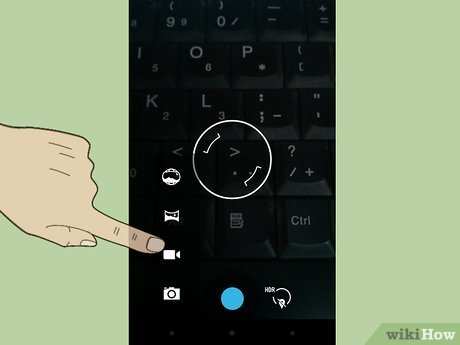
To make a video from photos on Android, you simply need a good video editing app. **Most smartphones come with built-in features or free apps that make this process easy.** If you’re wondering how to make video from photos on Android, start by selecting your images and using an app like Google Photos or InShot. These tools let you arrange your photos, add music, and export your finished video effortlessly. With just a few taps, you create a slideshow that brings your memories to life.

How to Make Video from Photos on Android
Creating a video from your photos on an Android device is an exciting way to preserve your favorite memories and share them with friends and family. With the right tools and some simple steps, you can turn a collection of images into a captivating movie that tells a story or captures a special moment. In this section, we’ll explore different methods to make videos from photos on Android, discuss the best apps for this purpose, and guide you through each step with clear instructions. Whether you’re a beginner or someone looking to refine your skills, this guide will help you produce professional-looking videos easily.
Why Make Videos from Photos on Android?
Many people enjoy transforming their static photos into moving stories. Here are some reasons why making videos from photos is a great idea:
- Share cherished memories in a dynamic way on social media platforms like Instagram, Facebook, or TikTok.
- Create personalized greetings or slideshows for birthdays, anniversaries, or holidays.
- Produce short promotional videos for events or projects.
- Enhance storytelling by adding music, text, and effects to your images.
- Save space by consolidating multiple images into a single video file.
Choosing the Best Apps to Make Video from Photos on Android
The first step in making a video from photos on your Android device involves selecting the right app. Several apps are specially designed for this purpose, each offering unique features. Here’s a list of popular and easy-to-use apps:
- Google Photos: Offers a simple slideshow creation feature along with basic editing tools.
- InShot: Known for its user-friendly interface and versatile editing options, including adding music, effects, and text.
- KineMaster: A more advanced video editor that allows multi-layer editing, transitions, and detailed adjustments.
- VivaVideo: Provides a variety of templates, filters, and music options for creative video making.
- Adobe Premiere Rush: Perfect for users who want professional-quality editing, with powerful tools and easy sharing capabilities.
After selecting an app, the next step is to understand how to use it effectively for creating your photo videos.
Preparing Your Photos for Video Creation
Before you begin transforming your photos into a video, take some time to prepare your images for the best results:
- Organize your photos: Arrange the images in the order you want them to appear in the video. Create a dedicated folder for easy access.
- Optimize photo quality: Use high-resolution images whenever possible. Avoid blurry or pixelated pictures for a more professional look.
- Edit photos if necessary: Crop, straighten, or enhance your images with basic edits to ensure they look their best.
- Decide on a theme or story: Think about the message or story you want your video to convey. This will help guide your photo selection and sequence.
Once your photos are ready, you can import them into your chosen app and start creating your video.
Step-by-Step Guide to Making a Video from Photos on Android
Here, we’ll break down the process into simple, actionable steps for popular apps like InShot and Google Photos. You can adapt these steps based on the app you choose.
Using InShot
- Download and install InShot from the Google Play Store.
- Open InShot and tap on the “Video” option, then select “New” to create a new project.
- Import your photos by selecting them from your gallery. You can add multiple images at once.
- Arrange photos in the desired sequence by dragging and dropping.
- Set the duration for each photo by tapping on the image and adjusting the time. Typically, 2-4 seconds per photo works well.
- Add transitions between photos for a smooth flow. Tap on the transition icon and pick your preferred style.
- Insert music by choosing a track from your device or the app’s library. Adjust the length to match your video.
- Enhance your video with filters, text, or stickers if desired.
- Preview your creation, then tap “Save” to export the video in your preferred resolution and quality.
Using Google Photos
- Open Google Photos on your Android device.
- Select the photos you want to include in your video by tapping and holding each one.
- Tap the “+” icon and choose “Movie” from the options.
- Google Photos automatically arranges your photos and creates a simple slideshow. You can reorder images if needed.
- Add music from the available options or upload your own track.
- Choose a theme or style if available, or leave it as is for a straightforward slideshow.
- Tap “Save” or “Create” to generate your video. It will be saved in your Google Photos library.
Both methods produce high-quality videos, but InShot offers more editing features, making it suitable for more detailed customization.
Adding Music and Text to Your Video
Music and text can greatly enhance your photo video, making it more engaging and expressive.
- Choosing the right music: Pick tracks that match the mood of your video. Use royalty-free music or songs you have rights to.
- Adding text overlays: Write captions, quotes, or titles that provide context or enhance the storytelling.
- Syncing music with images: Adjust the timing so music cues align with key moments in your video.
- Using fade-in and fade-out effects: These smooth transitions can make your video more polished.
Most apps include options for easily adding and editing music and text layers.
Final Touches and Exporting Your Video
After you’ve assembled your images, added music, and included any effects or text, review your video to ensure everything is perfect.
- Watch the whole video with sound to check for timing and transitions.
- Make adjustments to timing, effects, or order if necessary.
- Save the project in the highest possible quality for the best viewing experience.
When exporting, select the appropriate resolution based on where you will share or store your video. Common options include 720p or 1080p for good quality without taking up too much space.
Sharing Your Video from Android
Once your video is ready, sharing it is simple:
- Upload your video directly to social media platforms like Instagram, Facebook, or TikTok.
- Send it via messaging apps such as WhatsApp or Messenger.
- Save it to your device’s gallery for safekeeping or future use.
- Transfer the video to a PC using a USB cable or cloud storage service for additional editing or backup.
Remember to check your video’s privacy settings if you plan to share sensitive or personal content online.
Making a video from photos on Android doesn’t need to be complicated. With the right app and some simple steps, you can produce beautiful, fun, and meaningful videos that capture your favorite moments. Take your time customizing each part of your project, and enjoy the process of turning static images into lively stories to share with others.
Frequently Asked Questions
What are some user-friendly apps to create videos from photos on Android?
Several apps simplify the process of making videos from photos on Android devices. Popular options include Google Photos, InShot, and KineMaster. These apps come with intuitive interfaces, allowing you to select photos, add music or effects, and export your video easily. Choose an app that matches your comfort level and desired features for the best experience.
How can I add transitions between photos in my video on Android?
Most video editing apps for Android offer built-in transition effects that you can apply between photos. Typically, you select the photos you want to include, then choose the transition style from the menu. Drag and drop the transition between two images to create a smooth change. Adjust the duration of each transition to match the pacing you prefer for your video.
What are some tips for creating engaging videos from photos on Android?
To make your photo video more appealing, consider selecting high-quality images and arranging them in a meaningful order. Incorporate a suitable background music track and add simple effects or text overlays for context. Keep the video length appropriate to maintain viewer interest, and preview your project before finalizing to ensure everything flows well.
Is it possible to include audio narration in my photo video on Android?
Yes, many Android video editing apps allow you to record and add audio narration directly to your project. Simply locate the audio or voice-over feature within the app, record your narration, and position it appropriately on the timeline. This option helps convey additional information and adds a personal touch to your video.
Can I export my photo video in different formats from my Android device?
Most apps provide options to export your completed video in various formats and resolutions. Common choices include MP4 or AVI files, with settings to select HD or standard quality. After finalizing your edits, go to the export or save option, choose the format and quality, and save the video to your device or directly share it online.
Final Thoughts
To make a video from photos on Android, choose a user-friendly app like Google Photos or KineMaster. Import your selected images and arrange them in the desired order. Add transitions, music, or text to enhance your video.
Once you finish editing, export the video in your preferred format. This process is simple and quick, making it easy for anyone.
In summary, how to make video from photos on android involves selecting the right app, organizing your images, and adding personalized touches. Follow these steps to create engaging videos effortlessly.
