

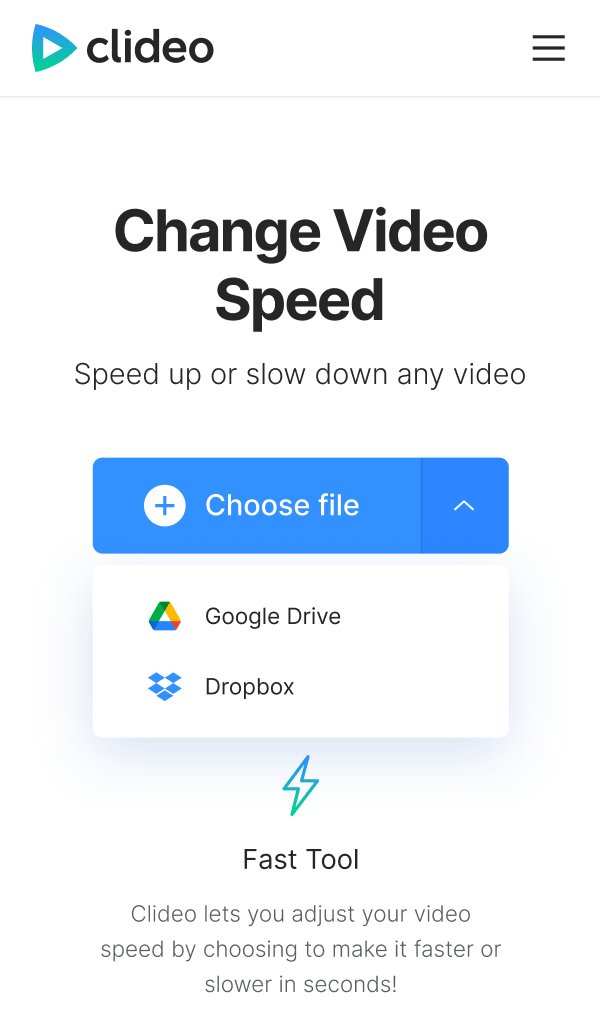
To make a video faster on Android, simply adjust the playback speed using built-in editing tools or third-party apps. If you wonder how to make video faster on Android, this process is straightforward and quick to do.
You can often find speed settings in your default gallery or video editing app, making changes with just a few taps. No need for complex software—just pick your speed and save. This way, you can easily shorten videos and save time during playback.

How to Make Video Faster on Android
When you want to watch videos quickly or need to adjust the playback speed for fun or productivity, knowing how to make videos faster on Android devices can be a real time-saver. Whether you’re reviewing tutorials, enjoying movies, or creating content yourself, having the ability to change video speed enhances your viewing experience. In this guide, we’ll explore different methods, apps, and tips on how to speed up videos on your Android smartphone or tablet effectively.
Understanding Playback Speed and Its Benefits
Before diving into the how-to’s, it’s essential to understand what changing playback speed involves and why it matters.
- What Is Playback Speed? It refers to the rate at which a video plays. Normal speed is 1x, but you can increase or decrease this rate.
- Why Make Videos Faster? To save time, review content quickly, emphasize certain parts of a video, or enjoy a faster viewing experience.
- Common Use Cases include speed-watching educational videos, reviewing gameplay, or editing videos for social media.
Built-in Android Tools for Speeding Up Videos
Many Android devices come with basic media players that allow playback speed adjustments.
Using Google Photos
Google Photos is a popular app on Android phones that can play videos at different speeds.
- Open Google Photos and select the video you want to speed up.
- Tap the play button to start viewing.
- Tap the screen to reveal controls.
- Click on the “Speed” icon (usually represented by a gear or speedometer).
- Select the desired speed, commonly options include 1.5x, 2x, and 4x.
**Note:** Google Photos allows only a few speed options and is mainly for quick viewing. If you need more control or to export videos at higher speeds, consider other apps.
Using Your Video Player App
Some default media players on Android, like VLC or MX Player, support speed adjustments.
- VLC for Android:
- Open the video in VLC.
- Tap the screen to display controls.
- Tap the menu icon (three dots or hamburger).
- Choose “Playback Speed.”
- Select the speed you want, e.g., 1.5x, 2x.
- MX Player:
- Play the video in MX Player.
- Tap the screen to reveal options.
- Press the three-dot menu.
- Select “Playback Speed.”
- Adjust the slider or choose a preset speed.
**Tip:** Using these apps is quick and easy, but they only modify playback temporarily. To permanently change the speed, you’ll need dedicated video editing apps.
Using Video Editing Apps to Make Videos Faster
If you want to change the speed permanently or prepare videos for sharing, editing apps are your best bet.
Popular Video Editing Apps on Android
Here’s a list of top apps that allow changing video speed:
- InShot
- KineMaster
- PowerDirector
- Videoshop
- FilmoraGo
How to Speed Up Videos with InShot
InShot is intuitive and offers a straightforward process:
- Download and install InShot from the Google Play Store.
- Open the app and tap “Video” to start a new project.
- Import the video you want to speed up.
- Tap on the “Speed” option in the toolbar.
- Adjust the slider to higher values (e.g., 2x, 4x, 8x).
- Preview the video to check the speed.
- Tap “Save” to export the modified video.
**Tip:** Some apps may limit how much you can speed up a video. For faster speeds, look for apps that support higher multipliers or allow custom speed inputs.
Using KineMaster for Professional Editing
KineMaster offers more detailed editing features:
- Import your video into KineMaster.
- Select the video clip on the timeline.
- Tap the “Speed Control” button.
- Choose preset speeds or enter a custom speed value.
- Preview to see if the speed fits your needs.
- Export the video once satisfied.
Tips for Making Videos Faster Effectively
Speeding up videos can sometimes distort audio or visual quality. Here are some tips to maintain quality while increasing speed:
- Adjust Audio Separately: When speeding up videos, consider muting or reducing audio volume if it becomes distorted, or replace the audio afterward.
- Test Different Speeds: Not all videos look good at extreme speeds. Start with 1.5x or 2x and see how it looks.
- Keep the Final File Size in Mind: Faster clips may have smaller sizes, but high-quality exports might be larger.
Additional Tips to Enhance Your Experience
To make your video speed adjustments even better, try these tips:
- Use a Good Editing App: Free options like InShot or KineMaster provide a good balance of features and ease of use.
- Focus on Lighting and Clarity: Clear videos at higher speeds look better, so record or choose videos with good lighting.
- Consider Sound Editing: If the video has important audio, plan whether to keep, reduce, or replace it after speeding up.
- Save Multiple Versions: Keep original videos intact and save different sped-up versions for comparison.
Exporting and Saving Your Fast-Forward Videos
Once you’ve sped up your video, proper exporting ensures quality and ease of sharing.
- Choose the right resolution and format, such as MP4, for compatibility.
- Check the export settings—higher resolution means better quality but larger file size.
- Remember, some apps support direct sharing to social media platforms like YouTube, Instagram, or WhatsApp.
Learning how to make videos faster on Android devices opens up many possibilities for enjoyable viewing and efficient content creation. Whether you prefer quick tweaks within your media player or detailed edits with professional apps, Android offers plenty of options. Experiment with different methods to find what works best for your needs, and always keep in mind the balance between speed and quality. With a little practice, you’ll be able to speed up any video on your Android device easily and effectively.
Frequently Asked Questions
What are some effective apps to speed up video playback on Android?
Several apps allow you to adjust video playback speed easily on Android devices. MX Player is a popular choice, offering options to increase or decrease playback speed directly within the app. VLC Media Player also provides similar features, letting you change the speed during playback. Additionally, some editing apps like KineMaster or PowerDirector enable you to speed up videos during the editing process before exporting the final version.
How can I increase the playback speed of a video without installing extra apps?
You can use built-in features on your Android device or available online tools to change video speed. Many default video players like Google Photos or the native media app offer minimal options to adjust playback speed. Alternatively, upload your video to online platforms such as YouTube; once uploaded, you can use their built-in player controls to adjust playback speed during viewing, which doesn’t require additional apps.
Are there specific video formats compatible with speed adjustments on Android?
Most common video formats such as MP4, AVI, and MKV support speed adjustments on Android devices. However, some less common formats might require conversion to a compatible format like MP4 before you can easily change the playback speed. Using file converters or video editing apps can help you prepare your videos in formats that offer better control over playback speed.
Final Thoughts
To make video faster on Android, use built-in editing apps like Google Photos or third-party apps like KineMaster. These tools allow you to easily adjust playback speed with simple sliders or options.
Just open your video, select the speed option, and choose a faster setting. Export the video once you’re satisfied with the adjustments.
In summary, knowing how to make video faster on Android helps you quickly edit clips for sharing. Using the right apps makes the process simple and accessible for everyone.
