

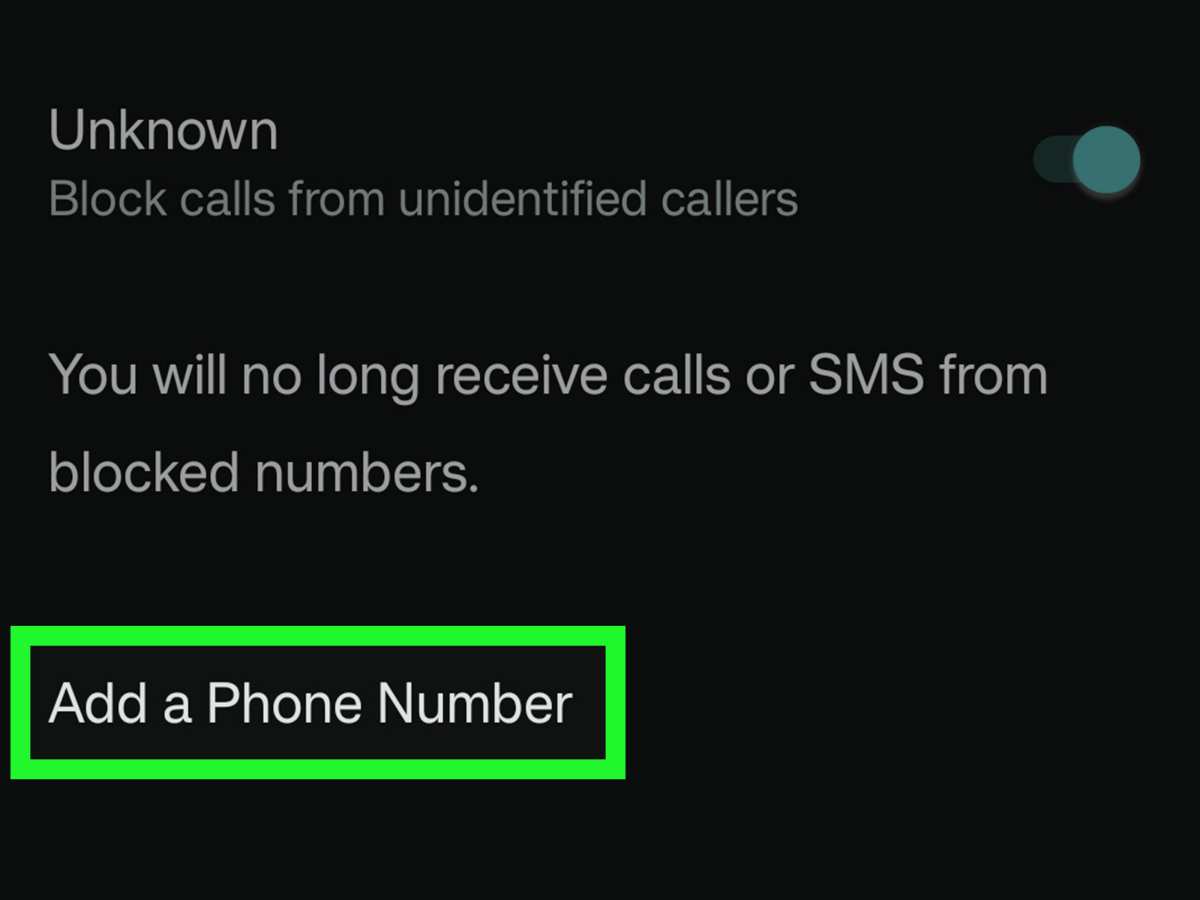
To send unknown calls directly to voicemail on Android, you can easily set up call blocking features. **Knowing how to make unknown calls go straight to voicemail android is simple with built-in settings or third-party apps.** First, access your phone’s call settings or download a call-blocking app. Adjust the settings to filter or block calls from unknown numbers, ensuring your phone stays quiet during important moments.

How to Make Unknown Calls Go Straight to Voicemail on Android
Many Android users find it frustrating to receive calls from unknown numbers, especially if these calls are unwanted or sometimes even spam. If you want to avoid disruptions, you can set your device to send calls from unfamiliar numbers directly to voicemail. This guide walks you through simple and effective ways to achieve that, ensuring your phone only rings for known contacts.
Why Do You Want Unknown Calls to Go Straight to Voicemail?
Before diving into solutions, it’s helpful to understand why this feature can be useful:
- Reduce Spam Calls: Many telemarketing or scam calls come from unknown numbers. Sending them straight to voicemail helps you avoid interruptions.
- Protect Your Privacy: Unknown callers might be suspicious. Filtering these calls prevents potential privacy breaches.
- Save Time: You don’t have to answer every unknown call or listen to hang-ups. The voicemail acts as a filter.
- Maintain Focus: When you’re busy, blocking unnecessary calls can help you stay focused on important tasks.
How to Block Unknown Calls on Android
One of the simplest ways to prevent unknown calls from ringing your phone is by blocking or silencing them using built-in Android features or third-party apps.
Using Android’s Built-In Call Blocking Features
Most modern Android phones come with a default call blocking feature. Here’s how to access and configure it:
- Open the Phone app on your Android device.
- Tap the three-dot menu icon (usually located at the top-right corner).
- Select Settings or Call Settings.
- Look for Blocked Numbers or Call Blocking.
- Choose Block Unknown Callers or Block Calls from Unknown Numbers.
Note: The exact names may vary depending on your Android version or manufacturer. If you don’t see these options, proceed to use third-party apps.
Using Do Not Disturb Mode
You can also configure your device’s Do Not Disturb (DND) mode to allow calls only from your contacts:
- Open Settings on your Android device.
- Go to Sound & Vibration or Notifications.
- Select Do Not Disturb.
- Set it to be active during your desired hours or always.
- Under Allow Exceptions, choose Contacts Only.
This method silences calls from unknown numbers, effectively sending them to voicemail without needing additional apps.
Using Third-Party Call Blocking Apps
If your device doesn’t offer built-in options, or you want more control, third-party apps can help.
Recommended Call Blocker Apps
- Truecaller: Known for identifying spam callers and allowing you to block specific numbers or unknown callers.
- Call Blocking & Call Blocker: Simple app to block calls from unknown or specific numbers.
- Hiya: Provides caller ID and spam detection features along with call blocking.
How to Set Up a Call Blocking App
- Download and install your preferred app from the Google Play Store.
- Open the app and follow the on-screen instructions to grant permissions.
- Configure the settings to block calls from unknown numbers or unidentified callers.
- Activate the blocking feature, and your calls from unknown numbers will be directed to voicemail or automatically rejected.
Configuring Specific Contact Settings for Voicemail
Another method involves customizing settings to make sure only known contacts ring through, while everything else goes to voicemail.
Adding Known Contacts to Your Favorites
By marking important contacts as favorites, you can set your device to only ring for those, ignoring all others:
- Open the Contacts app.
- Select the contact you want to prioritize.
- Tap the Add to Favorites or a star icon to mark them as important.
- Go to Settings > Sound & Vibration > Do Not Disturb.
- Under Allow Calls From, select Favorites Only.
This way, only your selected contacts can ring your phone, while everything else, including unknown callers, goes directly to voicemail.
Additional Tips for Managing Unknown Calls
To make your experience smoother, consider these extra tips:
- Regularly Update Your Phone’s Software: Manufacturers often release updates with improved call blocking features.
- Use a Call Screening Service: Some carriers provide services that screen and filter calls so you only receive important calls.
- Enable Spam Detection Features: Many Android devices now include spam alerts that warn you about potential scam calls.
Why It’s Important to Stay Cautious with Unknown Calls
While sending unknown calls straight to voicemail helps reduce interruptions, remember to stay cautious. Do not ignore potential scam calls that might be trying to deceive you. Always verify suspicious messages or calls before responding.
Summary of Key Steps
Here’s a quick recap of effective methods:
- Utilize built-in Android call blocking features to block unknown callers.
- Activate Do Not Disturb mode with contact-only exceptions.
- Download and configure third-party call blocking apps for advanced control.
- Set your contacts as favorites and allow only those to ring through using DND settings.
- Regularly update your device and enable spam detection features.
By applying these methods, you can easily make calls from unknown numbers go straight to voicemail, allowing you to enjoy uninterrupted time without missing important known contacts. Whether you prefer built-in settings or third-party apps, these solutions are straightforward and effective for managing your calls on Android.
Frequently Asked Questions
Can I automatically send all unknown calls to voicemail on my Android device?
Yes, you can configure your Android phone to send all calls from unknown or private numbers directly to voicemail. Most Android devices have built-in settings or call blocking features that allow you to do this. Access your phone’s call settings, look for spam or blocked numbers options, and enable the setting that directs unknown calls to voicemail.
How do I block calls from unknown numbers without affecting my contacts?
You can use the built-in call blocking feature or third-party apps to block calls from unknown numbers. In your phone settings, navigate to the call or spam filtering options, and choose to block or decline calls from numbers that aren’t saved in your contacts. This way, only calls from your contacts will ring through, and all unknown callers will go straight to voicemail.
Are there specific app solutions to send unknown calls directly to voicemail on Android?
Yes, several third-party apps are designed to block or filter unknown calls automatically. Apps like Truecaller, Call Blocker, and others let you customize your call screening preferences. You can set these apps to send calls from unknown or private numbers directly to voicemail, helping you avoid unwanted interruptions.
Can I create a custom list of callers to send directly to voicemail, including unknown numbers?
Yes, some Android phones and third-party call blocking apps allow you to create custom rules for handling calls. While blocking specific numbers is straightforward, handling unknown calls depends on app capabilities or the built-in spam filtering options. You can set rules that automatically send calls from unknown or private numbers to voicemail, based on the app’s features or your phone’s settings.
Will turning on call blocking features affect other important calls?
Enabling strict call blocking or filtering for unknown numbers might prevent some legitimate calls from coming through if the caller’s number is hidden or marked as private. To avoid missing essential calls, review your blocking settings regularly and consider creating exceptions for important contacts or known numbers if the option is available.
Final Thoughts
To make unknown calls go straight to voicemail android, you can activate the built-in call blocking features or install a third-party app. Adjust your phone’s settings under caller ID or blocking options to filter unknown numbers. Additionally, customizing your call screening app can help direct unwanted calls to voicemail immediately.
By configuring these settings, you ensure that unknown calls do not disturb you and go directly to voicemail. Remember, the key is to use your device’s native options or reliable third-party solutions. This straightforward approach makes managing unknown calls simple and effective for Android users.
