

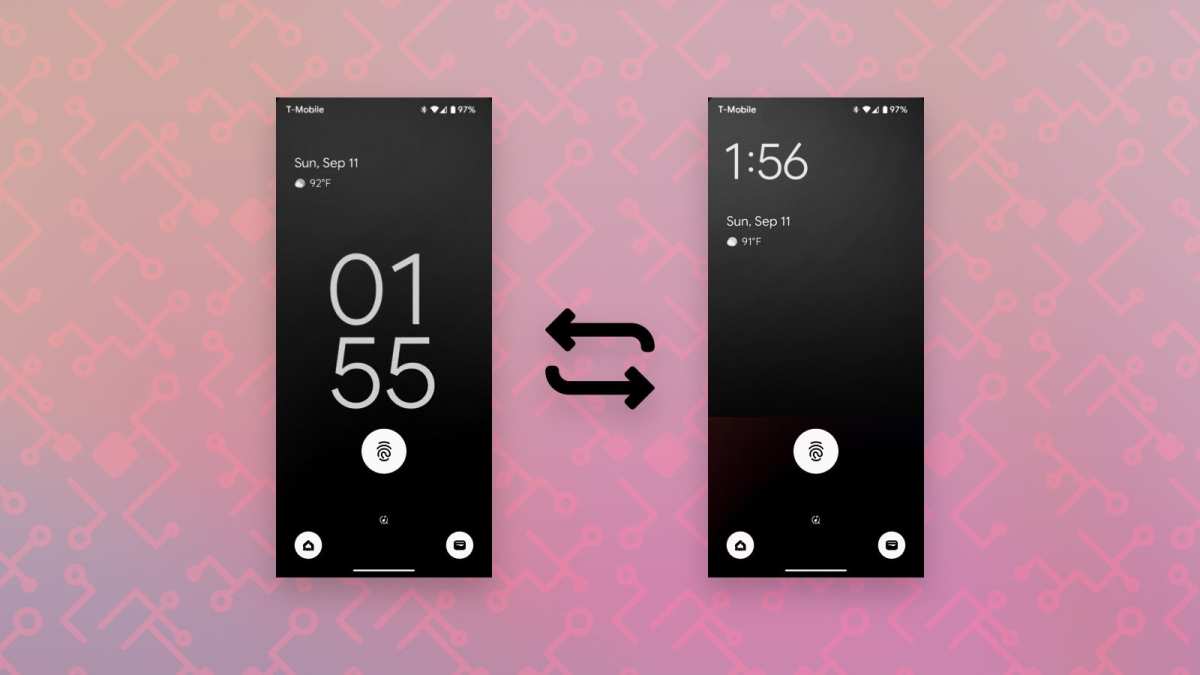
To make the time display larger on Android, simply adjust your clock widget or change font size in settings. **The quickest way is to increase the font size in Display settings or use a large clock widget on your home screen.** If you want a more prominent time display, explore customizing your home screen with specialized widgets or launcher apps. This allows you to see the time clearly without extra effort. Whether you prefer a simple font change or an eye-catching widget, it’s easy to make the time stand out on your Android device.

How to Make Time Display Larger on Android
Many Android users find themselves squinting at small clock displays on their phones. Whether you’re trying to quickly glance at the time or need larger text due to vision challenges, increasing the size of the time display can make your experience more comfortable. Luckily, Android offers several ways to enlarge the clock, from changing system settings to customizing widgets. In this guide, we will walk through the most effective methods to make your time display larger on Android devices, step-by-step, ensuring you find the method that best suits your needs.
Understanding Why the Default Time Display Is Small
Before diving into solutions, it helps to understand why Android devices come with small time displays by default. Manufacturers aim for a sleek, minimal look that fits neatly on screens of various sizes. Additionally, the default clock size is designed to balance appearance with functionality. However, this isn’t always ideal for everyone. If you have visual impairments or simply prefer a more prominent display, adjusting the size becomes necessary. Thankfully, the system is flexible enough to accommodate this with a few adjustments or the use of third-party apps.
Adjusting Font Size for Better Visibility
Using System Font Size Settings
The most straightforward way to enlarge the time display is by increasing the font size across your entire device. When you do this, all text, including the clock, becomes larger, improving readability. Here’s how to adjust it:
- Open the Settings app on your Android device.
- Scroll down and tap on Display.
- Select Font size or Font size and style (wording varies by device).
- Use the slider to increase the font size to your preference. Moving it right makes text larger.
- Review the changes immediately. If satisfied, simply exit; if not, adjust further.
This method affects all text on your phone, including menus, apps, and the clock. It’s a simple solution that improves visibility for most users. Keep in mind, extreme increases may disrupt the layout, so find a balance that works for you.
Making the Clock Stand Out with Custom Font Sizes
On some Android devices, especially those running newer versions, you can adjust the font size for specific elements like the clock through advanced settings or third-party apps. These options provide a more targeted approach without changing the font size for everything else.
Using Widgets to Display an Enlarged Clock
Adding a Big Clock Widget
Widgets are a great way to display a larger, more prominent clock on your home screen. Most Android devices come with built-in clock widgets that can be resized for better visibility. Follow these steps:
- Long press on an empty space on your home screen.
- Select Widgets from the menu that appears.
- Scroll through the widget options until you find a Clock or Big Clock widget.
- Tap and hold the widget, then drag it onto your home screen.
- Resize the widget by dragging its edges to make the clock as large as possible.
Some devices include dedicated clock widgets with larger font sizes by default. If not, you can explore third-party apps that offer customizable clock widgets with options for larger text and display styles.
Customizing Your Clock Widget for Better Visibility
Once you have added a widget, you can customize it to enhance visibility. For example:
- Choose a widget with a high-contrast color scheme.
- Select a font style that’s thick and easy to read.
- Adjust the size until the clock meets your comfort level.
Exploring Third-Party Apps for Enlarged Clocks
Best Apps for a Larger Digital Clock
If system settings and standard widgets don’t give you the size or style you want, third-party apps can be a perfect solution. Popular options include:
- Big Digital Clock: Offers large, customizable digital clocks that you can place anywhere on your screen.
- Digital Clock Widget: Provides highly customizable widgets with font size and color options.
- Large Clock: Designed specifically for users who want a simple, huge clock display.
Installing and Using Third-Party Clock Apps
- Open the Google Play Store on your Android device.
- Search for the app name, e.g., “Large Clock.”
- Download and install the app of your choice.
- Once installed, launch the app and follow the setup instructions.
- Add the clock widget to your home screen if applicable.
- Adjust font size, colors, and display style within the app settings to your liking.
Changing Screen Size and Display Scaling
Using Display Size Settings
Another approach is to increase the overall size of items on your screen, including the clock, through display scaling options:
- Open Settings.
- Tap on Display.
- Look for Display size or Screen zoom.
- Move the slider to make on-screen elements larger or smaller.
- Test the changes, focusing on the clock position.
This adjustment makes all elements on your Android device larger, which can help the clock stand out more. Be cautious, as extreme scaling might make some UI elements appear blurry or out of place.
Enabling Accessibility Features for Bold and Larger Text
Using Accessibility Settings
Android offers accessibility features designed to improve visual clarity for users who need larger or bolder text. Here’s how to turn them on:
- Navigate to Settings.
- Tap on Accessibility.
- Select Font size or Display size.
- Increase the font size or enable bold text if available.
- Some devices also have a High Contrast Text option for better visibility.
These settings do not directly enlarge the clock but improve overall readability, making it easier to see the time at a glance.
Best Practices for Keeping Your Clock Visible and Large
To ensure your enlarged clock remains visible and user-friendly, consider the following tips:
- Position your widget or clock display where you can see it at a glance, such as the top of your home screen.
- Use high-contrast color schemes like white text on a dark background for better readability.
- Pick a font style that is thick and simple rather than decorative, which can reduce clarity when enlarged.
- Regularly review your display settings to find a comfortable size without cluttering your screen.
Additionally, combining multiple methods, like adjusting font size and using large clock widgets, often produces the best results for visibility and ease of use.
Through these various adjustments—system font changes, widget placement, third-party app usage, and display scaling—you can customize your Android device to show the time in a size that suits your needs. Take your time to explore these options, and you’ll find the perfect setup for making your time display larger and easier to read each day.
Frequently Asked Questions
Can I change the font size for the clock on my Android home screen?
Yes, you can adjust the font size for the clock on your Android home screen by accessing your device’s display or accessibility settings. Some devices allow you to customize widget fonts directly; otherwise, increasing system font size will also enlarge the clock display on most home screens.
Are there third-party apps to make the time display larger on Android?
Absolutely. Many third-party widgets and customization apps are available on the Google Play Store that enable you to resize the clock display. These apps often offer additional options for styling and positioning the time widget to better suit your preferences.
How can I increase the size of the clock in the notification bar or status bar?
Increasing the size of the clock in the notification or status bar typically requires using specific launchers or customization tools. Some custom launchers let you modify the appearance of the status bar, including font size and style, allowing you to make the time more visible without altering other system elements.
What steps can I take to make the digital clock more readable on my Android device?
To improve readability, consider increasing the font size in your device settings or using a clock widget with adjustable sizing options. Also, choosing a high-contrast color scheme or enabling bold fonts can help make the time display clearer and easier to see at a glance.
Can I use accessibility features to enlarge the time display on Android?
Yes, Android’s accessibility settings include options like font size and display size that can enlarge text and UI elements, including the clock. Enabling these features helps enhance visibility across your device, making the time easier to read in various contexts.
Final Thoughts
To make time display larger on Android, adjust the font size in settings. Open your device’s Settings app and navigate to Display. Select Font Size or Font and increase the slider for a bigger display.
Some Android versions also allow customizing clock styles directly on the home screen or lock screen. Use widget options or wallpapers that emphasize the time for better visibility.
In conclusion, making time display larger on Android is simple. Adjusting font size and customizing clock styles helps improve readability. Implement these steps to ensure the time is easily visible at a glance.
