

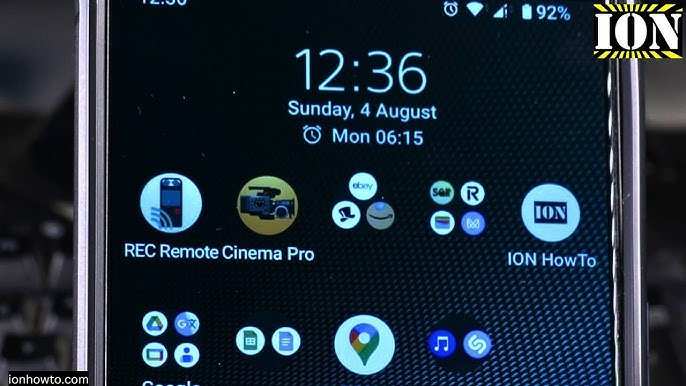
To make time bigger on Android, you simply need to adjust the display settings. **You can change the font size or enable a magnification feature to see time more clearly.** This quick fix improves visibility instantly. If you want a more permanent solution, increasing the font size or enabling accessibility options proves effective. Whether for better readability or personal preference, tweaking these settings helps you see the time comfortably. Follow these simple steps to enhance your Android experience and view time more prominently.

How to Make Time Bigger on Android
Having a clear, easily readable display of the time on your Android device is important for staying on schedule and quickly glancing at the time without straining your eyes. Sometimes, the default time display can be too small, especially on older devices with smaller screens or if you prefer a more prominent clock. Fortunately, there are several ways to make the time bigger and more visible on your Android device. In this section, we’ll explore various methods to help you adjust the time display to your liking.
Adjusting System Font Size for Better Visibility
One of the simplest ways to increase the size of the time on your Android device is by adjusting the font size system-wide. This change affects not just the clock but also all text displayed on your phone, making everything more readable.
Steps to Increase Font Size
- Open the Settings app on your Android device.
- Scroll down and tap on Display.
- Locate and select Font size or Font size and style (depending on your device model).
- Use the slider to increase the font size. Moving it towards the right will make the text, including the time, larger.
- Once satisfied, tap on Apply or simply exit the settings. Your changes take effect immediately.
**Note:** Larger fonts improve readability but might affect how much content fits on the screen. Experiment with different sizes until you find a balance that suits you.
Additional Tips for Better Readability
- Consider enabling Bold Text in the same menu for even clearer visibility.
- Adjust display brightness or enable dark mode if viewing in low-light conditions to reduce strain.
Using Custom Widgets to Highlight the Time
Widgets are a great way to display the current time prominently on your home screen. You can customize these widgets to show larger fonts or even different styles that make the time more noticeable.
How to Add and Customize Clock Widgets
- Tap and hold on an empty space on your home screen.
- Select Widgets from the menu that appears.
- Scroll through the widget options until you find a clock widget you like—such as Digital Clock or Large Clock.
- Drag the widget onto your home screen.
- Once placed, tap on the widget if it offers customization options. Here, you can often change the font size, color, or style to make the time more prominent.
**Tip:** Some Android launchers or third-party clock apps offer more customization options, including larger or more stylish fonts, making your time display more eye-catching.
Installing Third-Party Apps for Bigger Time Displays
If system settings and widgets do not suffice, third-party apps offer more flexibility for customizing the appearance and size of the time on your Android device.
Popular Apps to Make Time Bigger
- Big Digital Clock & Alarm: Provides a large, easy-to-read digital clock that displays prominently on your screen.
- Big Clock: Offers customizable big clocks, including different formats and themes.
- Chronus Clock and Weather: Combines clock, weather, and news in a neat widget with adjustable sizes.
How to Use Third-Party Clock Apps
- Download and install your preferred app from the Google Play Store.
- Open the app and grant any necessary permissions.
- Configure the size, style, and display options to your liking.
- Add the app’s widget to your home screen or set it as your lock screen widget, depending on the app’s features.
**Tip:** Read reviews and check app permissions before downloading. Many apps are free and offer premium features for further customization.
Changing the Lock Screen Time Display
Your lock screen often displays the current time in a small font. Increasing the size of this display can make it easier to glance at your device without unlocking it.
Methods to Make Lock Screen Time Bigger
Using Built-In Settings
Depending on your device manufacturer and Android version, you might be able to change the lock screen clock style:
- Open Settings and go to Lock Screen.
- Select Clock Style or similar option.
- Choose a larger or more prominent clock style if available.
**Note:** Not all devices support extensive lock screen customization, so if your options are limited, third-party apps can help.
Third-Party Lock Screen Apps
Apps like Always On AMOLED or Lock Screen Widget can replace your default lock screen with customizable options that include larger fonts and styles.
- Download and install a lock screen customization app from the Play Store.
- Follow the app’s setup instructions to grant necessary permissions.
- Customize the clock display to your preference, selecting larger fonts or styles.
Changing the Date and Time Formats
Sometimes, making the time appear bigger involves changing how it is displayed. You can select different formats that are more legible.
Steps to Change Format and Style
- Open Settings and tap on Date & Time.
- Adjust the format by toggling between 12-hour or 24-hour clock formats.
- If available, select Time Style or Additional Clock Settings to choose larger, more prominent styles.
**Tip:** Some devices allow selecting themes that include larger clock styles, which can be beneficial for visibility.
Summary of Best Practices to Make Time Bigger on Android
- Increase system font size for overall better readability.
- Use widgets with customizable font styles and sizes on your home screen.
- Install third-party apps designed specifically for large clocks.
- Modify lock screen clock style using device settings or third-party lock screen apps.
- Adjust date and time formats for easier reading.
By combining these techniques, you can create a more prominent and visible time display on your Android device. Whether you prefer a simple font size increase, a prominent widget, or a customized lock screen clock, there’s a method suited for your needs.
Remember, the goal is to make the time easy to see at a glance without straining your eyes or unlocking your phone. Experiment with different options and settings until you find what works best for your daily use.
