

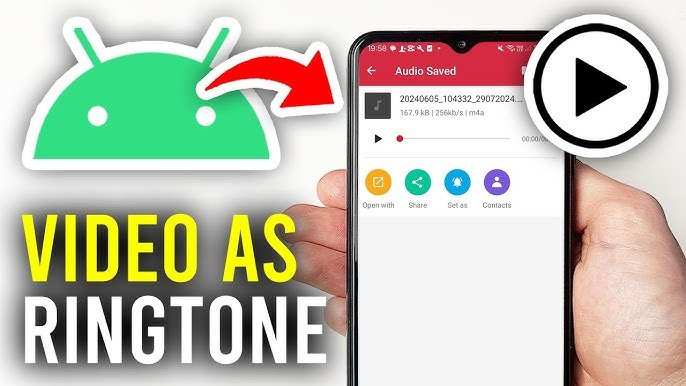
To make a YouTube video ringtone on Android, you simply need an app that converts videos into audio files and sets them as ringtones. **First, download a video-to-audio converter app and trim your chosen YouTube video.** Then, save the clip as a ringtone within your phone settings. Learning how to make YouTube video ringtone Android is straightforward, and with a few quick steps, you’ll have your favorite video as your ringtone. No need to fuss over complicated tools—just follow these simple instructions and enjoy a personalized ringtone.

How to Make YouTube Video Ringtone for Android Devices
Creating a custom ringtone from a YouTube video can be a fun way to personalize your Android phone. Whether it’s your favorite song, funny clip, or motivational speech, turning a YouTube video into a ringtone is easier than you might think. In this guide, we’ll walk through each step carefully, providing clear instructions and tips along the way. By the end, you will know exactly how to make a YouTube video ringtone for your Android device, allowing you to enjoy a unique sound whenever someone calls.
Understanding the Process of Creating a YouTube Video Ringtone
Before diving into the step-by-step instructions, let’s understand what it takes to turn a YouTube video into a ringtone. The process mainly involves three parts:
- Downloading the YouTube video or extracting the audio
- Editing the audio to create a ringtone clip
- Setting the ringtone on your Android device
Each step has its own tools and best practices, but don’t worry — we’ll cover everything in detail so it feels simple and straightforward.
Downloading YouTube Video or Extracting Audio
To get started, you need to access the audio from the YouTube video. There are two ways to do this: downloading the video and converting it into an audio file or directly extracting the audio.
Using a YouTube to MP3 Converter
Many online tools and apps allow you to convert YouTube videos into MP3 files. These tools are user-friendly and quick. Here’s how:
- Open your preferred YouTube to MP3 converter website or app. Examples include ytmp3.cc, 2conv.com, or Snappea.
- Copy the URL of the YouTube video you want to use.
- Paste the URL into the converter’s input box.
- Select MP3 as the output format, if necessary.
- Click convert or start. Wait for the process to finish.
- Download the MP3 file onto your device.
**Tip:** Always use trusted sites to avoid malware or viruses. Also, respect copyright laws and only convert videos you have rights to use.
Downloading the Video (Optional)
If you prefer to use the video instead of just audio, download it using a YouTube downloader app or website:
- Choose a reputable YouTube downloader (like TubeMate or Y2Mate).
- Paste the video URL and select the desired quality.
- Download the video to your device.
You may later extract specific parts from this video for your ringtone.
Editing the Audio to Create a Ringtone
Once you have the MP3 file, the next step involves cutting the part of the audio you want to set as your ringtone. Most phones allow only a specific duration, generally around 30 seconds, so keep that in mind.
Choosing an Audio Editing App
There are many free and easy-to-use apps for editing audio:
- Ringtone Maker
- MP3 Cutter
- Audacity (requires computer)
For Android, Ringtone Maker is popular because it’s simple and effective.
How to Cut the MP3 File
Follow these steps using your chosen app:
- Open the app and import your MP3 file.
- Listen to the clip, and select the segment you want as your ringtone. Keep it within 30 seconds for best results.
- Use the app’s trimming tool to cut the selected segment.
- Save the new clip with a recognizable name.
**Tip:** To make a seamless ringtone, choose a natural start and end point, such as a chorus or a catchy phrase.
Converting Edited Audio into a Compatible Ringtone Format
Most Android phones support MP3 files as ringtones, but some might prefer other formats like OGG. Check your device’s requirements in the settings.
If needed, convert your MP3 to a compatible format using a free audio converter app or online service.
Setting Your Custom Ringtone on Android
Now that you have your perfect clip, it’s time to set it as your ringtone.
Via Phone Settings
Follow these simple steps:
- Go to your phone’s Settings app.
- Tap on Sound & Vibration or Sound & Notification.
- Select Ringtone or Phone Ringtone.
- Choose the option to add or browse files.
- Locate your saved ringtone file and select it.
- Confirm your choice. Your new ringtone is now active!
**Tip:** If you don’t see your ringtone in the list, move it to your phone’s Ringtones folder using a file manager app.
Using a Ringtone App
Some apps like Zedge allow you to set custom ringtones directly within the app. Here’s how:
- Download and install Zedge from Google Play Store.
- Open the app and browse or upload your custom ringtone.
- Tap on the ringtone and select “Set as ringtone.”
This way, you can quickly manage multiple custom ringtones without navigating through your phone’s default settings.
Tips for Creating the Best YouTube Video Ringtones
To ensure your ringtone sounds great and is easy to recognize, consider these tips:
- Choose a vibrant, clear clip that’s not too noisy.
- Keep the clip short and catchy, ideally 15-30 seconds.
- Test the tone on your phone before finalizing.
- Label your ringtone file clearly so you can find it easily later.
Furthermore, always check the audio quality after editing. A crisp, well-edited ringtone enhances your phone experience.
Legal and Ethical Considerations
While making personalized ringtones from YouTube videos is fun, it’s crucial to respect copyright laws. Use only videos you own or have permission to use. Creating ringtones for personal use is generally okay, but sharing or distributing those ringtones without permission can infringe on copyright.
Summary
Getting a YouTube video as your ringtone on Android involves simple steps: download and extract the audio, trim it to fit as a ringtone, and set it on your device. By following these instructions carefully, you’ll turn your favorite YouTube moments into personalized sounds that make your phone truly yours. Remember to choose high-quality clips, keep the duration short, and respect copyright rules. Now, go ahead and craft your perfect YouTube video ringtone for your Android device!
Frequently Asked Questions
How can I extract audio from a YouTube video to create a ringtone on Android?
You can use a reliable online converter or a dedicated app to extract audio from a YouTube video. First, copy the video’s URL and paste it into the converter. Once the audio is extracted, download the file in MP3 format. Then, transfer the audio file to your Android device and set it as your ringtone through your device’s sound settings.
What tools are recommended for editing a YouTube video into a ringtone format on Android?
Use apps like Audio Editor, MP3 Cutter, or Ringtone Maker available on the Google Play Store. These apps allow you to trim the specific part of the audio you want to use as your ringtone. Import the extracted audio file into the app, select the preferred segment, and save it in your device. From there, set the edited clip as your ringtone.
How do I set a custom YouTube video clip as my Android ringtone?
After creating or editing the audio clip from a YouTube video, open your device’s sound settings. Choose the “Ringtone” option, then select the custom audio file you’ve prepared. If the file doesn’t appear automatically, you may need to locate it through your file manager and assign it manually as your ringtone.
Final Thoughts
To make a YouTube video ringtone on Android, start by downloading a reliable converter app to extract audio from the video. Trim the audio to your desired length using a simple editing tool. Next, move the file to your device’s ringtone folder and set it as your ringtone through your phone’s sound settings.
In summary, how to make youtube video ringtone android is straightforward when you follow these steps. Select the right conversion app, edit the audio efficiently, and set it as your ringtone. This process lets you personalize your ringtone with your favorite YouTube videos easily.
